A shared-tablet safeguard
Use the PIN for decisions that deserve a second pause.
The PIN protects restoring a backup, undoing an import, changing storage structure, retiring a dewar, deleting people or cell lines, and changing or removing the PIN itself. Routine storing, moving, finding, and removing remain available at the bench.
The Admin PIN is included in CryoIndex. It is optional, and enabling it protects the listed high-impact actions without changing routine bench access.
Before setting it
Decide who governs the shared code.
- Open Settings → Admin PIN and review the exact actions listed there.
- Agree who may approve protected changes and where the lab will keep the recovery code.
- Choose a PIN containing four to twelve digits. Do not reuse a personal tablet passcode or a code that leaves with one student or staff member.
- Enter it away from people who do not need it, then complete the confirmation step.
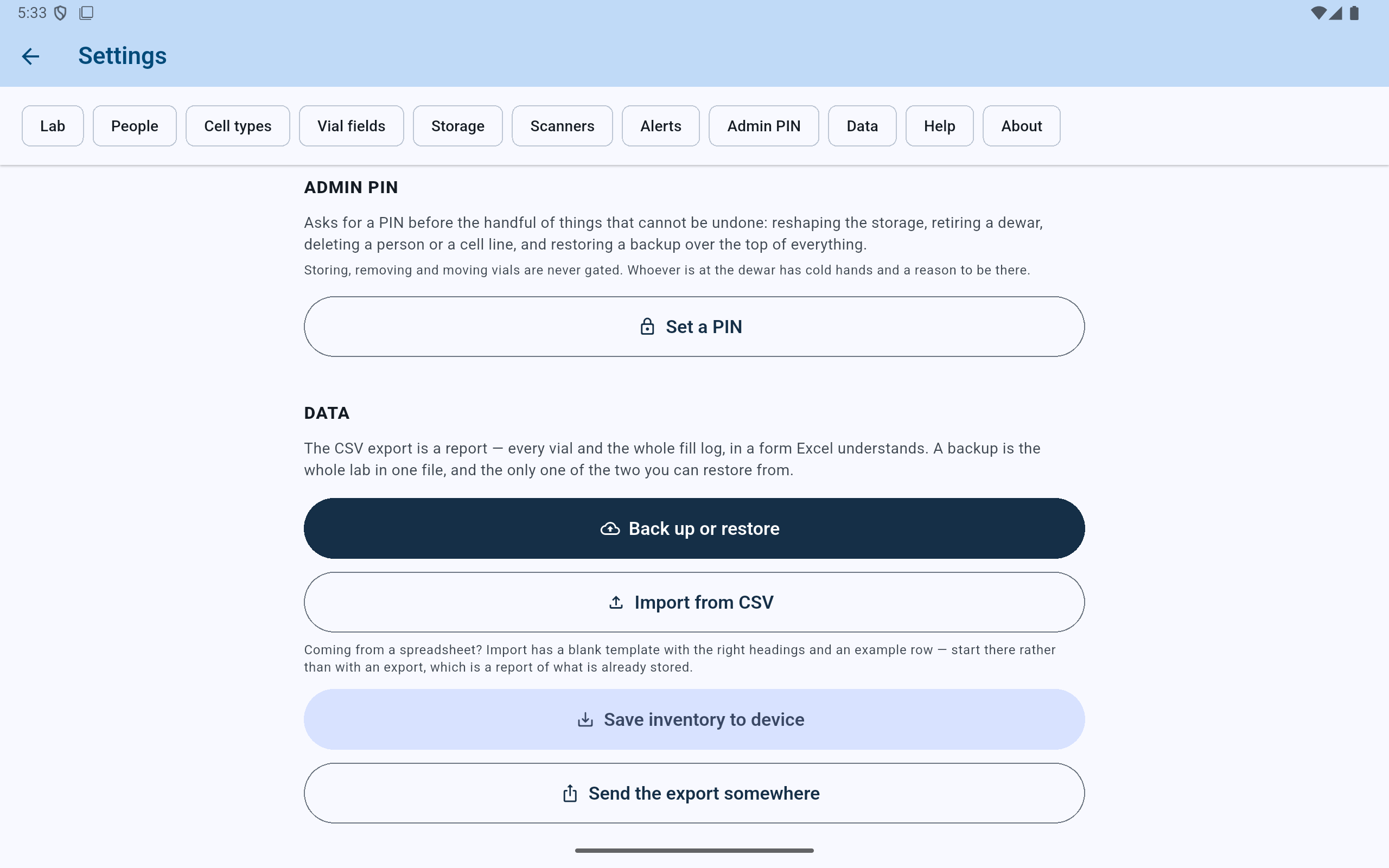
Read this list before enabling the PIN; it is deliberately narrower than a user-login system.
- Review which uncommon, high-impact actions require approval.
- Ordinary vial work remains available without the PIN.
- Choose the enable action only after assigning responsibility for recovery.
The one-time recovery code
Record it before leaving the screen.
CryoIndex displays the recovery code once when the PIN is enabled. Write it into the lab's approved secure record, separate from the shared tablet. Do not save the only copy in a note or image on that tablet.
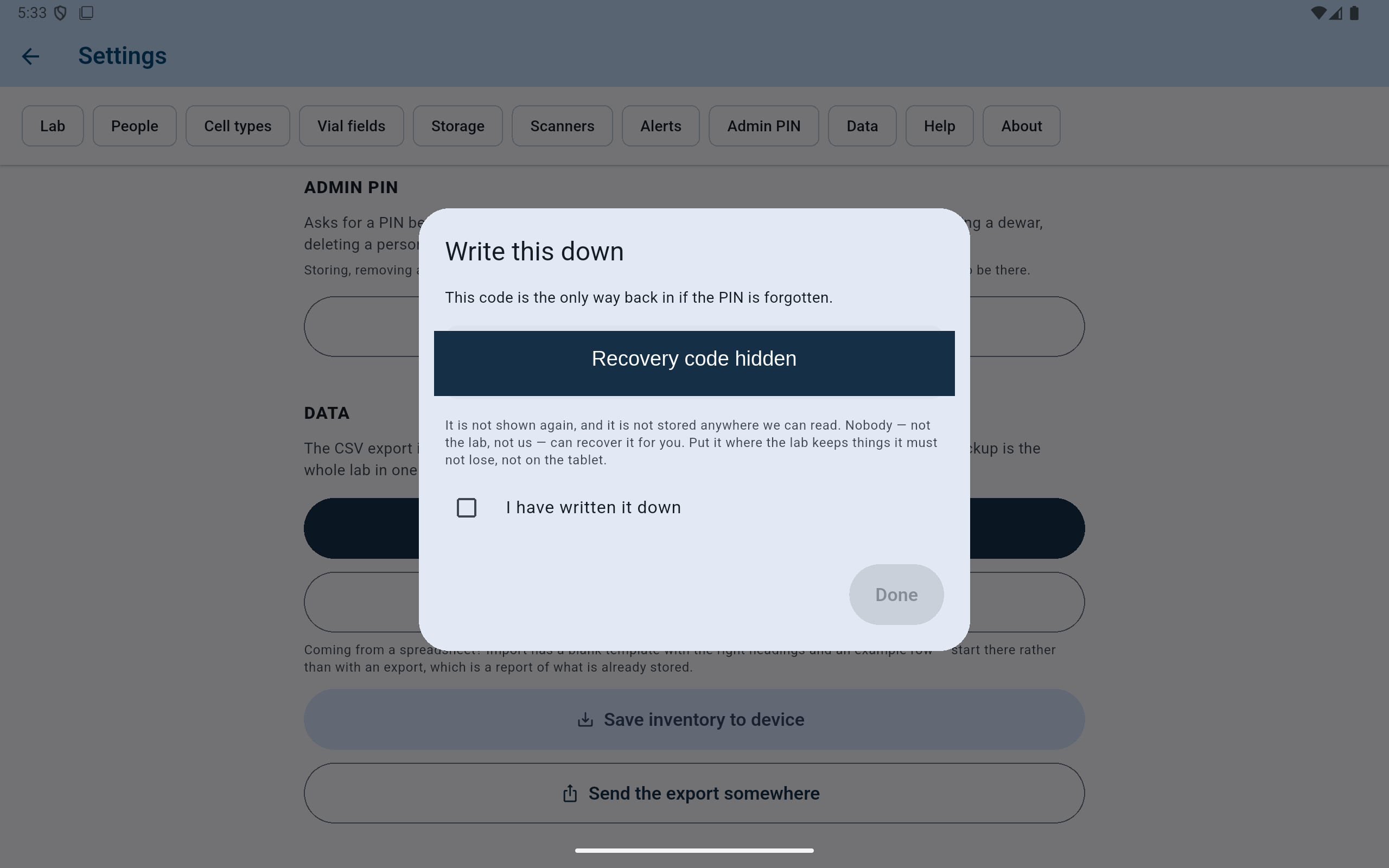
The demonstration code is hidden. A real lab must record its own displayed code before confirming that it has been saved.
- The recovery code appears only during setup; record it now.
- Confirm only after an approved, separate copy exists.
The recovery code is single-use and is not a backup. Entering it removes the PIN completely and consumes that code. Everything remains ungated until a new PIN is set, and the new PIN produces a new recovery code. It cannot reconstruct a lost inventory database.
When protection appears
Read the named action before entering the code.
The prompt identifies what will be authorised. Stop if the action is not what was intended. If the PIN is unavailable, use Use recovery code instead only as a deliberate reset: a valid recovery code removes the PIN and must be replaced by setting a new one.
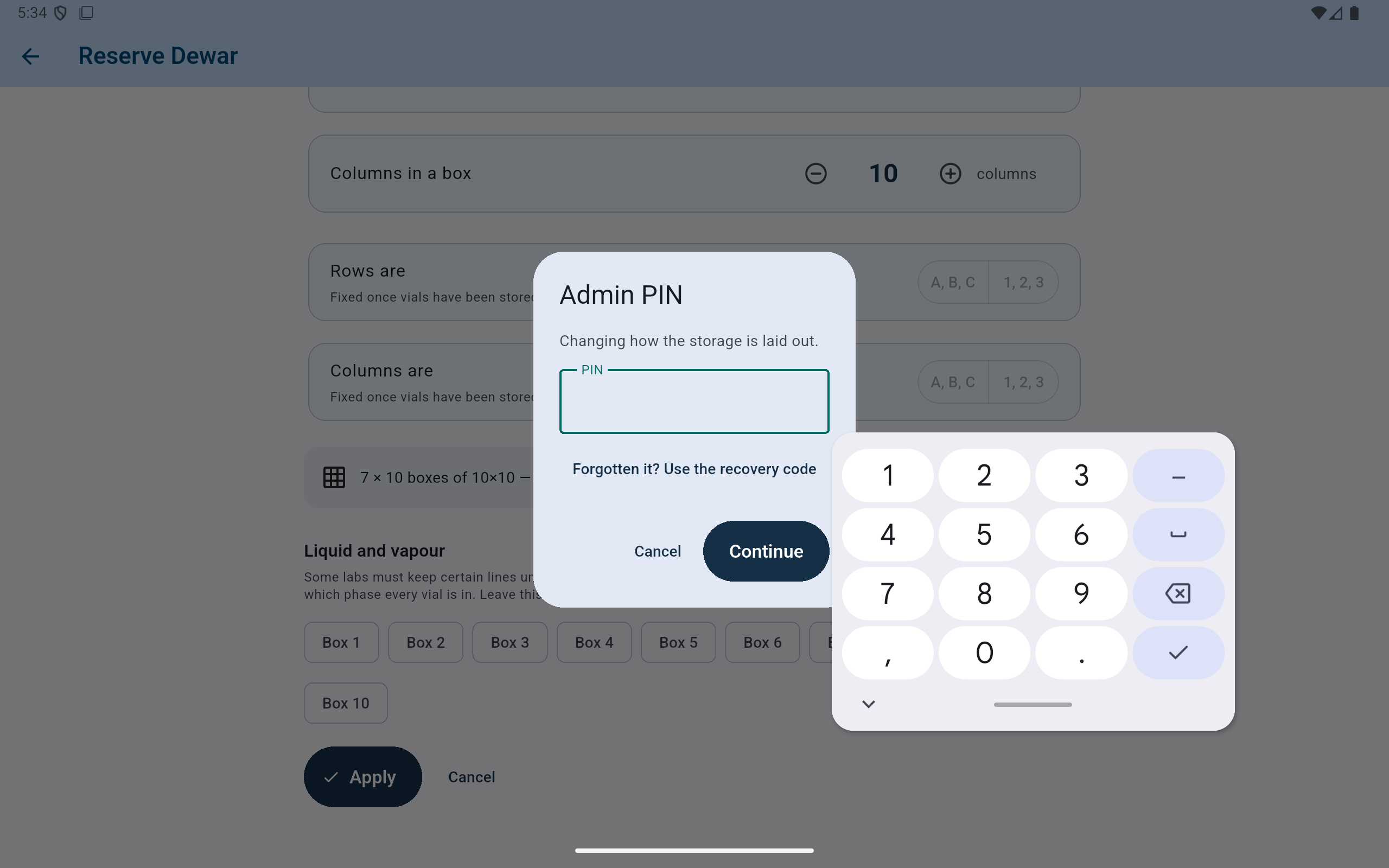
The confirmation names the protected operation so approval is tied to a specific decision.
- Verify the action named in the prompt.
- Enter the lab PIN only when that action should proceed.
- Use the recovery path only with the separately stored code.
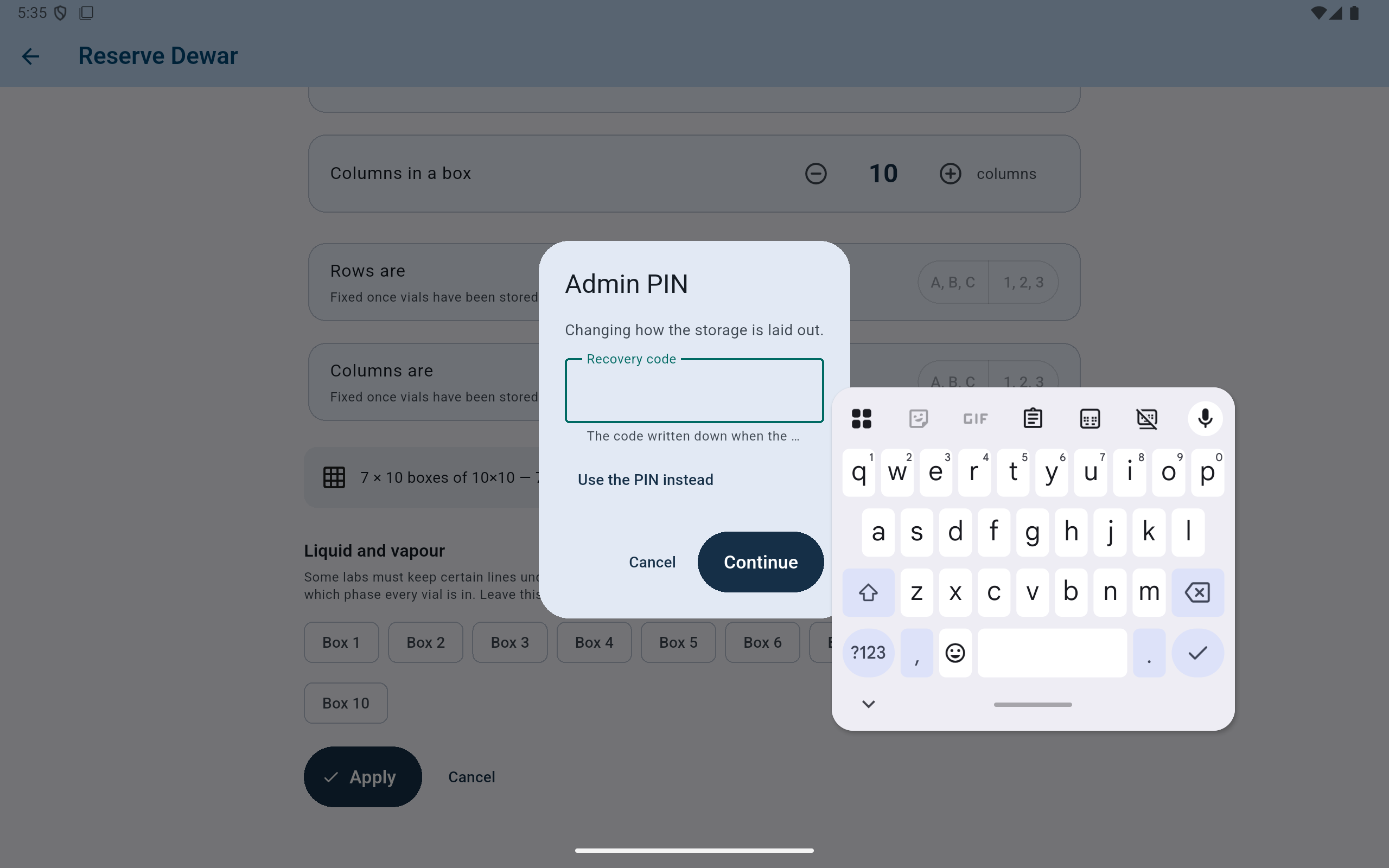
Use this path only when the PIN is genuinely unavailable. A valid recovery code removes the PIN and is consumed.
- Enter the recovery code exactly as it was recorded.
- After recovery removes the PIN, set a new one and securely record its newly issued recovery code.