Watch the walkthrough
Create and check a backup
Captions are available in the player and start turned off so they do not cover the app. The written transcript is below the video.
Read the video transcript
Backing up is in Settings, under Data. It writes one file holding the whole lab.
Three spreadsheets are saved beside it: the inventory, the nitrogen log, and one written to be imported again.
Android's picker supplies the name and the destination.
It then asks whether the file is really there.
And whether the copy is somewhere the tablet is not.
A picker can accept a save and write nothing, so the app does not simply believe it. Then the three spreadsheets, one dialog each.
The backup is saved, and the app says plainly that it could not confirm the copy is kept anywhere else. A copy in the tablet's own storage protects the lab against a mistake, not against losing the tablet. The spreadsheets saved beside it stay readable on a day when the backup file will not open.
Narration uses an AI-generated voice.
A CSV is not a restore file
Use Backup when the lab needs to recover the app.
An inventory CSV is a readable report and transfer aid. It does not carry the full event history, users, settings, colors, fill records, or every relationship needed to put CryoIndex back exactly as it was.
Start the copy
Open Backup and read the current protection status.
- Open Settings, then Data, and choose Back up or restore. A dashboard backup reminder leads to the same screen.
- Read the top status card. Never backed up or No backup has left this tablet means there is no confirmed disaster-recovery copy elsewhere.
- Select Save a copy to use Android's file picker, or Send it somewhere instead to hand the file to an installed app.
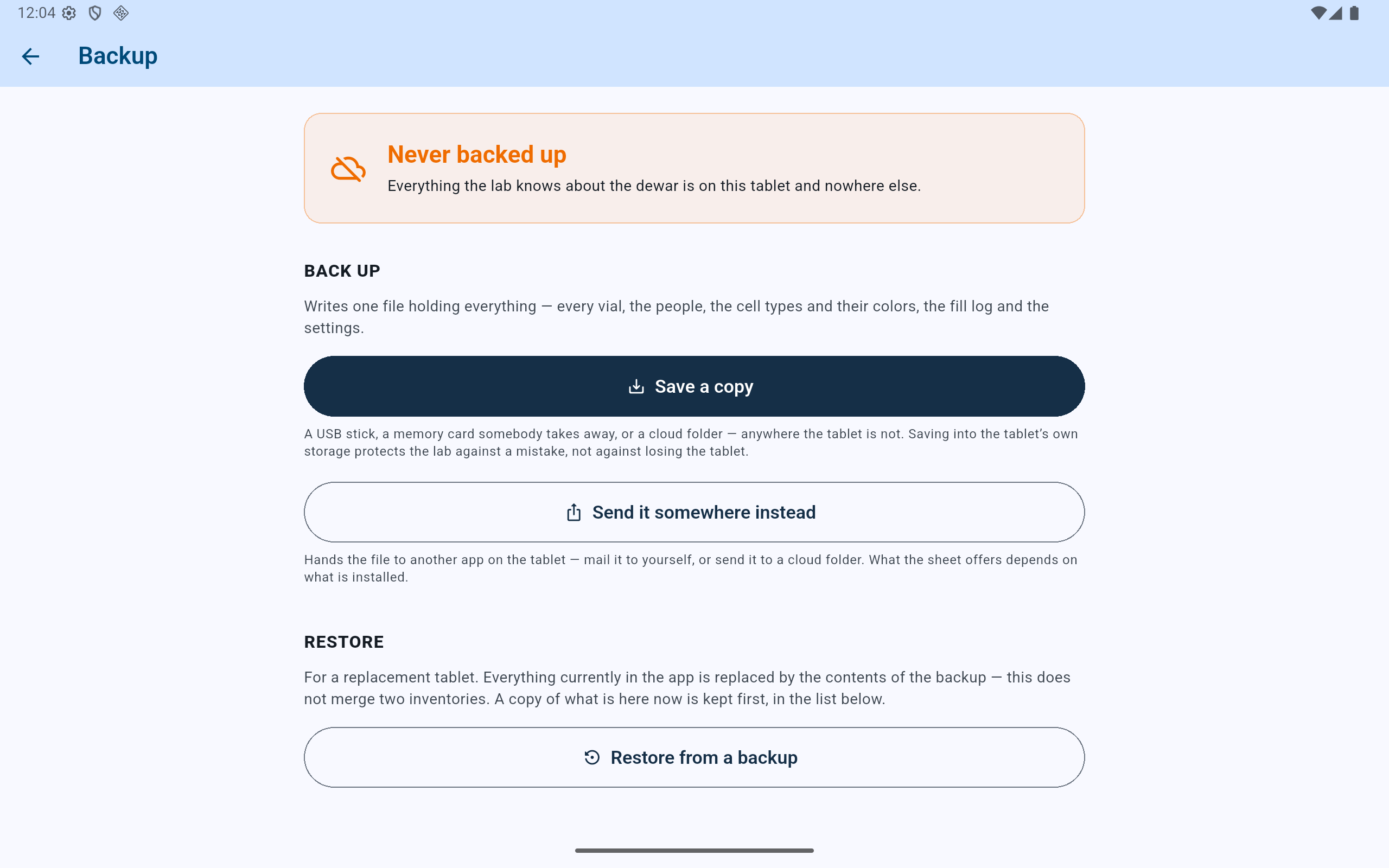
The status card distinguishes a file that left the tablet from a second copy saved on the same device.
- Read the current disaster-recovery status before acting.
- Use Save a copy for a USB drive, removable storage, or available cloud-folder provider.
- Use Send it somewhere instead for another installed app.
- Restore is a separate replacement operation, not a way to verify this button.
Choose where it lives
Save it somewhere the shared tablet is not.
A lab-controlled cloud folder, a removable drive stored away from the tablet, or another approved managed location.
Downloads, internal storage, or a card that permanently remains inside the same tablet. These may help after a mistake but not after loss or hardware failure.
- In Android's picker, navigate to the approved destination. What appears depends on installed storage-provider apps and their sign-in state.
- Keep the
.cix-backupextension. You may add a useful lab identifier before it when local policy calls for one. - Complete the Android save or share action. Closing the picker or dismissing the share sheet does not count as a backup.
Do not stop at a green check
Read the complete success message.
CryoIndex validates the snapshot before it reports that it was written. It also interprets the destination information Android provides. A file can be valid and still be on the same tablet, which is why the reminder may remain.
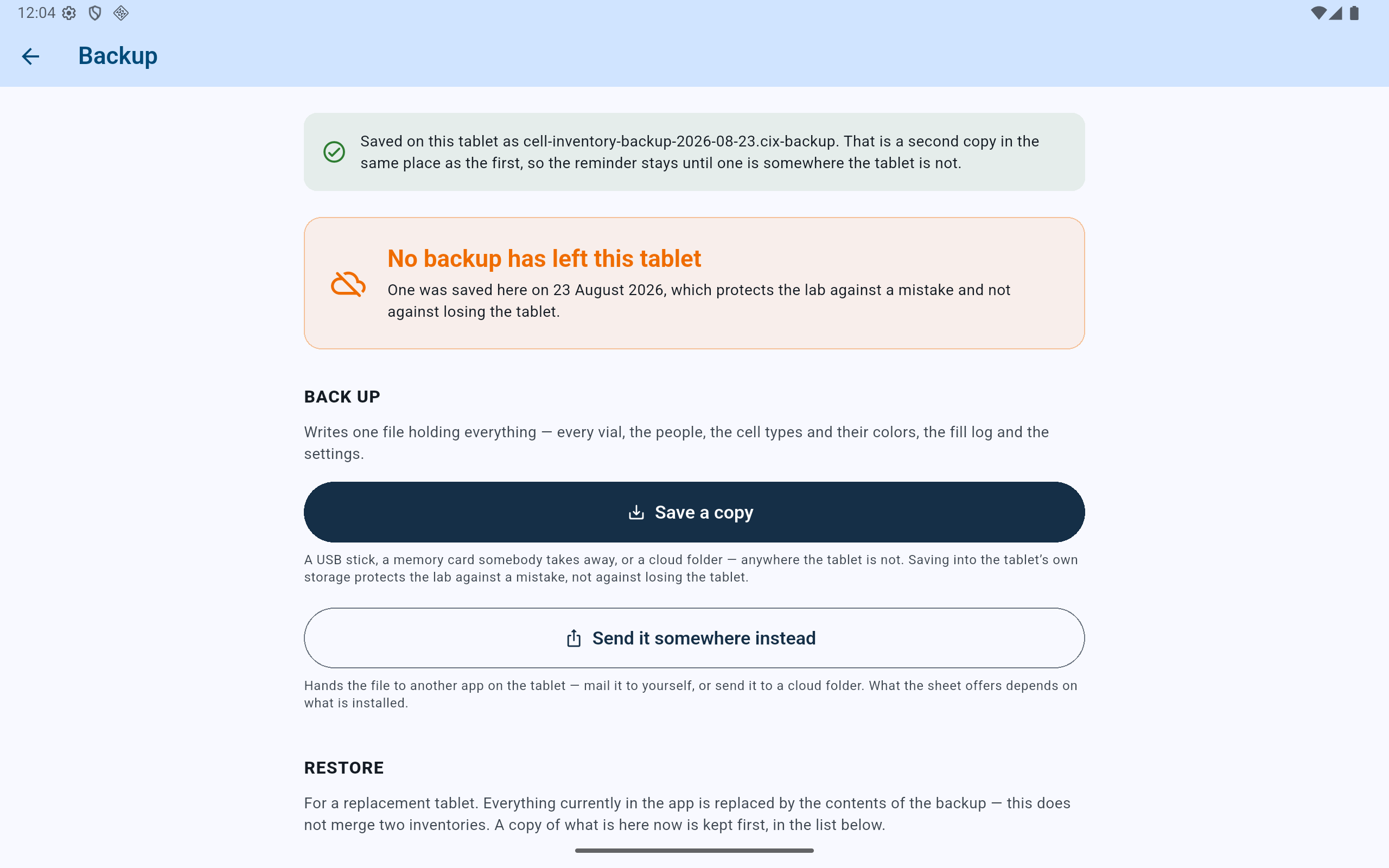
This is a successful file write, but not a successful off-tablet backup. The two messages are intentionally different.
- The green banner confirms where the file was saved and gives its filename.
- The orange status remains because both copies can be lost with the same tablet.
- Save another copy to an external destination before treating the reminder as resolved.
Confirm outside CryoIndex
Make sure the destination actually holds the file.
- Open the selected drive, cloud folder, or receiving app and confirm the expected
.cix-backupfile exists. - Confirm the file has a nonzero size and the expected date. Do not assume that seeing the Android picker was the same as completing it.
- Keep more than one generation when the lab's policy allows it. A current corrupt external medium should not replace the only older known copy.
- Periodically test the recovery procedure on a non-production tablet if one is available. Do not replace the active inventory merely as a routine check.
The on-device safety net
Automatic copies protect against mistakes, not a missing tablet.
CryoIndex keeps a rotating set of automatic copies on the tablet when the app is opened or put away after changes. It also takes a labelled safety copy immediately before a restore. These can undo a bad import or an unwanted change, but they disappear with the device.