Watch the walkthrough
Import into an established lab
Captions are available in the player and start turned off so they do not cover the app. The written transcript is below the video.
Read the video transcript
The importer for an established lab is in Settings, under Data. This is not the first-run setup guide.
Keep the headings your file already has — the app asks which column is which.
Name the person approving the import, then choose the file.
Three rows will be imported and one will be skipped. Nothing is written yet.
A column the app does not recognise is named, and so is the row it will not take: February 2026 has no thirtieth day. Both have to be acknowledged before the import can run.
Three vials imported, one skipped. The skipped row can be saved as a spreadsheet to fix on a computer.
One vial named a parent that could not be matched to exactly one record, so its origin was left unrecorded rather than guessed. The whole import can be undone while the records are untouched.
Narration uses an AI-generated voice.
Two different jobs
Use a backup to recover CryoIndex; use CSV import to add reviewed rows.
An inventory CSV is not a round-trip restore file. Do not use a CryoIndex inventory export as import input, and do not use CSV import to replace a lost or replacement tablet. Use a complete .cix-backup for that.
Open the importer
Choose the approving person, then select a working copy of the CSV.
- Make a copy of the source spreadsheet and export that copy as CSV UTF-8.
- Open Settings → Data → Import from CSV.
- Choose the person approving this import, then select the CSV file.
- Keep the original spreadsheet unchanged until the new CryoIndex records have been spot-checked.
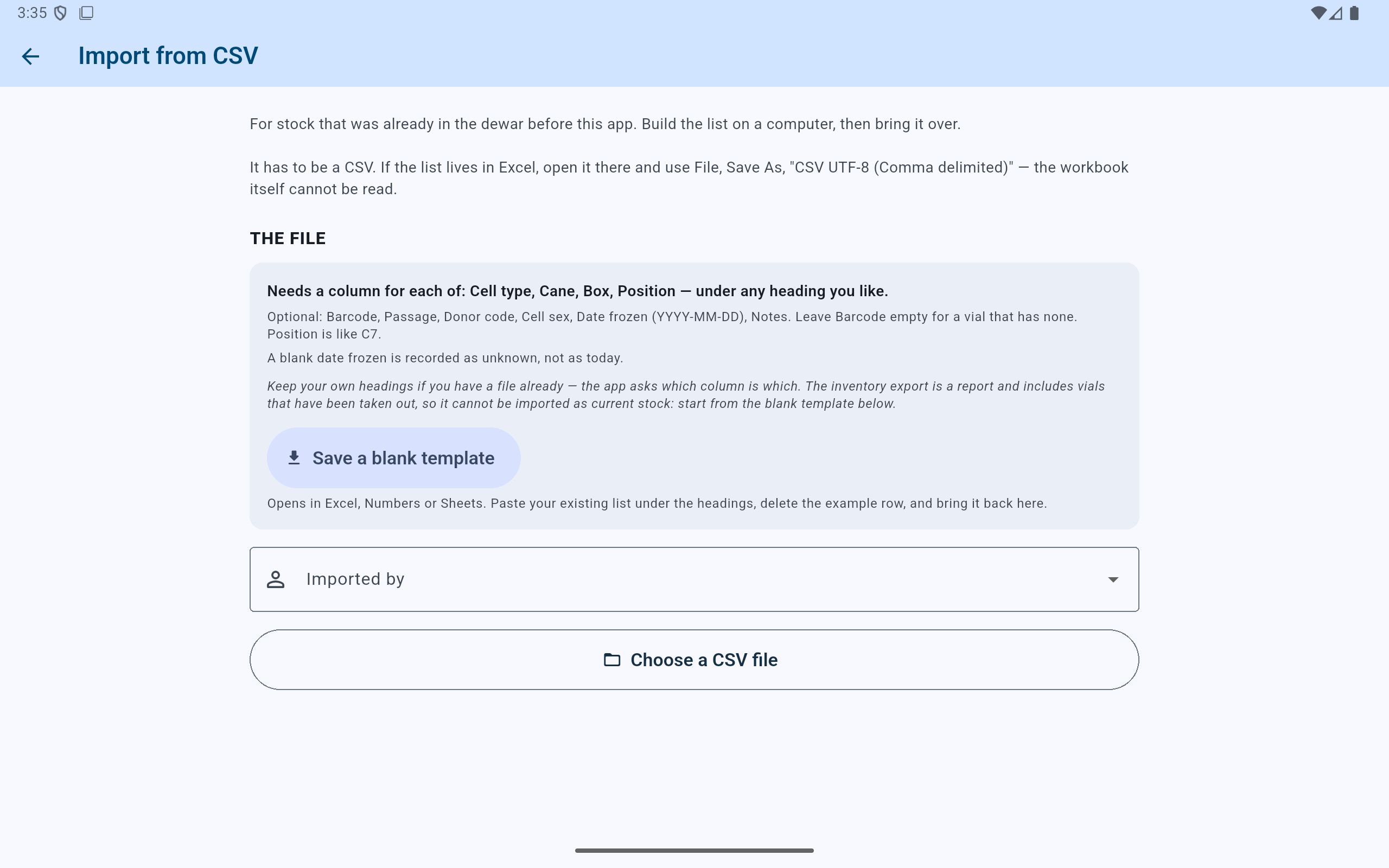
The existing lab remains visible while the source is reviewed; opening the importer has not changed inventory.
- Open the Data section in Settings.
- Use Import from CSV for a reviewed addition to this lab.
Understand the source
Confirm what each heading means before looking at totals.
- Check the source-to-CryoIndex mapping, particularly cell type, cane, box, and position.
- If the source records same-line parentage, rename that column to exactly Parent barcode in the spreadsheet before importing — it is matched by heading and is deliberately not offered on the mapping screen. A value links only when exactly one non-struck record has ever worn that label; a reused or unknown label is not guessed.
- Review any heading CryoIndex could not use. Ignored columns are named at review; they are not silently kept.
- Remap only when the source meaning is known. If a mapping is ambiguous, leave the value out rather than guessing biological or location data.
- Check every accepted location against physical storage already configured for the lab.
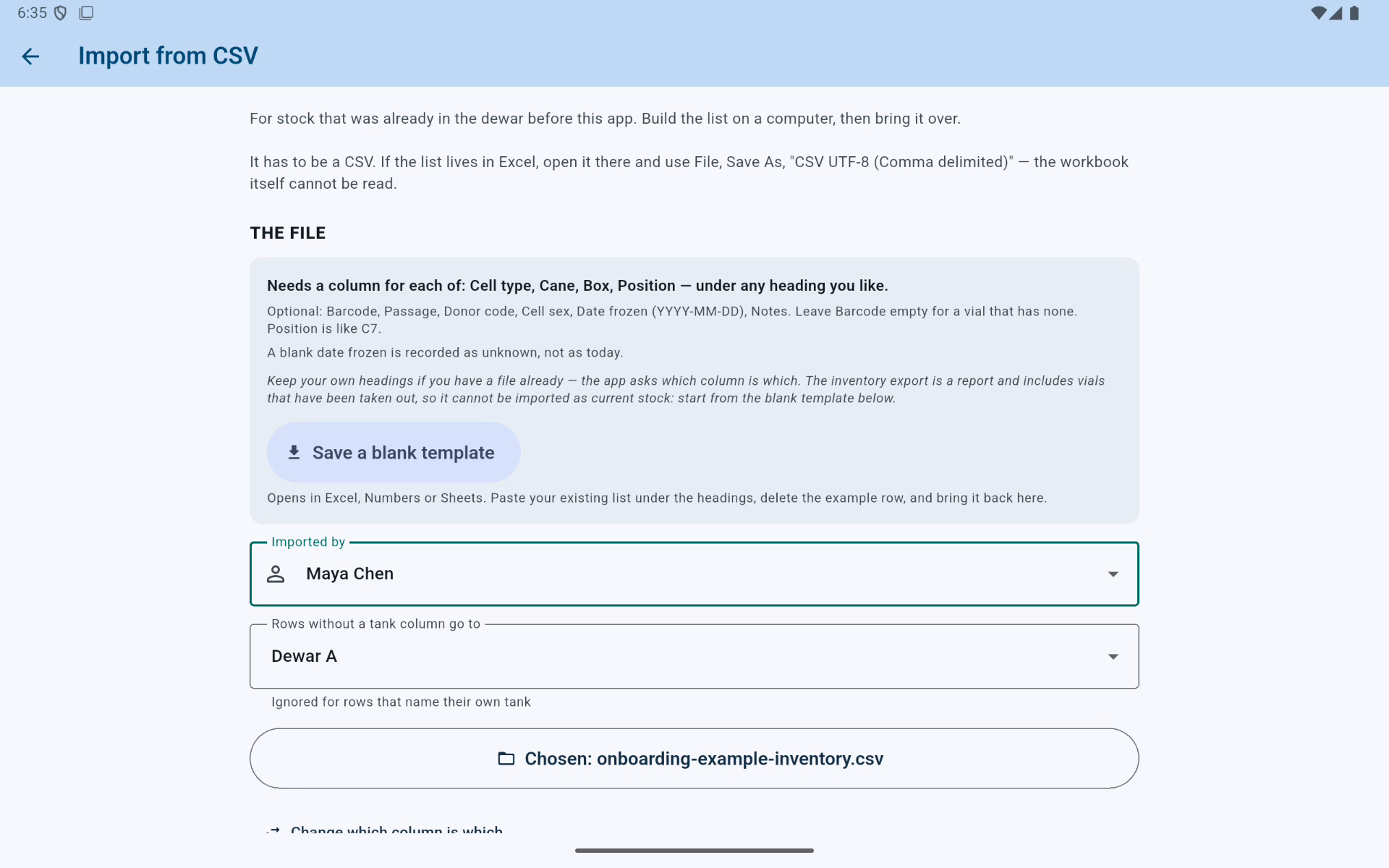
The established-lab importer keeps the chosen file, detected values and preview totals together before any row is committed.
- Use Change which column is which when a source heading needs review.
- Review detected values and accepted and skipped totals before continuing.
Keep only the intended values
Review detected cell lines and other proposed additions as a group.
The preview identifies values that would add new cell lines. Remove a single detected value when it does not belong, or choose Remove all detected if the mapping was wrong. Removing a detected value excludes its associated rows from this import; it does not alter current records already in the lab.
Blank is not invented data. A missing freeze date stays unrecorded. Do not substitute a convenient current date or a location that the physical dewar does not contain.
Final review
Read skipped rows and ignored columns before acknowledging the import.
- Read every skipped-row reason. Select Save the N skipped rows to fix when the lab wants a correction file.
- Review ignored columns and confirm that no important information is being left behind.
- Use the acknowledgement checkboxes only when the displayed consequences are understood.
- Select Import N vials, where N is the accepted-row count shown on screen. Accepted rows are written together; if the write fails, none of the accepted rows is kept.
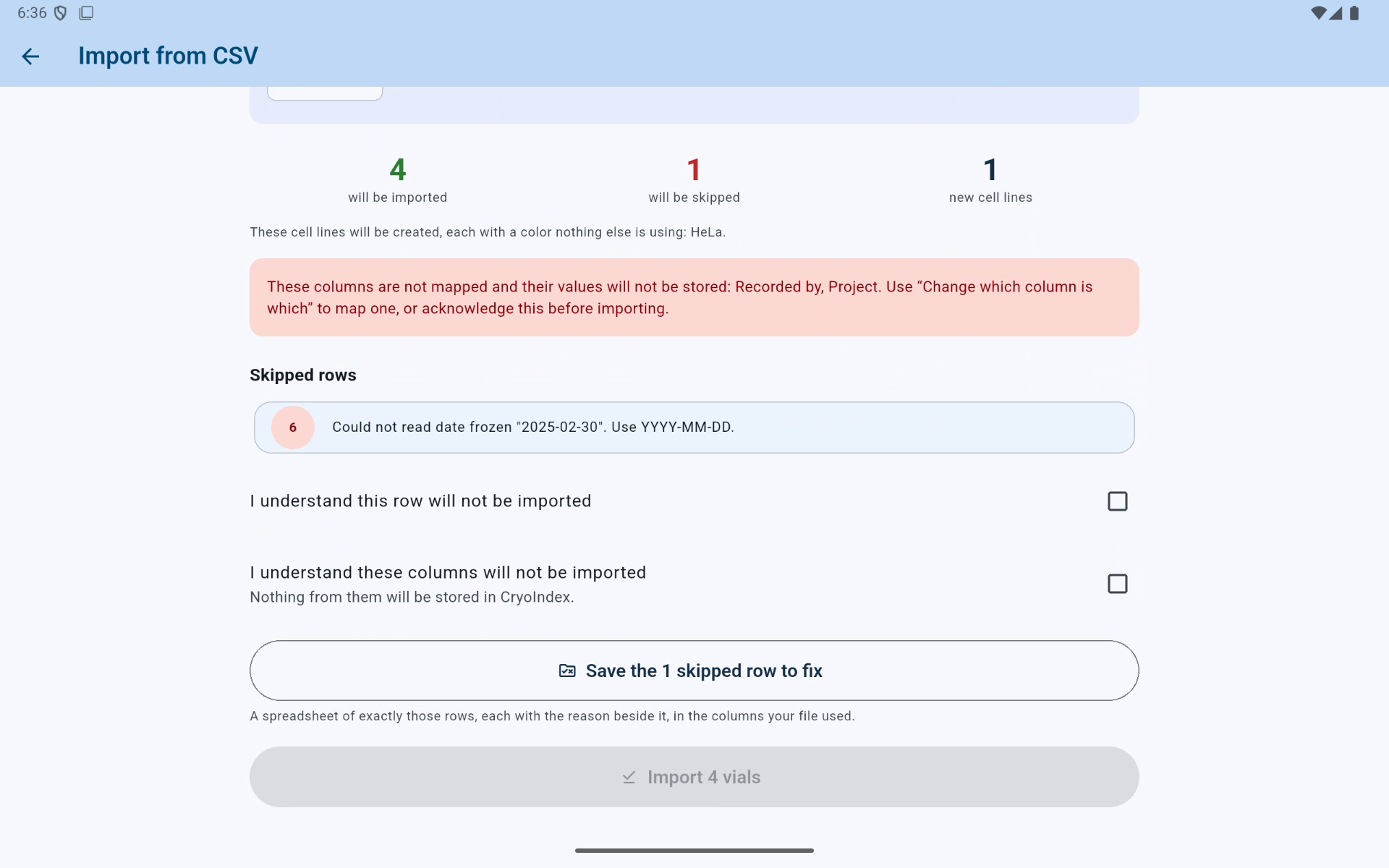
The final review names every exclusion and keeps Import 4 vials unavailable until both consequences are acknowledged.
- Review accepted and skipped rows separately.
- Acknowledge the skipped row and ignored source columns explicitly.
- The button names the exact number of accepted rows.
After the import
Verify the result before treating the new records as the source of truth.
- Compare the completion counts with the final review.
- Read every lineage notice. A vial row can be imported while its proposed parent is left as Not recorded because the barcode was not unique or the relationship contradicted the cell-line, passage, or freeze-date rules. Those are different problems and should be investigated separately.
- Search several vials from different source rows and compare their cell details, exact positions, and any parent relationship with the source copy.
- Check the activity history for the import event and confirm the approving person is correct.
- If the import itself was mistaken, use Undo import before further work is mixed in. It removes the records from that import rather than replacing the rest of the lab.
- Create an external backup after the lab accepts the result.
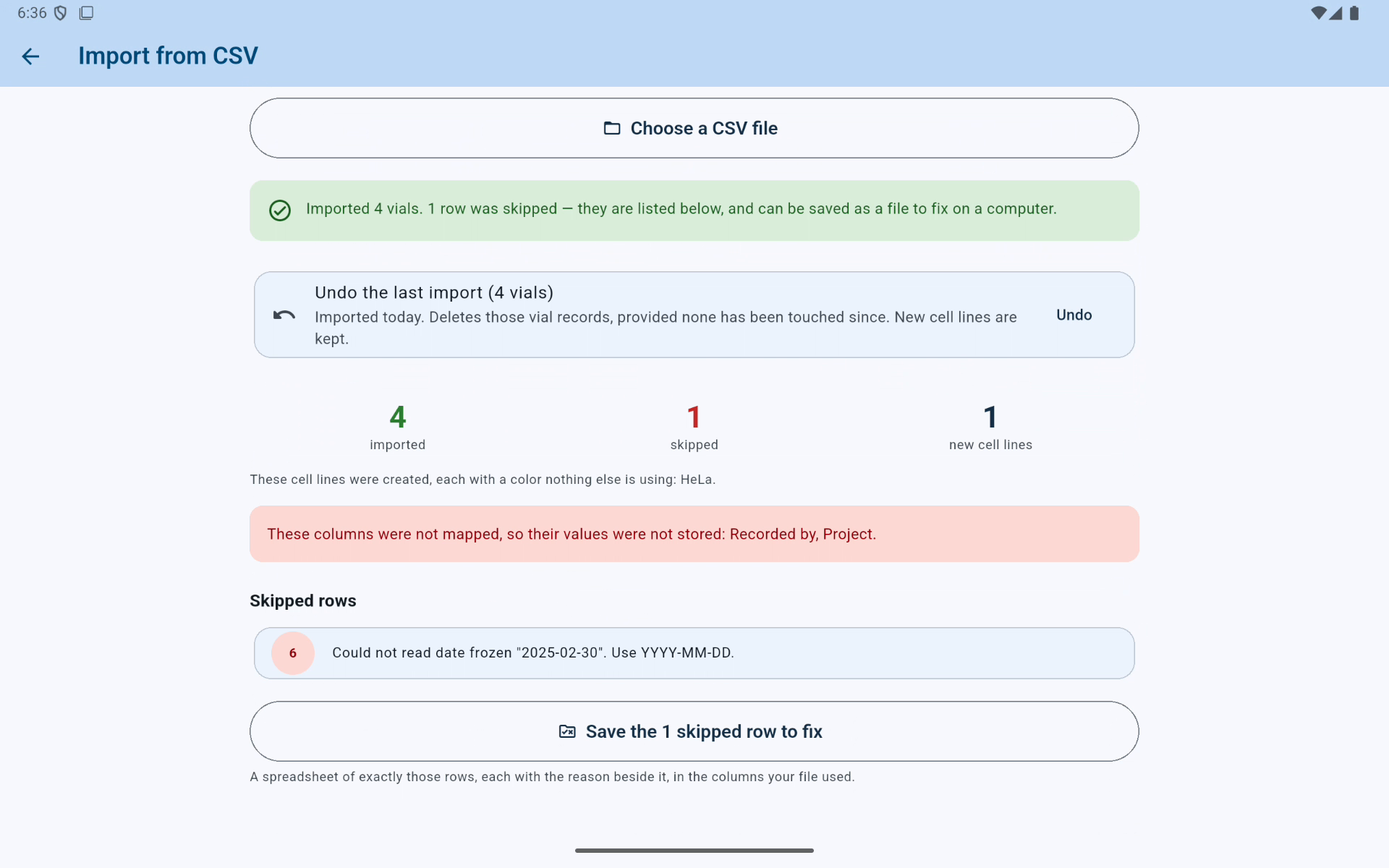
The importer remains on the result so the lab can compare totals, save a correction file and undo this import before later work is mixed in.
- Match the imported, skipped and new-cell-line totals to the final review.
- Undo removes this import only while its records have not been changed.
Undo can be refused after a later vial depends on an imported parent. CryoIndex will not delete a parent record from beneath a daughter. Open the related vial records and correct the lineage first if the relationship itself is wrong.