Watch the walkthrough
Defrost a freezer and check what comes back
Captions are available in the player and start turned off so they do not cover the app. The written transcript is below the video.
Read the video transcript
A freezer's Defrost screen opens from the menu on its row of the Cold Storage dashboard. A refrigerator or cold room says Clean out instead.
The top card holds the reminder: the next date, how often it repeats, and how many days before it warns. Change edits it.
Just before the contents come out, select Start a defrost now. Choose Started by, then Take snapshot and make manifest.
The share sheet opens with the files: the manifest, and a work packet for each person responsible for items. Send them where the lab can print them.
The dialog confirms the snapshot was taken and the manifest sent. Select Done.
Take the contents out of the freezer, then select Take the contents out, choose Taken out by, and select Contents are out.
As things go back, select Check returned contents and choose Checked by. It is asked each time this screen opens.
Back, with everything on it answers a shelf and all it holds at once. Read the list, then select Record all of it.
Check its items one by one shows a box's items, alike ones grouped. One at a time answers each, such as In place, but empty when nothing is left.
When every container is answered, select Complete this defrost and choose Completed by.
Complete defrost records it. The next defrost is counted from today, and the card says when the freezer was last defrosted.
Narration uses an AI-generated voice.
The cabinet's word
A freezer says Defrost. A refrigerator or cold room says Clean out.
Everything on these screens follows the cabinet's storage type: Defrost, Start a defrost now and Complete this defrost for a freezer; Clean out, Start a clean-out now and Complete this clean-out for a refrigerator or cold room. A cabinet whose type is Other has neither. The examples below use the demo lab's -80 Upright A, a freezer, and Cold room 2, whose clean-out is already underway.
From the Cold Storage dashboard
Open the cabinet's Defrost or Clean out screen.
- Open the cabinet's menu, the three dots on its row, and select Defrost or Clean out.
- Or select the Defrost and clean-out card, which lists anything in progress and the next date due, then choose the cabinet under Choose a cabinet for defrost or clean-out. Retired cabinets are not offered.
- When a date is due, the dashboard's alert has its own Defrost or Clean out button.

Cold room 2's menu says Clean out, because it is a cold room. The -80 Upright A's menu says Defrost.
- The Defrost and clean-out card: anything in progress, and the next date due.
- Clean out in the cabinet's menu.
- A cabinet's row says when a clean-out is in progress.
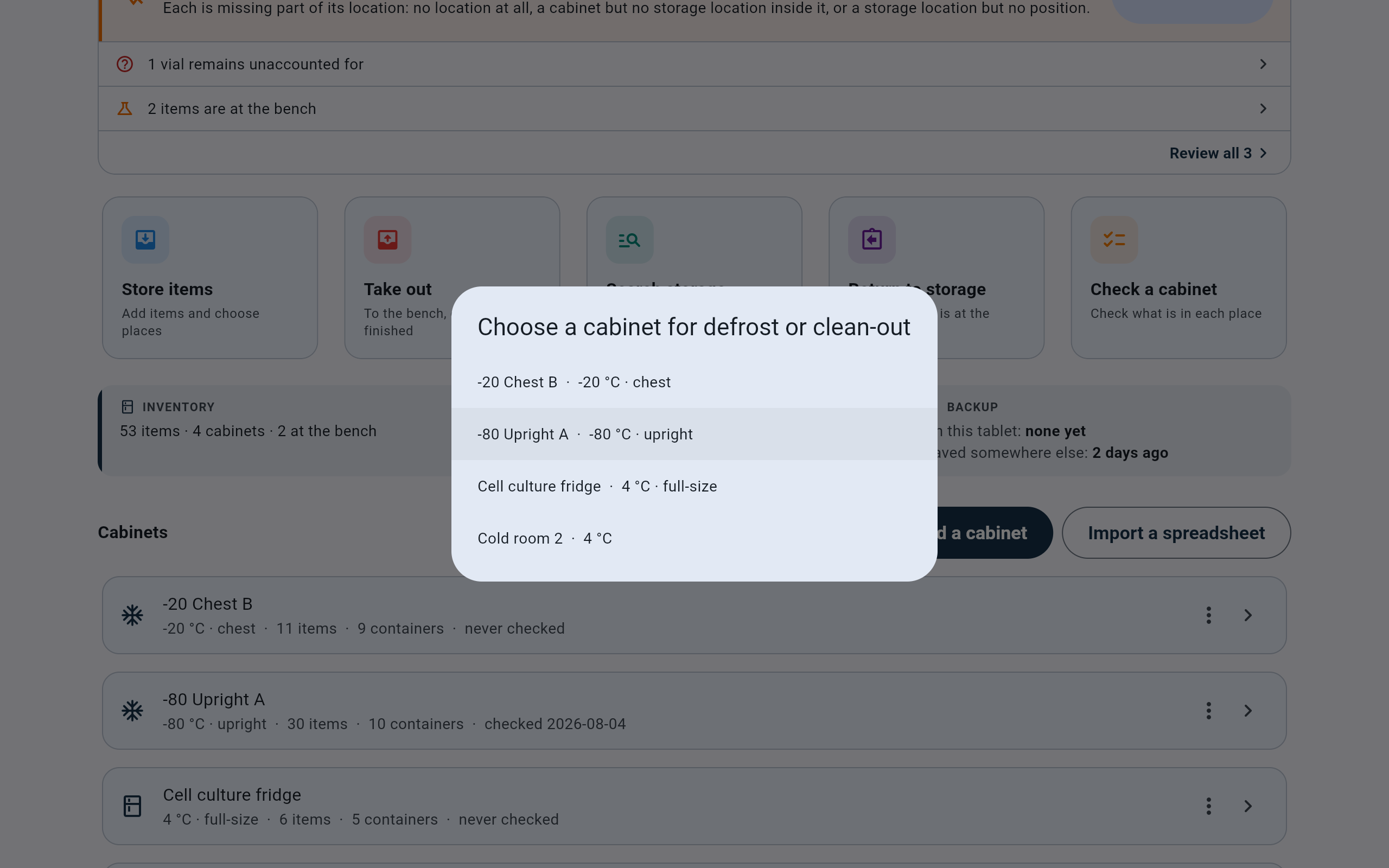
From the dashboard card, choose the cabinet.
- Choose the cabinet.
Optional · Reminders
Set a date so the lab is reminded.
The top card, Next defrost or Next clean-out, holds the schedule. With no date it says so: no reminders, and the cabinet can still be defrosted or cleaned out at any time.
- Select Set a date.
- Fill in Every and Unit (days, months or years), and check Next due. Use its calendar button to pick another day.
- Optionally fill in Remind in advance (days). Left blank, the reminder comes only on the due date.
- Choose Set by and select Save.
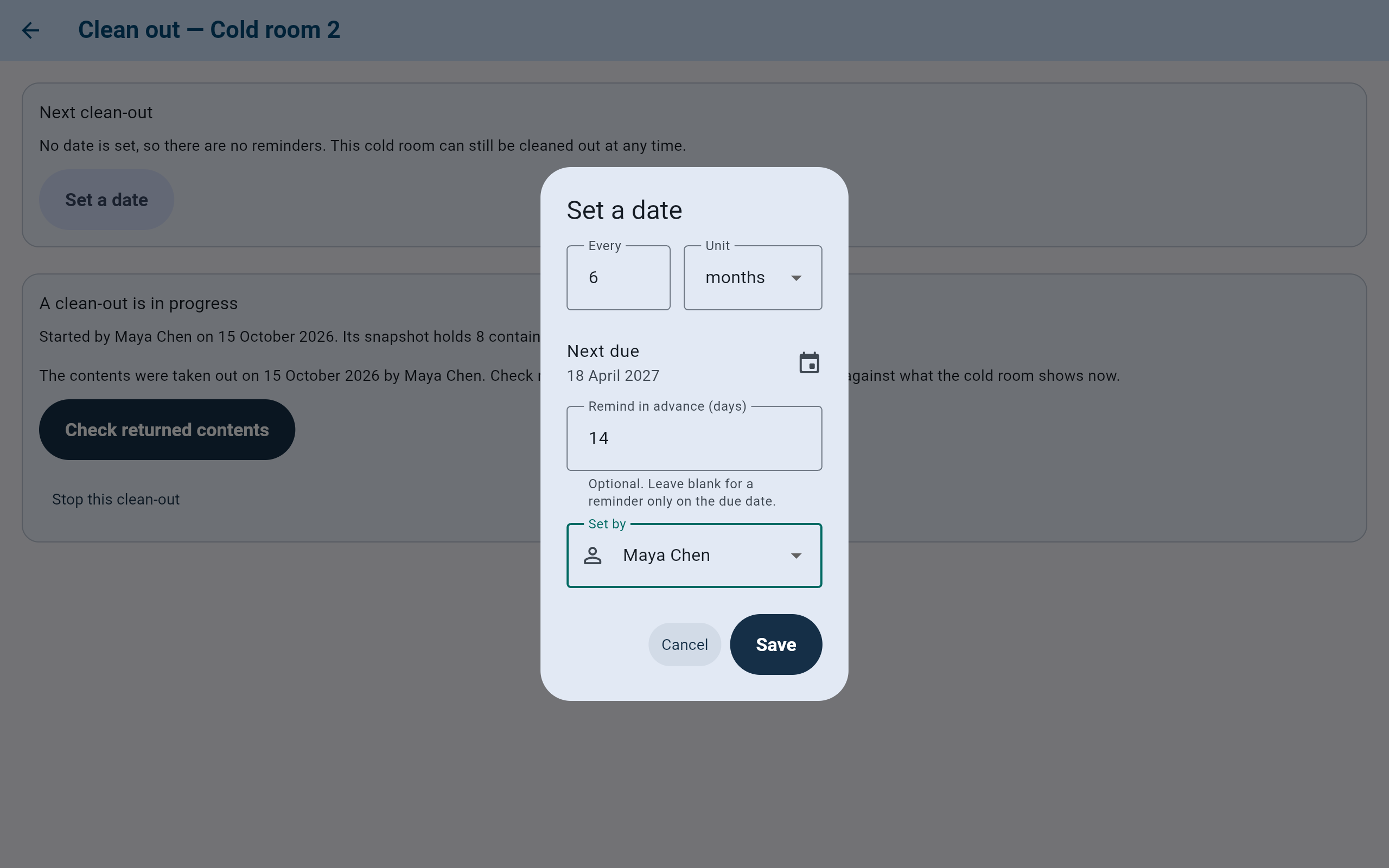
A clean-out every six months, with a reminder 14 days before.
- How often: Every and Unit.
- The first date due. The calendar button changes it.
- Days of warning before the date. Optional.
- Set by, then Save.
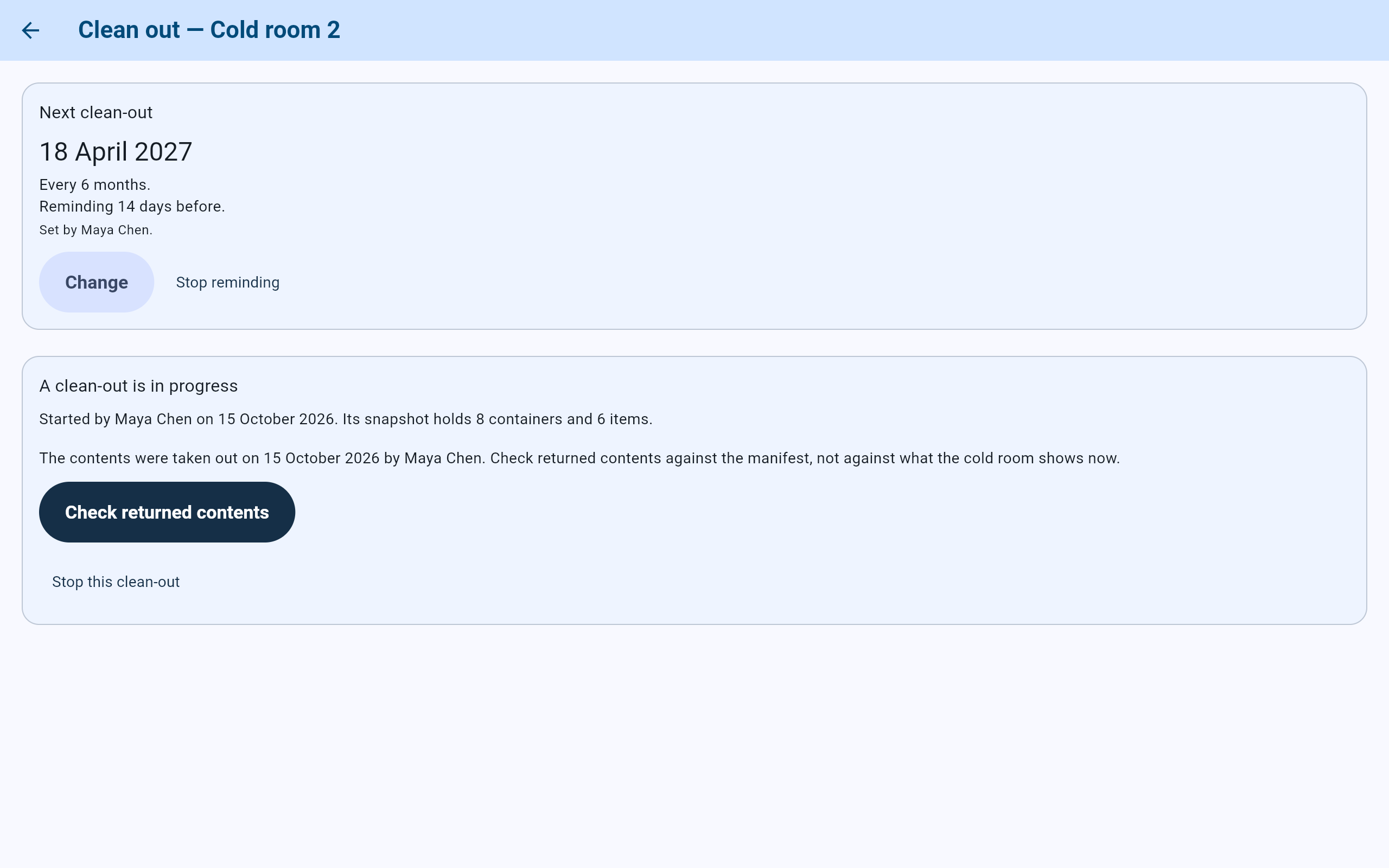
The schedule as saved.
- The next date, how often, and the reminder.
- Change edits it.
- Stop reminding removes the date. Past clean-outs stay on the record.
As the date approaches, a chip on the card reads Due soon, Due today or Overdue, and the Cold Storage dashboard shows an alert, for example “-80 Upright A is due for a defrost in 14 days.” Completing a defrost or clean-out counts the next date from that day.
Step 1 · Before anything comes out
Start: take the snapshot and make the manifest.
Starting takes a snapshot of the current contents and makes the manifest that returned contents are checked against. Do this at the cabinet, just before the contents come out.
- Select Start a defrost now or Start a clean-out now.
- Read the dialog, choose Started by, and select Take snapshot and make manifest.
- On Windows, choose a folder for the files. On the tablet, the Android share sheet opens: send or save the files somewhere the lab can open them.
- Read the result. On Windows, Saved the manifest in and the folder's name means it arrived, and Open folder shows it. On the tablet, Sent the manifest. means the files were handed to the app chosen. Then select Done.

The upright has a date set and no defrost open, so it offers to start one.
- The screen is titled with the cabinet's word and name.
- Start a defrost now.
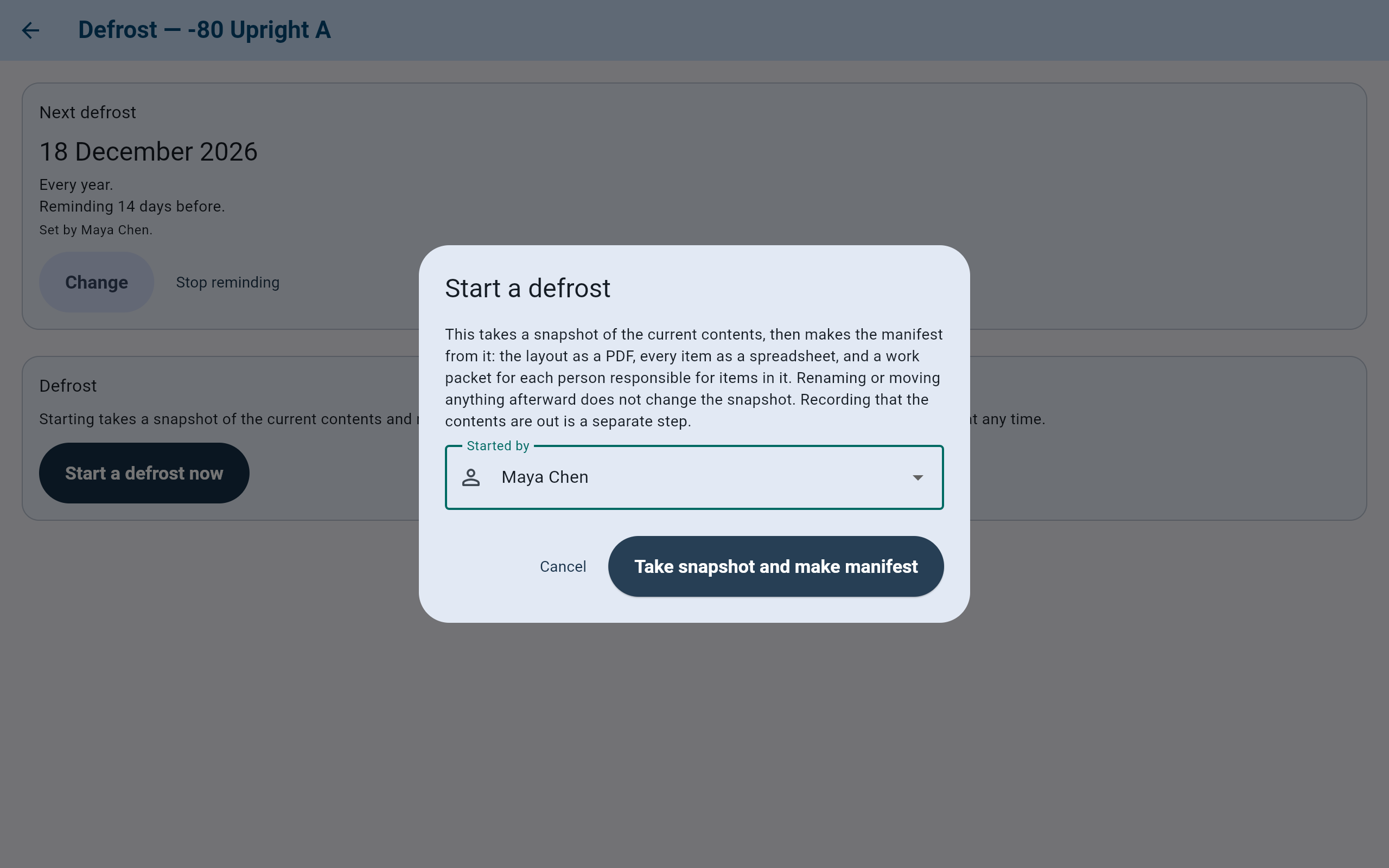
The snapshot cannot be taken back once the button is pressed. Cancel leaves everything as it was.
- What starting does.
- Choose Started by.
- Take snapshot and make manifest.
Moving or renaming anything afterward does not change the snapshot. Returned contents are checked against the cabinet as it was when the snapshot was taken. The web demo does not save files; the two pictures below are from a tablet.

On a tablet, the manifest’s files go out through the share panel, nine of them for this upright. The apps offered depend on what the tablet has installed.
- How many files are being sent.
- The manifest PDF, named after the cabinet, the day and its report ID, and the files sent with it.
- Choose an app that sends or keeps the files where the lab can open them.
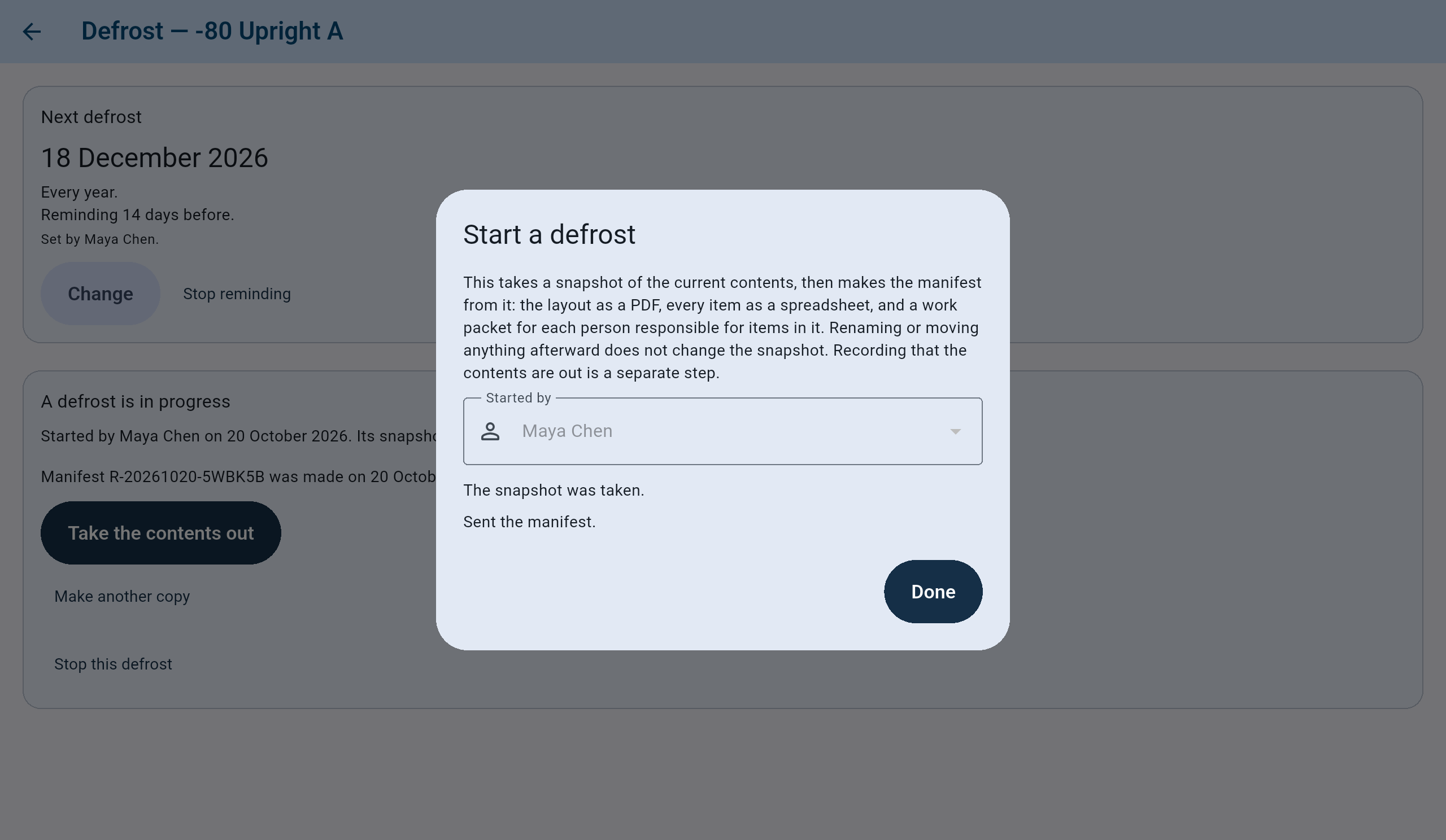
The result on a tablet. Behind the dialog the defrost is in progress, with its manifest on the record.
- The snapshot is taken.
- Sent the manifest.: the files were handed to the app chosen.
- Done closes the dialog.
Step 1 · The files
What the manifest folder holds.
On Windows the files are saved together in a new folder inside the one you chose, named for the manifest, such as defrost-manifest-12 or cleanout-manifest-12. On the tablet they are shared together.
The PDF is the layout of the cabinet as the snapshot recorded it, with every container and how many items are in each. Print it and keep it with the cabinet. The CSV lists every container and item, one row each, with the place the snapshot recorded and how certain that place is.
A PDF list to work from and a CSV, for each person responsible for items in the cabinet, and one for items with no responsible person recorded.
A plain note saying what each file is. A PDF and a spreadsheet with the same name are one document.
CryoIndex does not read these files. Nothing marked on paper or typed into the spreadsheets is recorded until it is entered under Check returned contents.
If the files did not arrive, for example because the share sheet was closed, the card says the snapshot is taken but no manifest has been saved or sent yet. Select Make the manifest and take nothing out until it is made. Until the contents are out, Make another copy makes a fresh set of files, and the new copy becomes the one on the record once it is saved or sent.
Step 2 · At the cabinet
Record that the contents are out.
- Take the contents out of the cabinet.
- Select Take the contents out. This button appears only once the manifest has been made.
- Choose Taken out by and select Contents are out.
From then on the card says when the contents were taken out and by whom, and offers Check returned contents. The demo's Cold room 2 is at this point, with one shelf already back.

Cold room 2's clean-out, underway since the contents were taken out.
- Set a date, when no date is set.
- Who started it, and what the snapshot holds.
- Check returned contents.
- Stop this clean-out, if it did not happen.
One at a time. A cabinet has at most one defrost or clean-out open. While it is open, the cabinet's layout cannot be changed and the cabinet cannot be retired.
Step 3 · As things go back
Check returned contents, container by container.
- Select Check returned contents. The screen is titled Check returned contents — Cold room 2.
- Choose Checked by. It is asked once each time the screen opens, and nothing can be answered until someone is chosen.
- Work through Still to check. Recorded lists what has been answered. Find an item finds anything on the manifest by barcode, material or lot.
- For each container, choose an answer:
- Back where it was: the container is back exactly where the manifest shows it. Nothing moves.
- Back, with the 2 items in it: the same, and it also accounts for the items still recorded in it.
- Back, with everything on it, on a container that holds others: answers it and everything inside it at once.
- Check its items one by one: shows its items to answer separately. Tick all 2 here ticks them.
- Not there: records an exception. The container stays where it is recorded, and each item in it is asked about on its own.
- Found elsewhere…: choose where it was found.

By place: the cabinet's containers in the order you walk them. One shelf was answered before.
- Choose Checked by first.
- Find an item by barcode, material or lot.
- Still to check and Recorded.
- By place or By person.
- How much has come back so far. Answers are saved as you go.
- The answers for one container.

Back, with everything on it lists exactly what it will record before anything is written.
- Every container and item the answer covers.
- Nothing moves. If any of it cannot be recorded, none of it is.
- Record all of it.
Step 3 · Items
Answer for items one at a time.
- Matching items in one place are grouped on one line, with All back where they were and One at a time.
- Each item has Back where it was and Something else….
- Something else… offers Found elsewhere (you choose where), Found in a container, position not recorded, In place, but empty and Not there.

The shelf's items shown one by one, each with its own answer.
- The shelf's own answer, which also accounts for its 2 items.
- Tick all 2 here, to answer them together.
- One item: Back where it was.
- Something else… for any other answer.
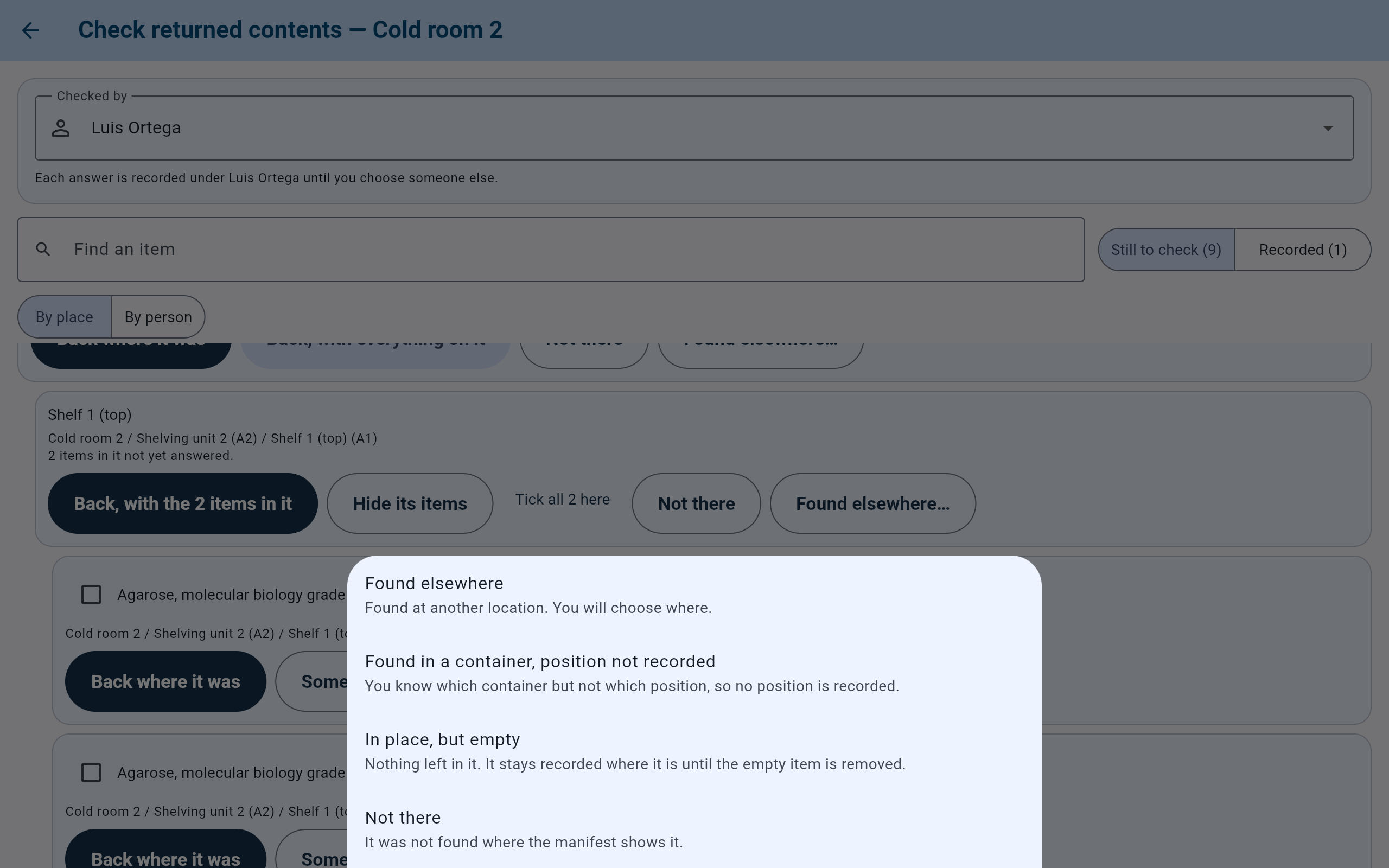
The four other answers for an item.
- Found elsewhere: you then choose where.
- In place, but empty: it stays recorded where it is until the empty item is removed.
- Not there: the item is marked missing and any position it held is freed.
Step 3 · By person
Work from the packets, or answer several items at once.
- Select By person to list the items still to check under the person responsible for each, as the work packets list them. Who is responsible is taken from the snapshot. Containers are still answered in By place.
- Tick items to answer them together. The bar shows how many are ticked, with Back where they were, Not there… and Untick all.
- Each asks you to confirm, and records every ticked item or none of them.

By person: the two agarose bottles Luis Ortega is responsible for, ticked.
- By person.
- The ticked items' answers.
- Each person's items, as in that person's work packet.
Step 4 · The end
Complete the defrost or clean-out.
- When everything is answered, the summary says that everything the manifest expected back is accounted for. Completing is a separate step; it is not done automatically.
- Read Complete the clean-out: how many answers, and how many are exceptions.
- Select Complete this clean-out (or Complete this defrost).
- Choose Completed by, add a Note (optional), and select Complete clean-out (or Complete defrost).

All eight containers and six items are accounted for, with no exceptions.
- Nothing left in Still to check.
- Everything the manifest expected back is accounted for.
- Complete this clean-out.
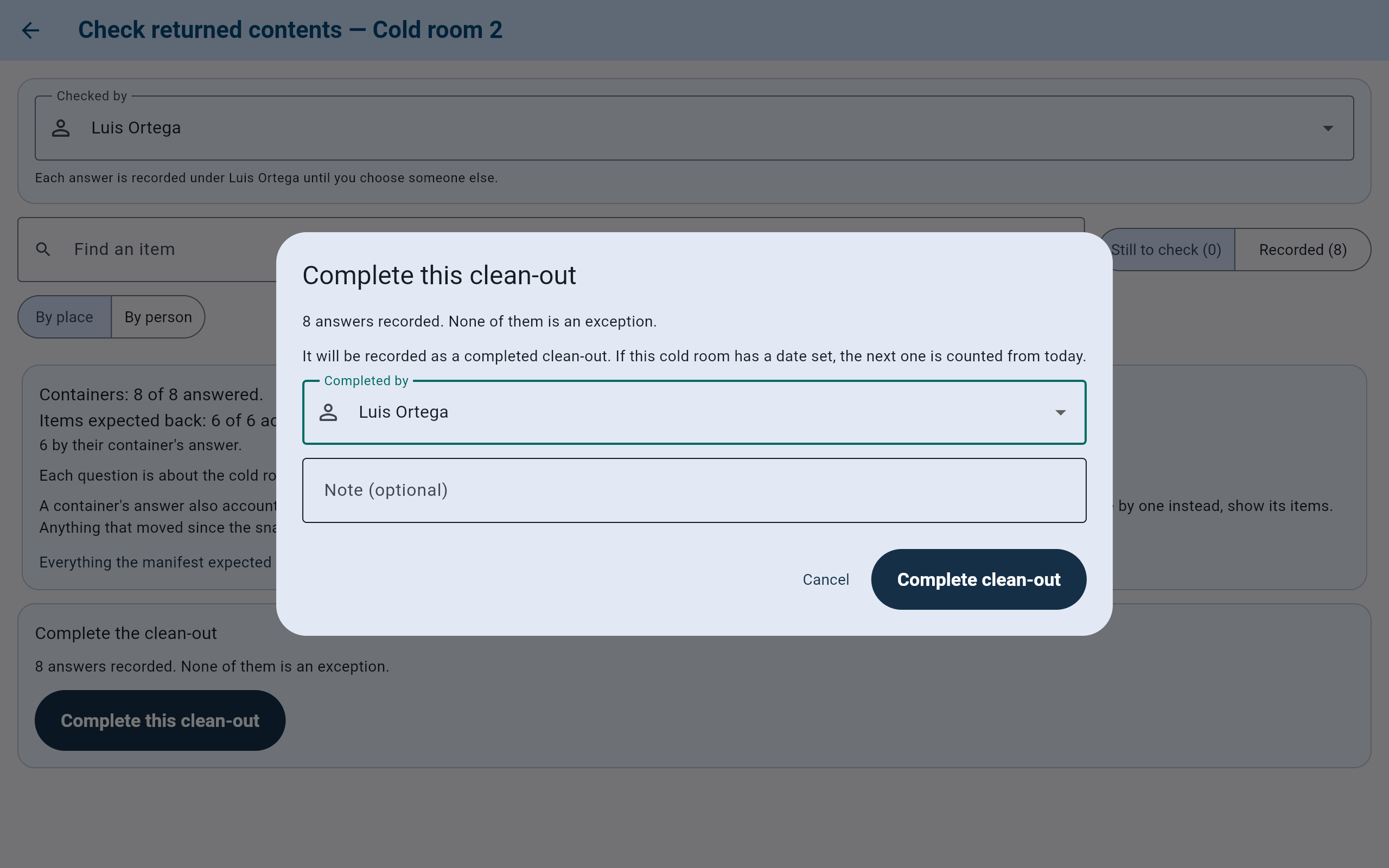
With no exceptions, it is recorded as a completed clean-out.
- What will be recorded.
- Completed by.
- Complete clean-out. This is final.
If anything did not come back as the manifest shows, the dialog says it will be recorded as completed with exceptions, listing what did not come back. Either way, if the cabinet has a date set, the next one is counted from today.
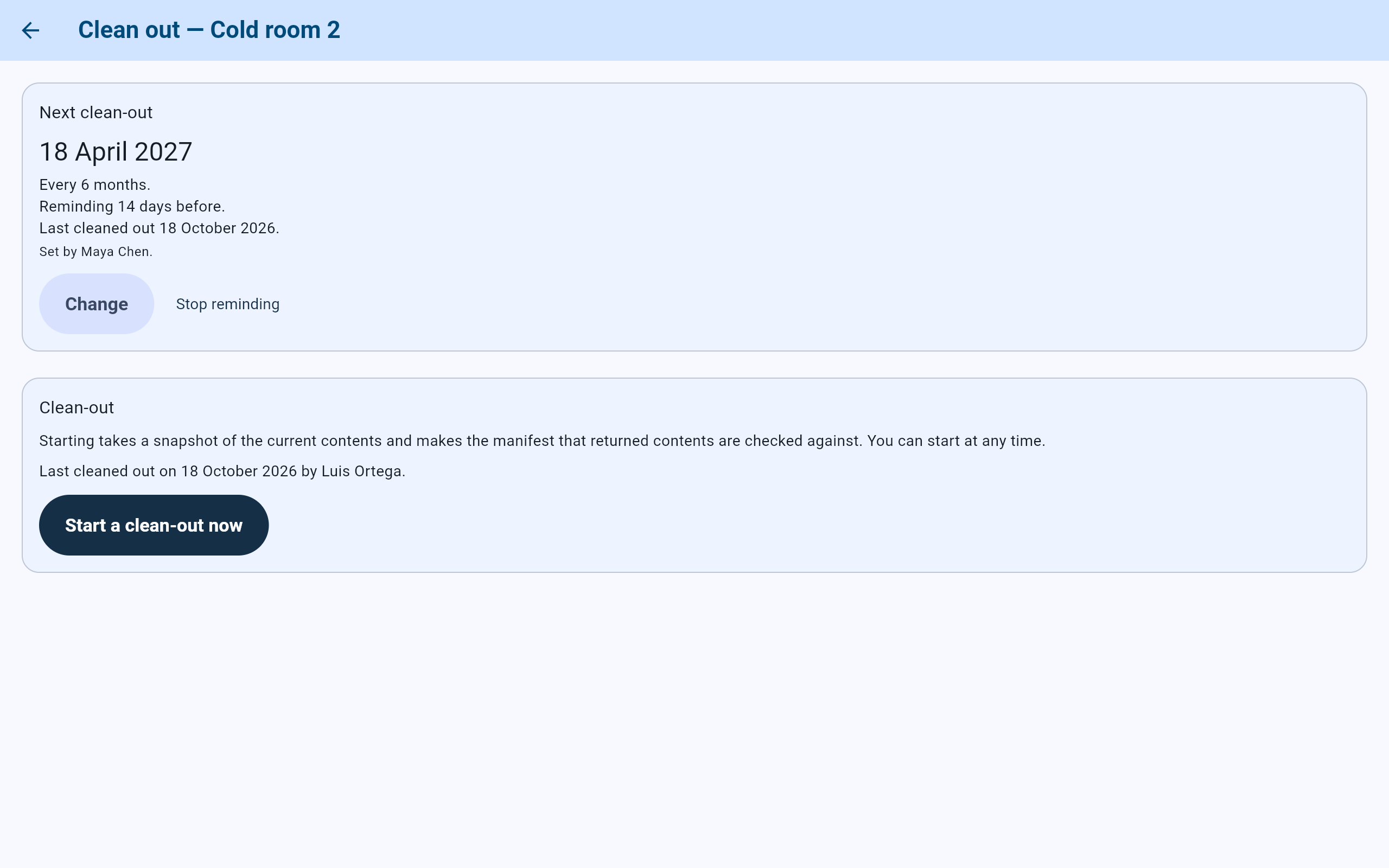
The cabinet's screen after completing: the last clean-out is on record, and a new one can be started.
- The next date, counted from today.
- When it was last done, and by whom.
If it did not happen
Stop a defrost or clean-out.
- On the cabinet's screen, select Stop this defrost or Stop this clean-out.
- Add a Reason (optional), choose Stopped by, and select Stop defrost or Stop clean-out. Continue defrost or Continue clean-out closes the dialog without stopping.

Stopping records that it did not happen. It is not a completed clean-out.
- What stopping means.
- Stopped by.
- Continue clean-out keeps it open; Stop clean-out ends it.