Watch the walkthrough
Check a cabinet
Captions are available in the player and start turned off so they do not cover the app. The written transcript is below the video.
Read the video transcript
On the Cold Storage dashboard, choose Check a cabinet, then the cabinet you are standing at.
Check contents lists the cabinet and each shelf, rack and box inside it. They stay grayed out until you choose Checked by, once for the whole walk.
Open the container in front of you. Under Expected here, every item starts as Present, so you mark only what is different.
A3 is not in the box, so mark it Missing; A4 is there but used up, so Present but empty. The count above Complete check adds them up.
Complete check records this container at once, so stopping partway keeps what was checked. The list returns with it ticked: 1 of 11 checked.
Items out at the bench are listed at the end, grayed out, but not asked about. Their positions stay reserved until they come back.
An item recorded in this box without a position is listed under Location not fully recorded. It can only be Present or Missing.
A shelf holding only boxes has nothing to answer; complete it anyway. When every container has its check mark, the top reads All 11 checked.
Back on the Cold Storage dashboard, an alert says 1 item is marked missing, and the cabinet's row reads checked, with today's date.
Review items opens Items to locate. The antibody is marked missing, with where it was last known, and the Matrigel aliquot still has no position.
To check one box on its own, open it and select Check. Checked by is then asked just above Complete check, which stays off until someone is chosen.
Narration uses an AI-generated voice.
What a check records
Each container is recorded when you select Complete check.
Nothing is saved while you change the answers on a container's screen. Complete check records them all for that container, and going back before that records nothing for it. An item answered Missing is marked missing as soon as its container is completed, and its position is freed.
From the Cold Storage dashboard
Start a check of a whole cabinet.
- Select Check a cabinet, then choose the cabinet under Which cabinet are you checking? Retired cabinets are not offered.
- Or open the cabinet's menu, the three dots on its row, and select Check this cabinet.
- Inside a cabinet, or on a shelf that holds racks or boxes, Check all contents starts the same walk from there.
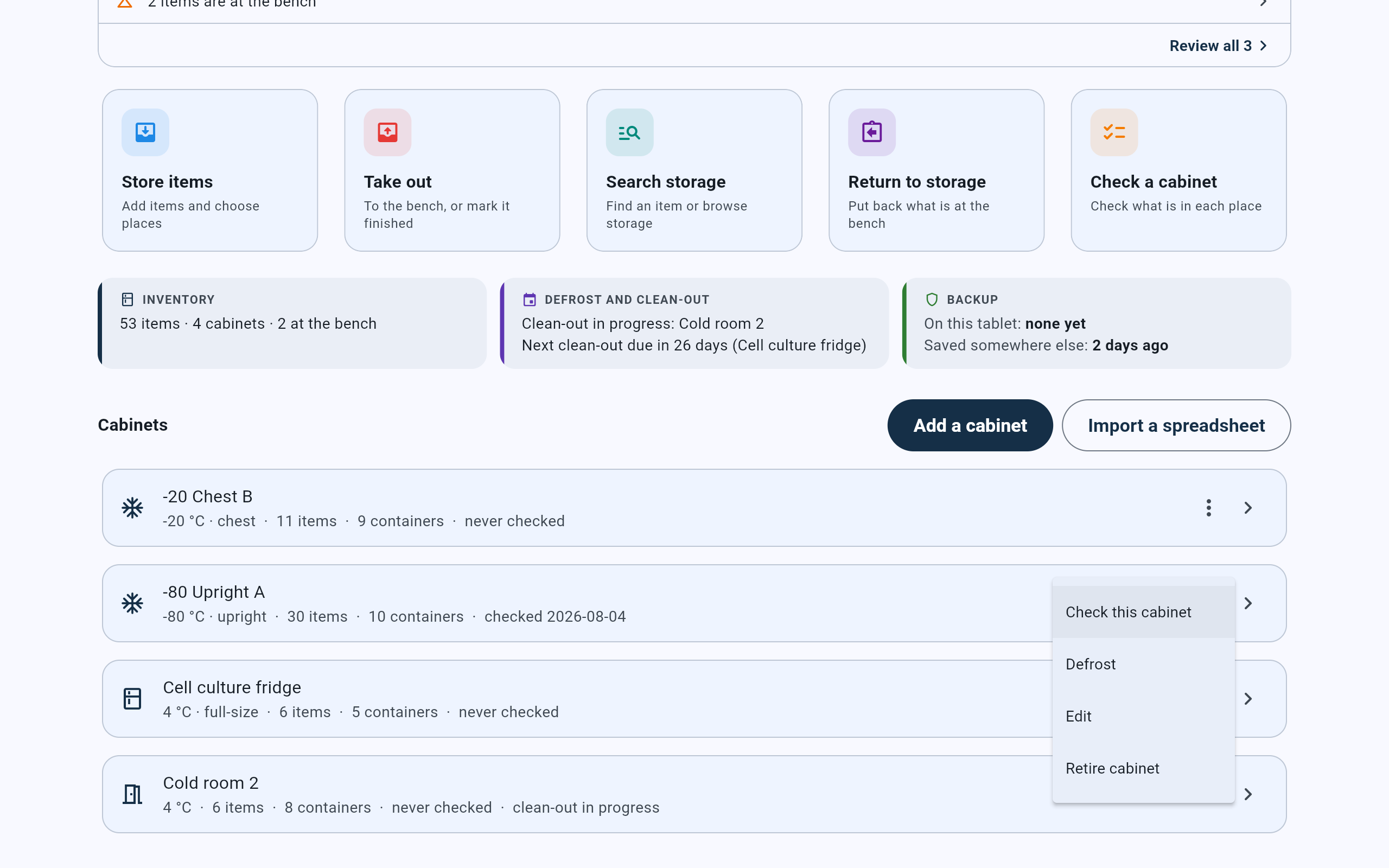
Two ways in: the Check a cabinet card, or Check this cabinet in a cabinet's own menu.
- Check a cabinet asks which cabinet, then opens the walk.
- Each cabinet's row says when it was last checked, or that it never was.
- Check this cabinet in the row's menu goes straight to the walk.
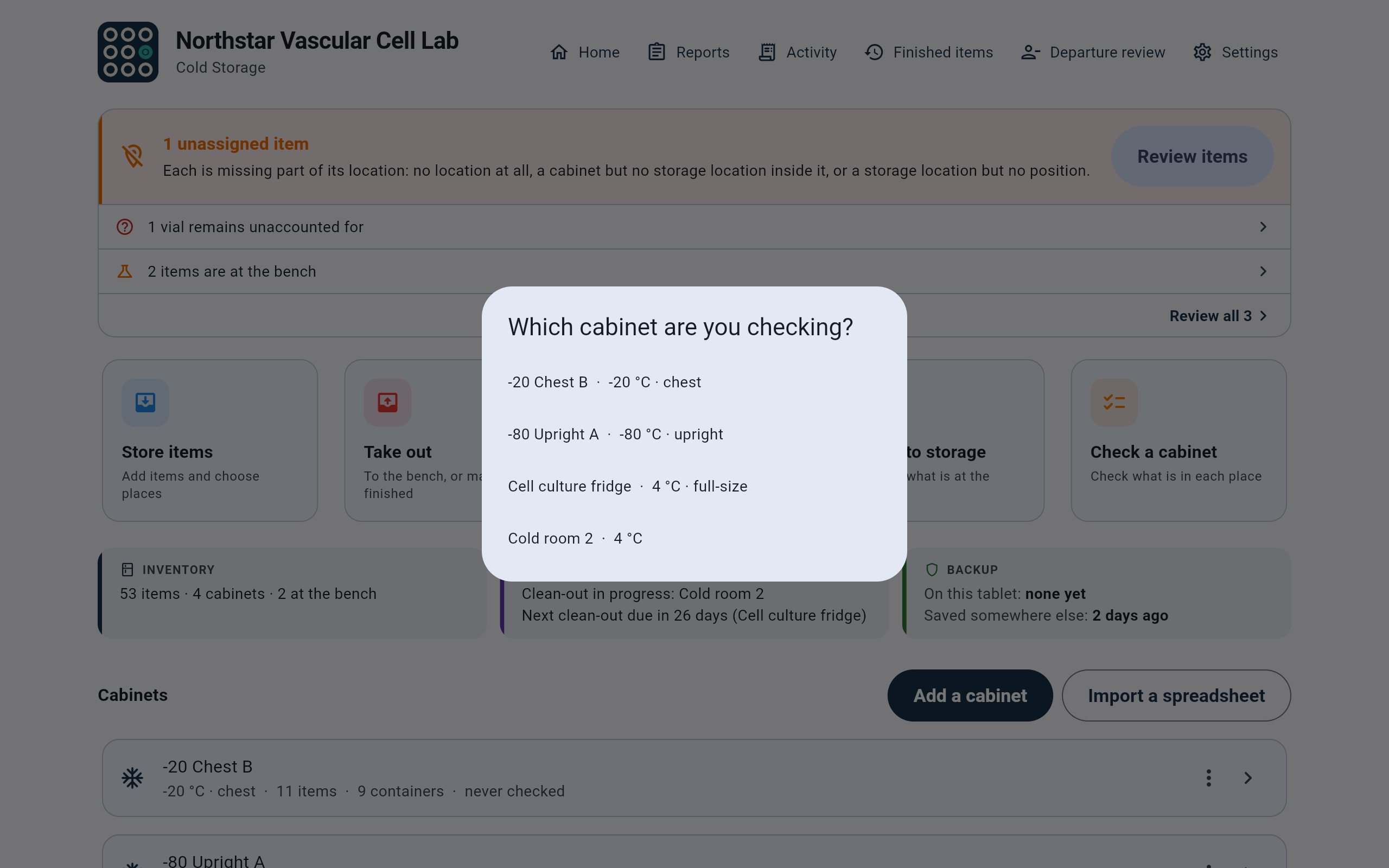
Choose the cabinet you are standing at.
- Choose the cabinet. Here, -80 Upright A.
Step 1 · Check contents
Name who is checking, then work down the list.
- Choose Checked by. It is asked once for the whole walk. Until someone is chosen, the containers below are grayed out and cannot be opened.
- Read the list. It shows the cabinet itself, then each shelf, rack and box inside it, with how many items each one holds directly: 7 items to account for, and so on.
- Open the container in front of you. The order is up to you; the counter at the top says how far the walk has got.
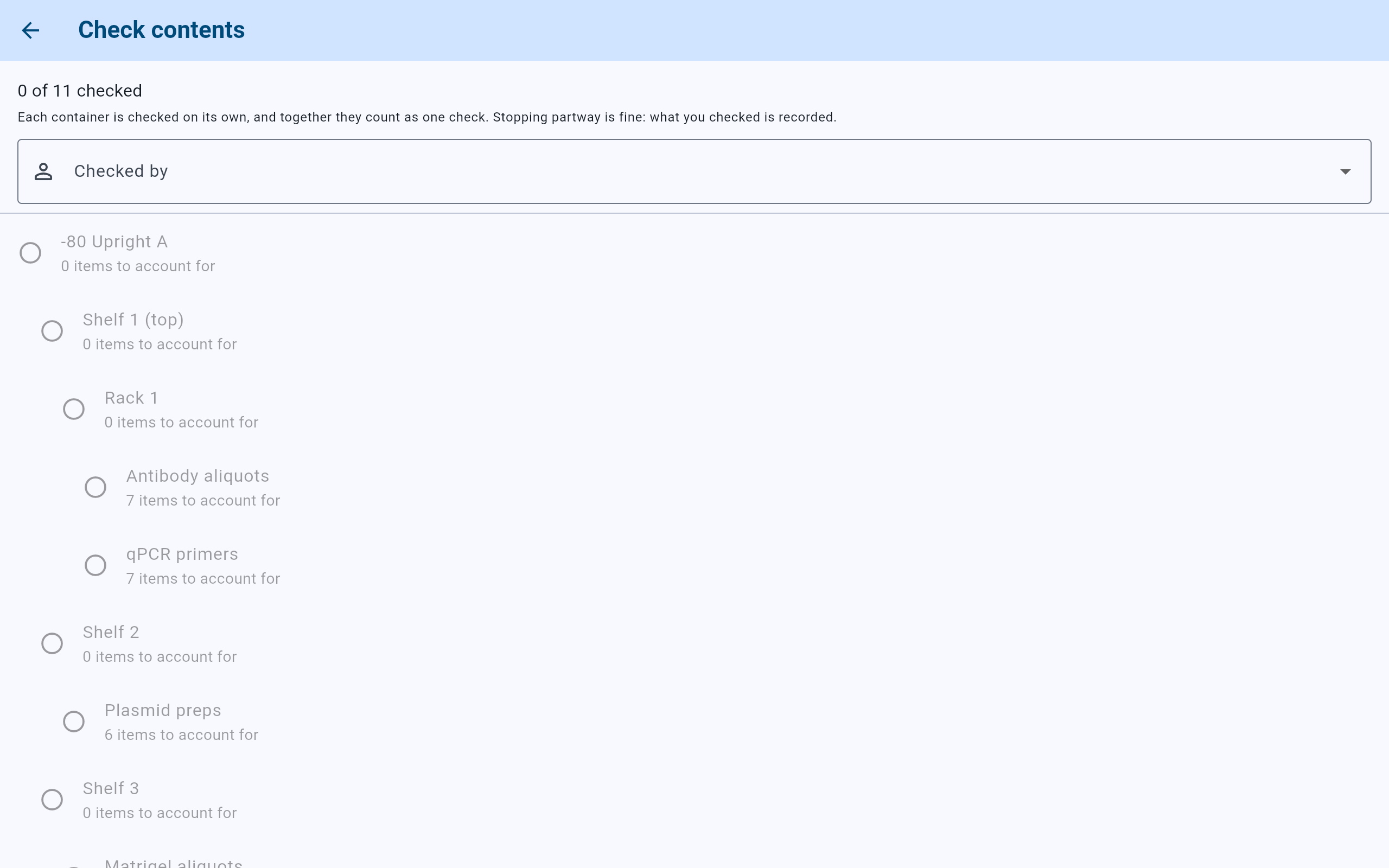
The walk before anyone is named. The containers stay grayed out until Checked by is chosen.
- How many containers of the walk are done.
- Choose Checked by first.
- Each container, with the items recorded directly in it.
Shelves and racks are on the list too. A shelf or rack holding only boxes shows 0 items to account for. Opening it says “No items are recorded here. Complete the check to record that it was found empty.” Complete it so the walk covers the whole cabinet.
Step 2 · One container
Mark only what is different, then complete the check.
The screen is titled with the container's name, for example Check Antibody aliquots. Under the cabinet's name it says when the container was last checked and by whom, or Never checked before.
- Under Expected here, each item is listed with its position, barcode and lot, and starts as Present.
- Select Missing for an item that is not in the box.
- Select Present but empty for an item that is there with nothing left in it. It is recorded as empty and stays where it is.
- Read the count above the button, then select Complete check. The walk's list returns with this container ticked.
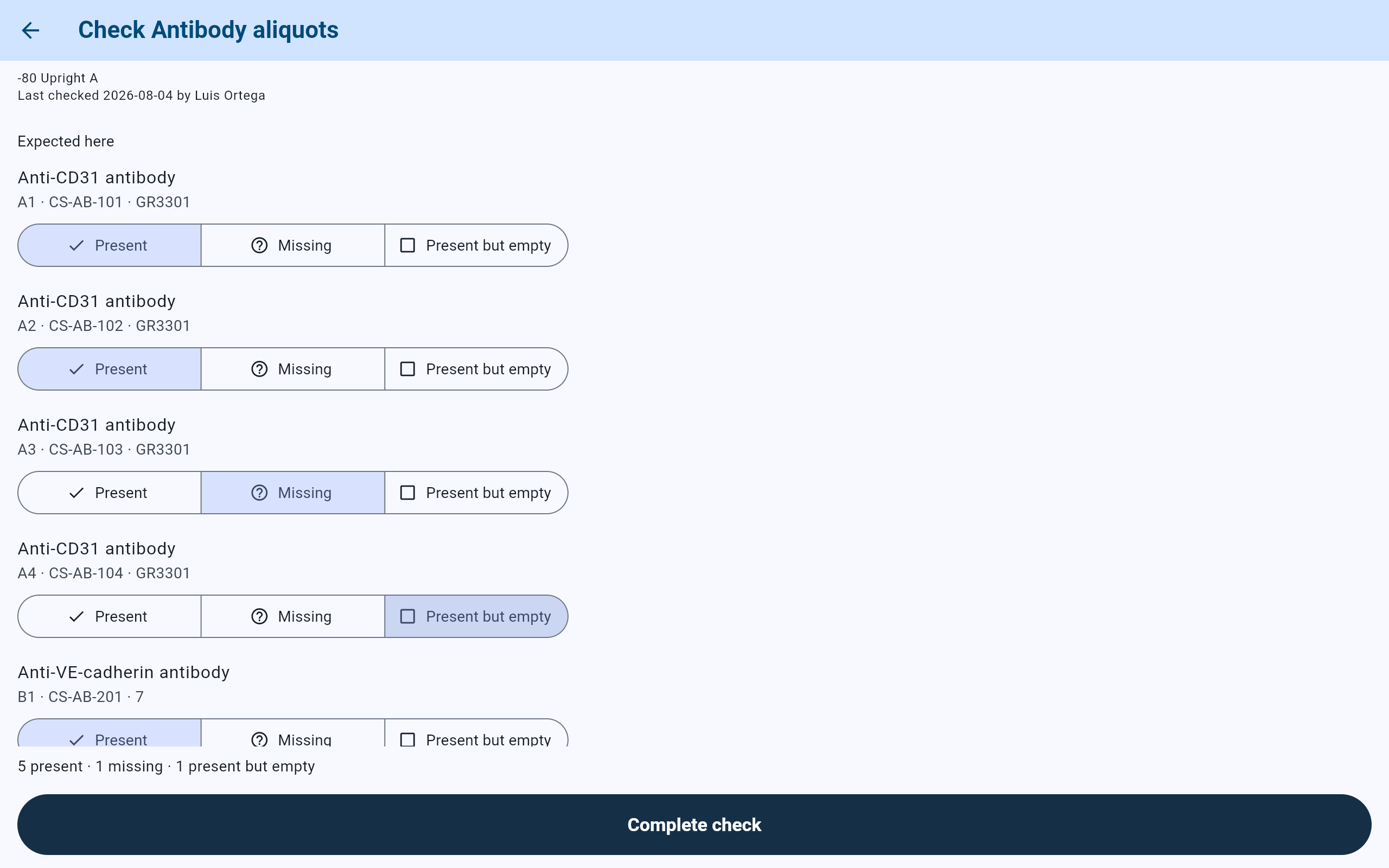
Five items are present, A3 is not there, and A4 is there but empty.
- When this container was last checked, and by whom.
- Every item starts as Present.
- Missing: the item is not in the box.
- Present but empty: the item is there, used up.
- The answers, counted.
- Complete check records this container.
Step 2 · Other rows
Items at the bench, and items without a position.
- Out at the bench lists items taken out of this container and not yet returned. They are shown for reference only: they are not part of the check, and their positions stay reserved until they come back.
- Location not fully recorded lists items recorded in this container without a position. Each starts as Present and can only be marked Present or Missing, because there is no position to find it empty in.
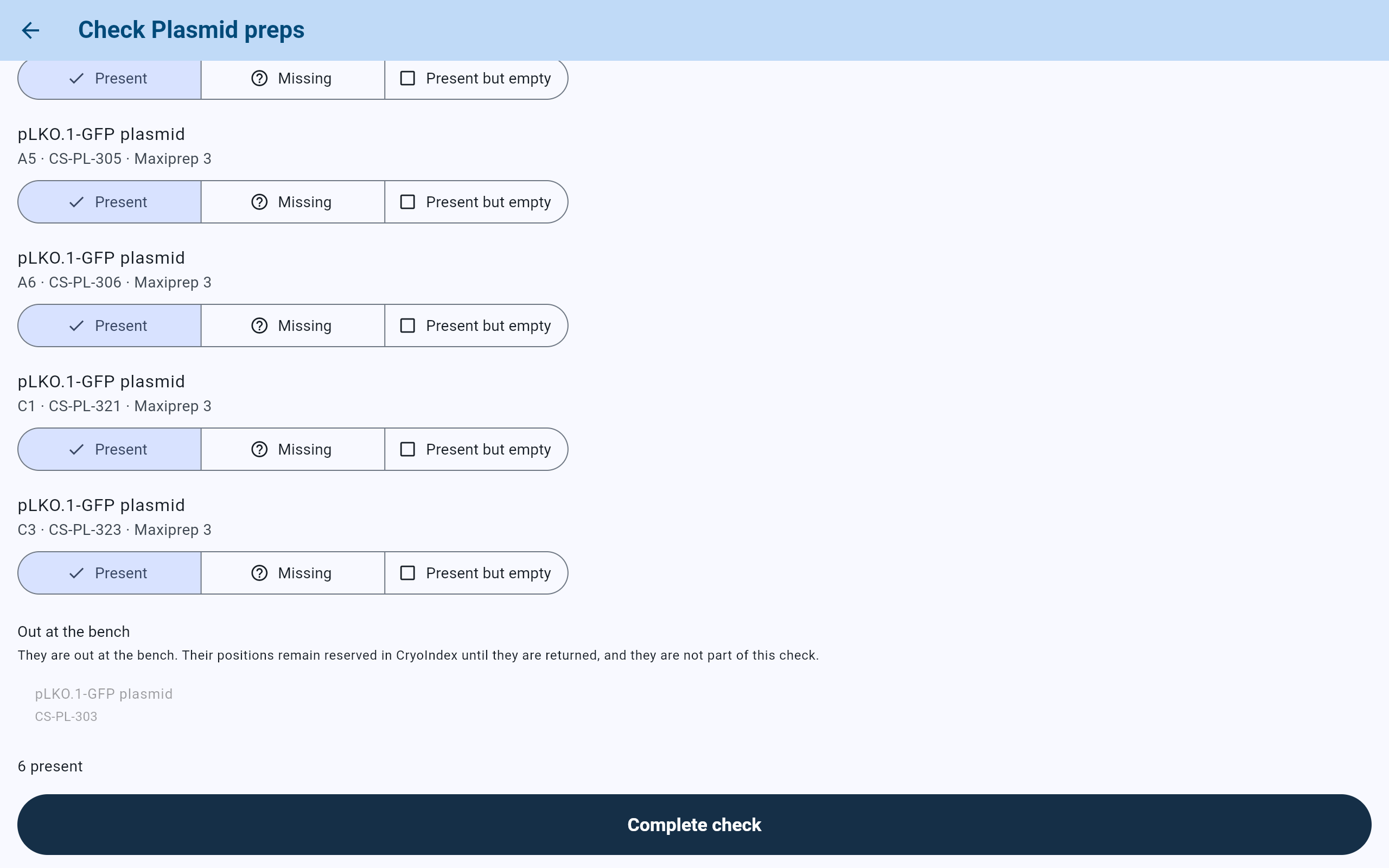
CS-PL-303 is at the bench. It is listed, but nothing is asked about it.
- Items at the bench are not part of this check.
- The item at the bench, grayed out.
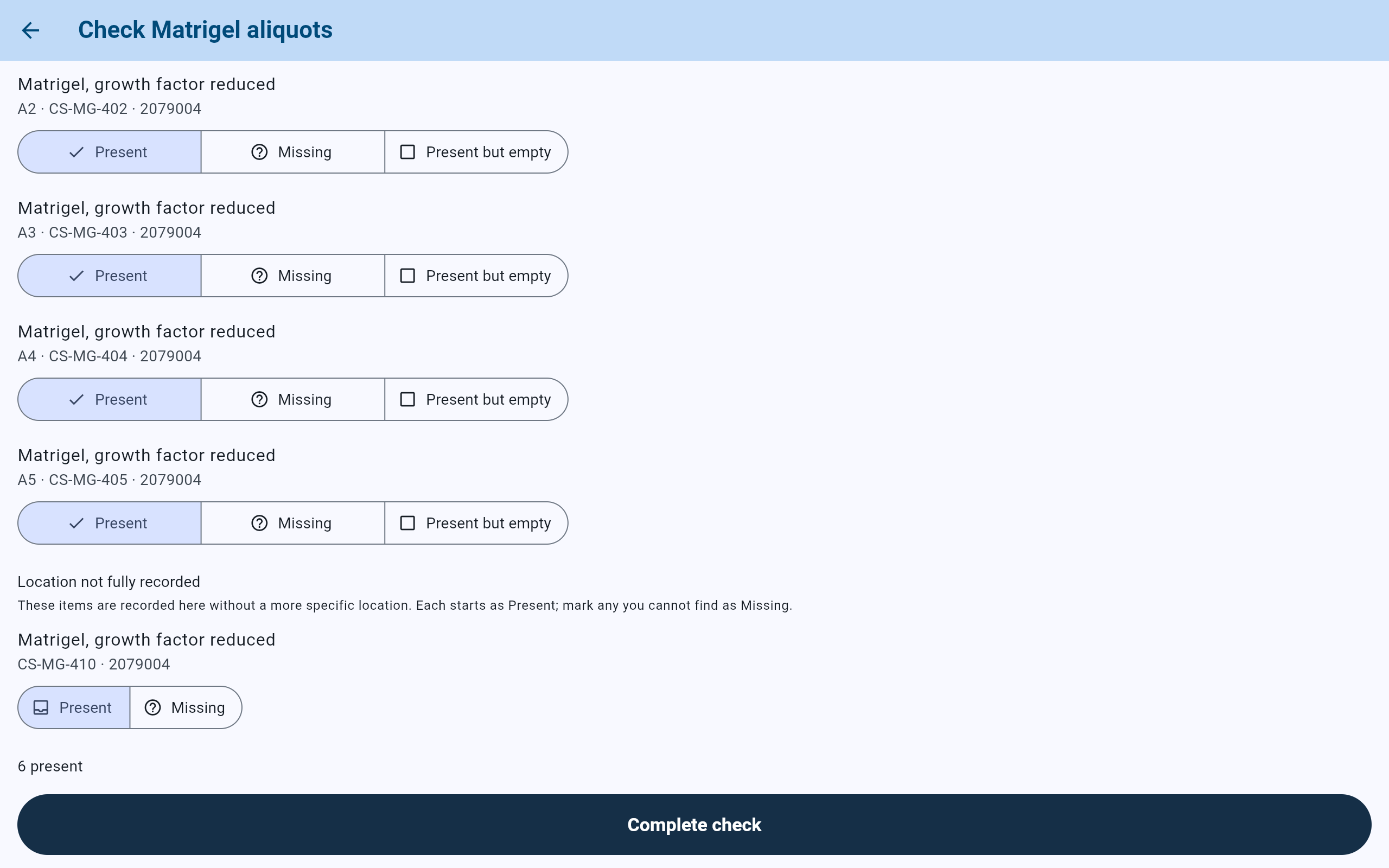
CS-MG-410 was stored in the Matrigel box with no position, so it can only be found present or missing.
- Items in this container with no position recorded.
- Only Present or Missing.
A check cannot record an item in the wrong place. If an item turns up somewhere else, mark it from the item itself: open the item, choose More, then Check this item, and answer What did you find? with Found at another location.
Step 3 · The whole cabinet
Finish the walk, or stop partway.
- Each completed container gets a check mark and cannot be opened again in this walk.
- When every container is done, the top reads All 11 checked, for this upright. Go back to the dashboard.
- Stopping partway is fine: what you checked is recorded. A walk cannot be resumed later, though. Starting Check a cabinet again begins a new check of the whole cabinet.
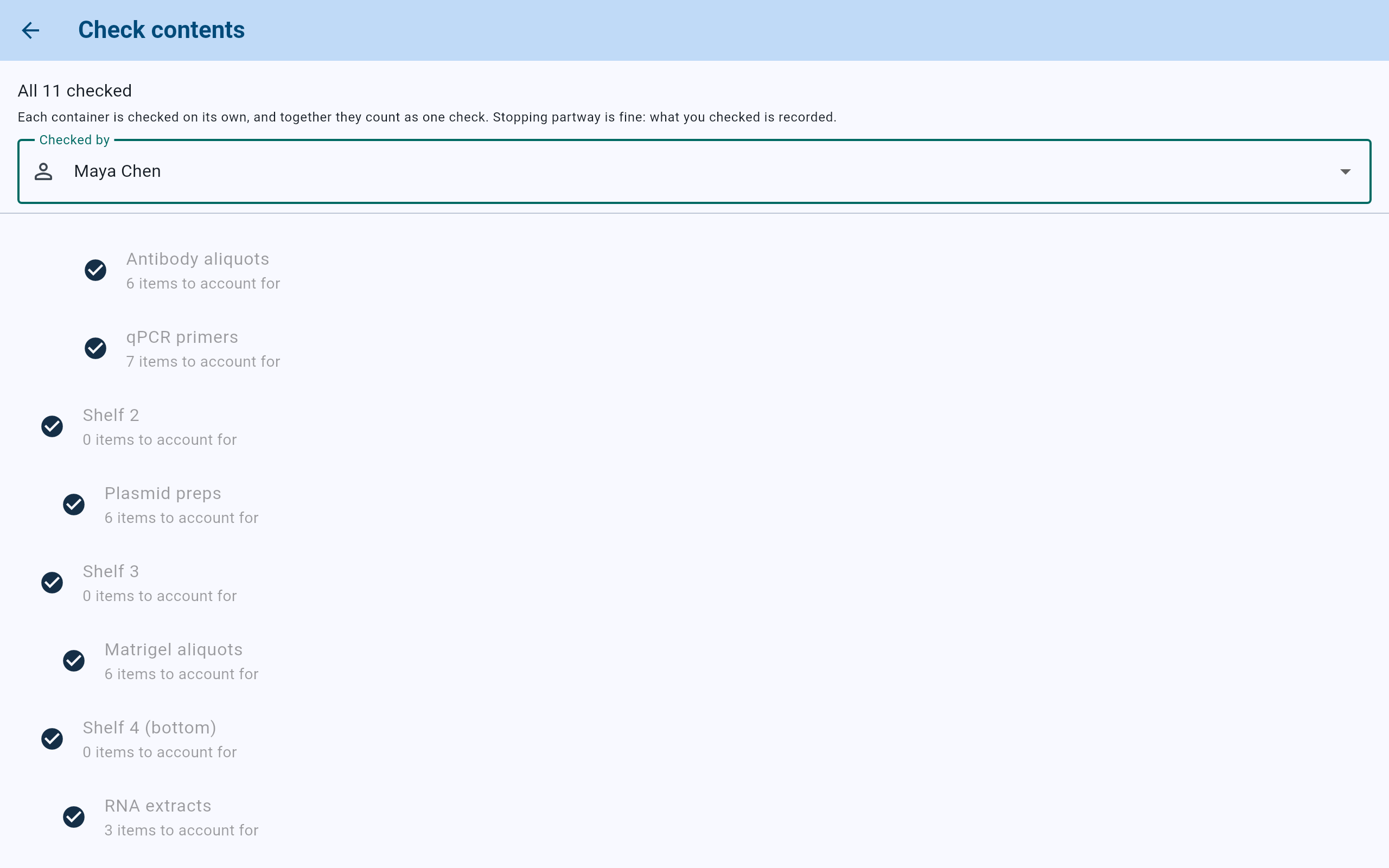
Every container of -80 Upright A has been checked by Maya Chen.
- The walk is complete.
- A check mark for each container done.
After the check
Read what the check changed.
- The cabinet's row reads checked with the date of the last check that went through every container. A cabinet that has only ever been checked partway reads partly checked; one never checked reads never checked.
- Anything marked missing raises an alert, for example 1 item is marked missing, on the Cold Storage dashboard. Select Review items.
- Items to locate lists each item marked missing with where it was last known, and each item with part of its location not recorded.
- When a missing item turns up, open it and select Found it to record where it is now.
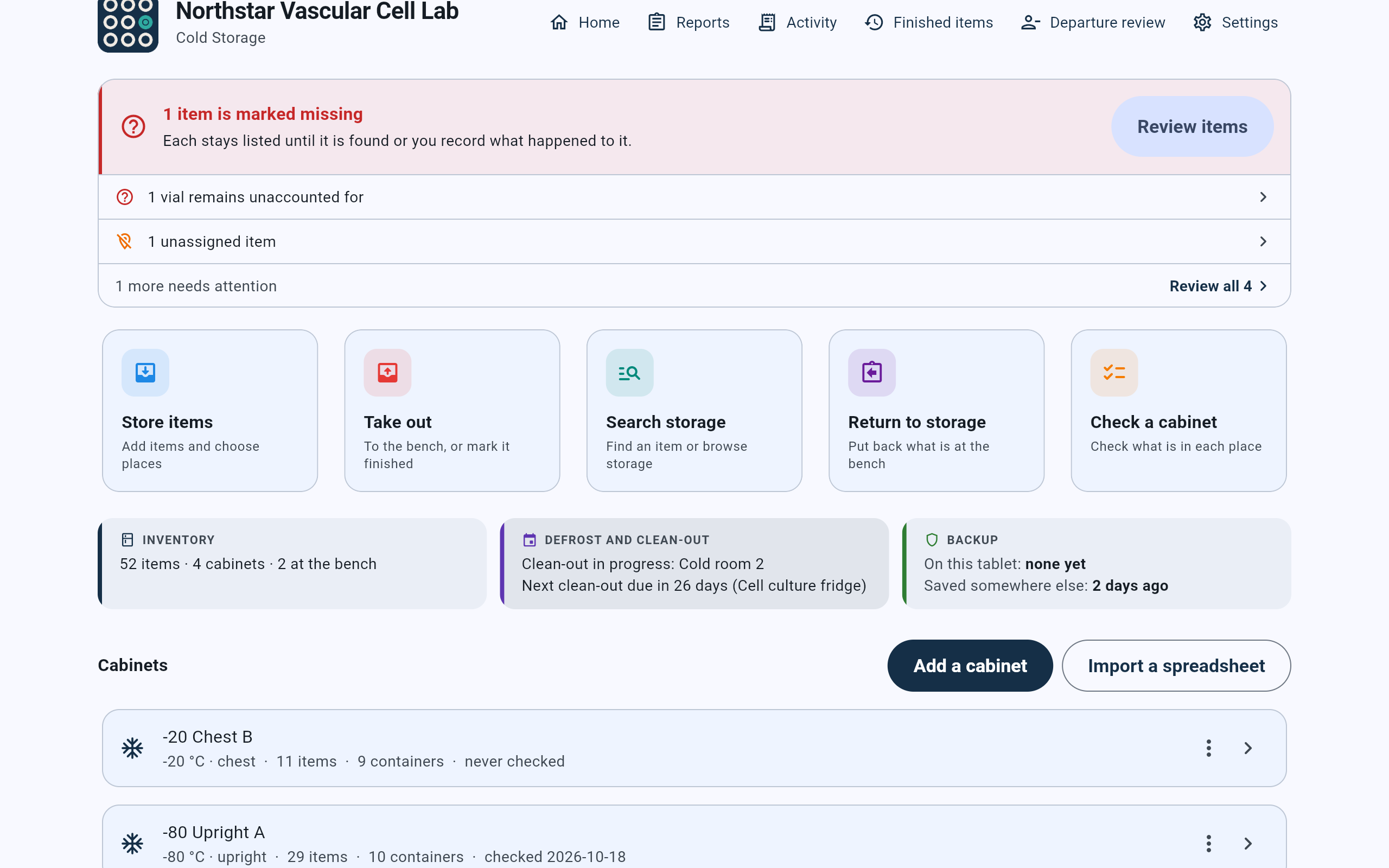
The missing antibody now has an alert, and the upright shows today's date.
- The alert for items marked missing.
- Review items opens Items to locate.
- The date of the last check of the whole cabinet.
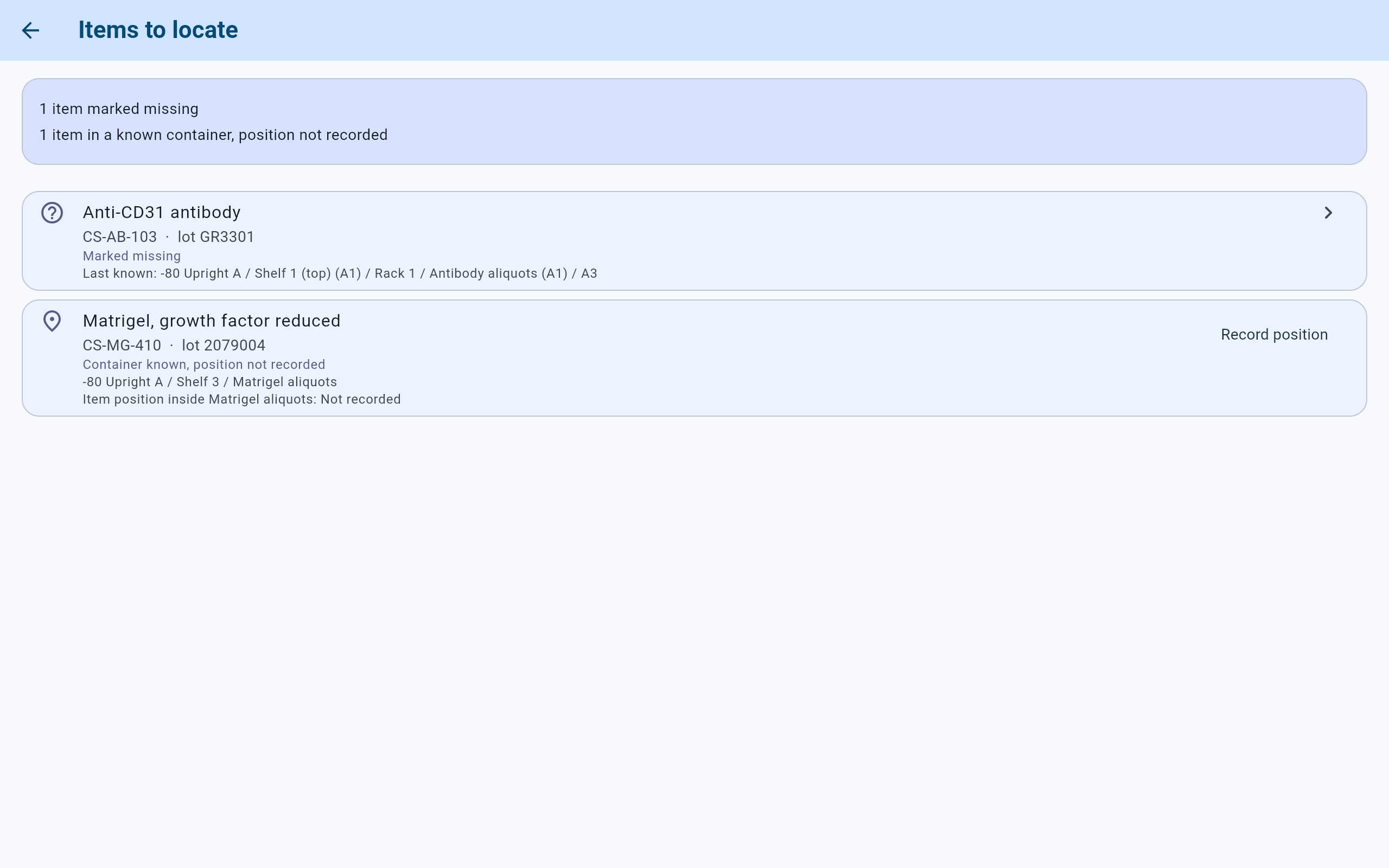
Items to locate after the check. The antibody is missing; the Matrigel aliquot still has no position.
- Marked missing, with where it was last known.
- An item whose container is known but not its position.
- Record position gives it one.
A single box
Check one box without walking the cabinet.
- Open the box: open the cabinet from the dashboard, then the shelf, the rack and the box.
- Select Check at the top right. A shelf or rack that holds other containers offers Check all contents instead, which starts a walk.
- Answer for each item as above. On its own, the box asks Checked by just above Complete check, which stays off until someone is chosen.
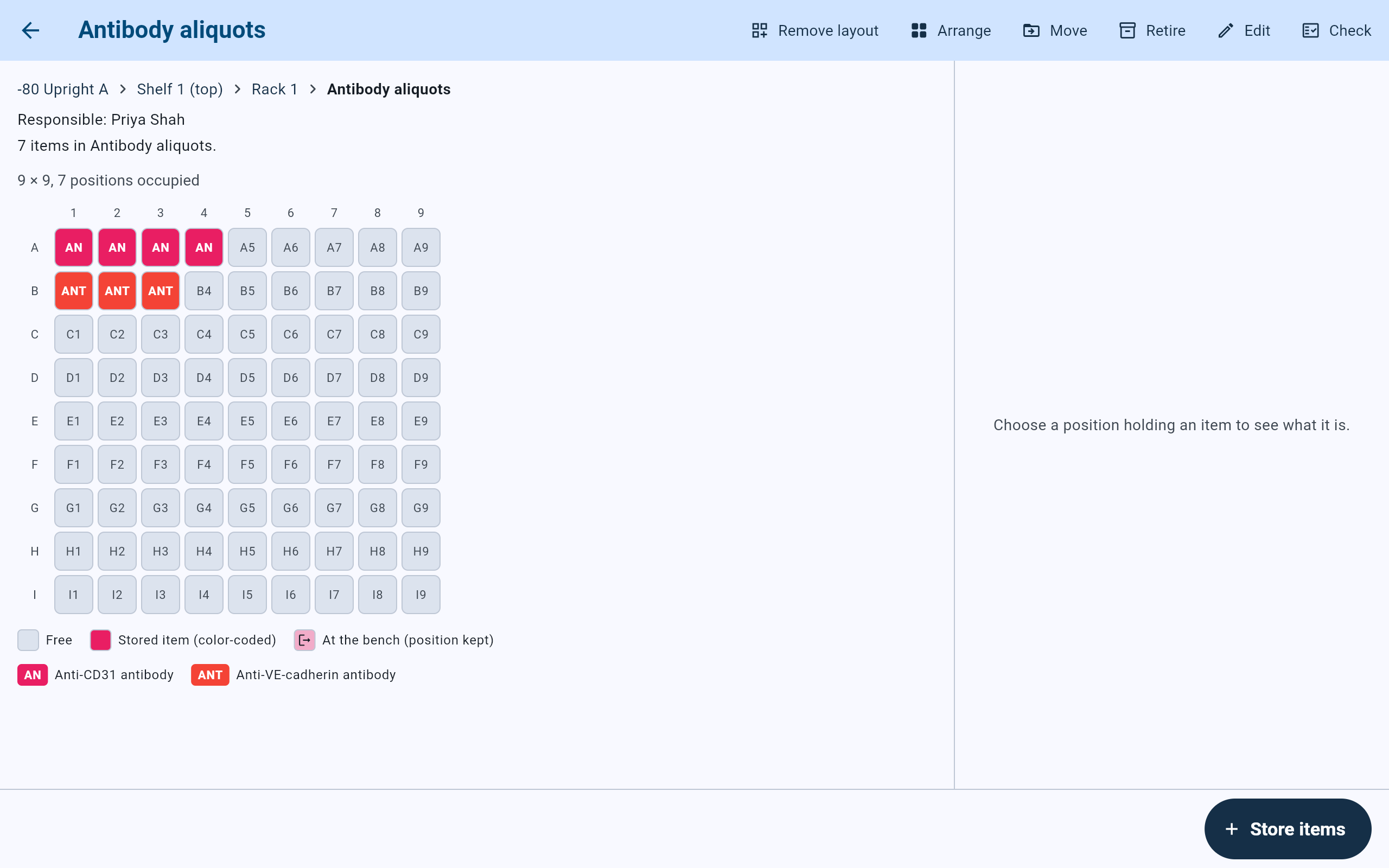
A box's own Check button checks just that box.
- Check opens the check for this box.
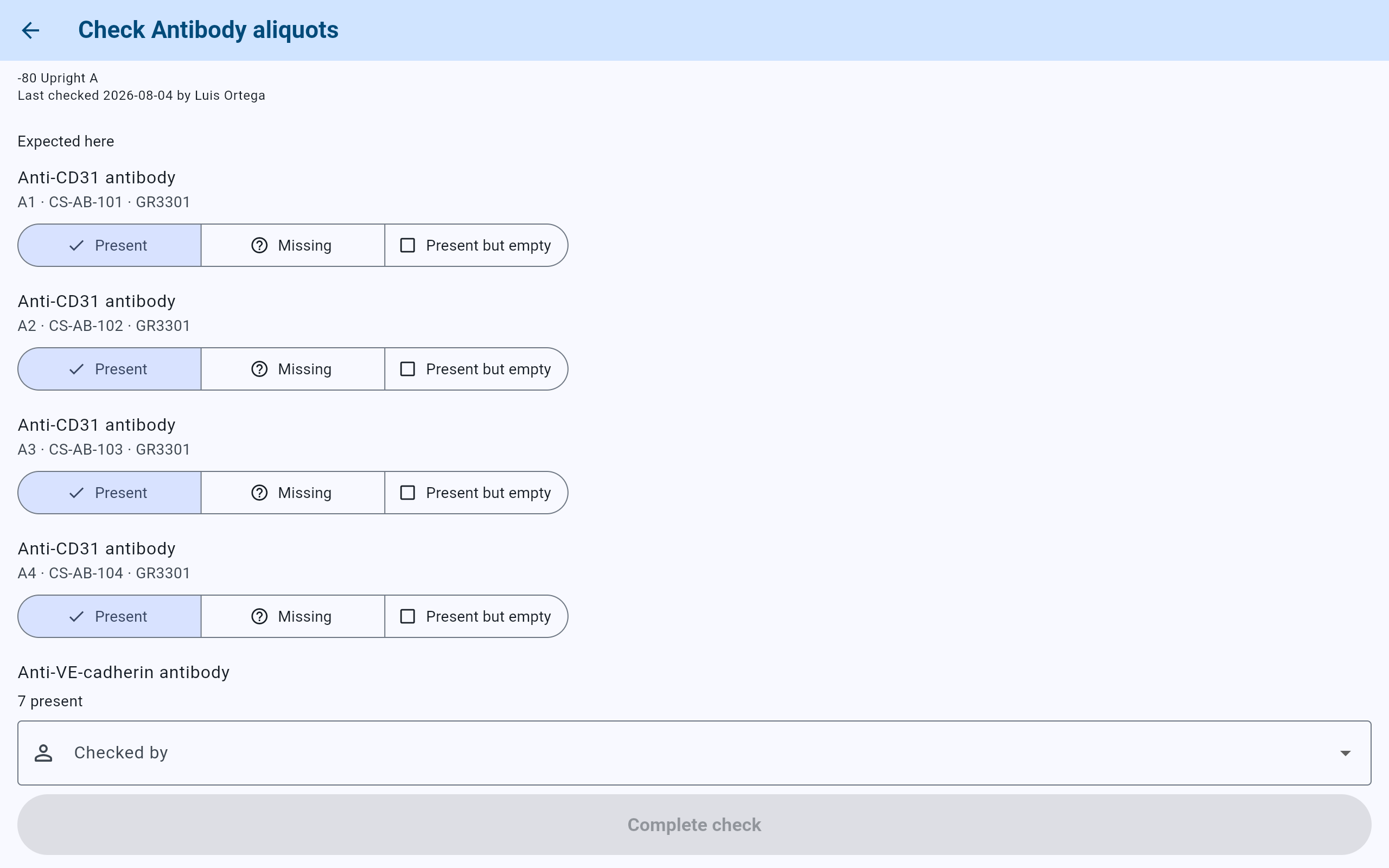
A single box asks who is checking at the bottom of the screen.
- Choose Checked by.
- Complete check turns on once someone is chosen.