On the dashboard
Read the alert block at the top of the dashboard.
The first Cold Storage alert is shown in full, with its explanation and its own button. The next two are single lines; choosing a line opens the same screen as its button. Review all with the number of alerts opens Needs attention, which shows every one in full. Alerts cannot be dismissed: each goes away when what it is about has been dealt with.
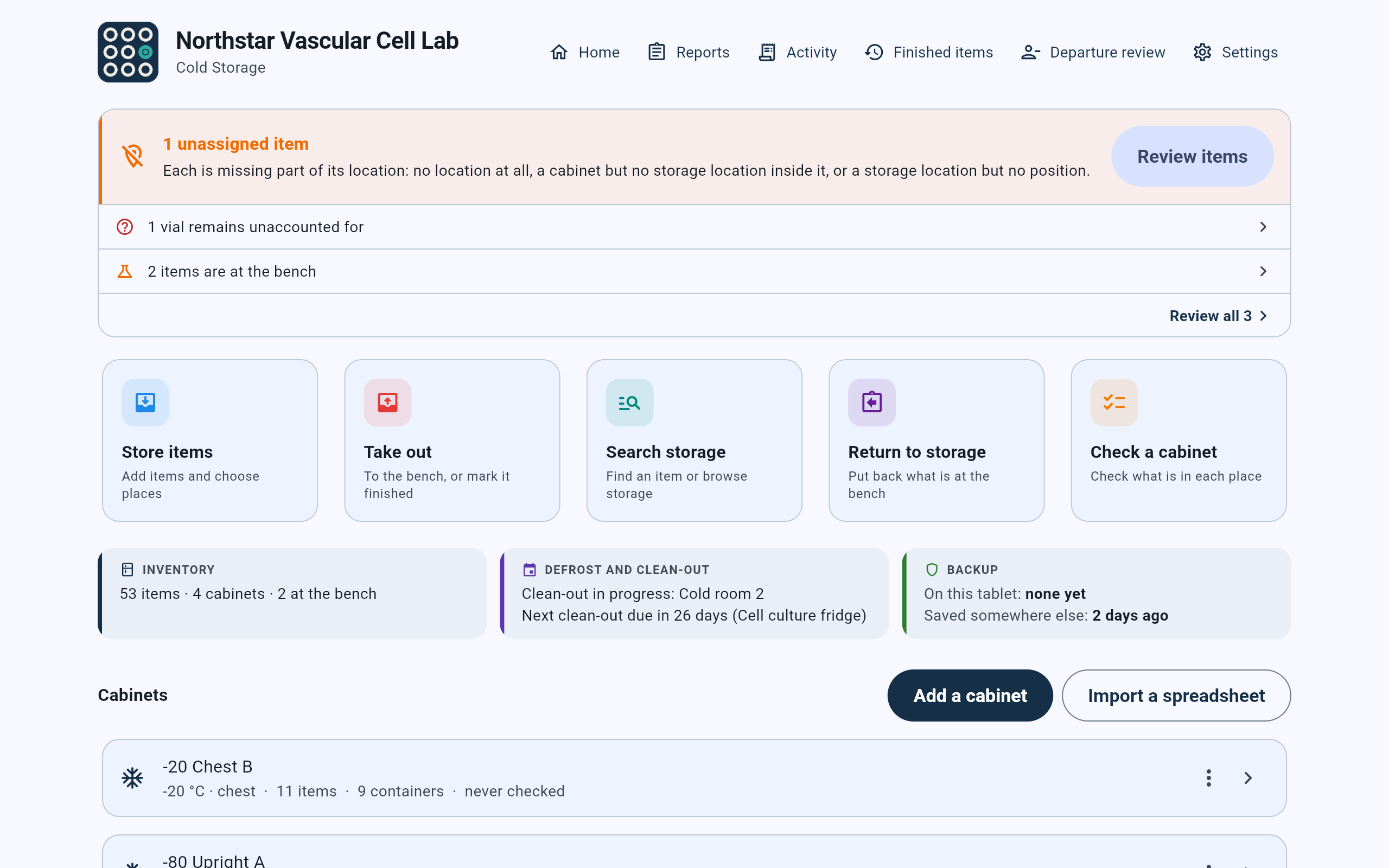
Three alerts in this lab. The first Cold Storage one is shown in full.
- The leading Cold Storage alert, “1 unassigned item”, in full.
- Review items opens Items to locate.
- An urgent alert from the cell storage side, shown as a single line.
- Another Cold Storage alert, as a single line.
- Review all 3 opens Needs attention.
The block on the Cold Storage dashboard also carries the cell storage side’s urgent alerts, such as a vial unaccounted for or a dewar overdue for a fill, as single lines. They never take the first place in the block, even when they are more urgent. Needs attention lists every alert in order of urgency, whichever side it comes from.
“Each is missing part of its location: no location at all, a cabinet but no storage location inside it, or a storage location but no position.” Review items opens Items to locate.
“Each stays listed until it is found or you record what happened to it.” Review items opens Items to locate.
“Their storage positions stay reserved until they are returned.” View items opens At the bench.
“-80 Upright A is due for a defrost in 3 days” (or “tomorrow”): “Within the reminder period set for this cabinet.” On the day: “… is due for a defrost today”, “Today is the scheduled date.” After it: “… is overdue for a defrost”, “The scheduled date has passed. This alert stays until the defrost is completed or the date is changed.” A refrigerator or cold room says clean-out instead. The button, Defrost or Clean out, opens that cabinet’s defrost or clean-out screen.
Backup reminders, such as “No backup saved elsewhere”, appear here too, because a backup carries both sides of the lab. See Create a backup. In this lab the next clean-out is not yet inside its reminder period, so no date alert shows in these pictures.
Review all
Read every alert in full in Needs attention.
Needs attention lists every alert as a card, worst first, each with its explanation and its button. Here the vial from the cell storage side comes first, with Review vials.
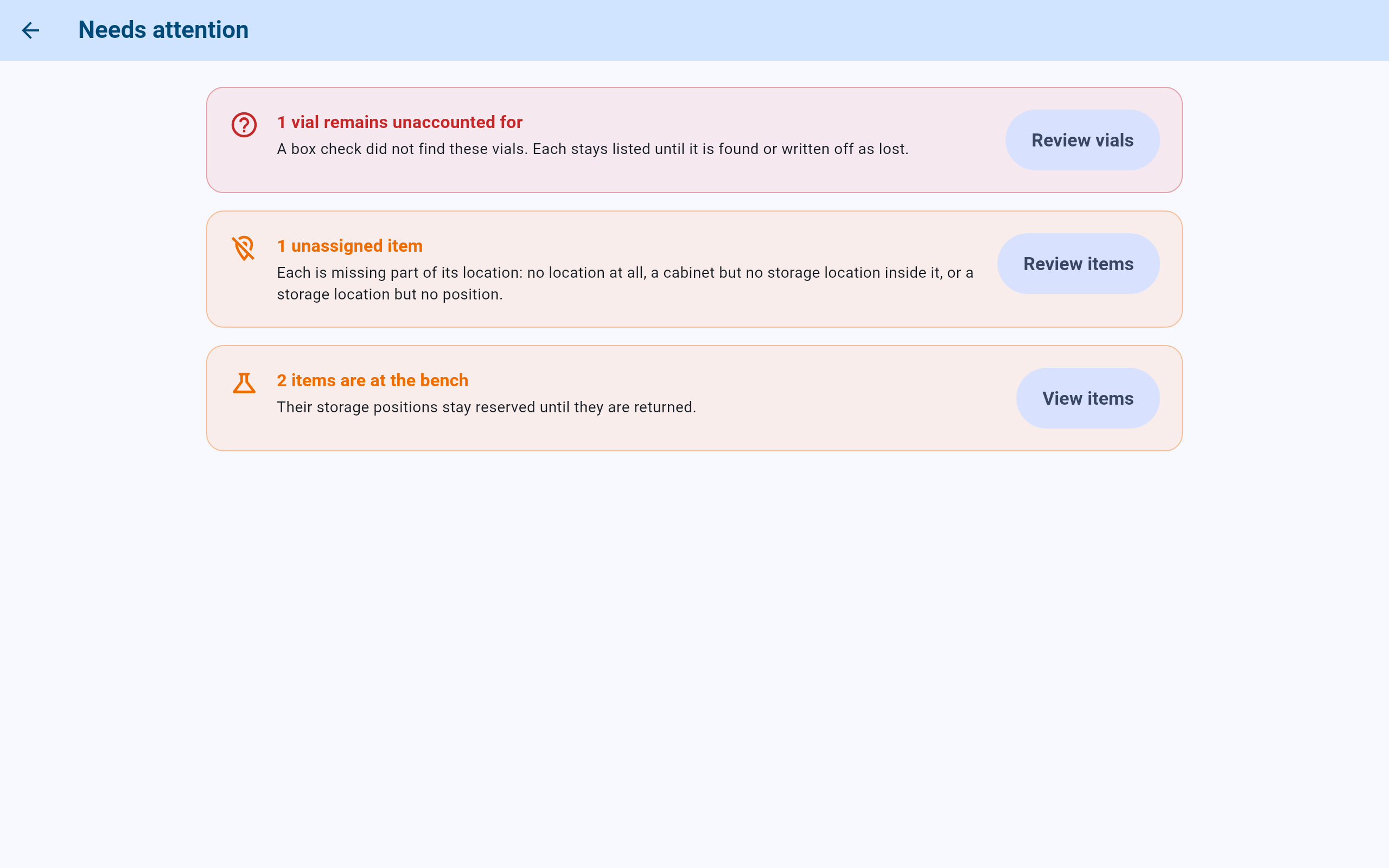
All three alerts, worst first.
- The cell storage alert, with Review vials. See resolving a missing vial.
- Items whose location is incomplete, with Review items.
- Items at the bench, with View items.
Items to locate
Work through the items whose place is not fully known.
Items to locate opens from Review items on an alert. A summary at the top counts each kind; the rows follow, those with the least recorded about their place first. Each row names its kind:
Nobody could find it, and its position was released. Open it and use Found it, or Mark as finished if it is gone.
Nothing is known about where it is. Open it and use Move item once it is found.
Only the cabinet is known. Open it and use Move item to record the shelf, box or position.
The box is known but not the position in it. Record position on the row answers it without leaving the list.

CS-MG-410 is in the box Matrigel aliquots, but its position was never recorded.
- How many items of each kind, across the lab.
- What is not known about this item.
- Where it is, as far as the record goes.
- Choosing the row opens the item’s screen.
- Record position asks which position it is in.
Record position
Record the position once the item has been found in its box.
- Open the box and find the item. Note the position it is actually in.
- Select Record position on its row. The dialog asks, for example, Where in Matrigel aliquots? and names the item.
- Choose the position in the grid. Positions holding other items are locked; the key below the grid reads Free, Occupied and Not used in this layout. The line Position repeats the choice.
- Under Recorded by, choose who found it, then select Record position. Without a position, the dialog says “Choose its position. Leaving it unanswered keeps it on this list.”
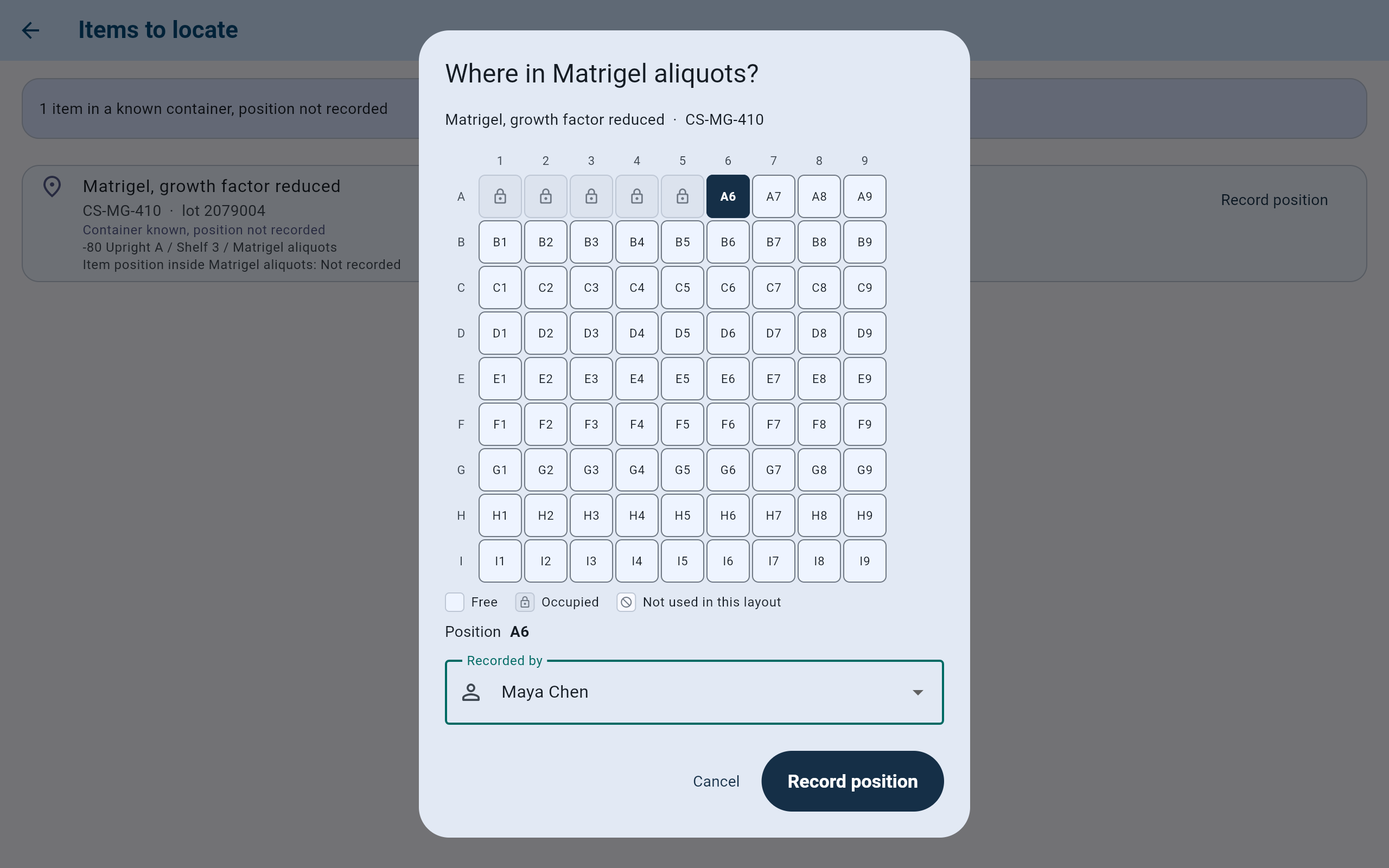
CS-MG-410 was found at A6, the first empty position after the other five aliquots.
- The box it is known to be in.
- Positions already holding items cannot be chosen.
- The position chosen, in words.
- Recorded by: who found it.
- Record position saves it.
The row leaves the list. When nothing is left, the screen says “No items need attention” and “Every item has a location recorded, and none is marked missing.”, and the alert leaves the dashboard. The item’s history and Activity list the change as Moved, from the box to the box and position.
Activity
See what was recorded about items, and by whom.
Select Activity at the top of the Cold Storage dashboard. It lists what was recorded about every item: “Most recent first. Open an item to see its full history.” Each row gives what happened and the material, when and who recorded it, where the item went (“from … → to …”), the barcode and lot, and any note. The name shown is the lab member who recorded the entry; the person responsible for the item may be someone else. The list holds 100 entries at a time; Show older adds more.
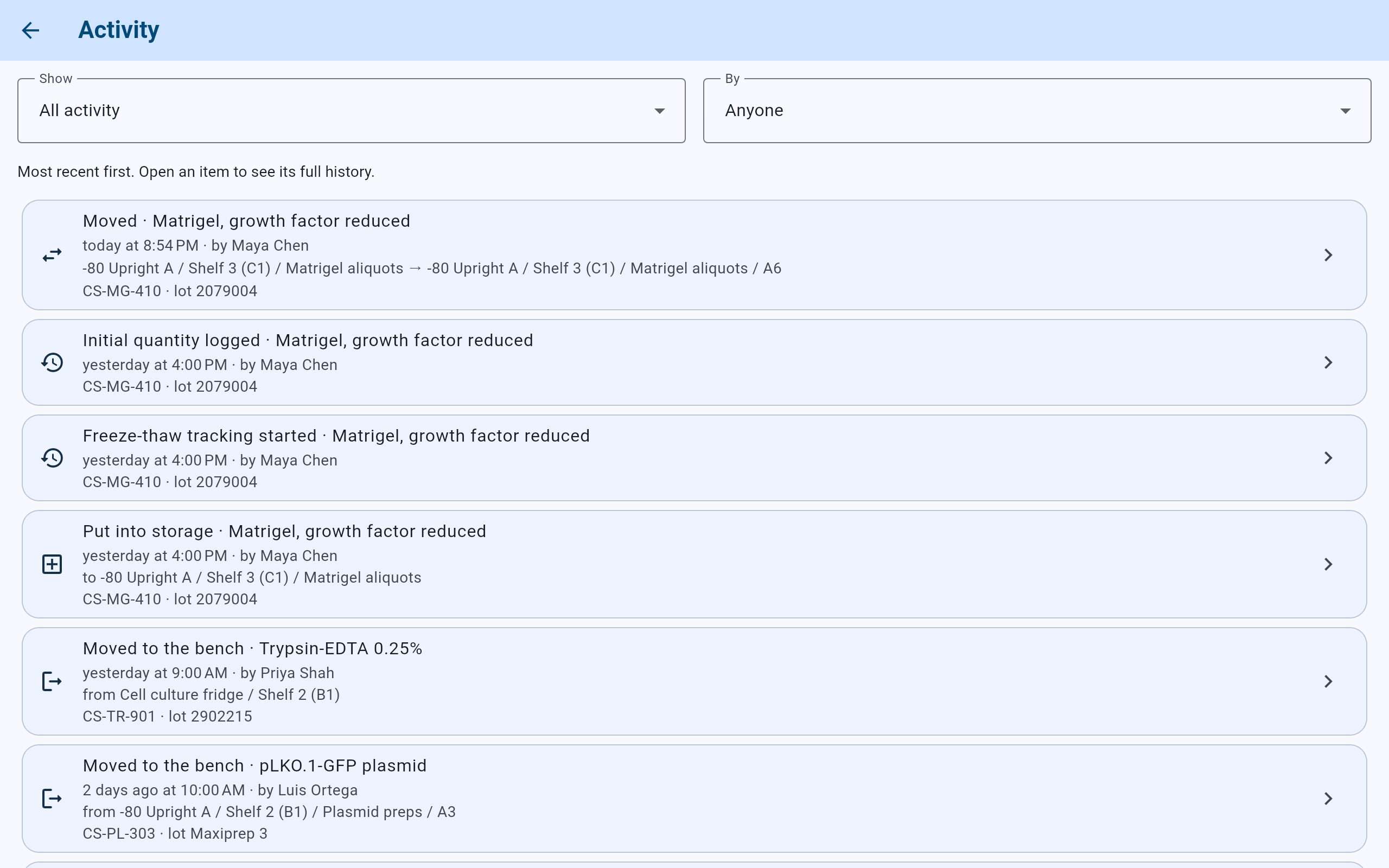
The position just recorded for CS-MG-410 is at the top, as Moved.
- Show: which kind of entry to list.
- By: who recorded it.
- Newest first.
- Where the item went, from one place to another.
- When, and who recorded it.
- Each row opens the item’s screen and its whole history.
Activity shows what was recorded for Cold Storage items. A cabinet check as a whole, the dates set for a defrost, and the liquid-nitrogen side’s vials are not in it; the liquid-nitrogen side has its own Activity.
Show and By
Narrow the list to one kind of entry, or one person.
- Open Show and choose All activity, Everything that left storage, or one kind: Moved to the bench, Returned to storage, Recorded as used up, Discarded, Removed from the collection, Not found during a check, Voided, Found, Put into storage or Moved.
- Open By and choose Anyone or one lab member. Lab members who are no longer active are listed too, so work recorded by a former lab member can still be found.
- If nothing matches, the screen says “No activity matches those filters.”
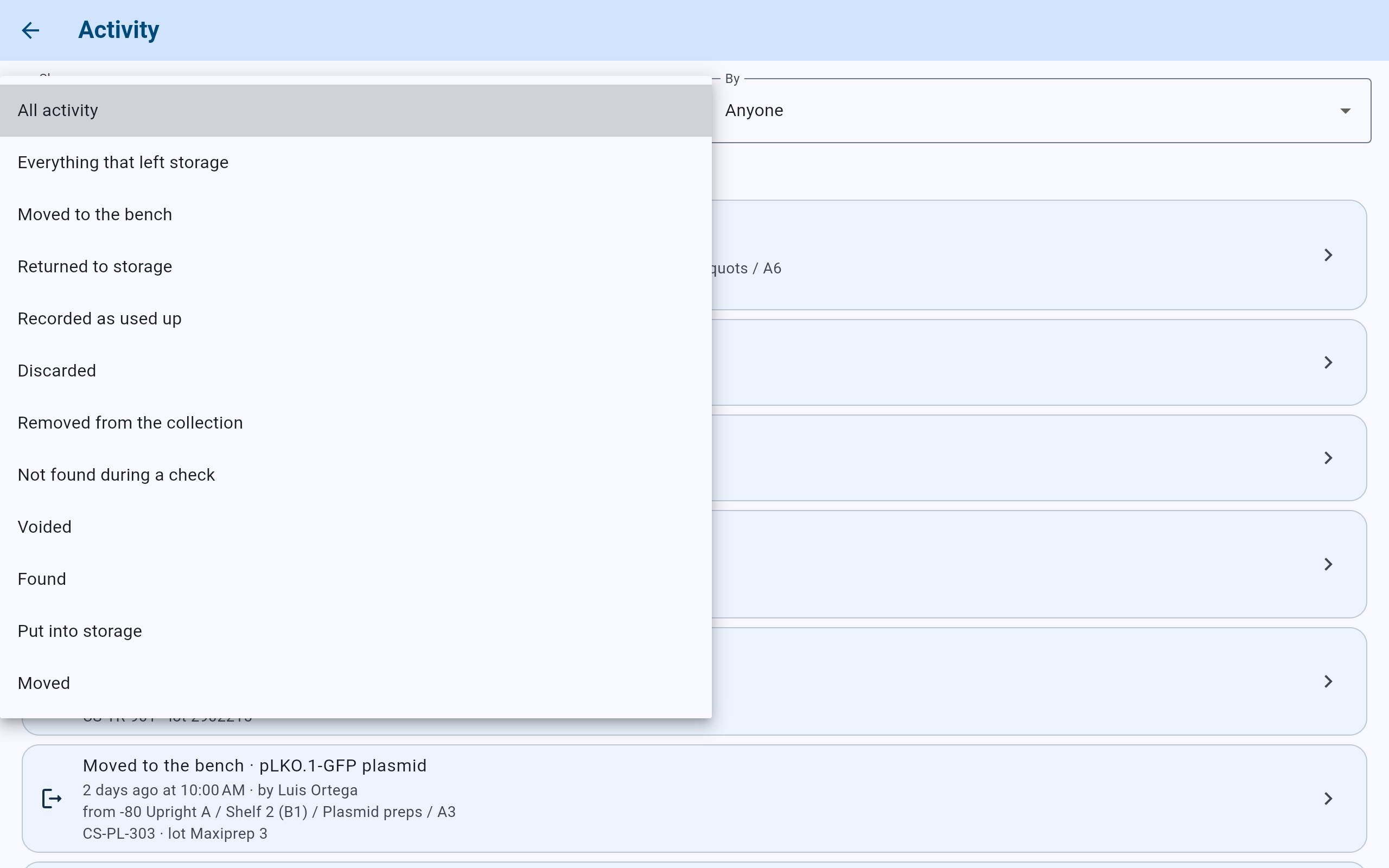
The choices under Show, named as an item’s history names them.
- Everything that left storage: moved to the bench, used up, discarded or removed from the collection.
- One act at a time, such as Moved to the bench.
- Not found during a check is listed apart: a missing item may only be misplaced.
- Moved includes a position recorded from Items to locate.
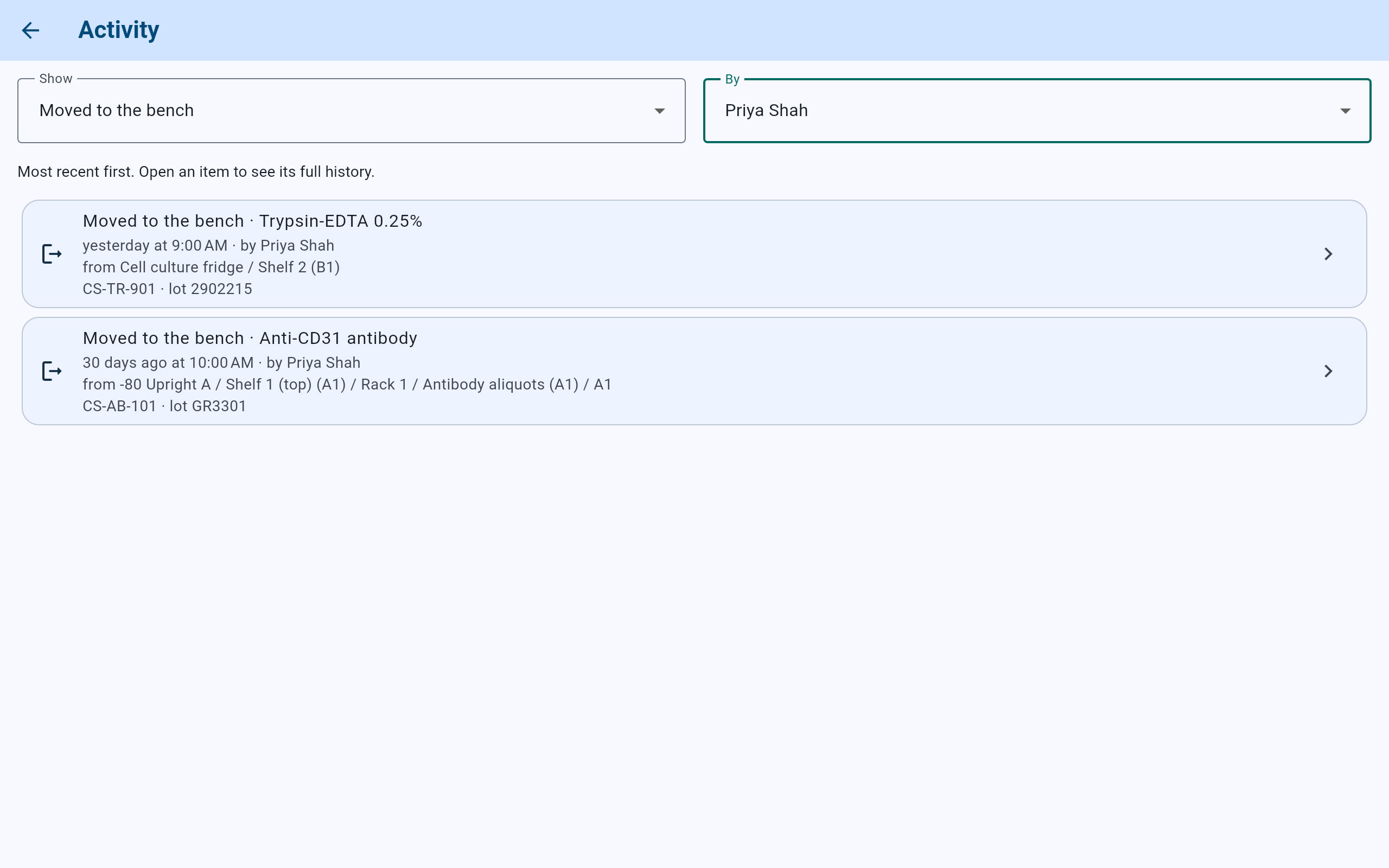
Everything Priya Shah has moved to the bench.
- Show set to Moved to the bench.
- By set to Priya Shah.
- Each entry still says who recorded it and where the item came from.
Some entries appear only under All activity. Usage, thaw answers, amount corrections, checks that found the item, and the start or end of tracking have no choice of their own under Show. An item marked missing from its own screen is listed as Not found during a check, the same words a check uses.