Watch the walkthrough
Audit a box and resolve a finding
Captions are available in the player and start turned off so they do not cover the app. The written transcript is below the video.
Read the video transcript
Choose Audit a box, then select the cane and box physically in front of you. Audit what is in your hand, not what the screen expects to find.
The screen lists the three recorded vials. Mark each as There or Missing, then select Maya Chen as the person performing the audit.
Finishing records the audit and the missing finding together. The app removes CI-003 from in-stock inventory and keeps the unresolved finding visible.
When CI-003 turns up, open the Outstanding item and choose It turned up. Name Luis Ortega as the person who found it.
Putting it back is refused unless the original position is still active and free. The finding then closes, the vial is back in the inventory, and nothing is left outstanding.
Narration uses an AI-generated voice.
An audit records observations
Do not start by changing the inventory.
Bring the selected box into approved cold handling, then compare the physical positions with the list. A mismatch should be recorded as the mismatch actually observed.
Choose the scope
Select the physical cane and box being checked.
- Open Audit a box from the dashboard.
- Choose the cane, then the box. Confirm the labels against the container in hand.
- Begin only after the displayed address matches the physical box.
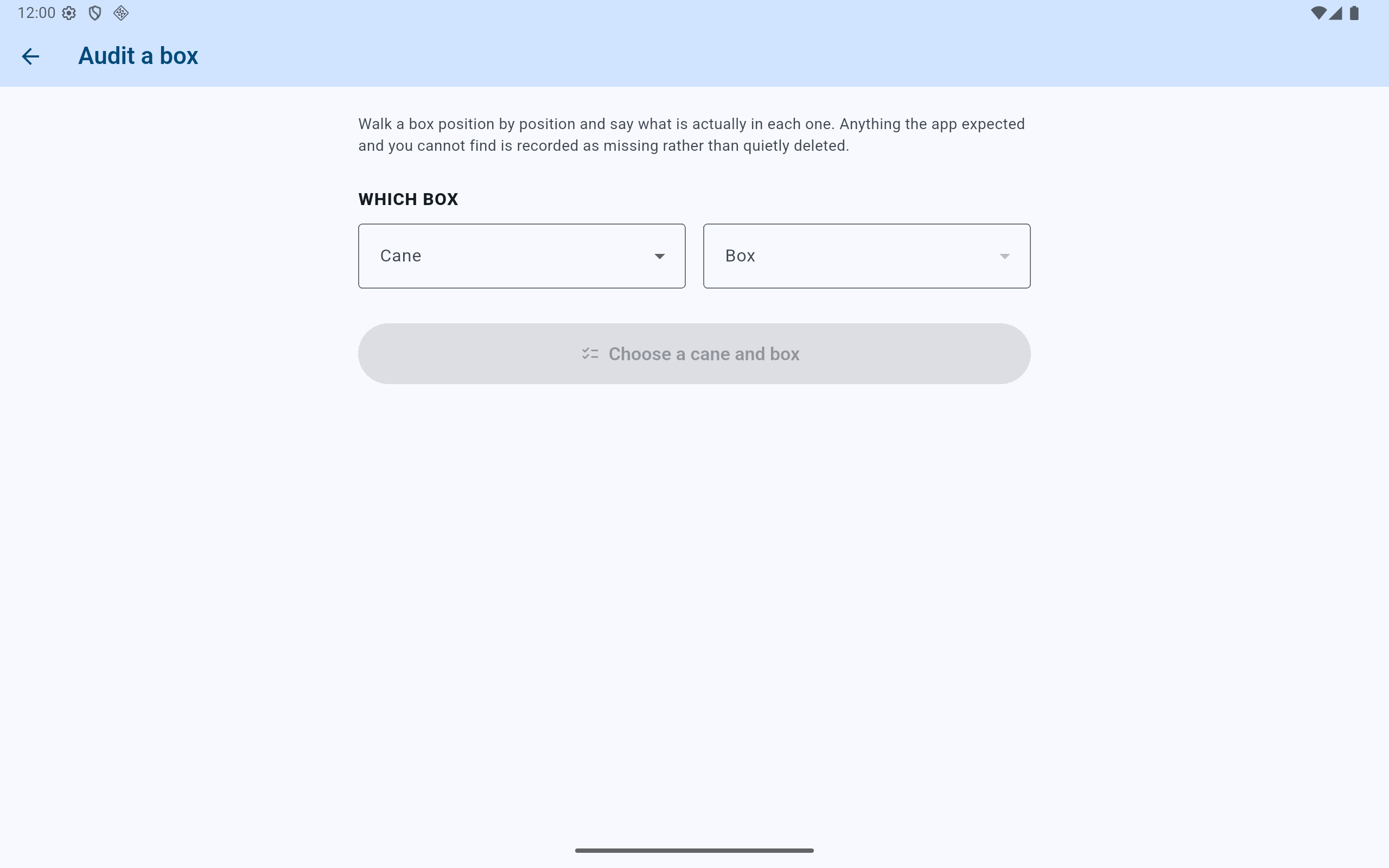
The app loads the expected occupants only after a specific physical box is selected.
- Read the audit rule before beginning: an unexplained absence remains visible.
- Choose and physically verify the cane.
- Choose and physically verify the box.
- The audit button becomes available only after both are known.
Position-by-position check
Give each expected vial an observed result.
- Read the position badge, identifier, cell line, and passage for the next expected vial.
- Select There only after seeing that vial in the stated position.
- Select Missing when the expected vial cannot be found after the box has been checked.
- Select Move when the vial exists but is physically in another position.
- Choose Rest are there only after visually checking every remaining listed vial. It is a recorded assertion, not a shortcut for an unexamined box.
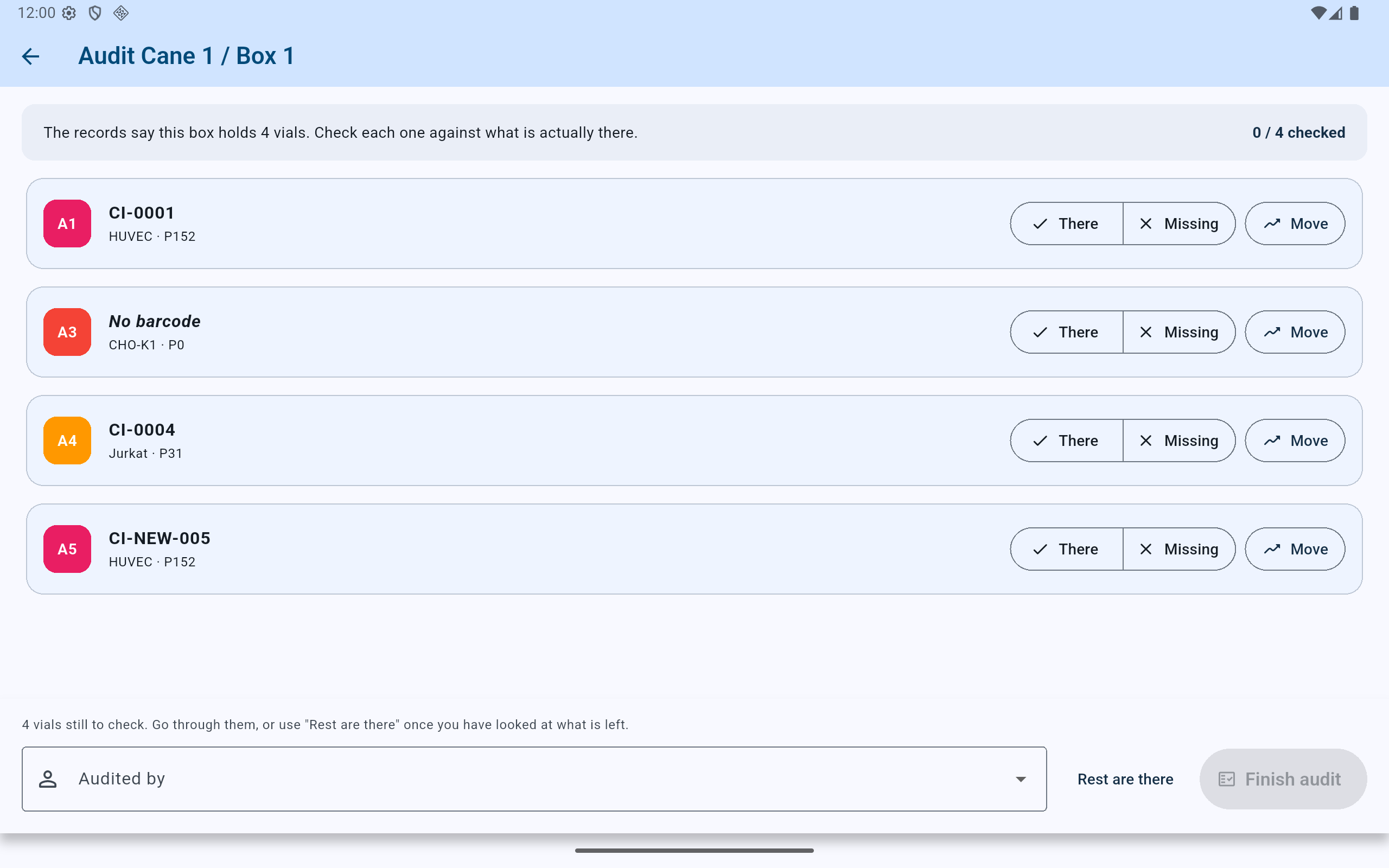
A clean audit cannot be finished from zero observations; every expected vial must be answered for.
- Follow the running checked count against the expected total.
- Use There or Missing for the stated position.
- Use Move for a vial found at a different address.
- Name the person who physically performed the audit.
- Finish remains unavailable until a clean audit is based on actual checks.
Wrong position, vial found
Move the existing record; do not mark it missing and re-enter it.
A vial found in another hole still has the same history, freeze date, passage, and identifiers. Use Move to place that existing record at the observed destination. Marking it missing and creating a replacement would sever the history of the physical vial that was found.
If the destination is occupied, stop and reconcile both physical vials. CryoIndex will not allow two in-storage records to claim the same position.
Sign and record
Finish under the name of the person who carried out the check.
- Select the auditor. CryoIndex requires attribution for a clean result as well as for a missing finding.
- For a clean audit, make sure the count shows every expected vial checked.
- If one or more are missing, the action changes to Mark missing. Read the count carefully.
- Record the result. The audit result and missing-vial changes are written together.
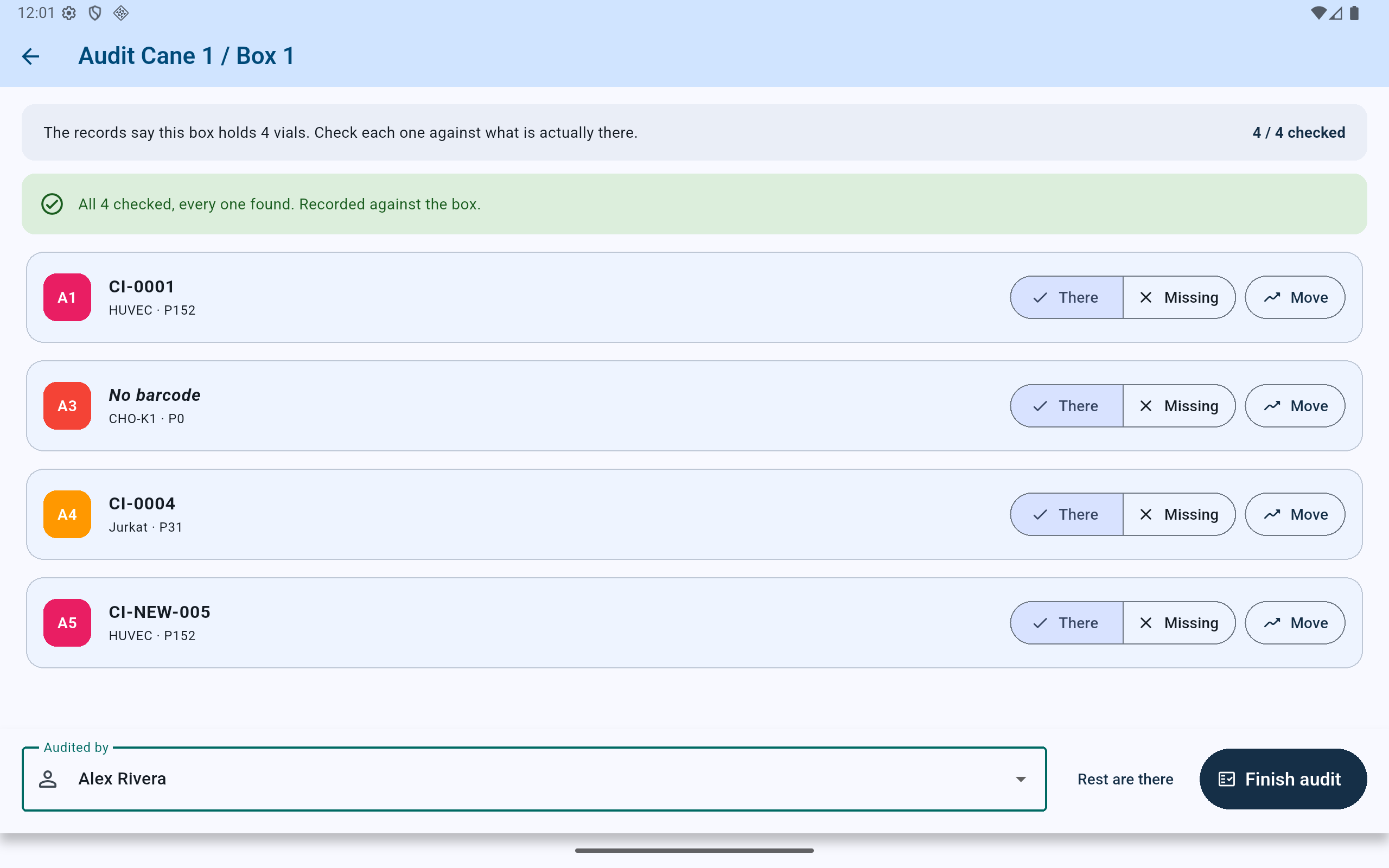
The green banner confirms that the clean check was recorded against this box.
- Confirm the checked total equals the expected total.
- Read the recorded outcome rather than assuming that reaching the end saved it.
- The selected auditor remains part of the box-audit record.
After a missing finding
Keep the finding open until reality explains it.
A vial marked missing leaves the active inventory but remains in history as an unresolved audit finding. The dashboard and Outstanding items keep it visible.
Use the finding’s It turned up action. If its old location is no longer usable, follow the destination choice offered by the app.
Use the explicit write-off action with the responsible user. Do not use an unrelated removal merely to clear the alert.