Watch the walkthrough
Record a liquid-nitrogen fill
Captions are available in the player and start turned off so they do not cover the app. The written transcript is below the video.
Read the video transcript
Use Log fill from the dashboard to open the liquid-nitrogen log, then choose Record a fill.
Keep the recorded time accurate and select the person who performed the fill, not merely the person entering it later. Notes are optional.
After Record, the dated entry appears in the log with Maya Chen. Corrections and voids remain part of the history rather than silently replacing it.
The dashboard now says Filled today by Maya Chen, and the alert clears until the next fill is due.
Narration uses an AI-generated voice.
A fill is an observation
Do not record a future or planned fill.
The entry starts the due-date clock. Record it after the dewar has been filled, using the time the work actually occurred. A scheduled task is not evidence that the fill happened.
Record the event
Name the person and confirm when the work happened.
- Open the Liquid nitrogen area on the dashboard, then open the log or choose Record a fill from an alert.
- Select Filled by. Use the person who performed the work—not the person entering it later.
- Check When. You may record an earlier time, but not a time that has not yet occurred.
- Add a short note when it helps explain the event, then select Record.
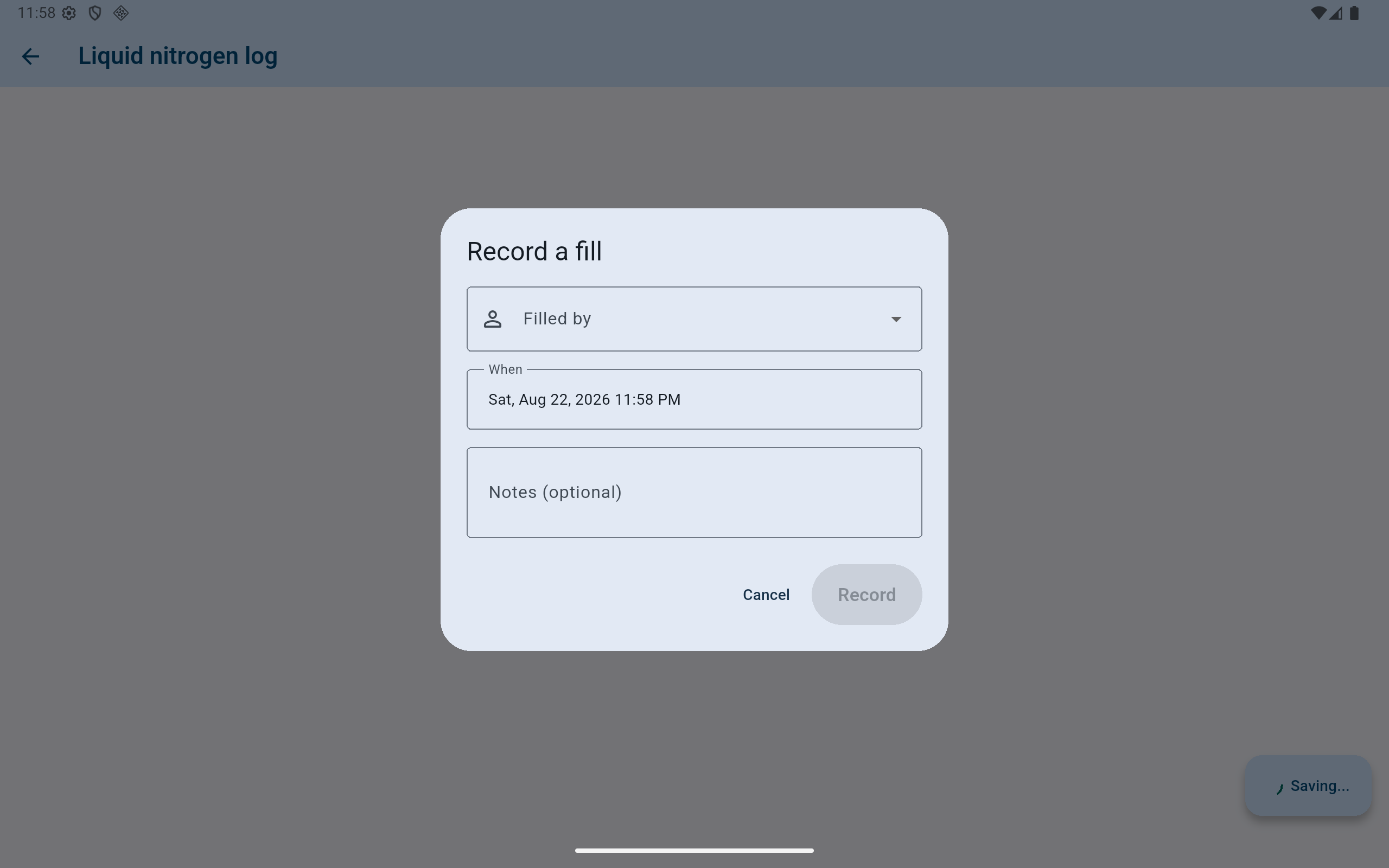
The Record action remains unavailable until an active storage location and the responsible user are known.
- Choose the person who performed the fill.
- Confirm the event date and time.
- Use notes for useful context, not routine filler.
- Record only after every required detail is correct.
Read it back
Confirm that the new entry says what you intended.
The newest entry appears first. Check the date, time, person and optional note. The dashboard's liquid-nitrogen status should now use this entry.
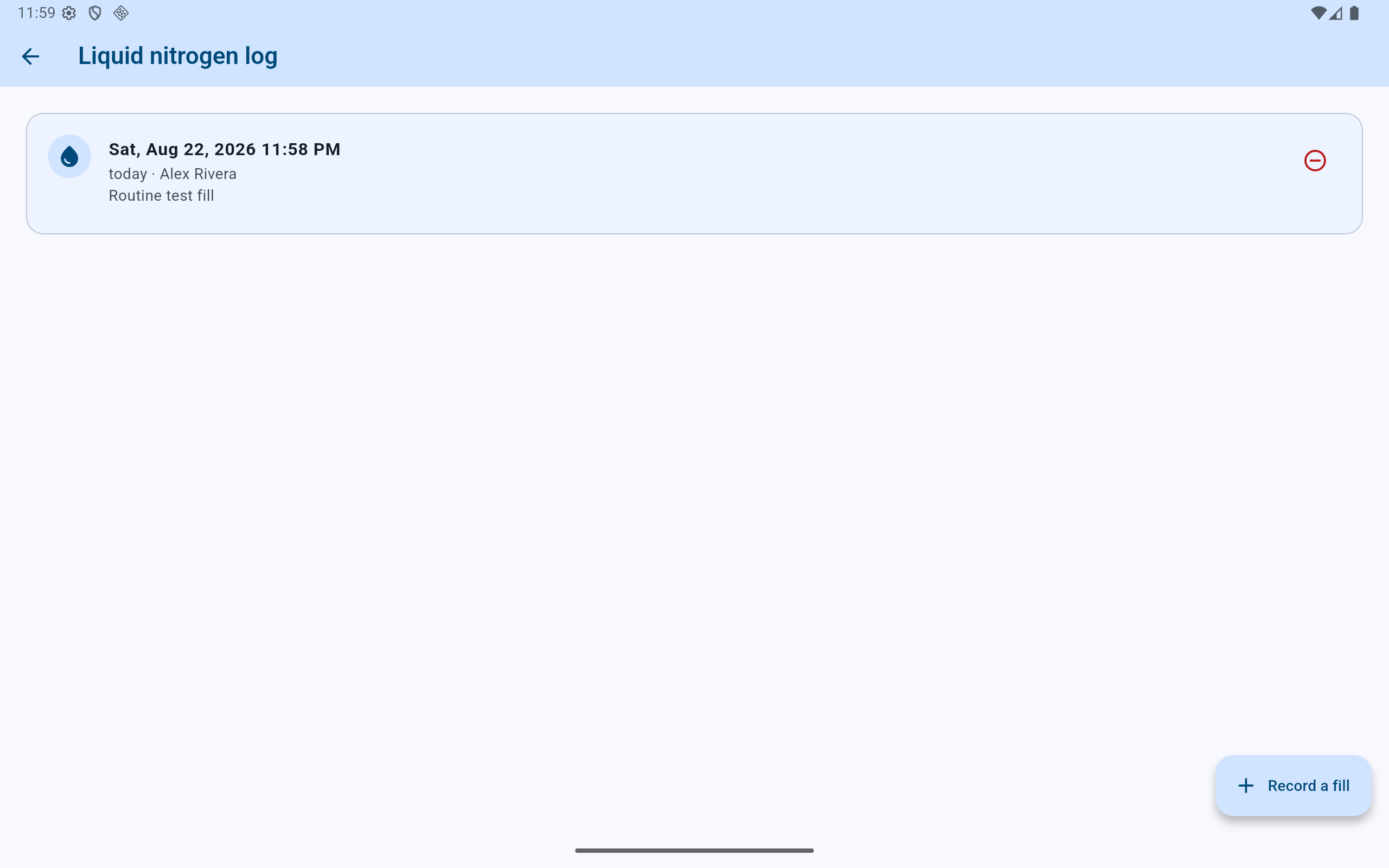
The saved row is both the lab record and the source used for the next fill warning.
- Verify the exact recorded date and time.
- Verify the person and any note beneath it.
- Tap the row itself to correct a mistake.
- Use the red minus only when the entry should stop counting.
- Use Record a fill for the next real event.
Dashboard status
A warning is only as accurate as the fill log and schedule.
An empty log is not an all-clear. Enter the last known fill only when the lab can support that date.
The newest valid entry has reached the configured interval. Follow the lab's procedure; recording a row does not replace physically filling the dewar.
Check the tablet clock and the newest row. Correct or strike out the mistaken entry so it cannot suppress the overdue calculation.
The fill happened, but a detail is wrong
Correct the existing row instead of replacing the event.
- Tap the active fill row.
- Correct the responsible person, date and time, or note.
- Select Corrected by so the change is attributable.
- Describe why the correction was needed when useful, then select Save the correction.
Correction is not deletion. Use it when a real fill occurred but its recorded facts are wrong. CryoIndex retains the amendment in the activity history.
The recorded fill did not happen
Strike the row out so it stops driving the schedule.
Select the red minus on the row only when the event itself should not count—for example, when a fill was entered twice. CryoIndex requires both a reason and the user making the decision. The row stays visible and struck through while the dashboard falls back to the preceding valid fill.
If the row was struck out by mistake, use its put-back action. Do not record a new fill merely to conceal an incorrect row.