Choose the right file
A CSV export is a report, not a backup.
Use CSV when a person needs readable inventory or fill records in Excel or similar software. Use a .cix-backup file when the lab must restore the whole CryoIndex database, settings, history, and exact internal lineage links to this or a replacement device.
Settings → Data
Choose how the two reports should leave the app.
Save inventory to device lets the lab choose a file-system destination. Send the export somewhere opens Android's share sheet. Both choices produce an inventory file and a fill-log file.
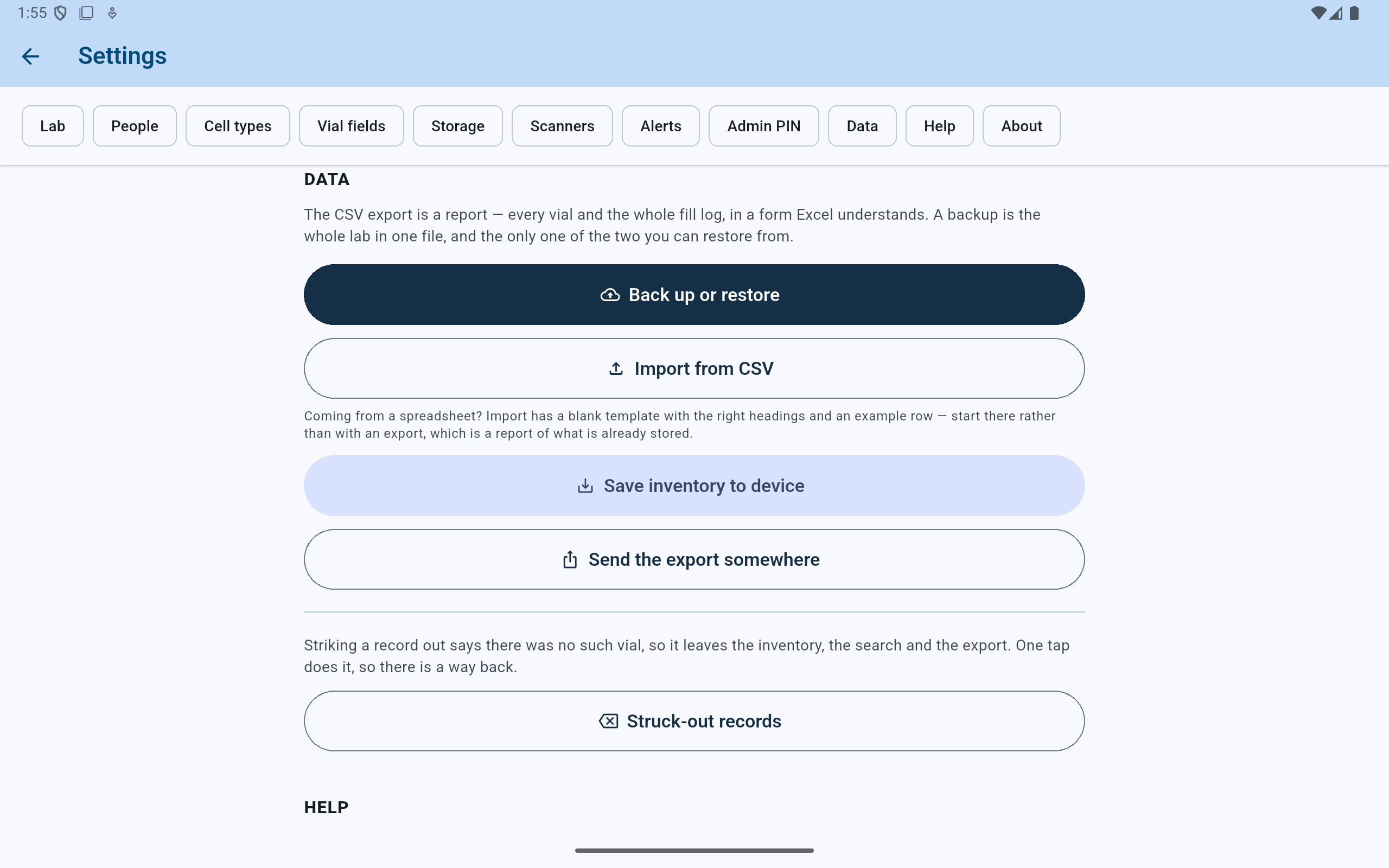
The text at the top separates readable CSV reports from the restorable backup file.
- Use Back up or restore when the goal is recovery.
- Save both CSV files to a location chosen on the tablet.
- Or send both files through an Android destination selected by the lab.
Save inventory to device
Choose the destination twice—once for each report.
- Choose the folder where the lab keeps exported records.
- Review the proposed cell-inventory-YYYY-MM-DD.csv name and select Save.
- Android opens the picker again for ln2-fill-log-YYYY-MM-DD.csv. Choose its destination and select Save.
- If a file with that name already exists, Android may add a number to the new filename. Check the final name at the destination.
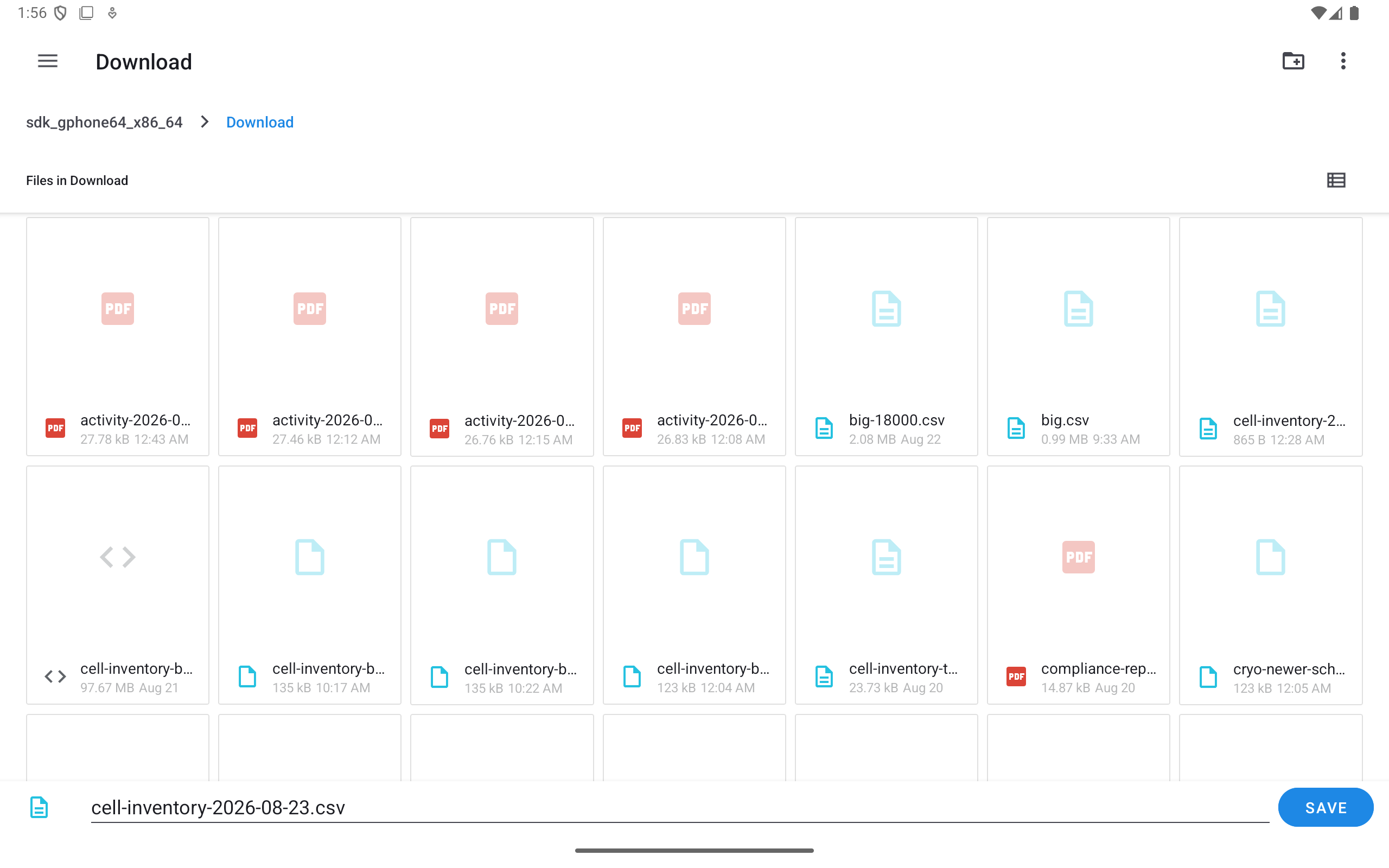
The first file contains the vial inventory report. Android controls the available folders and storage providers.
- Confirm the destination folder.
- Review or change the inventory filename.
- Save the first file.
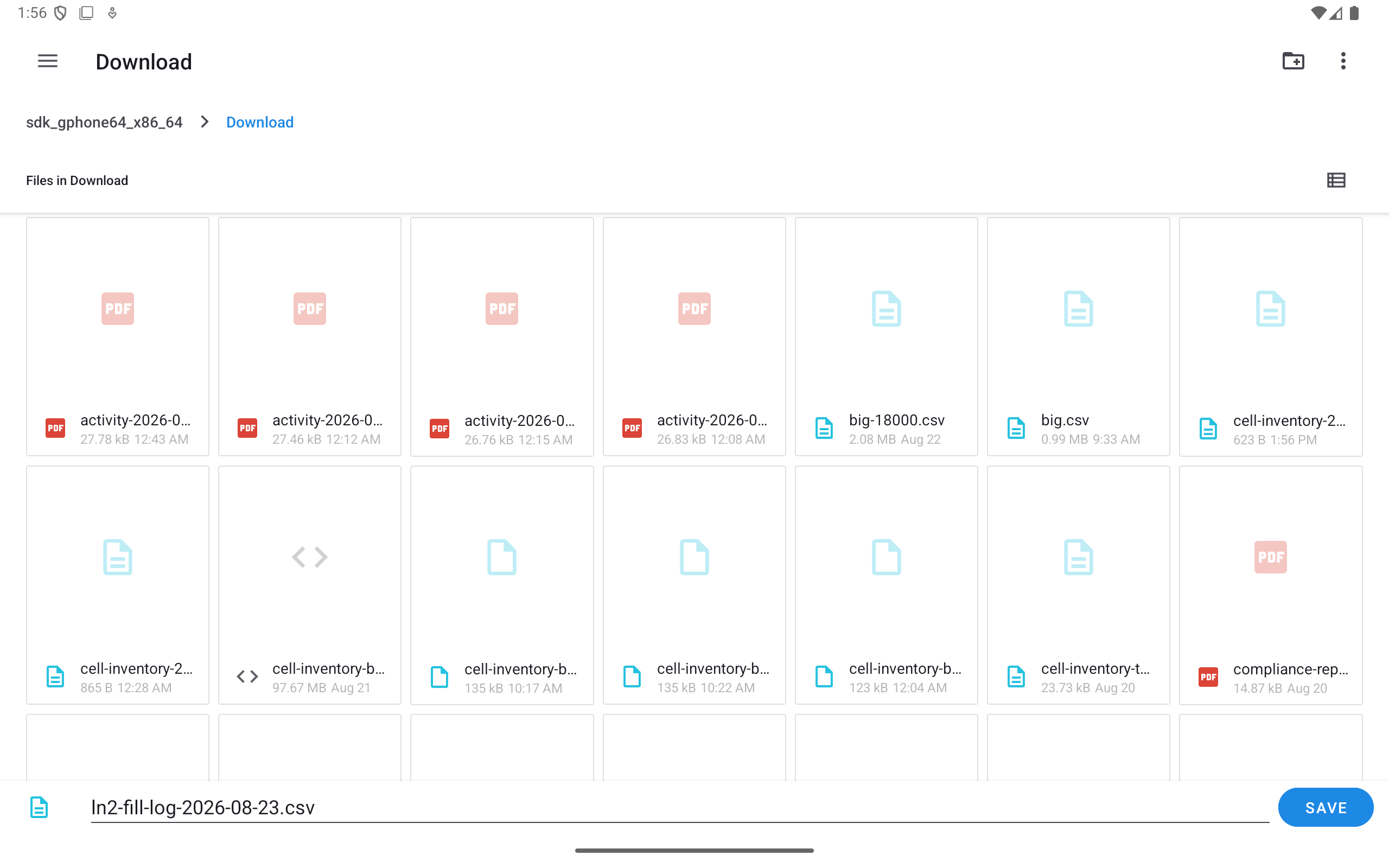
The second file contains the liquid-nitrogen fill log, even when the log currently has only its headings and no fill rows.
- Keep it beside the inventory file or choose another approved destination.
- The second proposed name identifies the fill log.
- Save the second file to finish the export.
Back in CryoIndex
Compare the completion counts with the lab.
CryoIndex reports how many vial rows and fill rows it generated. In this fictional example, four vials and zero fill records were exported. A zero-row fill log is valid and still contains its column headings.
This export does not carry lineage. The column Lineage reference (not restorable from this file alone) appears only in the two inventory spreadsheets CryoIndex saves beside a backup. It is a human-readable clue for review and disaster inspection, not an internal relationship that CSV import can reproduce exactly. Removed parents may be absent from a current-stock file, and a barcode may have been reused. Preserve a verified .cix-backup whenever lineage must survive restoration.
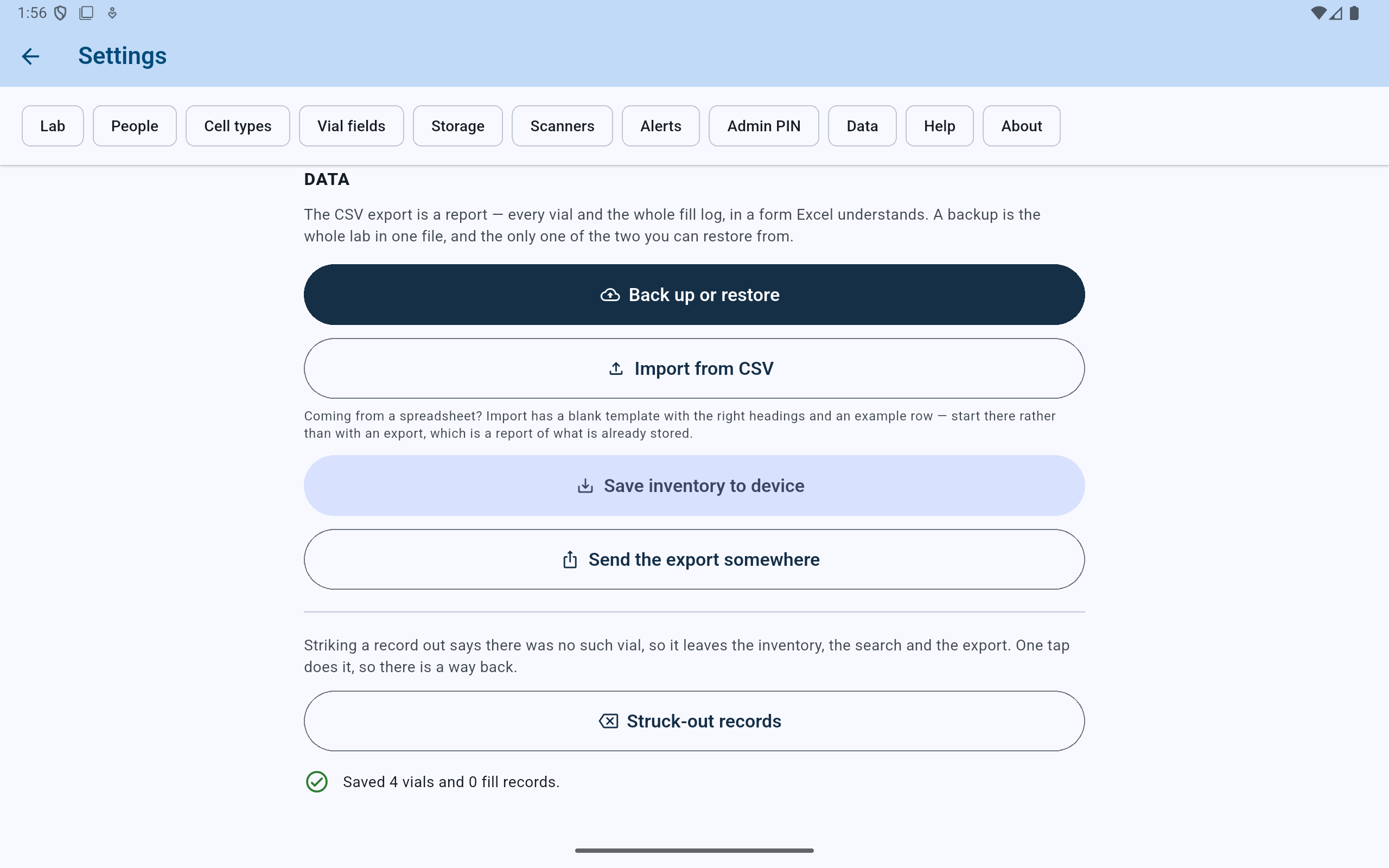
The confirmation describes the files just generated; it does not prove that they were copied off the tablet or opened successfully.
- Read both counts before leaving the screen.
Open the saved files from their destination before relying on them. Confirm that the inventory headings and expected rows are present. Keep using verified .cix-backup files for disaster recovery.
Send the export somewhere
Choose a destination through Android.
The share sheet states that two files are being shared. Available destinations depend on the apps, accounts, and policies configured on the tablet. Selecting a destination can transmit lab data outside the tablet, so use only storage or communication services approved by the lab.
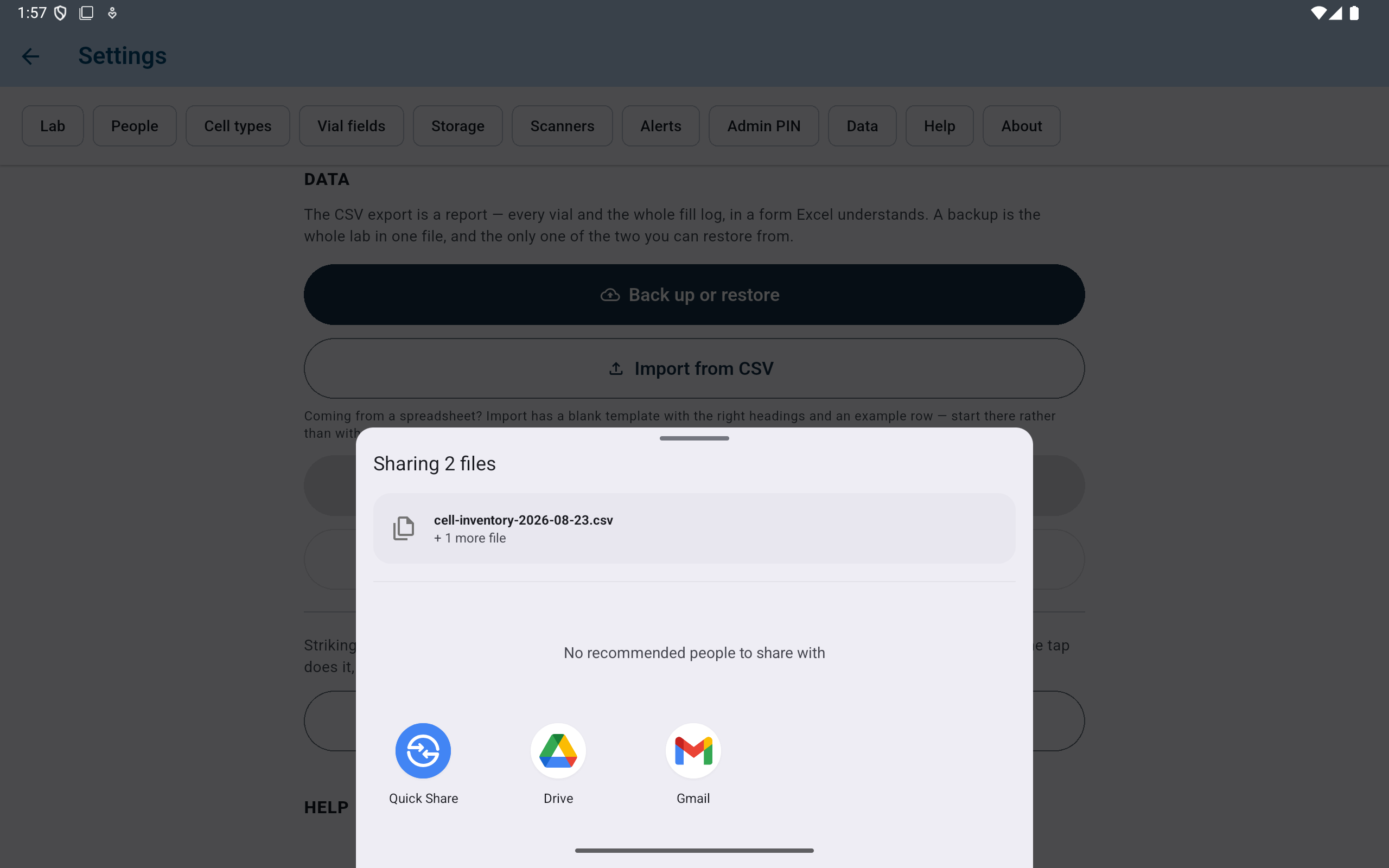
CryoIndex prepares both CSV reports; Android and the selected receiving app control what happens next.
- Verify that Android says two files are being shared.
- The inventory file is shown with the fill log as the additional file.
- Choose only a lab-approved destination.