Watch the walkthrough
Start from a spreadsheet: review the source and storage
Captions are available in the player and start turned off so they do not cover the app. The written transcript is below the video.
Read the video transcript
For spreadsheet-assisted setup, name the lab, choose I have a spreadsheet, and select the CSV. CryoIndex reports the number of nonblank rows before anything is imported.
The storage page shows the furthest occupied location found in the file. Treat that as a minimum, then enter the physical dewar's real cane, box, row, and column counts.
If a proposed label scheme conflicts with spreadsheet positions, CryoIndex refuses it plainly so no coordinate is silently reinterpreted.
Spreadsheet values are not guessed as tablet users. Add the people who will use CryoIndex; the approving user is selected later during final review.
Narration uses an AI-generated voice.
Watch the walkthrough
Start from a spreadsheet: approve the import
Captions are available in the player and start turned off so they do not cover the app. The written transcript is below the video.
Read the video transcript
Add the people who will use the tablet. Here Maya Chen and Luis Ortega are entered before the migration is approved.
CryoIndex lists the cell lines detected in the spreadsheet. You can remove one, remove all detected values if the parsing is wrong, or keep them and continue. Removing a detected line excludes its rows; it does not delete existing inventory.
The final review separates four ready rows from one impossible date, names the approving person, and requires acknowledgement before Import and finish can write anything.
Ready confirms what was actually created: four vials, fifty boxes, two people, and three cell lines. The approved rows are committed together, so a failed write cannot leave a partial migration.
Choose Done to enter the completed lab.
Narration uses an AI-generated voice.
Before the first import
Keep the original spreadsheet unchanged.
Work from a copy. CryoIndex does not change the CSV, but the untouched source is the lab’s reference while it reviews what was accepted, skipped, or left out.
Before opening CryoIndex
Prepare a CSV copy of the current inventory.
- Open the existing inventory in Excel or another spreadsheet program.
- Make a copy, then save that copy as CSV UTF-8 (Comma delimited). CryoIndex does not import an
.xlsxworkbook directly. - Use one row per vial. Column headings are strongly recommended because they make the mapping easier to verify.
- Include the current stock—not a report containing already thawed, discarded, or otherwise removed vials.
- Use the exact optional heading Parent barcode only when the source identifies the particular parent vial. Keep it blank rather than guessing from cell type or passage.
Cell line, cane, box, and position.
Dewar, barcode, passage, date frozen, lot, source, notes, Parent barcode, and other biological details.
A heading does not need to use CryoIndex wording. The mapping screen can connect headings such as Cell Line, Rack, Pos, Dewar, Vial ID, and P to their CryoIndex fields.
Step 1 of 5
Name the lab and choose the spreadsheet.
- Enter the lab name. Add a department, building, or other second line only if it will be useful on screens and exports.
- Select I have a spreadsheet and open the CSV copy. After a file is selected, that control becomes Choose a different spreadsheet.
- Read the number of nonblank rows found. If it is clearly wrong, remove the spreadsheet and check the file before continuing.
- Select Review column mapping whenever a heading is uncertain—or simply to verify every proposed match.
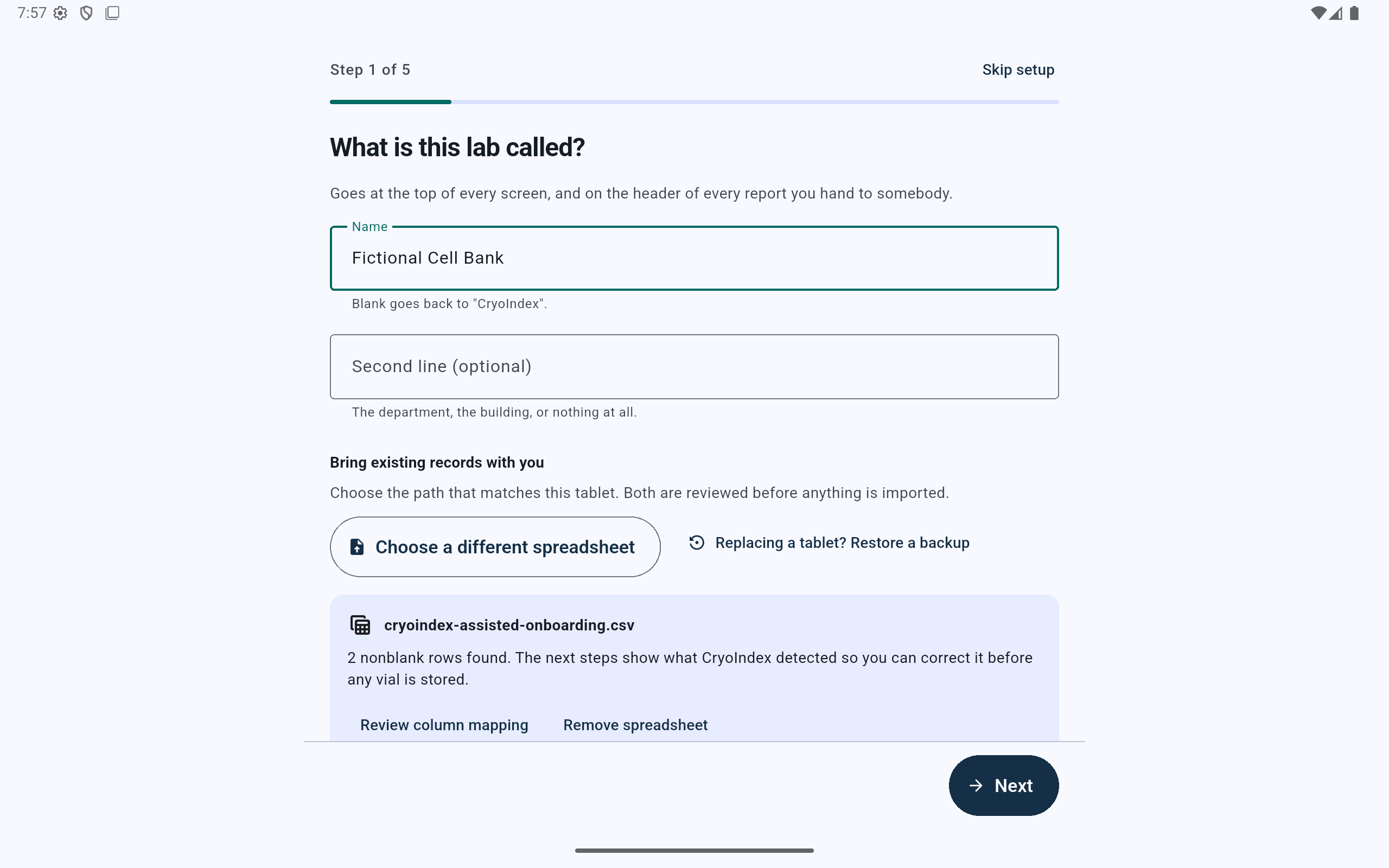
The selected file remains a proposal. No vial has been written yet.
- Use Review column mapping to verify what every heading means.
- Use Remove spreadsheet if the row count or chosen file is wrong.
- Continue only after the displayed nonblank-row count is plausible.
Step 2 of 5
Confirm the physical dewar—not just the occupied cells.
The spreadsheet can reveal the highest occupied cane, box, row, and column. It cannot reveal empty storage beyond those locations.
- Read the Minimum occupied locations found panel.
- Count or verify the actual canes and boxes in the dewar, including empty ones.
- Confirm the actual rows and columns in every box and whether row labels use letters or numbers.
- If the CSV names one dewar, verify the proposed name. CryoIndex can adopt that name when the import is approved.
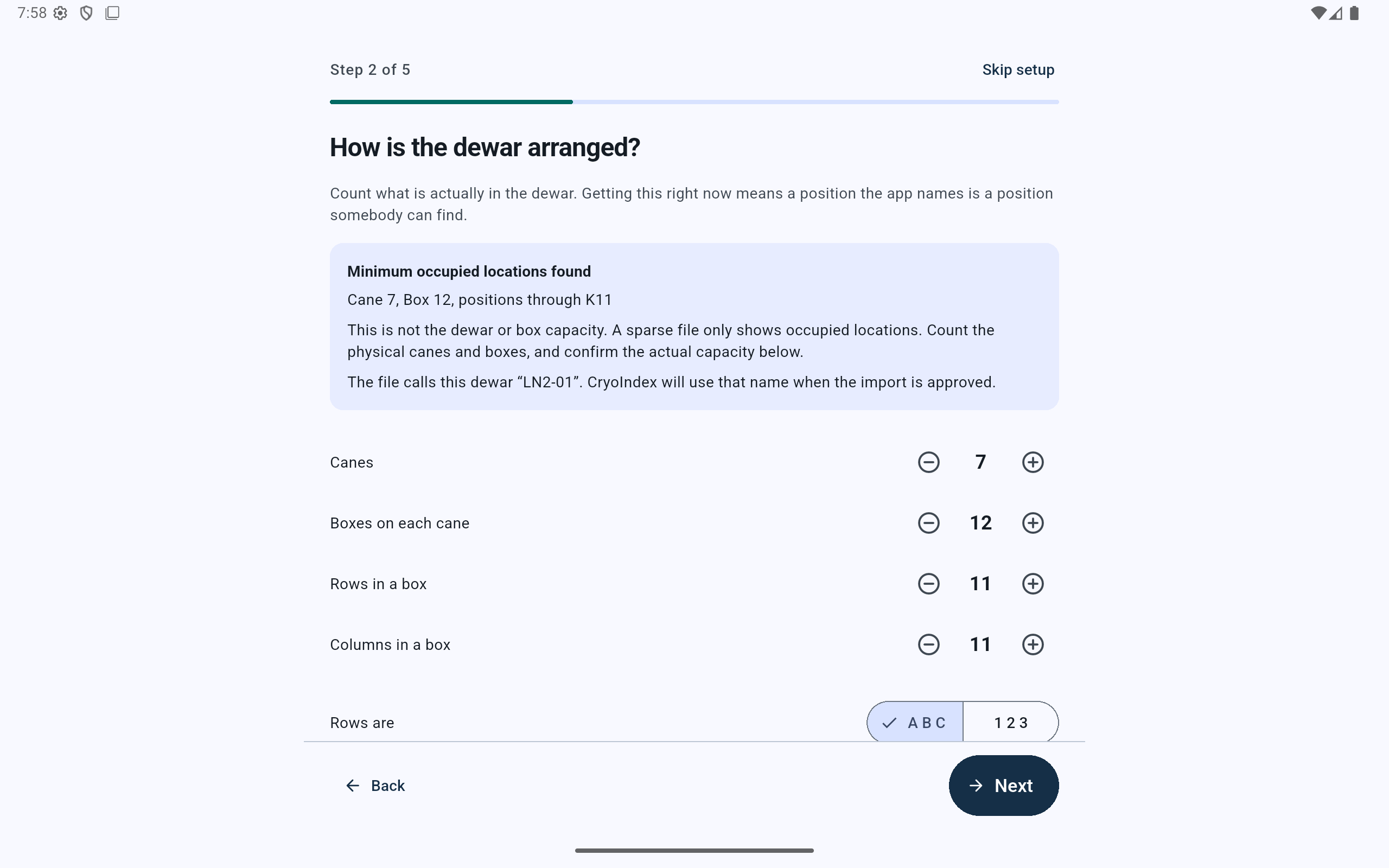
A sparse inventory proves only what is occupied. The lab must confirm what physically exists.
- Treat these coordinates as a minimum, not as the dewar capacity.
- Set the real number of canes and boxes, including empty storage.
- Confirm both box dimensions and the row-label convention.
Step 3 of 5
Keep only the people who should use this tablet now.
CryoIndex may suggest names from an operator-like column. These become selectable current users; they are not credited as the original authors of historical spreadsheet rows.
- Remove an individual suggestion with the × beside the name.
- If the wrong column produced many names, choose Remove all detected instead of deleting them one by one.
- Add anyone who will record work at the dewar but was not present in the spreadsheet.
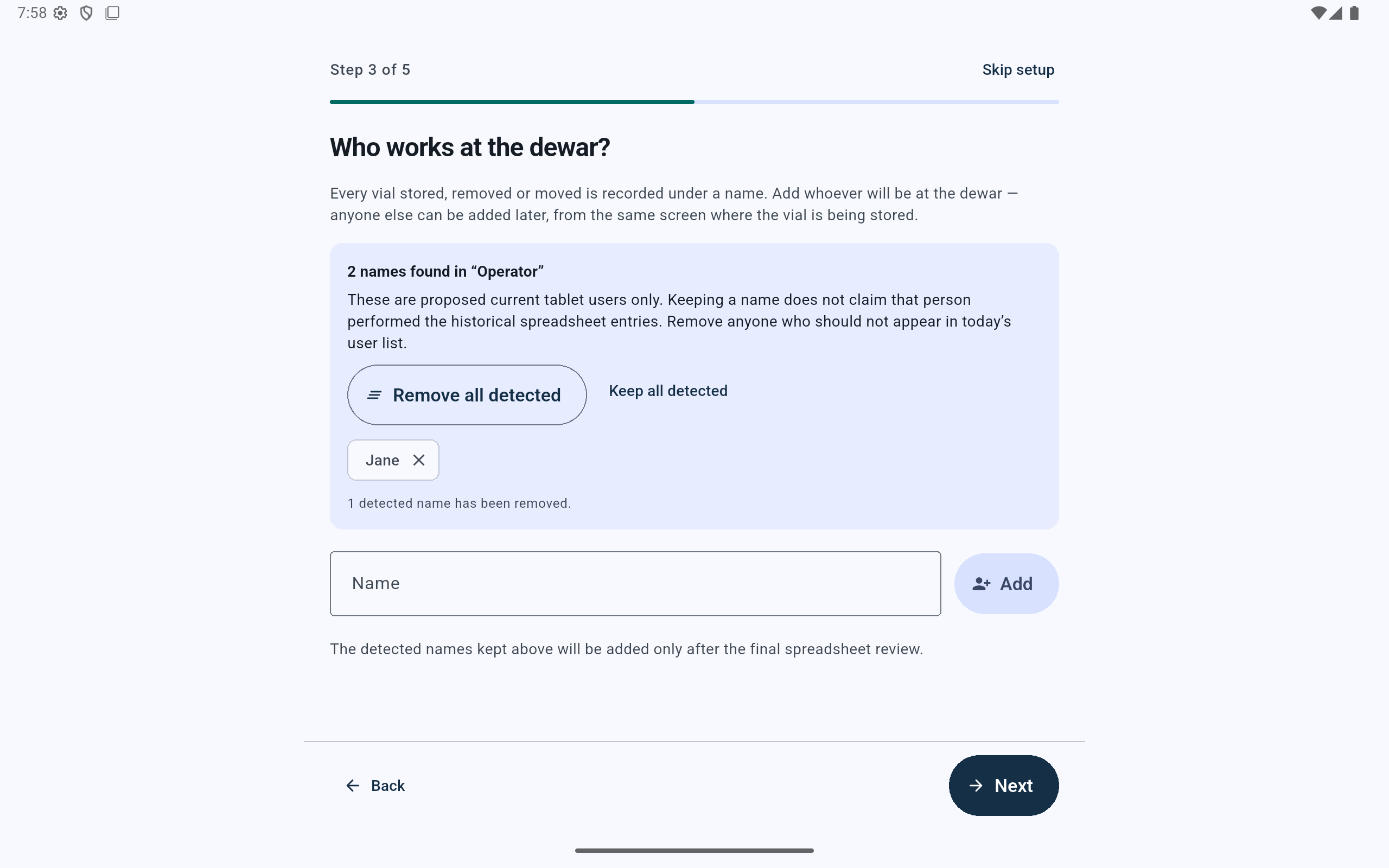
Detected people are suggestions for today’s user list, not reconstructed historical attribution.
- Use Remove all detected when the suggestions came from the wrong column.
- Remove one proposed user with the × beside that name.
- Add a missing current user here.
Step 4 of 5
Review every detected cell line.
The app proposes each distinct cell-line name from the mapped column. This is the point to catch a wrong mapping or values that are not actually cell lines.
- Keep the proposed cell lines that belong in the new inventory.
- Remove an individual value with ×, or choose Remove all detected if the entire set is wrong.
- Understand the consequence before removing one: every row using that value will be excluded and explained on the final review.
- Use Review column mapping if the proposed set suggests the wrong spreadsheet column was selected.
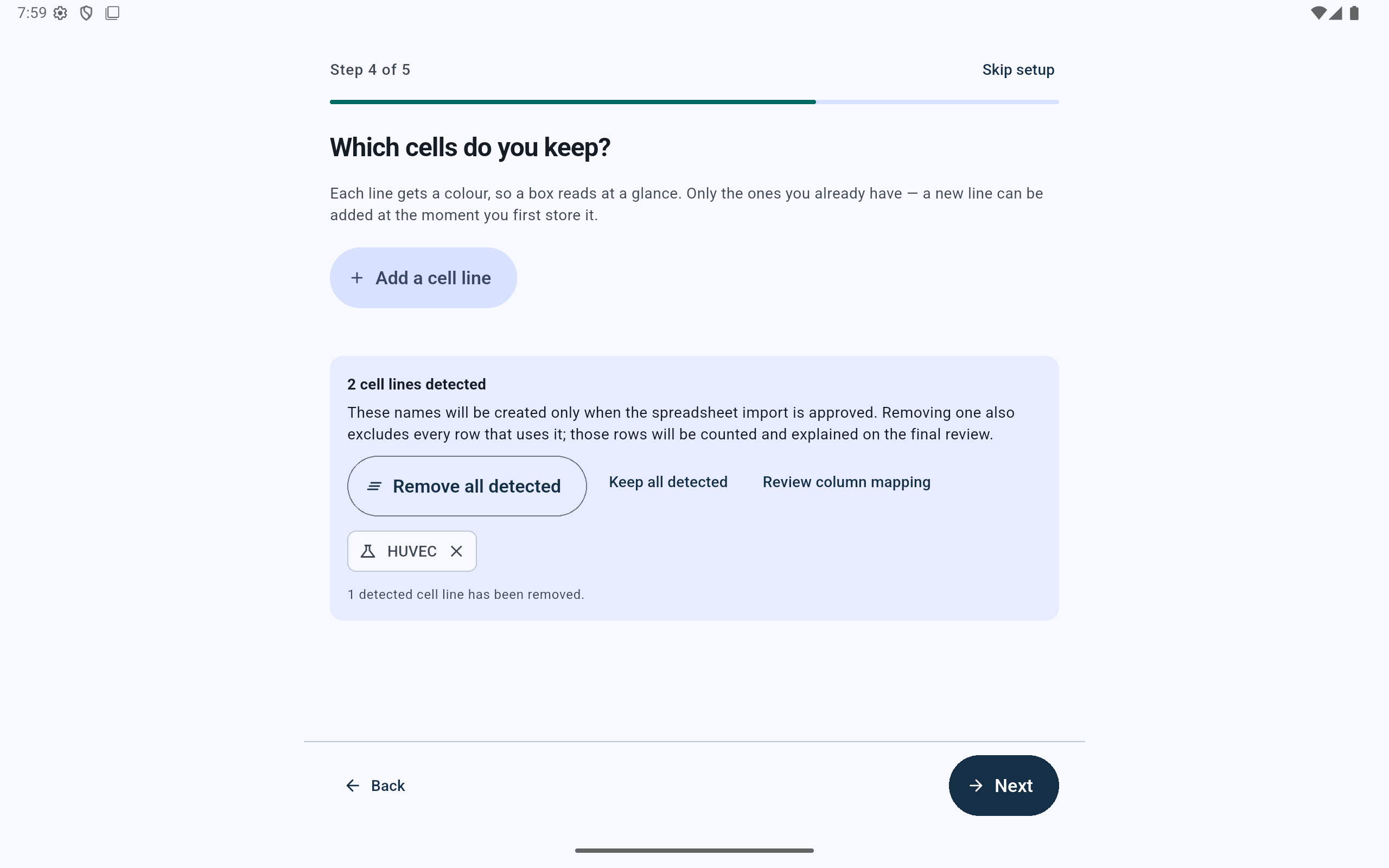
Bulk removal prevents a bad mapping from creating hundreds of unwanted cell-line records.
- Remove every proposed value in one action if the detection is broadly wrong.
- Reopen the mapping if the displayed names are not cell lines.
- Removing one value also excludes all spreadsheet rows that use it.
Step 5 of 5
Approve what will be imported—and what will not.
Nothing has been imported when this screen first appears. Take the counts literally and review every exclusion before selecting Import and finish.
- Compare vials ready, rows skipped, and new cell lines with what you expect.
- Choose the person who reviewed and approved this migration. This records the importer; it does not claim that person created every historical row.
- Read each skipped-row reason. Save the skipped-row CSV if those rows need correction and a later import.
- Read the list of columns not imported. Go back and correct the mapping if any contains information the lab needs CryoIndex to retain.
- When Parent barcode is mapped, remember that the vial row may still be ready even when its parent cannot be linked safely. The completion step reports those lineage results separately.
- Check the acknowledgement beside every skipped-row or ignored-column section. The app will not silently proceed past those losses.
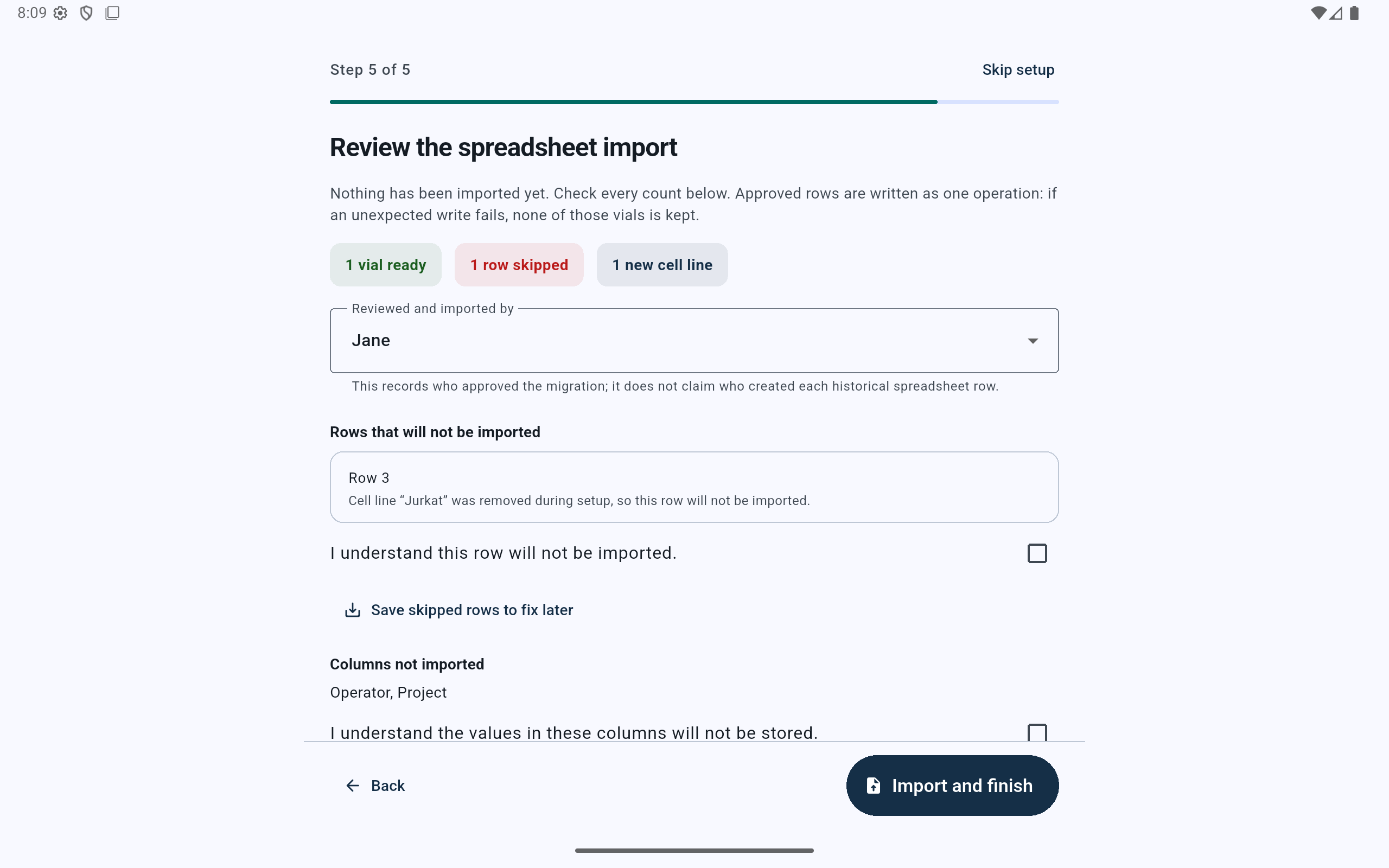
The acknowledgements make exclusions explicit. If one is missed, selecting Import and finish shows “Confirm the skipped rows before importing” or the corresponding ignored-column message.
- Verify the ready, skipped, and new-cell-line counts.
- Select the person approving this import.
- Read and acknowledge every skipped row.
- Review ignored columns and their acknowledgement before importing.
After import
Verify the counts before relying on the inventory.
- On the Ready screen, check the imported vial, box, position, user, and cell-line counts.
- Select Done to open the dashboard.
- Read any lineage notices before selecting Done. Investigate ambiguous parent barcodes separately from relationships refused for cell-line, passage, or freeze-date contradictions.
- Search for several known records: a common cell line, a barcode, a vial near the highest occupied coordinate, and a vial with an unusual passage or blank date.
- For imported rows with Parent barcode, open the vial and verify Where it came from, then inspect related vials or descendants where applicable.
- Open the matching box and confirm that the displayed position agrees with the physical record.
- Record the latest known liquid-nitrogen fill and create an external backup after the lab has finished verifying the migration.
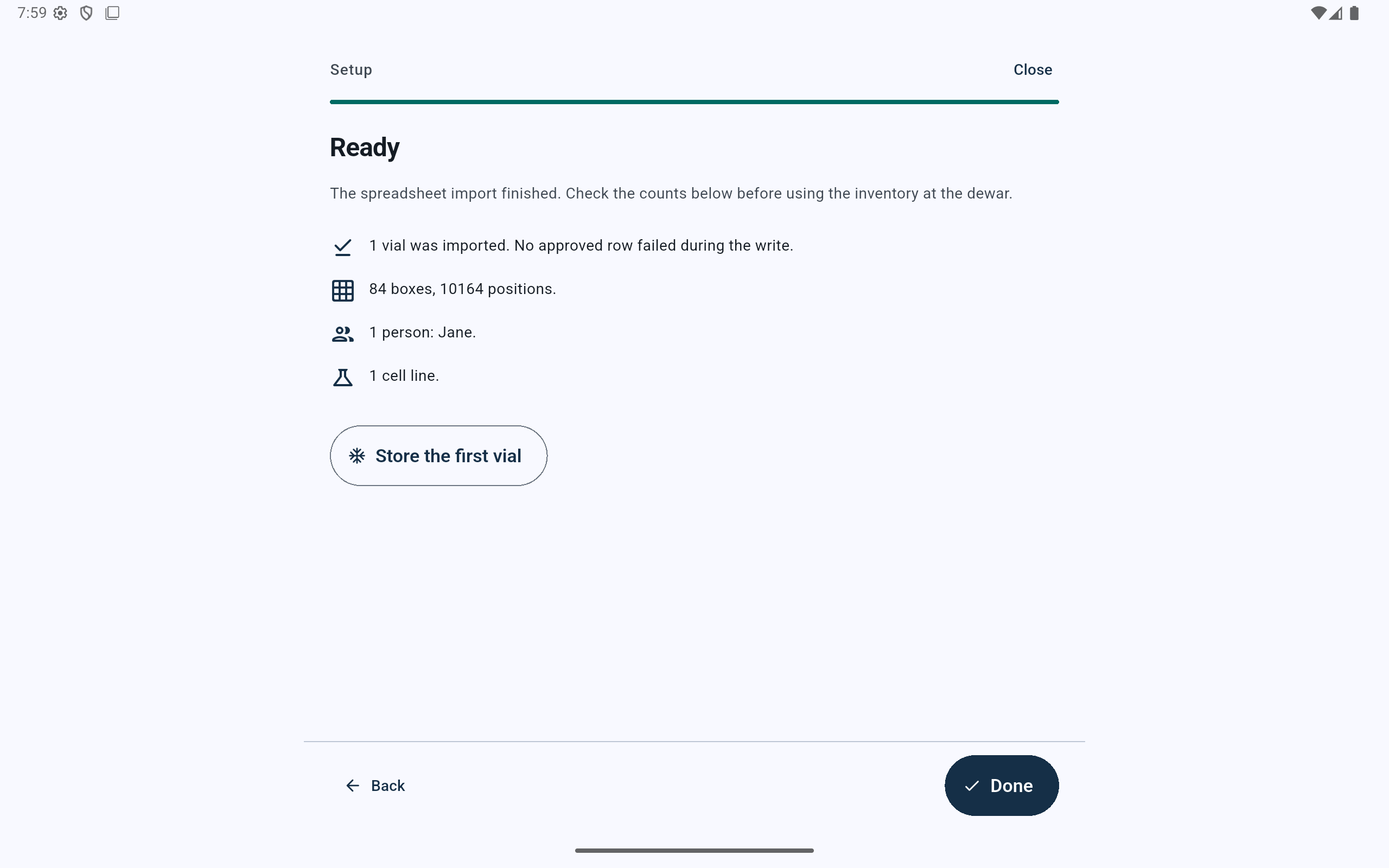
Treat the Ready screen as the first reconciliation checkpoint, not merely a success message.
- Compare every displayed count with the approved final review.
- Select Done only after the counts are plausible.
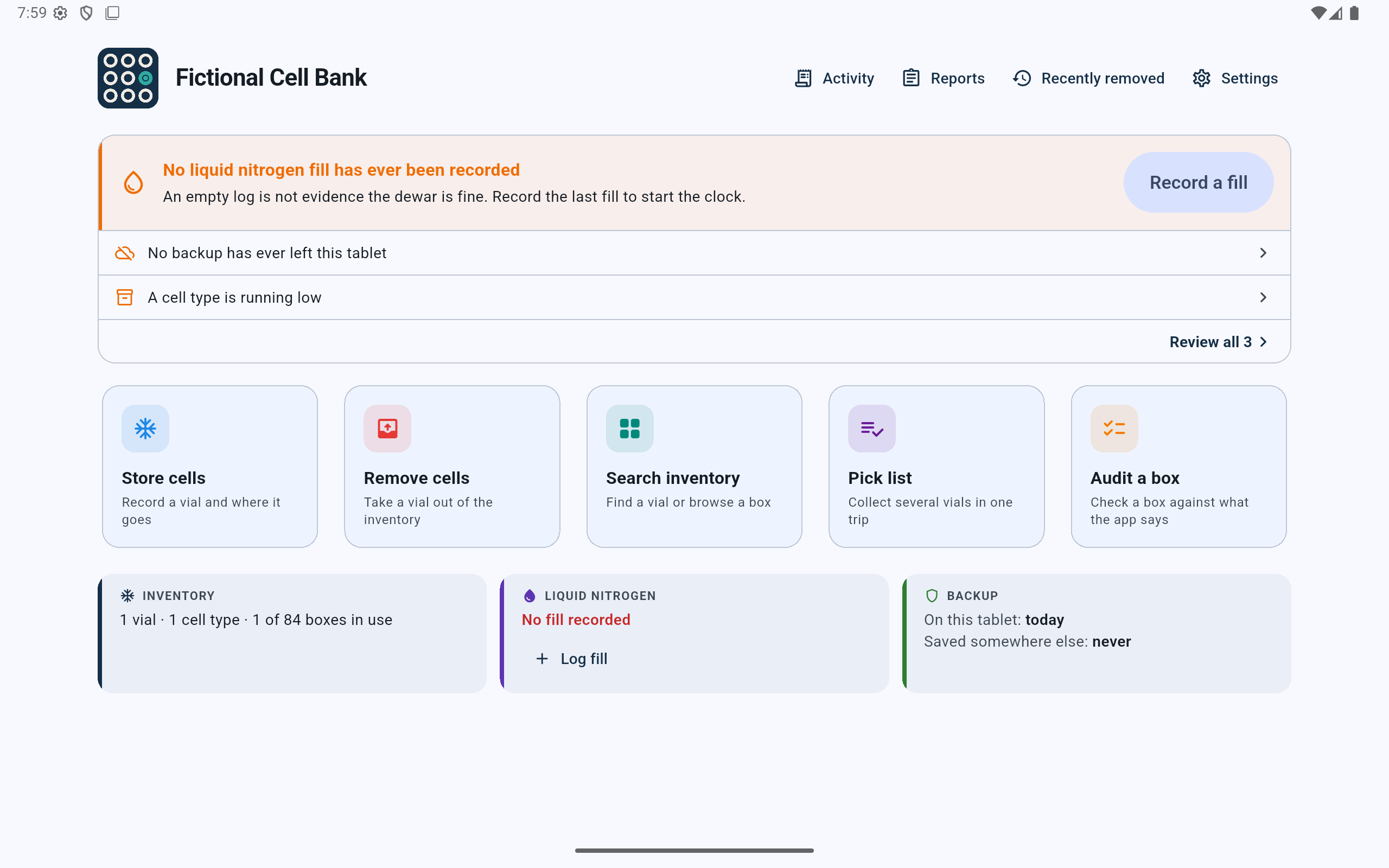
A successful import starts the inventory; it does not replace the lab’s post-migration reconciliation.
- Use Search inventory to spot-check known vials and their exact positions.
- Confirm the inventory strip reports the expected vial, cell-line, and box counts.
- Record the latest known fill so the dewar’s schedule starts from real information.
- Save an external backup after verification; an on-tablet copy alone does not protect against tablet loss.
What spreadsheet assistance can—and cannot—know
CryoIndex can propose
- Column meanings from recognized headings and aliases
- The minimum coordinates occupied by the file
- One dewar name used consistently in the file
- Distinct cell-line names
- Possible current tablet users from a selected people column
The lab must confirm
- The full physical capacity, including empty storage
- Ambiguous or unfamiliar column meanings
- Who should be a current user
- Whether every proposed cell-line value is legitimate
- Every skipped row and every column that will not be retained