Watch the walkthrough
Lay out shelves, racks, boxes and named areas
Captions are available in the player and start turned off so they do not cover the app. The written transcript is below the video.
Read the video transcript
On the Cold Storage dashboard, choose a cabinet in the Cabinets list. Here, -80 Upright A, a freezer with four shelves.
Choose an area, such as Shelf 4 (bottom). The side panel shows what it holds and offers Divide into areas, Add one named area, Add rack and Add box.
Add rack opens a form. Type a Label, answer What will it hold? with Boxes, and set the Rows and Columns. Then choose who added it.
Choose Add, and Rack 2 is listed on Shelf 4. Open it and tap a free position. What goes in A1? offers only what fits: Add rack or Add box.
Choose Add box and type its Label. Rows and Columns start at 9 by 9; match them to the real box. It will go in position A1.
Choose who added it, then Add. The empty box now sits in A1 of Rack 2, ready for items.
Divide into areas splits a shelf into named areas. In the Cell culture fridge, choose Shelf 3, then Divide into areas.
Anything already on the shelf stays where it is. Pick a layout, here Side by side, and rename the new areas under Names.
Choose who divided it, then Divide area. Shelf 3 now holds Serum and Media. The item already on it stays, listed as unassigned until its area is chosen.
Arrange moves shelves, racks and boxes between positions in one go. On Rack 1, tap qPCR primers, then its new position, and choose who rearranged it.
Nothing is saved until Save this arrangement. Rack 1 now shows qPCR primers in D1, and B1 is free.
Narration uses an AI-generated voice.
Every change records who made it
Some changes also ask for the Admin PIN.
Each form here asks who is making the change. Adding a rack, a box or a named area needs no PIN. Changing the layout itself (dividing an area, removing a layout, leaving a position out, resizing, or moving a fixed area such as a shelf) asks for the Admin PIN when the lab has set one.
In the cabinet
Choose an area to see what it holds and what can be added.
- On the Cold Storage dashboard, choose the cabinet in the Cabinets list.
- Choose an area's tile, such as Shelf 4 (bottom). On a tablet in landscape the side panel shows it; choose Open to open the area on its own screen.
- The panel offers Store items in the area, Divide into areas, Add one named area, Add rack and Add box, and lists the containers already there.
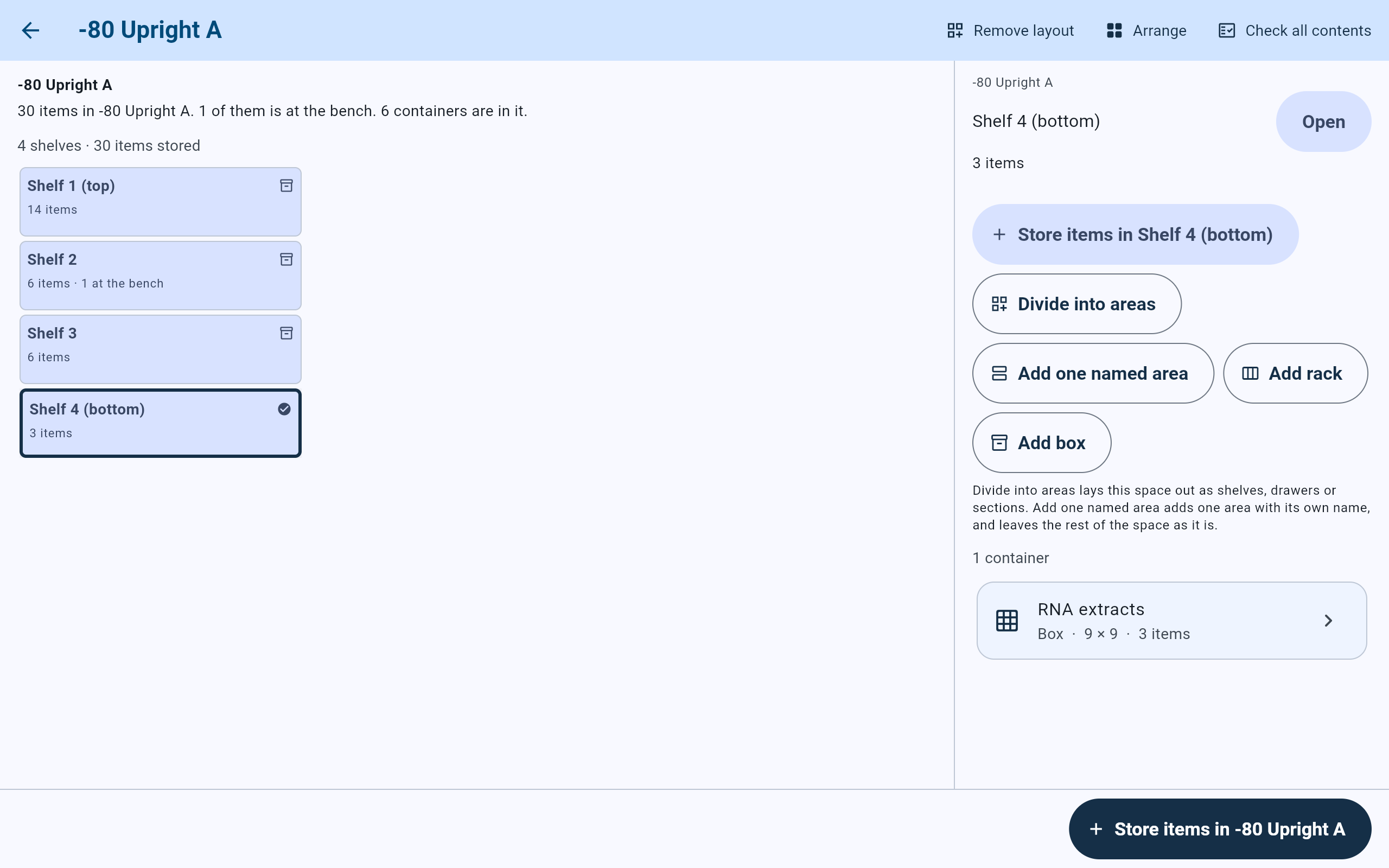
Shelf 4 holds one box, RNA extracts. The panel offers the ways to build inside it.
- The chosen area.
- Divide into areas lays the area out as sections, side by side, quarters or a custom grid.
- Add one named area adds one area and leaves the rest of the space as it is.
- Add rack.
- Add box.
- Open shows the area on its own screen.
Divide into areas
Split a shelf or an open space into named areas.
- Choose Divide into areas. The screen Divide Shelf 4 (bottom) opens. Nothing is saved until Divide area is chosen.
- If anything is already in the area, the screen says how many things and that they stay where they are. Nothing is lost; their more exact location can be chosen afterwards.
- Choose a layout. An area inside a cabinet is offered One open space, Sections, Side by side, Quarters and Custom rows x columns. A cabinet's own floor is offered the layouts of its kind, as when it was added.
- Under Names, rename each new area if needed.
- Choose who divided it in Divided by, then Divide area.
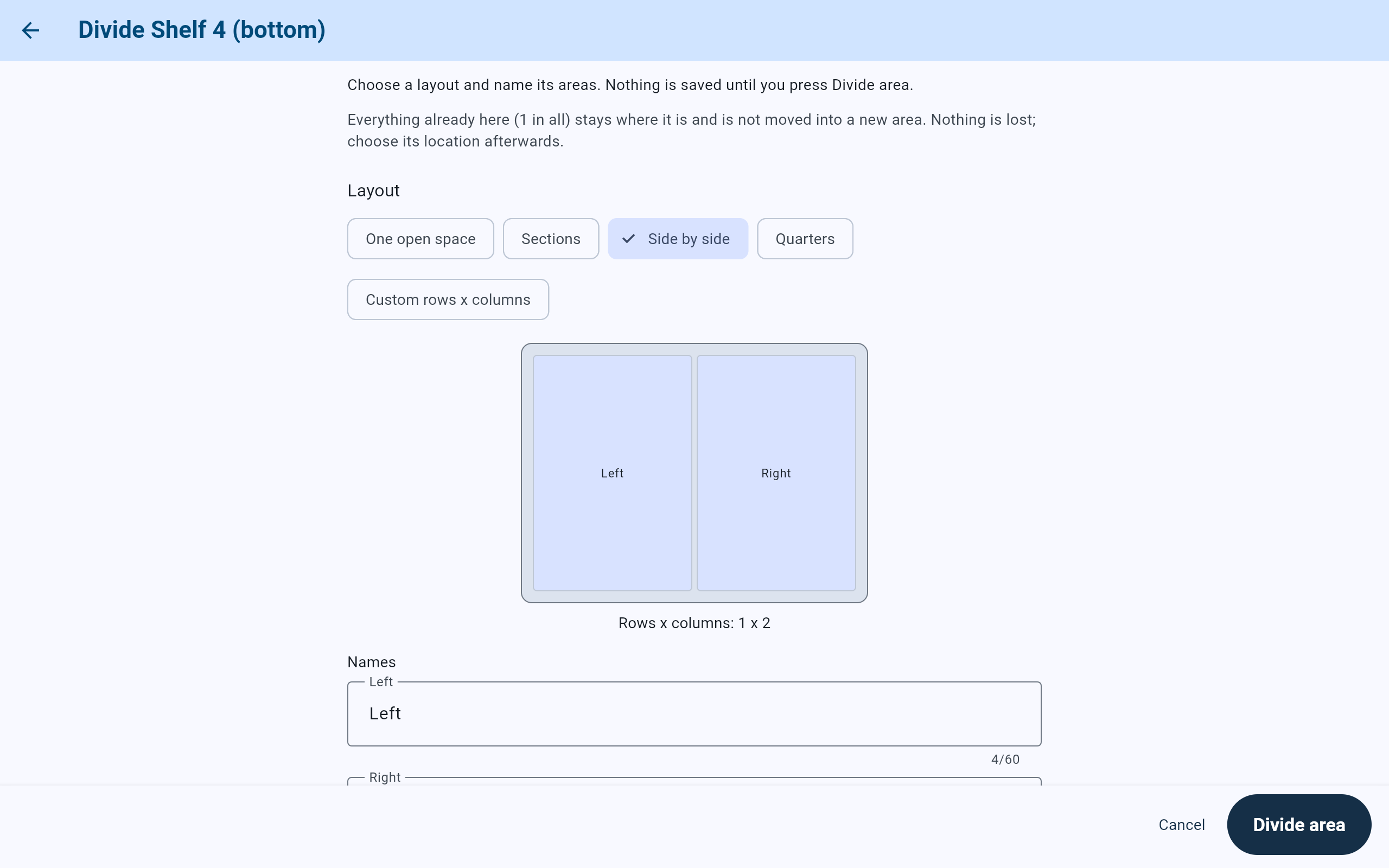
Shelf 4 divided side by side into Left and Right. The one thing already on the shelf stays on it.
- What happens to anything already in the area.
- The layout for the area.
- The drawing of the new areas.
- Rename each new area.
- Divide area saves the change, after Divided by is chosen.
A rack, box or basket is divided differently. On a container that holds items, Divide into areas gives it rows and columns of positions instead of new areas, and everything already in it then needs a position chosen.
Add one named area
Add a single area without dividing the rest.
- Choose Add one named area. The form is headed New area in the area's name.
- Type the Label, such as the name written on the tray or bin. Container type is optional: what the lab calls this kind of container.
- Choose who added it in Added by, then Add.

A tray at the front of the bottom shelf, added as its own area.
- The area's Label.
- Optional: what the lab calls it.
- Who is adding it.
- Add makes it. No Admin PIN is asked.
Racks and boxes
Add a rack or a box, at a position when there are positions.
- In an area with no positions, choose Add rack or Add box from the panel or the area's screen.
- In a rack or area with positions, tap an empty position. What goes in that position offers only what fits there: a rack that holds boxes offers Add rack and Add box; a fixed area also offers Name this area, Divide this area and Leave this position out of the layout; a box offers One item and A batch.
- Fill in the Label and, if wanted, the Container type.
- Set the Rows and Columns of its positions. A new box or rack starts at 9 by 9; each can be from 1 to 32. A box at a tapped position says which position it will go in.
- For a rack, answer What will it hold?: Boxes or Items.
- Choose who added it in Added by, then Add.

Rack 1 holds boxes, so an empty position offers a rack or a box.
- The empty position that was tapped.
- Add rack.
- Add box.
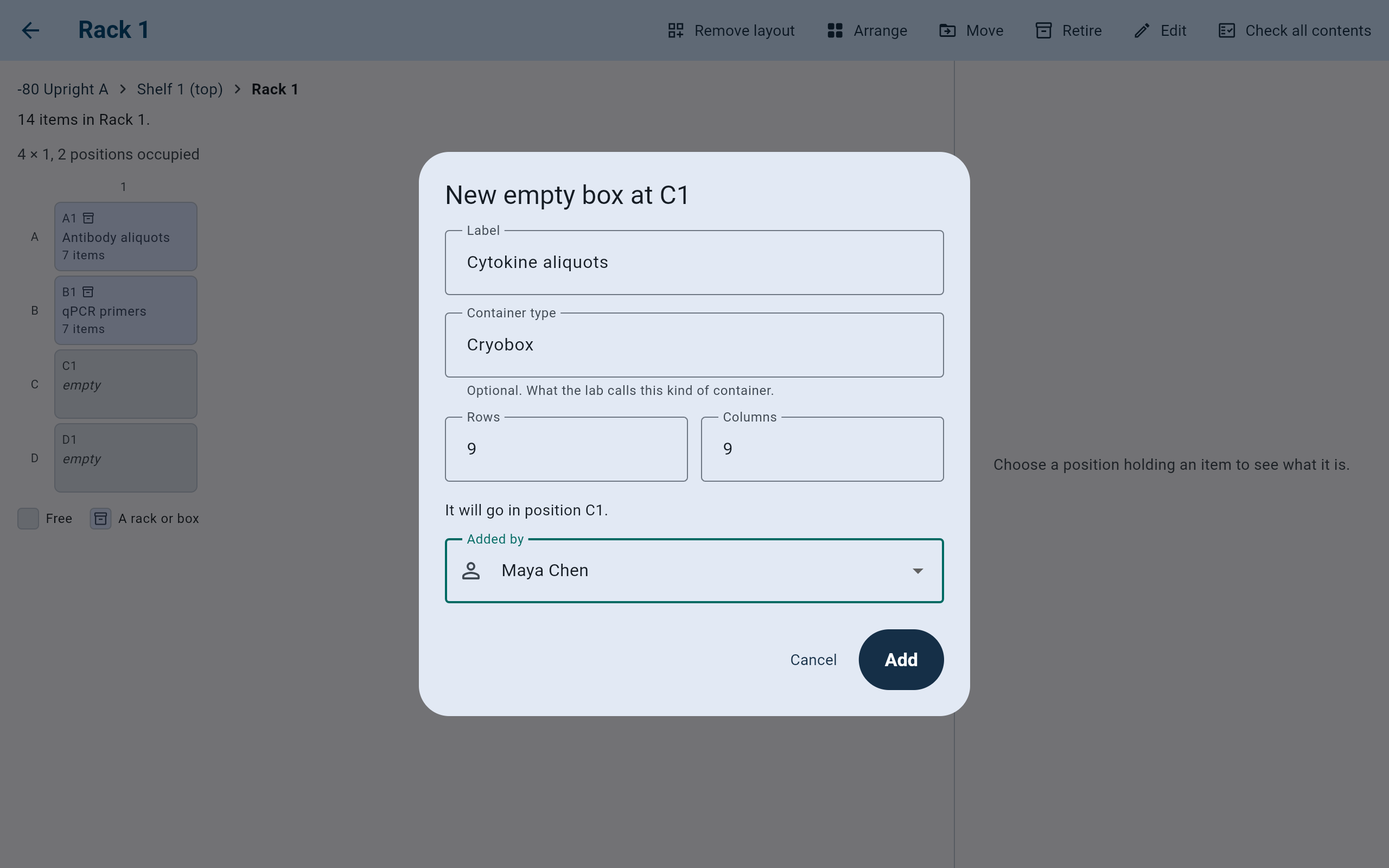
A 9 by 9 cryobox for cytokine aliquots, going into position C1 of Rack 1.
- The box's Label.
- How many positions it has. Match the real box.
- Where in the rack it goes.
- Who is adding it.
- Add makes the empty box.

The new box is in C1, empty and ready for items.
- The new box in C1.
- A position still free.
- Arrange on the rack moves its boxes between positions.
- The legend: free positions and positions holding a rack or box.
Named area
Keep more than one thing in a single position.
Each position in a layout holds one thing. When a floor space or shelf position has to hold a basket and something else beside it, make that position a named area first. The container already there is recorded inside it, and nothing is moved.
- Open the container that sits in the position, such as Basket 1 of -20 Chest B.
- Choose Named area at the top. It is offered only for something in a position of a fixed area, such as a shelf or a cabinet's floor.
- In Make A1 a named area, type the Area name, choose who made it in Made by, and choose Make named area.

Position A1 of the chest becomes the named area Enzyme basket, with Basket 1 inside it.
- Named area, at the top of the basket's screen.
- The new area's name.
- Who is making it.
- Make named area. No Admin PIN is asked.
Arrange
Move shelves, racks and boxes to other positions in one go.
- On a container with positions, choose Arrange at the top.
- Tap a shelf, rack or box, then tap its new position. Two can swap places. Items cannot be moved here.
- Use Rows and Columns to change the size of the grid.
- Choose who rearranged it in Rearranged by, then Save this arrangement. Nothing is saved until then.
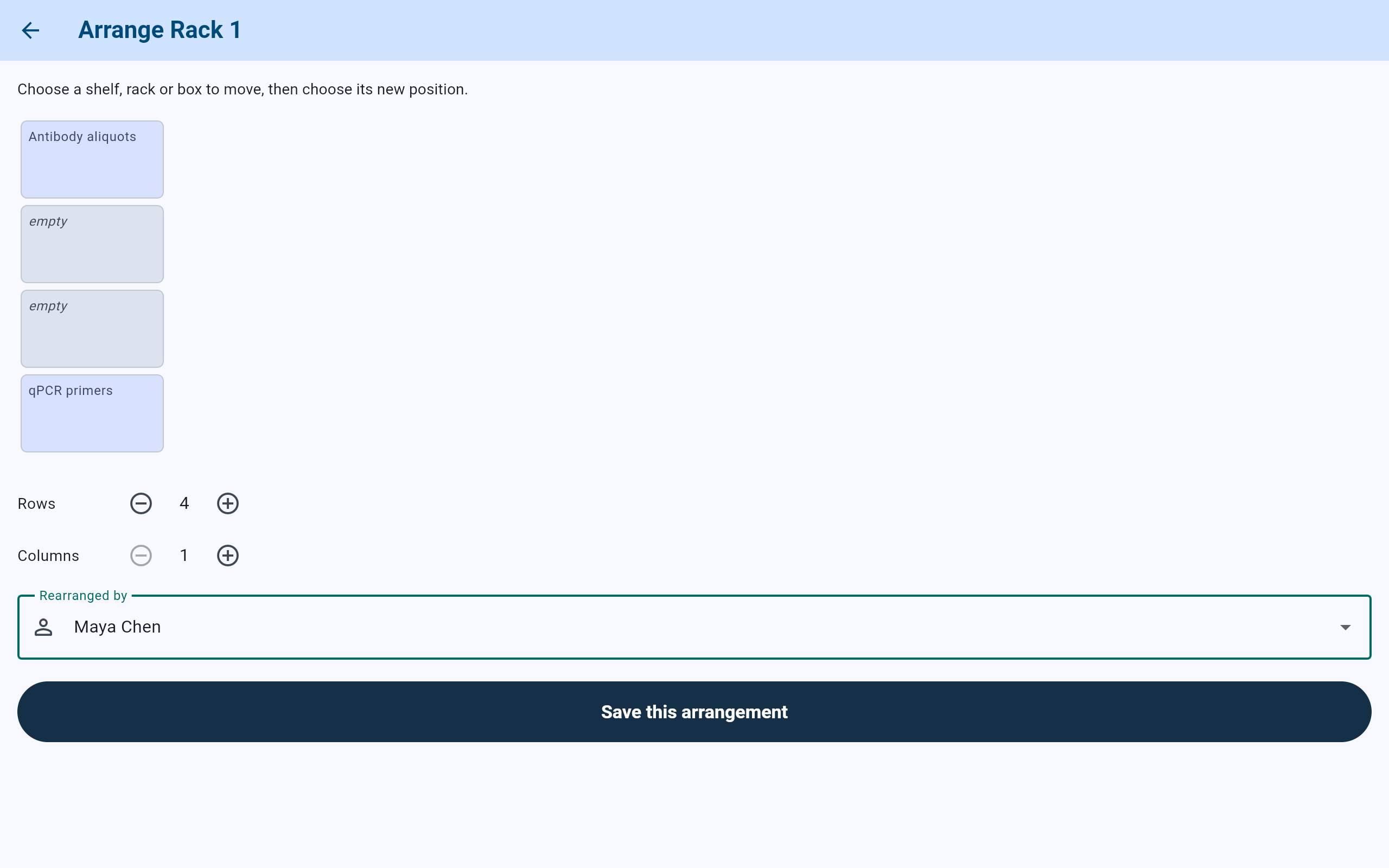
qPCR primers moved from B1 to D1. The change is saved only with Save this arrangement.
- The box after it was tapped and moved.
- The position it left.
- Changing the size is a layout change, so it asks for the Admin PIN when one is set.
- Who is rearranging.
- Save this arrangement.
Other changes
Remove a layout, leave positions out, edit, move or retire.
Takes the positions away from a container. What was in a position stays in the container and can still be found by search, but if a layout is added again, the positions must be chosen again. Choose Remove the layout to confirm, or Keep the layout.
Offered at an empty position of a fixed area. Nothing can be stored there, and it does not count as free space. Choose the position again to put it back.
Opens Edit this container: its label, container type, and Responsible person, or Shared. Items stored in it later default to the person responsible for it.
Moves a shelf, rack or box, with everything in it, to another place.
Takes an empty container out of use. Nothing is deleted, and its history is kept. Only an empty container can be retired, and it cannot be brought back.
A cabinet that came from a spreadsheet lists its places with no layout. Its screen offers Set up cabinet layout, to put the places already in it on a grid, and each imported place offers Set storage role: A fixed area of the cabinet, A holder of boxes and racks or A holder of items. See Bring a spreadsheet into Cold Storage.
Rules and limits
What the app refuses, and why.
- Containers can be nested at most four levels deep, so a level that would go deeper is not offered.
- A grid runs from 1 to 32 positions in each direction.
- A box cannot be made smaller than the items stored in it, and a position that holds something cannot be left out.
- While a cabinet has a defrost or clean-out in progress, its layout cannot be changed. Complete or stop that first. In the demo lab, Cold room 2 has a clean-out in progress.
- There is no delete for cabinets or containers. Retire them instead.