Watch the walkthrough
Bring a freezer list into Cold Storage
Captions are available in the player and start turned off so they do not cover the app. The written transcript is below the video.
Read the video transcript
A Cold Storage import only adds, and cannot be undone, so save a backup first. Then choose Import a spreadsheet on the Cold Storage dashboard.
Import inventory offers a blank template, an example, and what each column means. Choose a CSV file, and pick the lab's file.
Under Locations that name no cabinet, leave None: each location in this file starts with its cabinet. Then choose Imported by.
Under Columns, all 29 of the file's headings are recognized. Preview import works out the file against Cold Storage, and still writes nothing.
Nothing is imported until every question is answered. Rosa Delgado is named on two rows but is not a lab member, so add Rosa Delgado as one.
No cabinet is called -80 Upright C. Its kind and temperature come from the answer, never from its name: add it as a −80 °C freezer.
A location written as words is never guessed. Choose where those items are, here the fridge's Shelf 1, then Put them there.
The file does not say whether two amounts were measured or estimated, so choose which: here, They were estimated.
New boxes need a size. A 9 × 9 box has no J2, so give that box its own size, 10 × 10, then Use these sizes.
The preview says exactly what will be written: 12 items, one new cabinet, and the new materials, batches, containers and lab member. Choose Import 12 items.
Import finished accounts for every row in the file, and lists who is responsible for what. Done returns to the dashboard, where -80 Upright C is listed.
Narration uses an AI-generated voice.
Before the first import
Save a backup first. A Cold Storage import cannot be undone.
An import only adds: cabinets, containers, materials, batches, items and lab members. It never changes or replaces what is already recorded, and there is no undo. Once the import starts, there is no further confirmation. Save a backup off the device before importing, from Settings, Data, Back up or restore; see Create an external backup.
Two ways in
Open Import inventory.
- On the Cold Storage dashboard, choose Import a spreadsheet, beside Add a cabinet above the list of cabinets. A lab with no cabinets yet finds the same button under No cabinets yet.
- Or open Settings, go to Data, and choose Import Cold Storage inventory. The button above it, Import vials from CSV, is the separate importer for cell vials.
- The Cold Storage setup guide offers the same importer, as I have a spreadsheet on its first step and Import a spreadsheet on its last.
Each way opens the screen titled Import inventory. Opening it changes nothing.
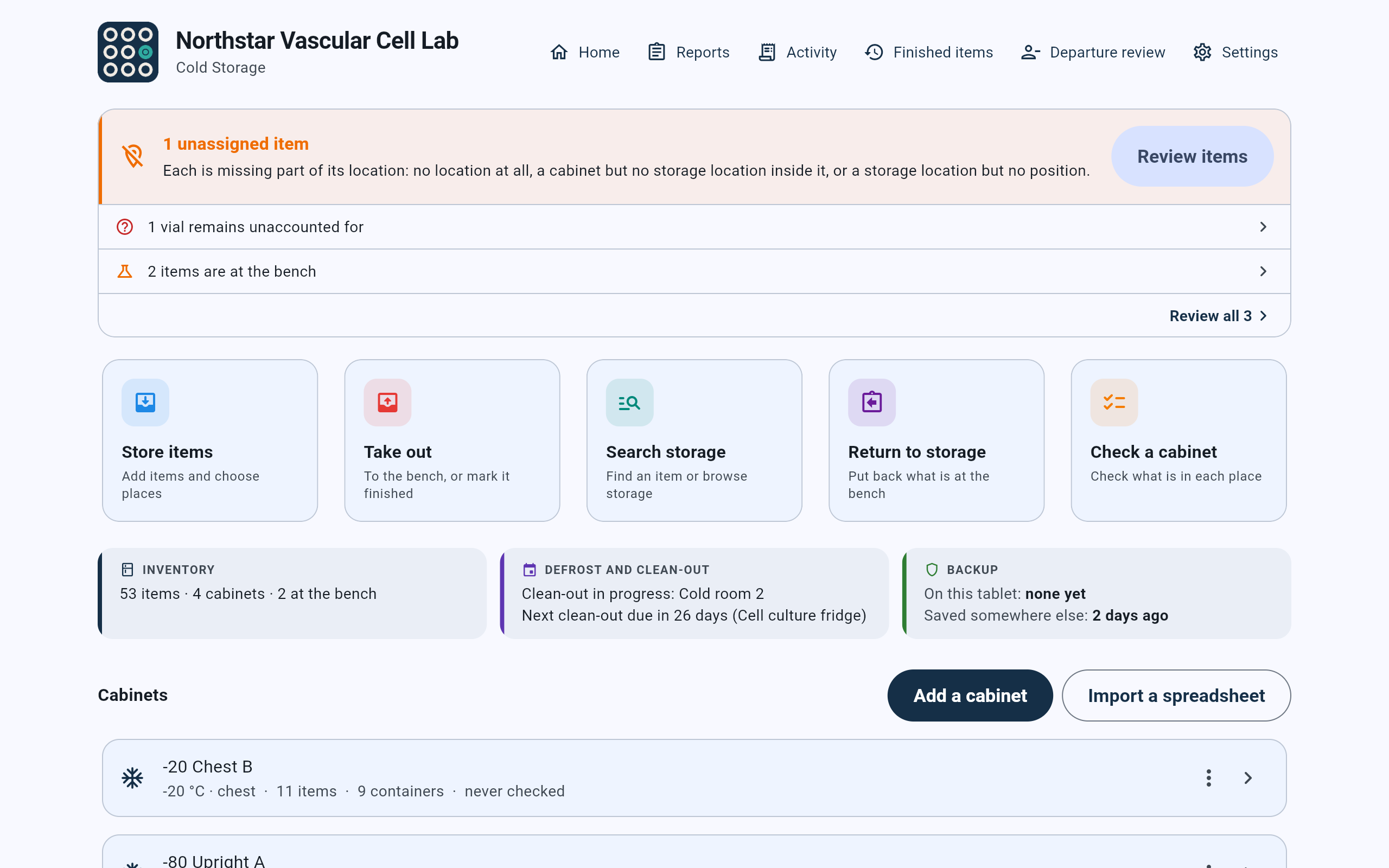
The Cold Storage dashboard. Import a spreadsheet sits beside Add a cabinet, above the cabinets.
- Open the importer from the dashboard.
- Settings leads to the same importer, under Data.
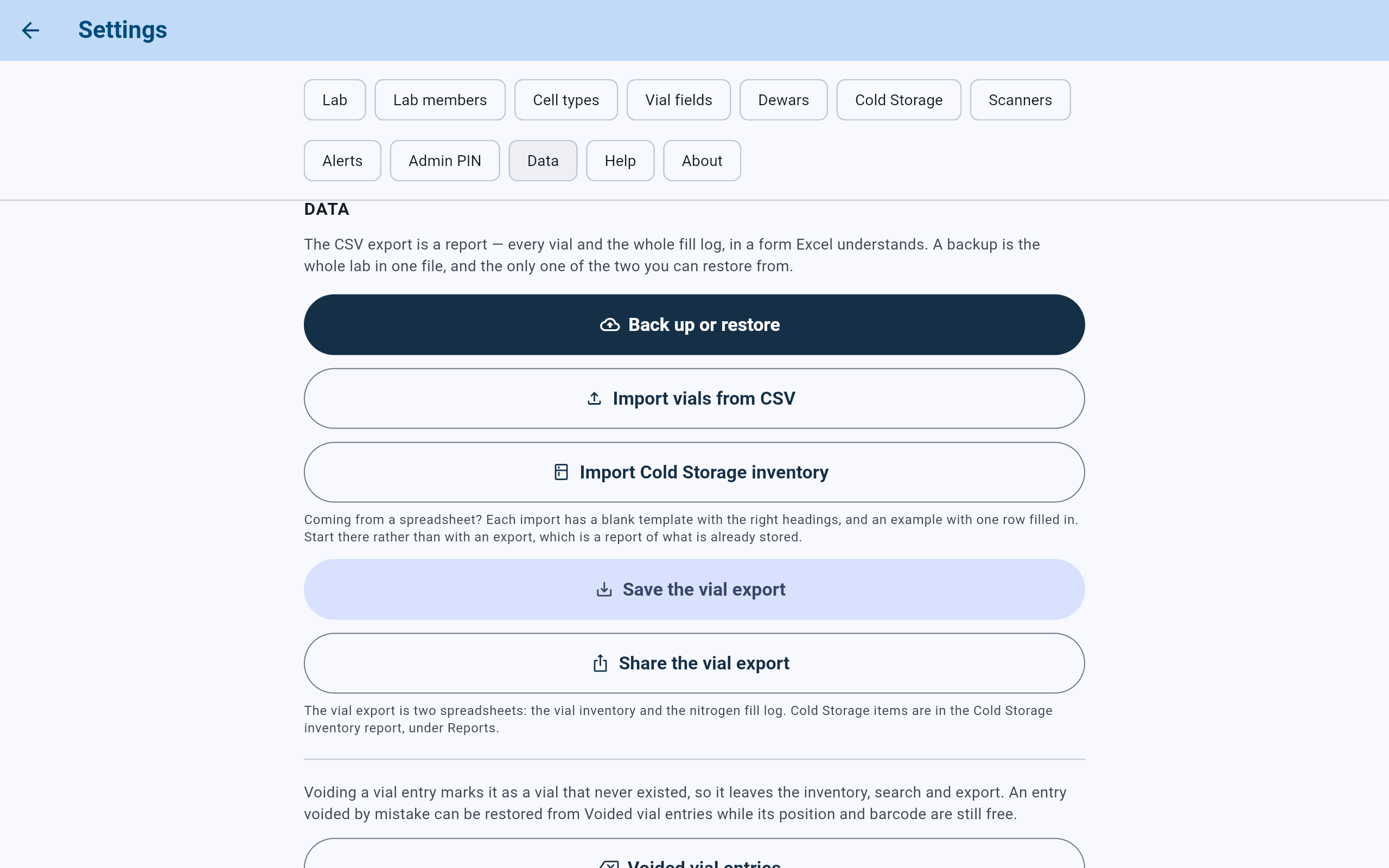
Settings, Data section. Each importer has a blank template and an example on its own screen.
- Save a backup here before importing.
- Import Cold Storage inventory opens Import inventory.
Import inventory · The file
Start from the template, one row per item.
- Under Templates and export, choose Save a blank template for the headings alone, or Save an example for the same headings with one example row. Delete the example row before filling the file in: importing it adds an item that does not exist.
- Open Every column under What each column means for a line about each of the 29 columns.
- Fill in one row per item. Every row needs the material's name, or the file needs manufacturer and catalog number columns instead.
- Write each location as a path from the cabinet down, its parts separated by “ / ”, such as Freezer A / Shelf 2 / Box 12 / A1. Write as much as is known, and never an unknown part such as “Shelf unknown”. A comma does not separate parts, and a blank location imports the item with no location.
- Give the same material key to every row of one material, and the same batch key to every row of one batch. They group rows within this file only.
- Save the file with File, Save As, CSV UTF-8 (Comma delimited). A workbook (.xlsx or .xls) is refused with that instruction, and so is a file over 25 MB. Keep each file to about 5,000 rows: above that the screen warns that the import may take several minutes, and suggests dividing the inventory, keeping each material and batch together.
The material's name (or its manufacturer and catalog number), and one row per item.
Material and batch keys, type, source, project, species or cell type, lot, dates, concentration, buffer or medium, passage, notes, barcode, amount, unit, measured or estimated, location, responsible person and status (stored, checked_out or missing).
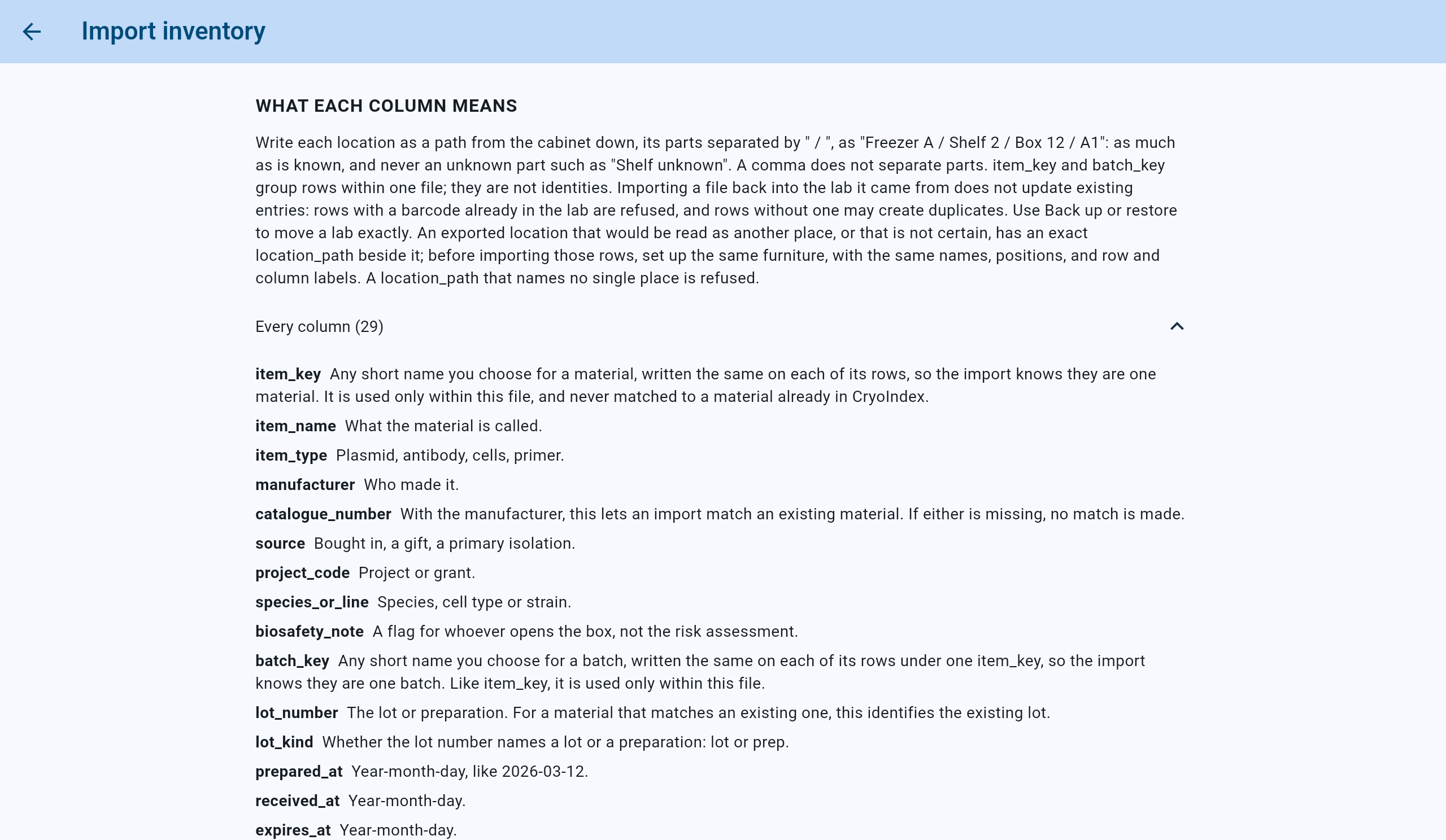
What each column means, with Every column open: one line for each of the template's 29 headings.
- How to write a location, and what the material and batch keys do.
- Every column opens and closes the list.
- Each template heading, with what to put under it.
Headings do not have to match the template. The next step asks what each of the file's columns holds. A row whose barcode is already in the lab is refused, and a row without a barcode is never matched to an existing item, so importing the same file twice can add the same items twice.
Import inventory · Columns
Choose the file, then say what each column means.
- Choose Choose a CSV file and pick the file in the tablet's file chooser. On a Windows PC the Open window is titled Choose a CSV of your Cold Storage inventory. The step then shows the file's name and how many rows it has.
- Under Locations that name no cabinet, leave None: each location names its cabinet when every location starts with its cabinet. Choose a cabinet only if the file's locations leave the cabinet out. In a lab with no cabinet saved yet, there is nothing to choose, and each location has to start with its cabinet.
- Under Who is importing?, choose your name in Imported by.
- Under Columns, read the line saying how many of the file's columns will be read. Fields to look at are listed first under Check these; the rest are folded under Recognized and Not in your file.
- For each field, the right-hand menu names the file's column it is read from, with its First value underneath. Choose another column, or — not in this file —, wherever the guess is wrong.
- Read the red Not imported line, which names any column nothing reads. To import one, choose it beside the field it holds.
- Choose Preview import at the bottom. It stays unavailable until someone is chosen in Imported by. It compares the file with what Cold Storage already holds; nothing is written yet.
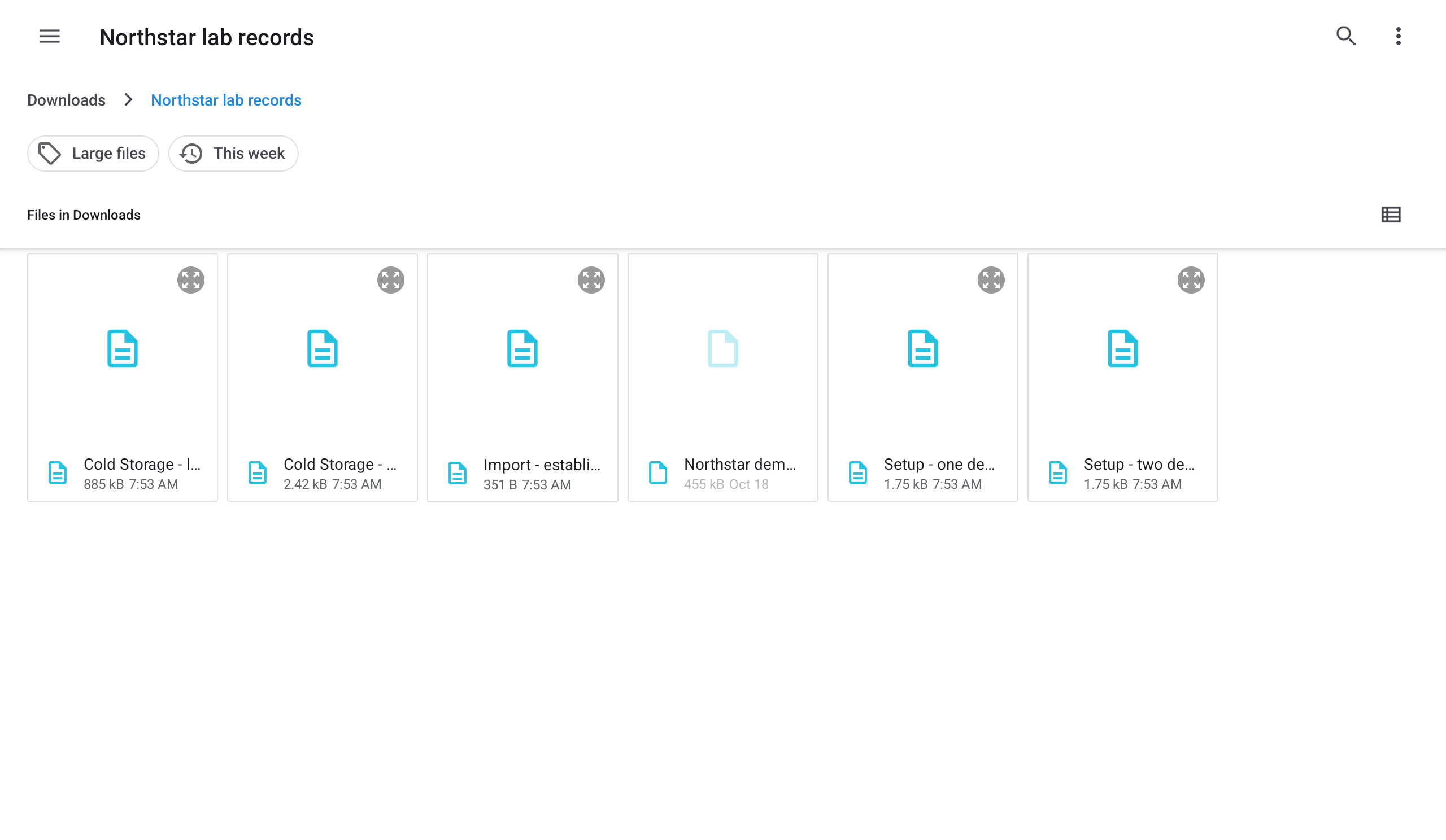
Choose a CSV file opens the tablet's own file chooser.
- The folder shown. The menu at the top left lists other places.
- Tap the CSV to choose it.

The step after choosing a file, here a fictional file of 5040 rows. Preview import is not available until someone is chosen in Imported by.
- A file of more than 5,000 rows shows this notice. It suggests dividing the inventory, keeping each material and batch together.
- The file's name and how many rows it has.
- Locations that name no cabinet: leave None: each location names its cabinet when every location starts with its cabinet.
- Imported by: the person importing.
- How many of the file's columns will be read.
- Preview import, once someone is chosen.
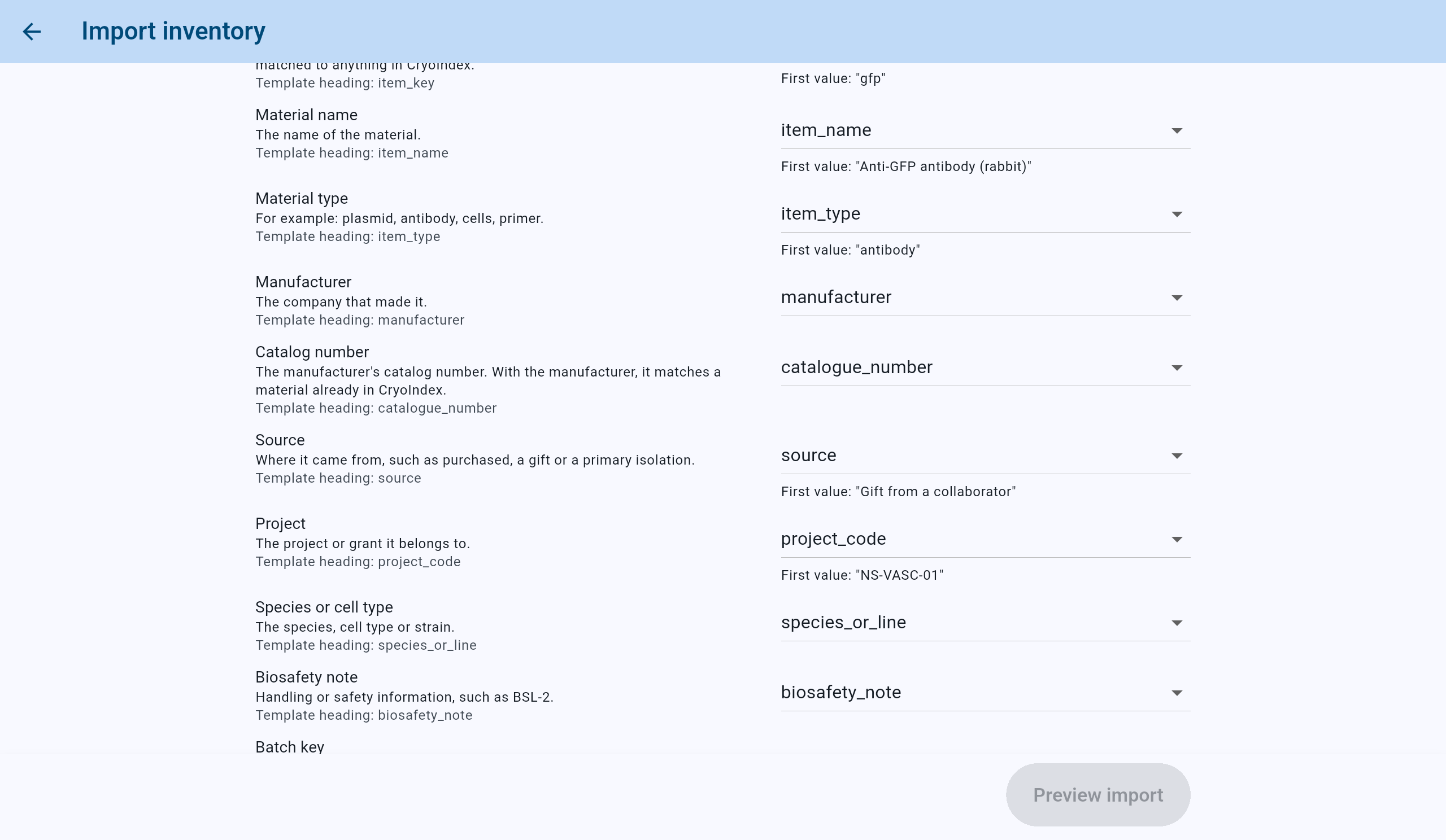
Further down: each field on the left, and on the right the file's column it is read from.
- A field, what it holds, and its heading in the template.
- The file's column it is read from. Choose another, or — not in this file —, if the guess is wrong.
- The first value in that column.
- Preview import stays at the bottom of the screen.
Import inventory · Questions
Answer every question. You choose each place; CryoIndex never guesses one.
The heading counts the questions, and says Nothing is imported until every question is answered. Each card says how many rows it decides, and on which lines of the file. CryoIndex never guesses an answer, and never makes a box out of words that are not a location path.
- An unrecognized location name. A card such as No cabinet is called “-80 Upright C”, and none was chosen for this import. … Otherwise, what is “-80 Upright C”? (in a lab with no cabinet yet, Nothing in the app is called “Freezer A”. What is it?) offers, as fits: Add “-80 Upright C” as a −80 °C freezer, as a −20 °C freezer or as a 4 °C refrigerator; Create, which makes the shelves or boxes the path names inside the place it reached; They are in an existing place, when several places share the name; or Import them with no location recorded. The kind and temperature of a new cabinet always come from the answer, never from its name. To correct the path in the file instead, use Choose another file.
- A location written as words. A description such as “Freezer A, top shelf” is not a path, so CryoIndex does not guess where those items are. Pick the place from Choose where they are and choose Put them there; or choose Import them with no location recorded; or choose Leave these rows out and correct the location in the file. Items imported with a place or without one keep the original words.
- Many unmatched places. When more than one place is asked about, a button such as Import the items at the remaining 6 unmatched places without a location answers all of them at once. Each item keeps the spreadsheet's location text as a note, and no storage is created.
- Box sizes. When the import makes new boxes, one card per cabinet asks how big they are. The positions in a file show only how much of a box is used. Choose a size in Every new box, give any box of another size its own under Each new box, and choose Use these sizes. A red line warns when a box of the chosen size lacks a position the file names, such as a 9 × 9 box with no J2; those items go in with their positions unknown. Import them with no position recorded is the other answer.
- People. A card such as “R. Patel” is named as the responsible person on 12 rows, but no lab member has that name. Who is this? offers A lab member already in CryoIndex (pick the name; someone who has left is marked as having left), Add “R. Patel” as a lab member, Import these rows with no responsible person, or Leave these rows out.
- Amounts. When the file gives amounts without saying how well they are known, one question asks: They were measured, They were estimated, or Leave these rows out.
- Archived materials. Rows that match an archived material can go in with Import them into it anyway, or the material can be brought back with Unarchive this material, which is saved at once and prepares the preview again.
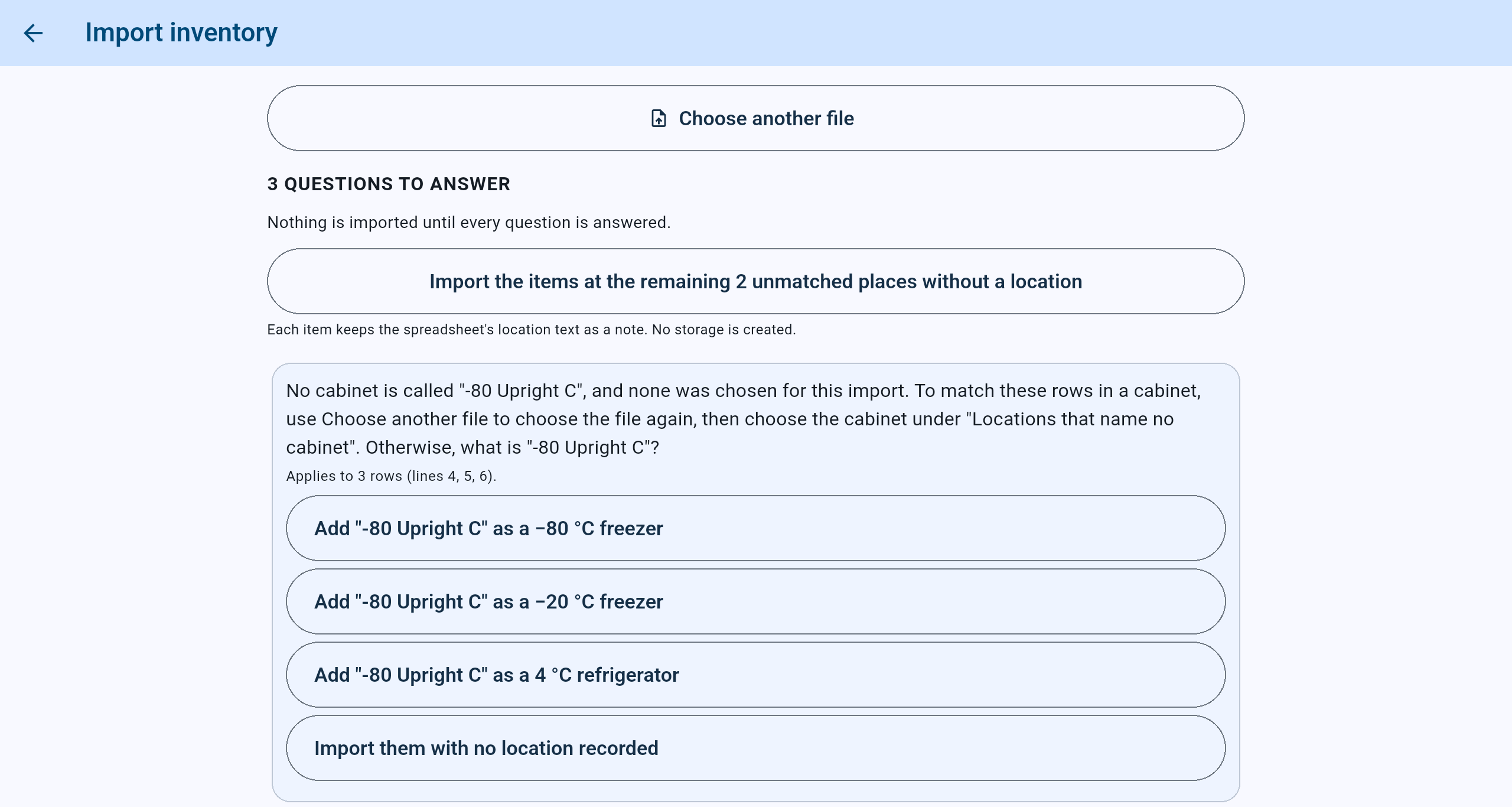
A place the file names that CryoIndex has no match for: here a cabinet the lab does not have, -80 Upright C.
- How many questions are left. Nothing is imported until every one is answered.
- Answers every place question at once: those items go in with no location, keeping the spreadsheet's location text as a note.
- The question, and the rows and lines of the file it decides.
- Add the cabinet as a −80 °C freezer, a −20 °C freezer or a 4 °C refrigerator. Its kind and temperature come from the answer, not from its name.
- Import them with no location recorded.
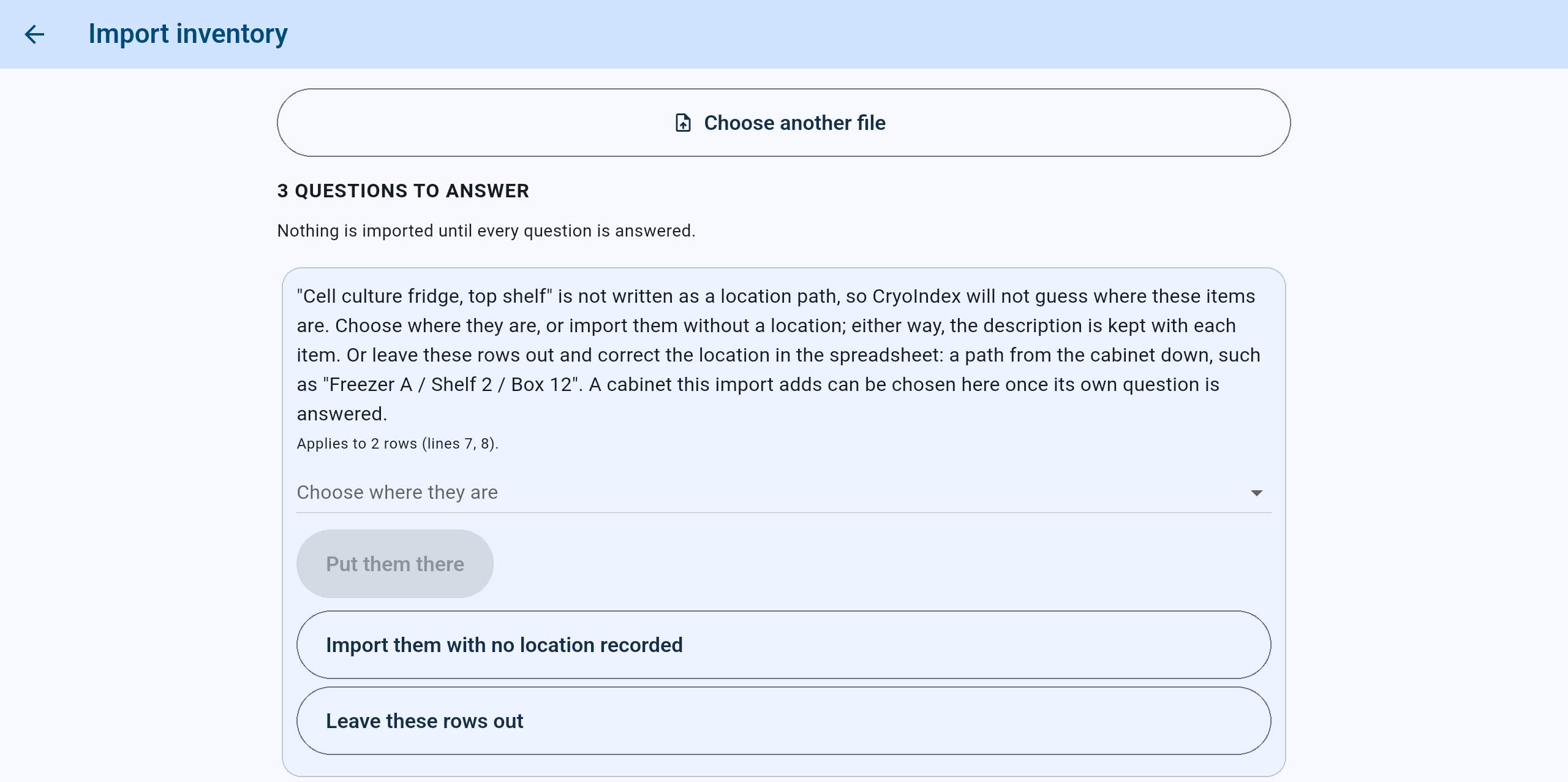
A location written in words. You pick the place; CryoIndex does not guess it.
- Choose where they are: pick the place.
- Put them there, once a place is picked.
- Or import those items without a location. The words are kept with each item either way.
- Or leave the rows out and correct the location in the file.
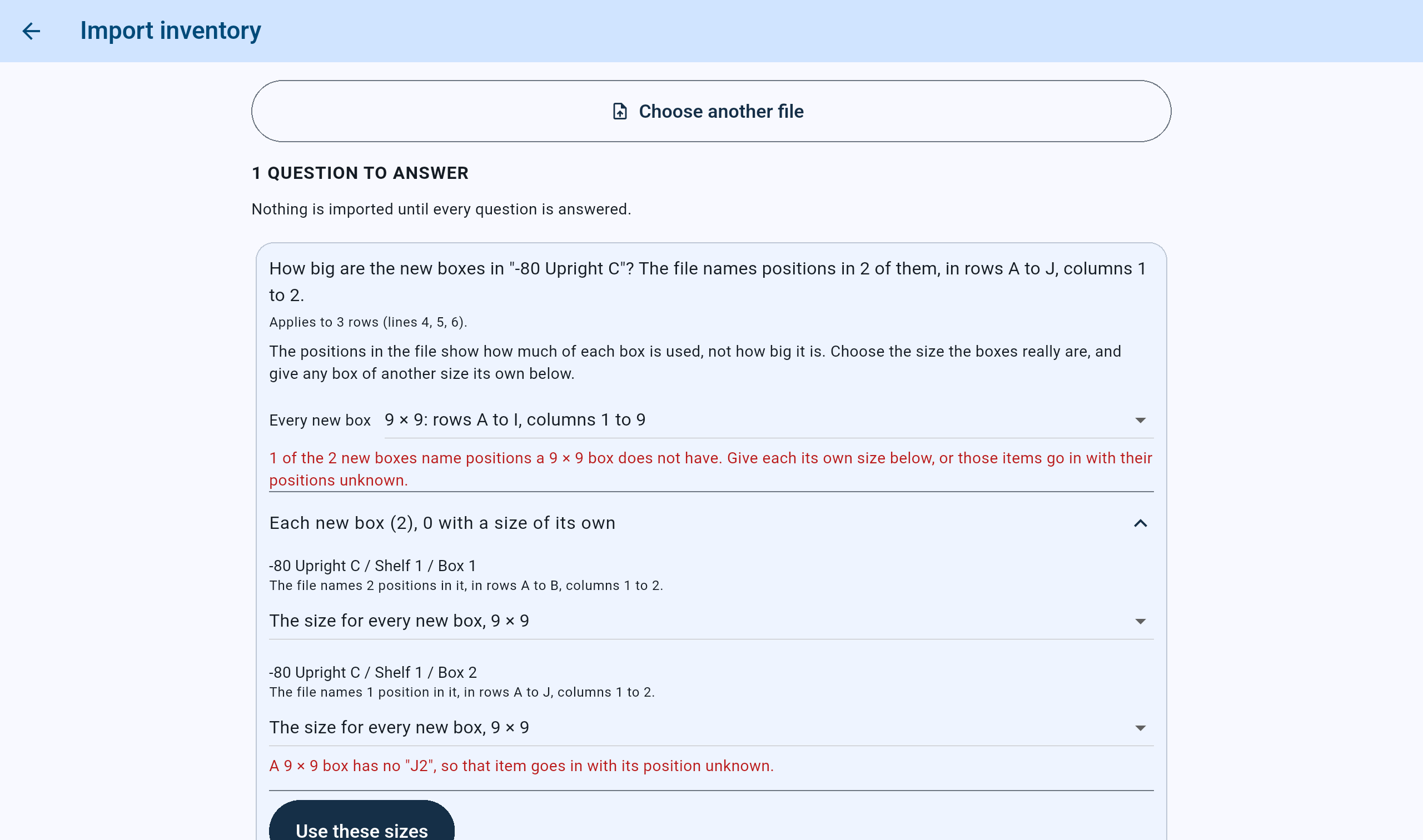
New boxes in -80 Upright C, with 9 × 9 chosen for every new box. The file names J2 in Box 2, which a 9 × 9 box does not have, so the red lines warn. In this import Box 2 was then given its own size, 10 × 10.
- Every new box: the size most new boxes are.
- Each new box lists the boxes the import will make, to give any of them a size of its own.
- Box 2's size, here still the size for every new box.
- A box of this size lacks a position the file names, so that item would go in with its position unknown.
- Use these sizes.
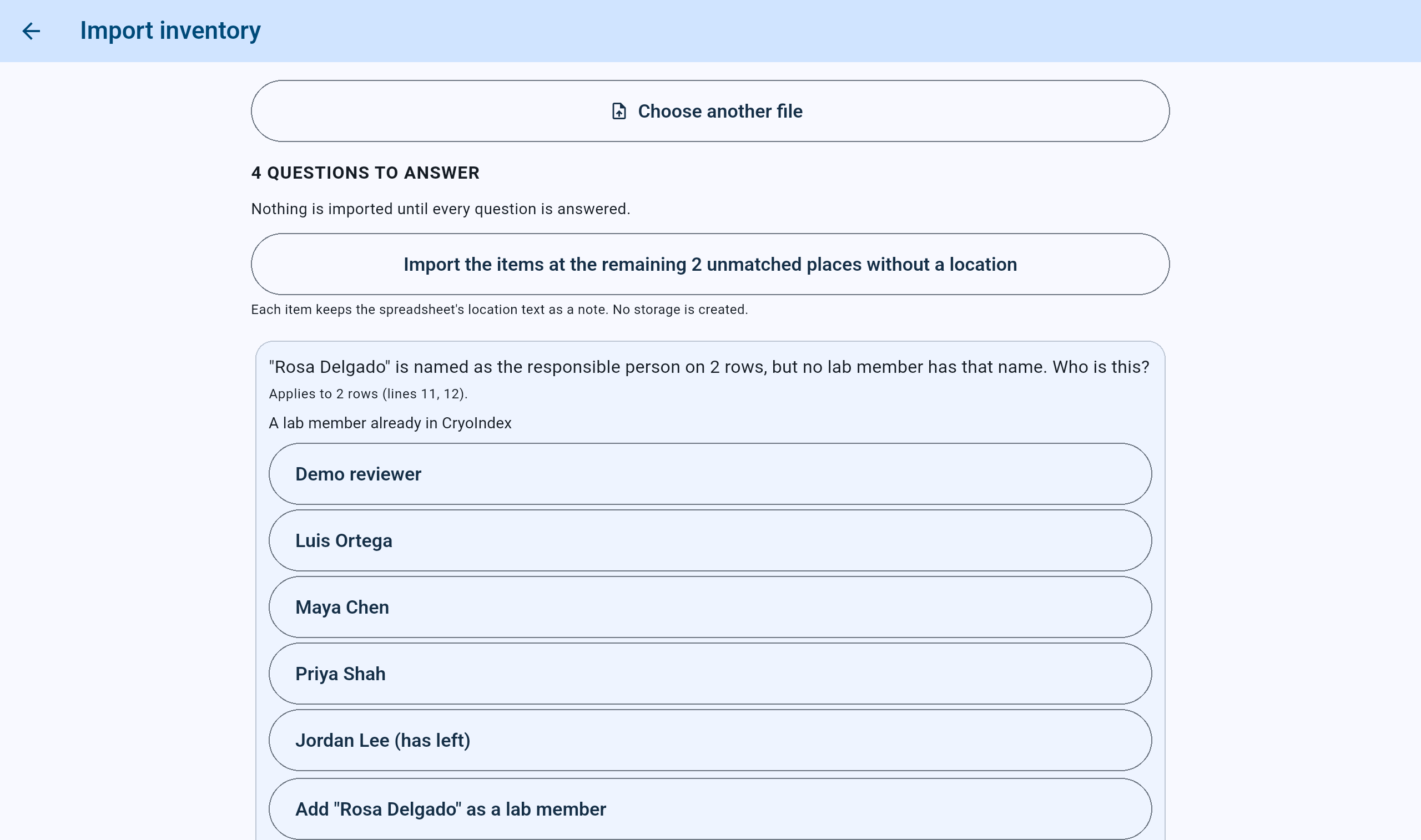
A person the file names who is not a lab member. More answers follow below the ones shown.
- A lab member already in CryoIndex: pick the name.
- Someone who has left is marked as having left.
- Or add the name as a new lab member.
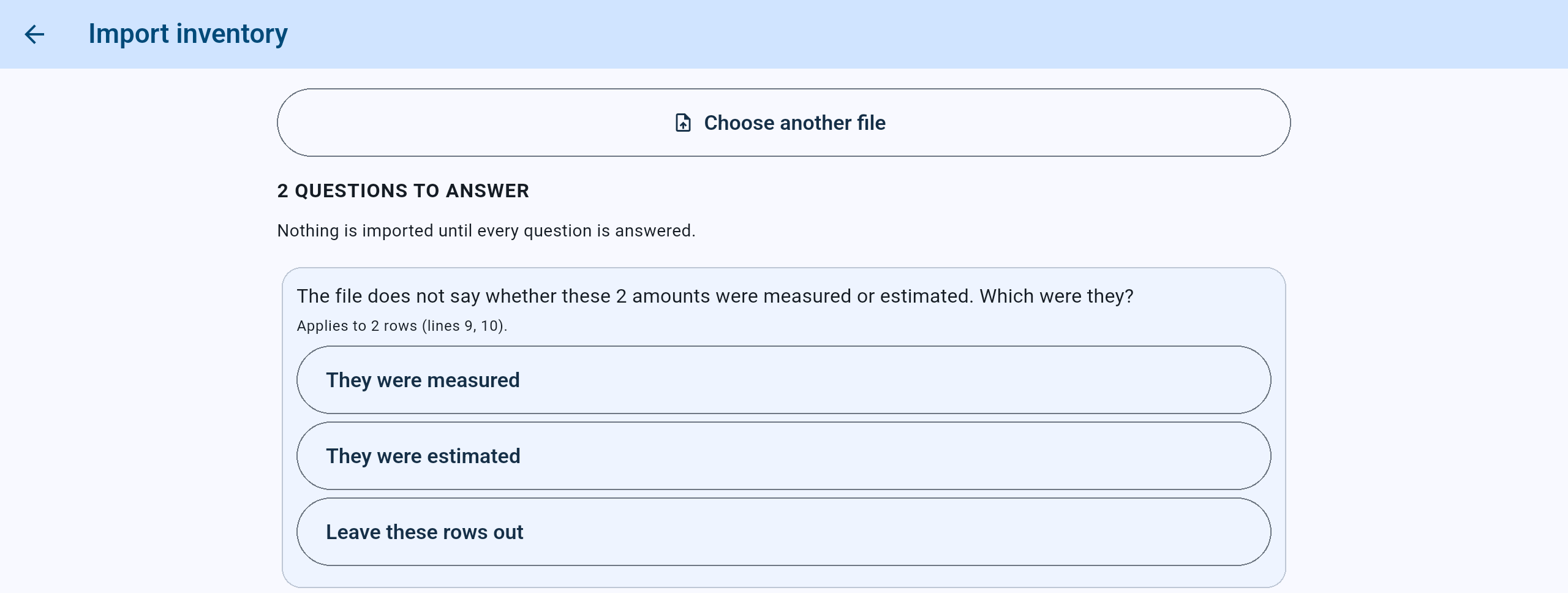
Amounts the file gives without saying how well they are known.
- The question, and the rows it decides.
- They were measured.
- They were estimated.
- Leave these rows out.
Some problems are best corrected in the file. Choose another file is on every step before the import, for a file that needs correcting. When answers would be lost, Choose another file? asks first: Keep the answers or Choose another file.
Import preview
Read exactly what will be written.
- Read the counts: Items to import, and of those Without an exact location; Rows that cannot be imported; Rows left out; and Rows in the file. Show items and Show rows, beside each count that is not zero, and Show all rows open the rows behind them.
- Read the new and existing Cabinets, Materials, Batches, Containers and Lab members. Show new records lists every record the import will create.
- Under New boxes, check the size chosen for each cabinet's new boxes, and any box given its own.
- Under Who will be responsible, check each name, and any rows that will have no responsible person.
- Under Rows imported together, note the groups. Rows that share a new record go in as one group, and if any row in a group cannot be imported, none of the group is.
- Read every refused row: each is listed by its line in the file, with the reason. If a refusal is not expected, correct the file and choose it again.
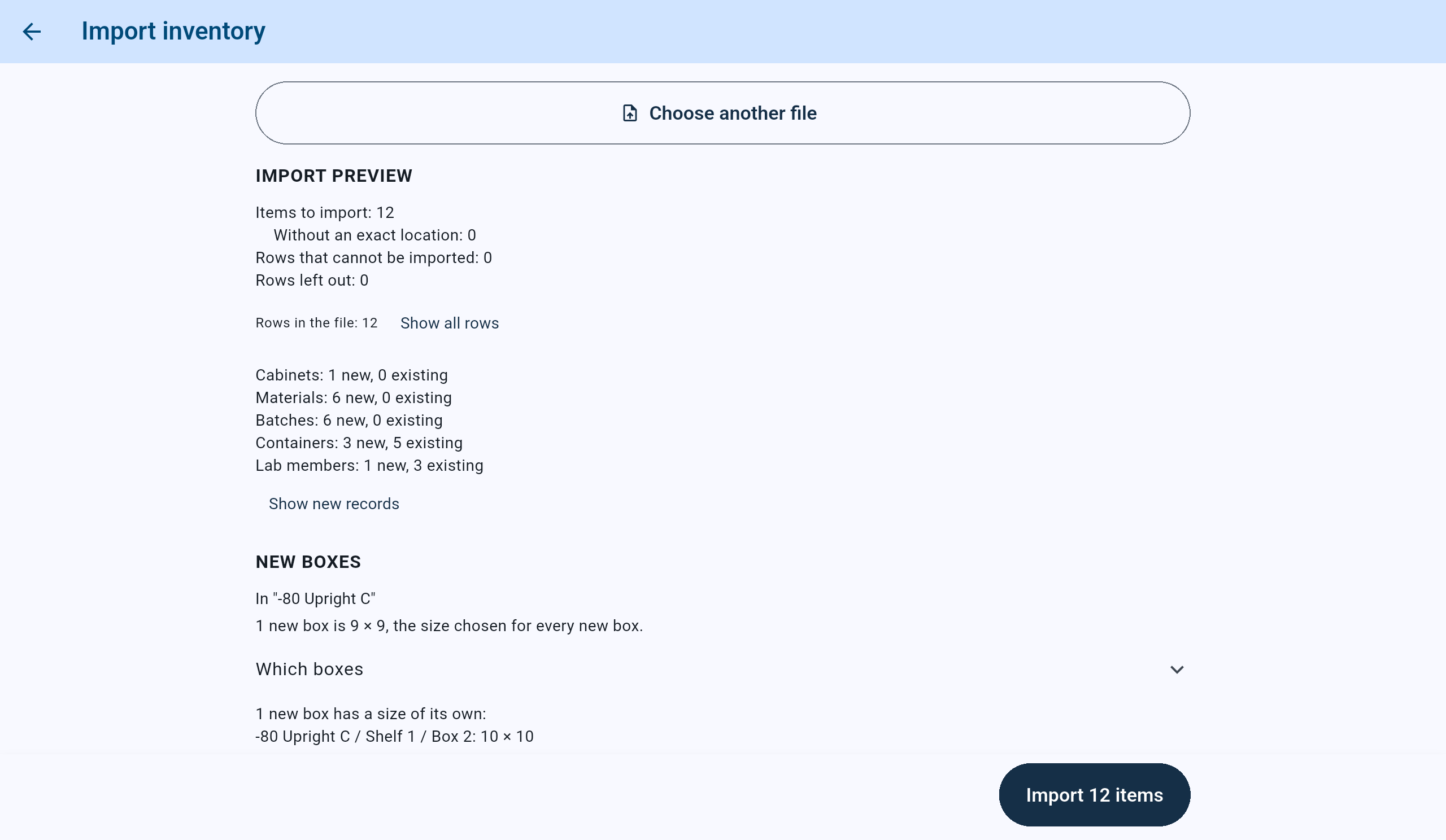
The preview for the fictional file once every question was answered: 12 items, none refused or left out. The rest of the preview is further down.
- The counts. Nothing is written yet.
- Show all rows lists every row of the file.
- New and existing records: here one new cabinet and one new lab member.
- Show new records lists every record the import will create.
- The box given a size of its own.
- The import button names the number of items. The import starts at once.
Import
Import, and keep CryoIndex open until it finishes.
- Choose the button at the bottom that names the number of items, for example Import 214 items. The import starts at once.
- While it runs, the screen says how many items it is importing and to keep CryoIndex open. The rows go in group by group, and each group is saved as it is written.
- Stop after the current group stops the import once the group being written is finished. Everything already written stays.
- If Cold Storage or the file changed while the preview was open, nothing is imported and the screen says so. Choose Preview again; the questions are asked again for the new preview.
Import finished
Check that every row is accounted for.
- Read the result: how many items were added, left out, not imported and not processed, and that the rows in the file are all accounted for.
- Read Who is responsible. When some rows were not added, Row by row lists each of them with the reason.
- Choose Done.
- Open each cabinet the import touched. A place made by an import can have no storage role yet, and the cabinet then says so: Set up cabinet layout shows each place where it really is, and Set storage role on a place says what it holds. Items in those places can already be stored, found and checked. See Arrange a cabinet.
- Search for a few imported items and compare them with the file and the shelves, then save a backup off the device.
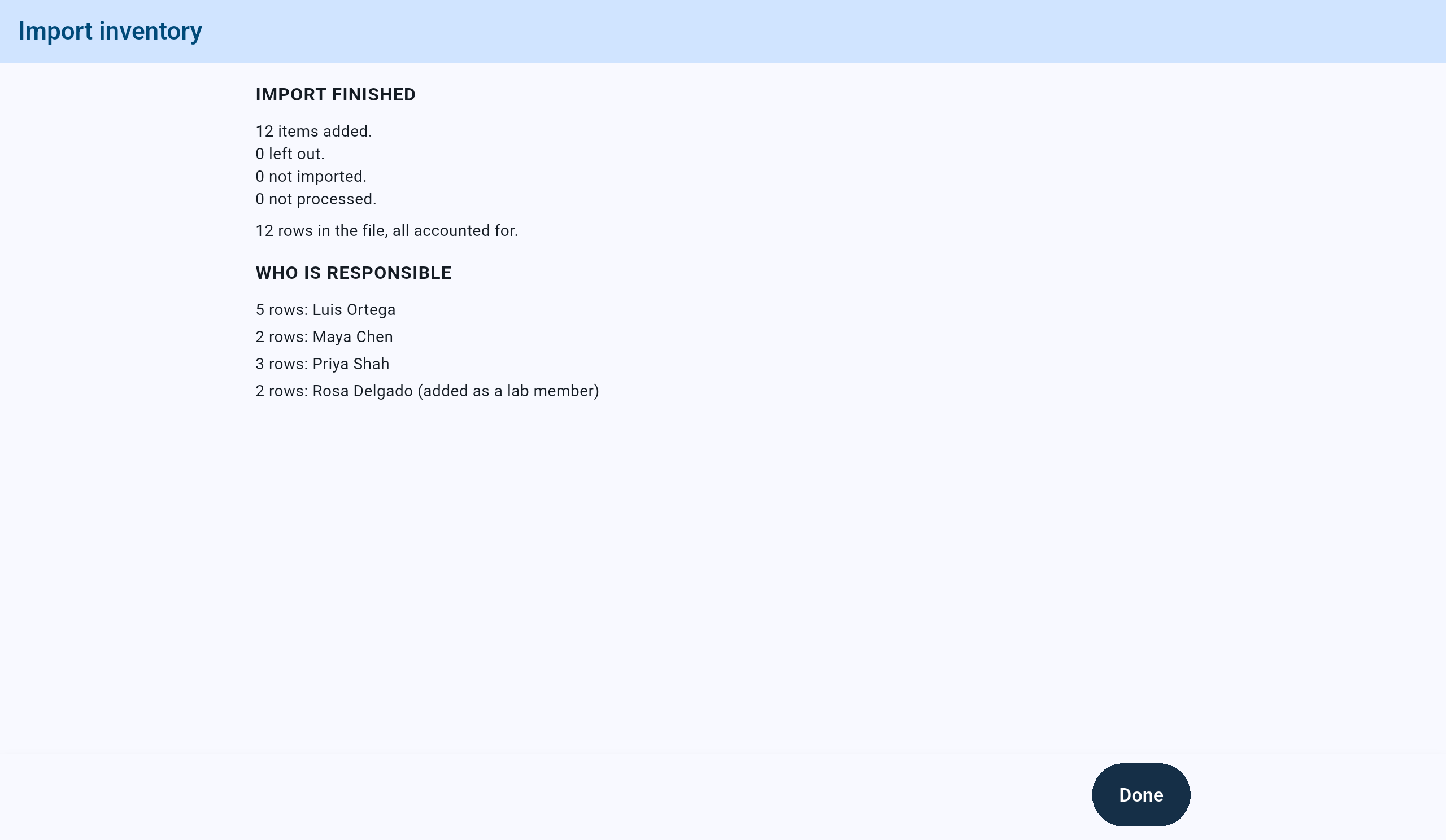
Import finished for the fictional file: all 12 rows added, so no Row by row list.
- Added, left out, not imported and not processed.
- Every row of the file is accounted for.
- Who is responsible for the items added.
- A person the import added as a lab member is marked so.
- Done.
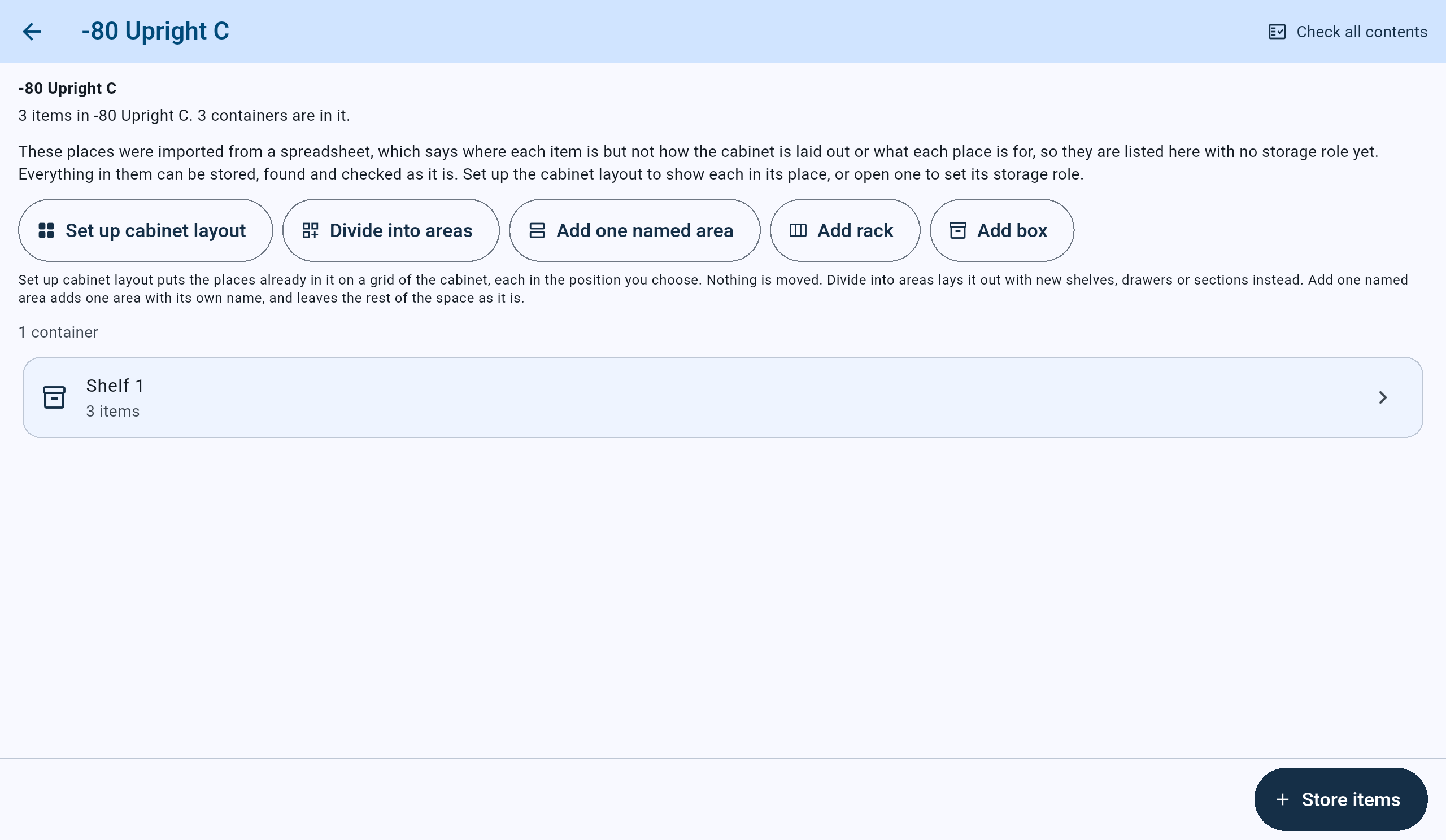
The cabinet the import added. It says its places came from a spreadsheet and have no storage role yet.
- The note on imported places: everything in them can already be stored, found and checked.
- Set up cabinet layout puts the places already in the cabinet on a grid of it, each in the position chosen. Nothing is moved.
- Open a place to set its storage role.
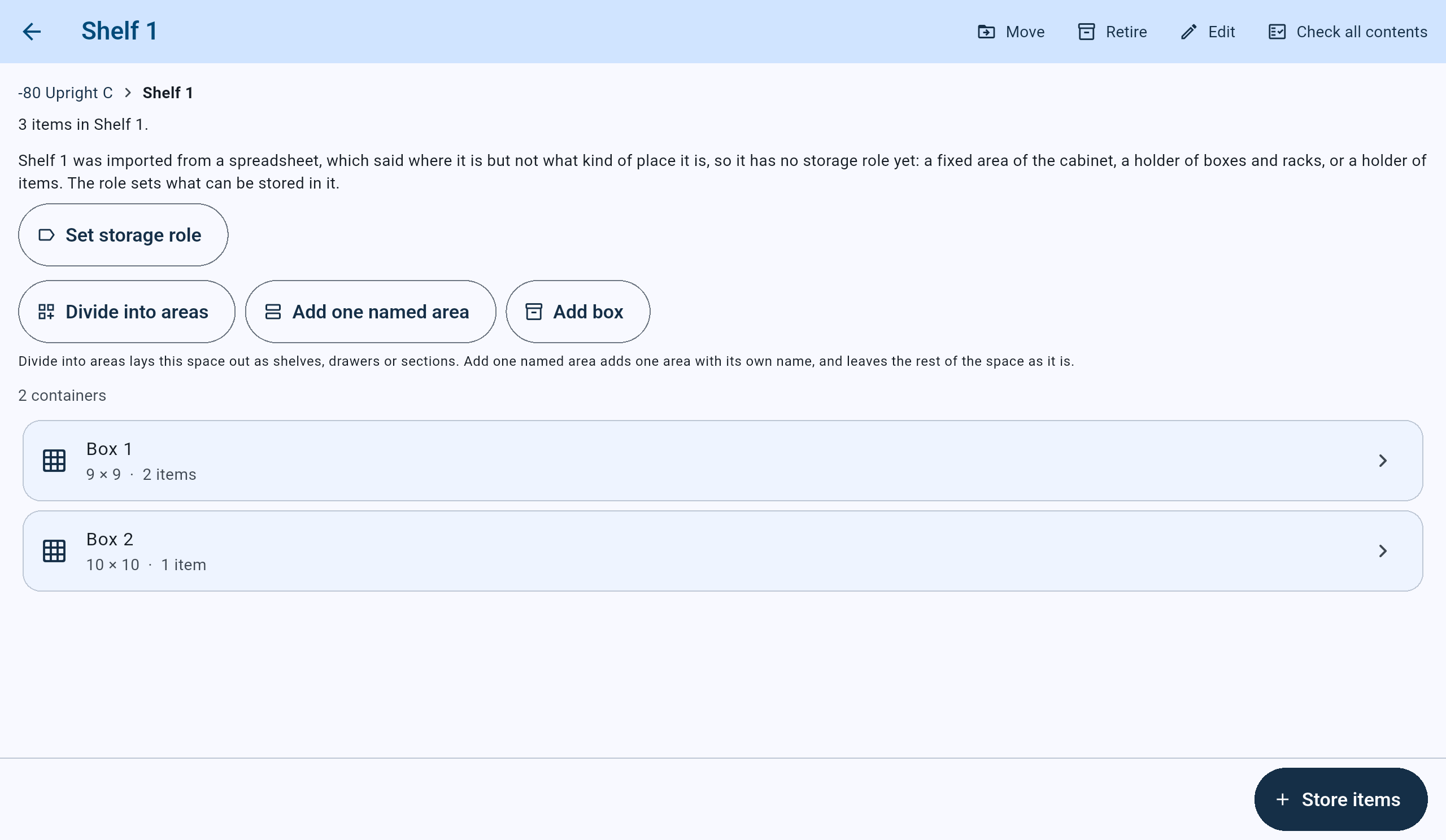
Shelf 1, a place the import made. Its boxes have the sizes chosen during the import.
- Why the place has no storage role yet.
- Set storage role says what the place is: a fixed area, a holder of boxes and racks, or a holder of items.
- Box 2 is 10 × 10, the size given to it on its own.
Templates and export
Export the current inventory as a CSV.
- On Import inventory, choose Export current inventory, and choose where to save the file.
- A large inventory is saved as numbered parts, each asked for in turn. Each part holds whole materials and can be imported on its own.
An export is the current inventory, not its history. It can rebuild materials, batches, items and their locations in an empty CryoIndex, but not events, check records or who did what. Use a backup for that. For a report of what Cold Storage holds, use the Cold Storage inventory report under Reports.