Watch the walkthrough
Store items in a box, on a shelf or in a batch
Captions are available in the player and start turned off so they do not cover the app. The written transcript is below the video.
Read the video transcript
On the Cold Storage dashboard, choose Store items. Open the cabinet, shelf, rack and box the item is going into, then choose Select this location.
What goes in? offers One item or A batch. Choose One item, then the material and its lot, and type the Barcode and Amount.
In Stored by, choose who is putting it away. Left blank, Responsible person defaults to the person responsible for this box: the line beneath names Priya Shah.
Lower down, A5, the first free position, is already chosen. To use another free position, tap it: here, B4.
Choose Store. The form closes, and the box shows the new item in B4.
For a batch, choose Store items on the box, then A batch, the same material and lot, and the Number to store.
A Barcode prefix gives each item the prefix and a number. Add the Amount per item, the same for each, and choose Stored by.
The shaded positions show where the six go, from A5 in reading order, skipping occupied positions. Choose Store batch, and Stored 6 items lists them.
Not every item goes in a box. Open the Cell culture fridge the same way, choose Door shelf 1, then Select this location and One item.
To add a new material, type its name and choose the offer. Choose what it is Measured in with care: that cannot be changed later.
Choose Add, then Stored by. A shelf has no positions, so Store puts the item straight on Door shelf 1.
Narration uses an AI-generated voice.
The storage rule
The position on screen is where the item must go.
CryoIndex suggests the first free position, but only you, at the cabinet, know where an item really went. Put each item in the position shown, or change the position before choosing Store.
From the dashboard
Choose Store items, then the place.
- On the Cold Storage dashboard, choose Store items. Choose storage location opens on Browse; Search finds a box, rack or shelf by name.
- Choose the cabinet, then open areas, racks and boxes until the place the items are going is shown. A cabinet divided into areas says to open an area to store items there.
- If the place has no box yet, Add rack and Add box make one on the way, without leaving the picker.
- When the place is shown, choose Select this location. In a box, the position is chosen in the next form.
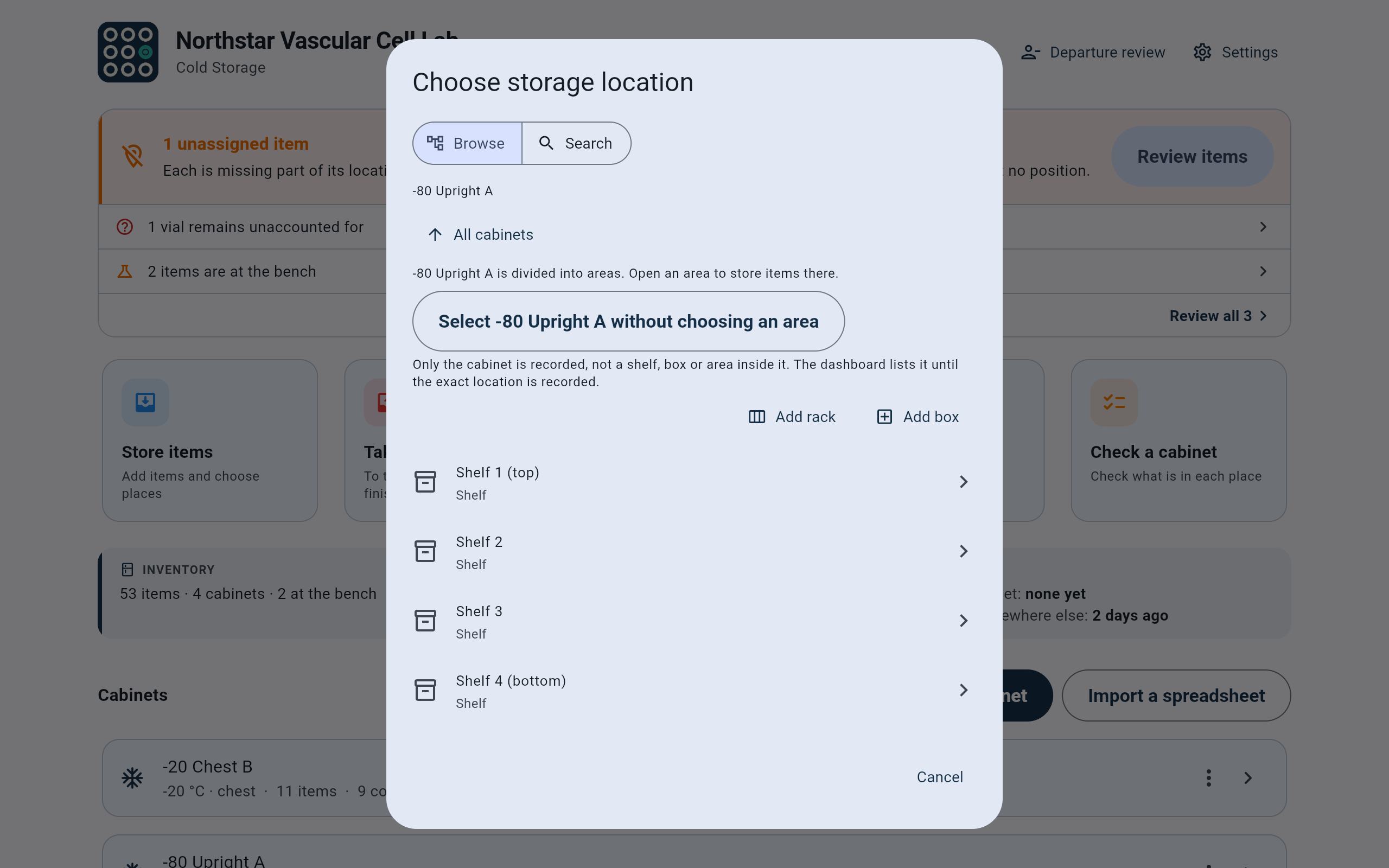
Inside -80 Upright A, the shelves are the places. Open one to go further.
- Browse walks the cabinets; Search finds a place by name.
- Records only the cabinet, when the exact place is not known. The dashboard keeps listing the item until its location is recorded.
- Add rack or Add box makes a container here first.
- Open a shelf to go further in.
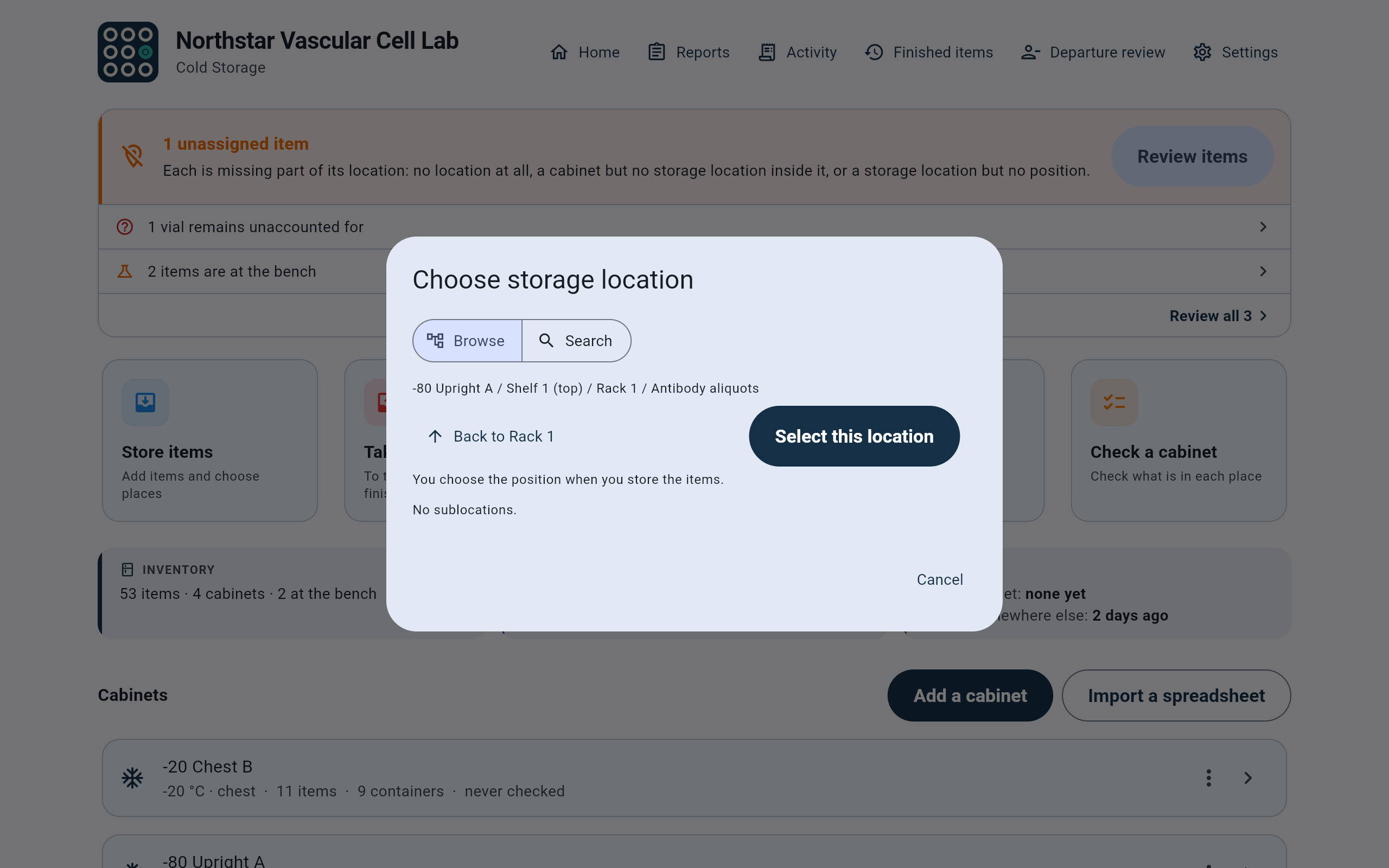
The Antibody aliquots box in Rack 1 is chosen.
- The full path of the place.
- Select this location.
- Back up one level.
- In a box, the position comes in the next form.
Other ways in. A cabinet's or box's own screen has a Store items button, the side panel offers Store items in the chosen area, and tapping a free position in a box goes straight to the next question with that position chosen. The setup guide's Store the first item starts here too.
What goes in?
Choose One item or A batch.
A single aliquot, bottle or kit. A barcode is optional.
Several items of one material and lot, such as 36 aliquots. Each item is tracked separately.
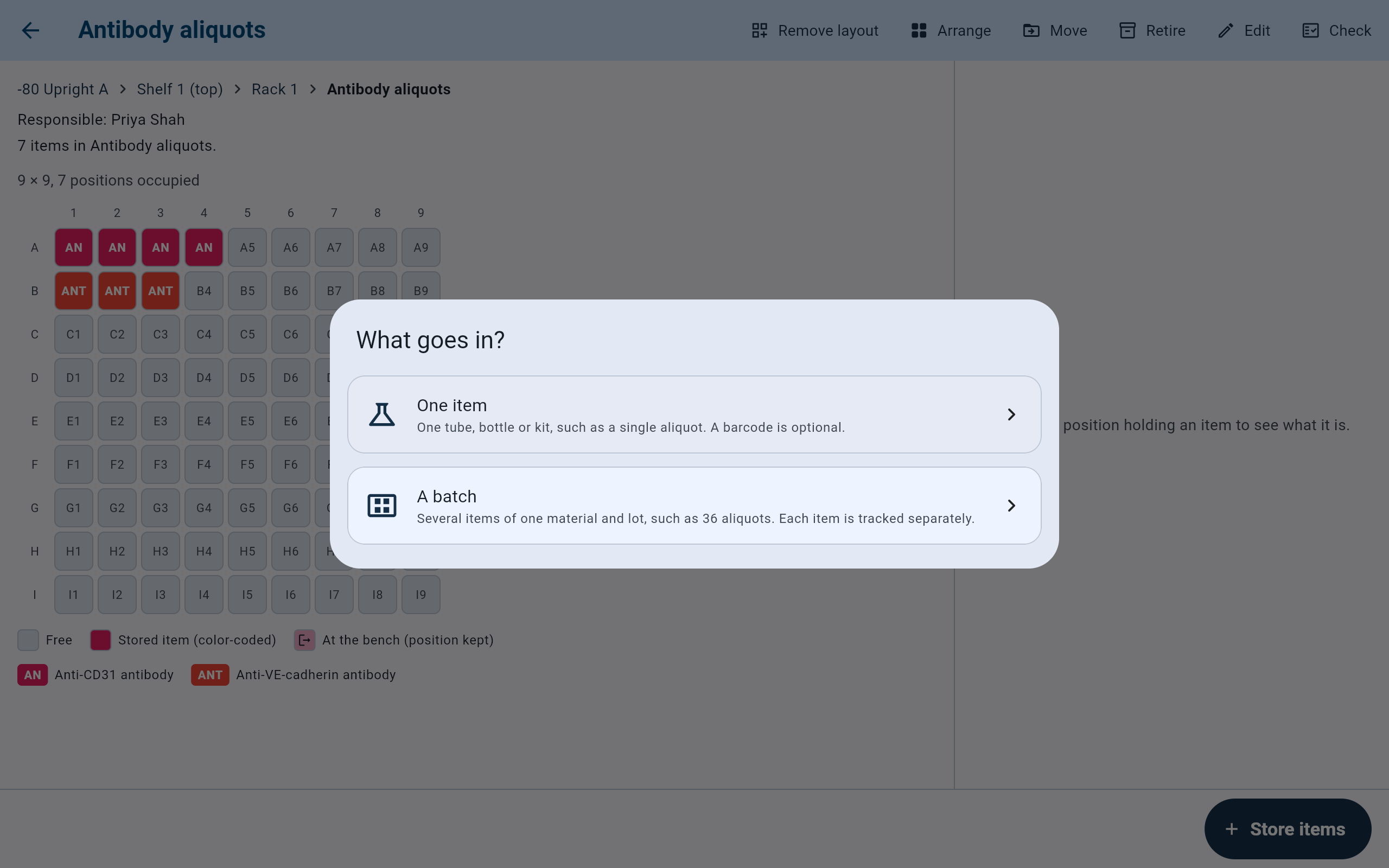
The question appears over the box that was chosen.
- One item.
- A batch.
One item · What it is
Choose the material and lot, then the barcode and amount.
- Read Going into. If it is the wrong place, choose Change.
- In Material, search by name or catalog number, or narrow the list with Filter by type, and choose the material. Typing a name is not choosing it: choose it in the list.
- If the material has lots, choose one under Choose a batch. A lot that arrived today can be added with Add a lot or preparation.
- Scan or type the Barcode if the item has one. It is optional.
- If the material is measured, enter the Amount and choose its Unit. It is optional.
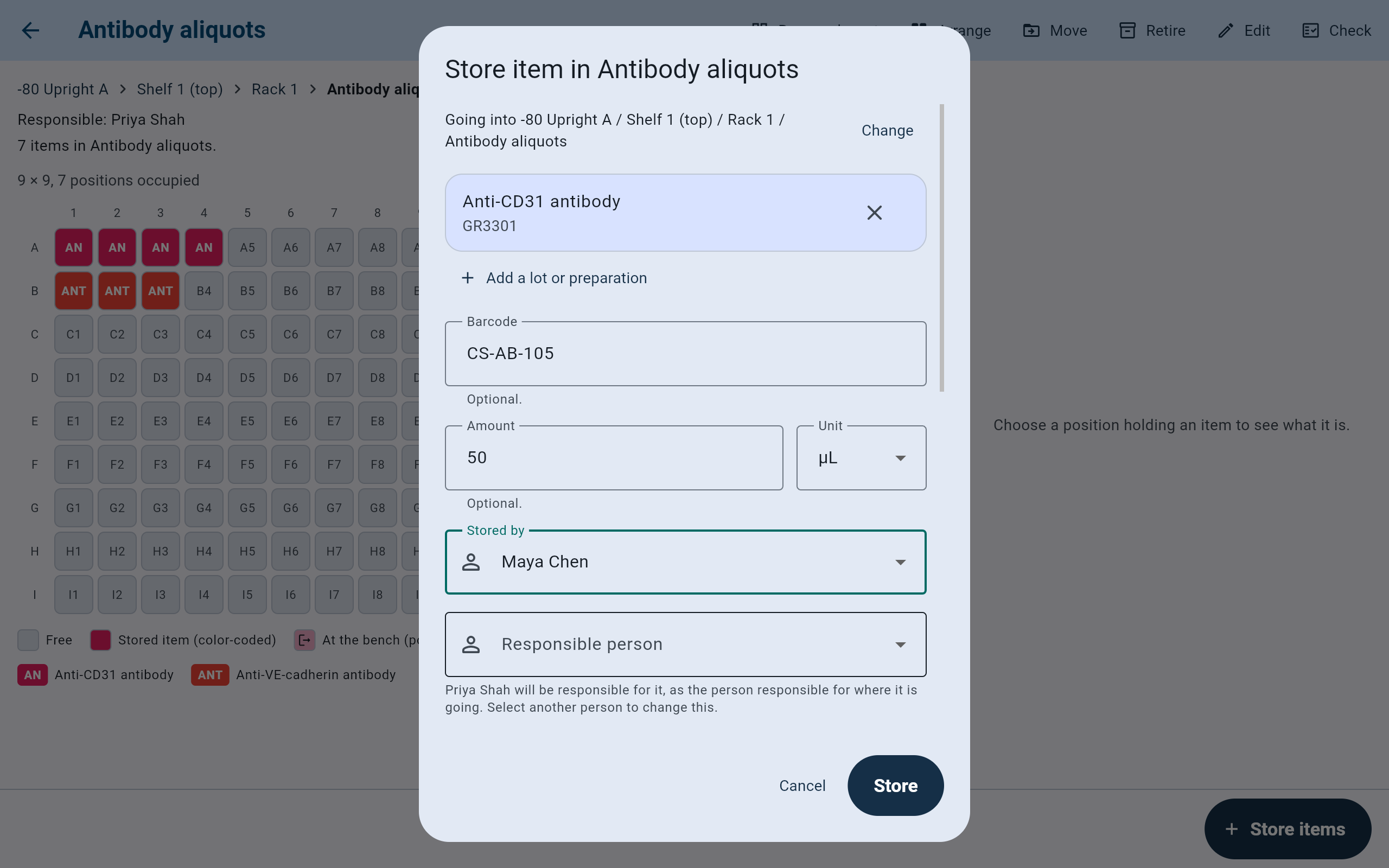
One Anti-CD31 aliquot, 50 µL, stored by Maya Chen.
- Change picks another place without starting again.
- The material and lot chosen. The cross chooses a different material.
- The barcode, optional.
- The amount and unit, for a measured material.
- Stored by: who is putting it away.
- Responsible person, with the line saying who it will be if left blank.
- Store stays unavailable until the form is ready; the line above the buttons says what is missing.
When the material is new to the lab, choose Add a new material (or, after typing its name, the offer to add it). Add a material asks for the Material name, and optionally its Type, Manufacturer, Catalog number and Lot number or prep name.
Measured in decides whether items of this material carry an amount: Not tracked, volume (nL, µL, mL, L), mass (ng, µg, mg, g), count, substance (pmol, nmol, µmol, mmol), activity (mU, U, kU), or a Custom unit counted in whole numbers, such as plates. It cannot be changed later.
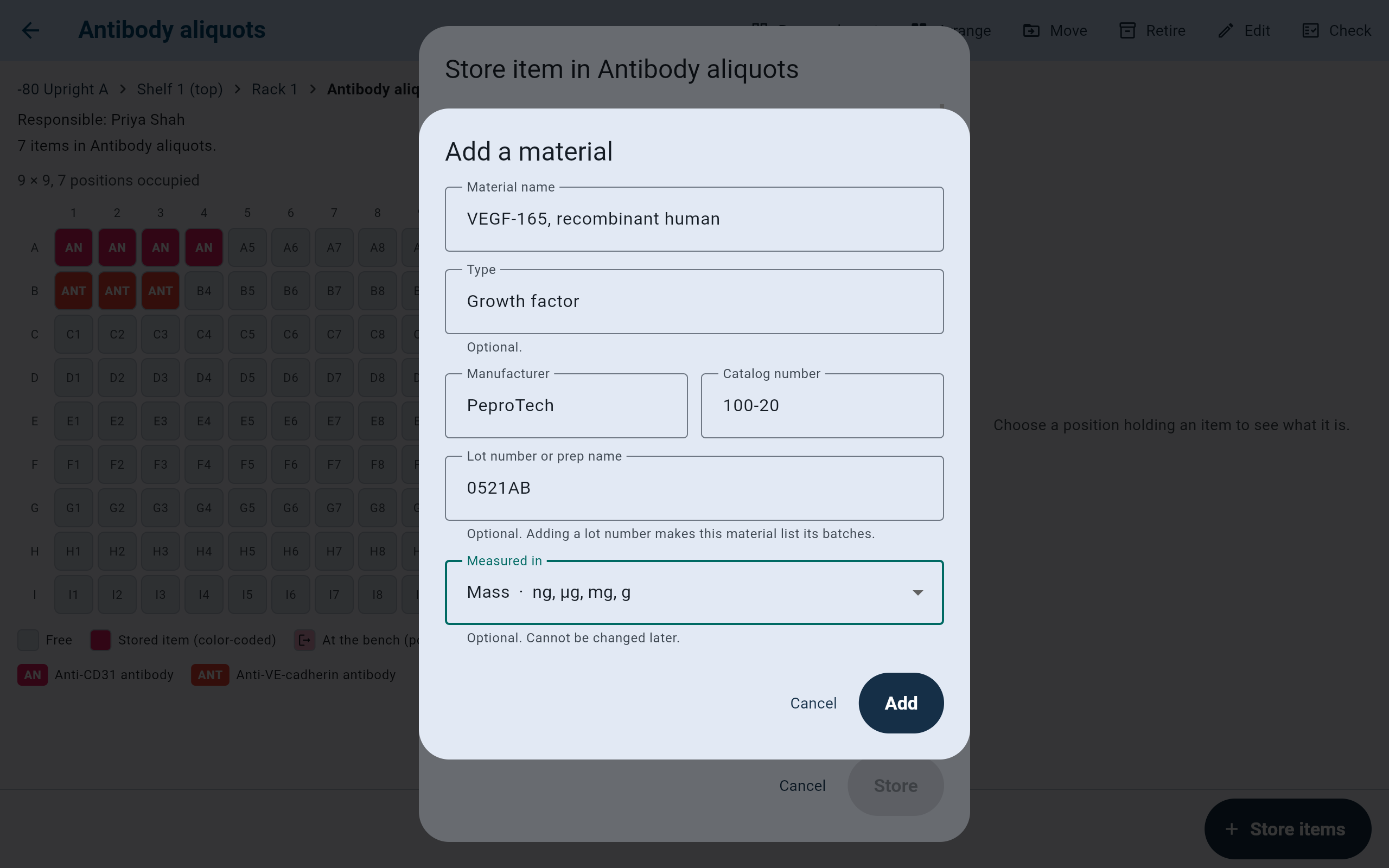
A new growth factor, measured by mass.
- The only required field.
- Manufacturer and catalog number. Search finds a material by its catalog number too.
- The first lot. With a lot number, the material lists its batches.
- Measured in, which cannot be changed later.
- Add saves the material at once, even if the item is then not stored.
One item · People
Name who stored it, and check who is responsible for it.
- In Stored by, choose who is putting the item away. A new lab member can be added from the same list.
- Read the line under Responsible person. Left blank, the item goes to the person responsible for the box or area it is going into, or, if there is none, to the person storing it. The line names that person before anything is saved.
- To make another lab member responsible, choose that person in Responsible person. The responsible person decides what happens to the item and is not always the person who stored it.
Responsibility matters when someone leaves the lab. A departure review lists every item a lab member is responsible for, so the person shown here should be the one who decides about the item.
One item · Position
Accept the first free position, or choose another.
- In a box, the grid shows Free, Occupied and Not used in this layout positions. The first free position is already chosen, and Position names it.
- Tap another free position to use it instead, or choose Not recorded if the item goes in without a known position.
- Tick Track freeze-thaw cycles to be asked about thawing each time this item comes back from the bench. It is offered in cabinets at or below 0 °C, and in any cabinet with no temperature recorded except a refrigerator.
- If the item was made from something already recorded, such as a cell vial, add it under Made from with Add source.
- Choose Store.
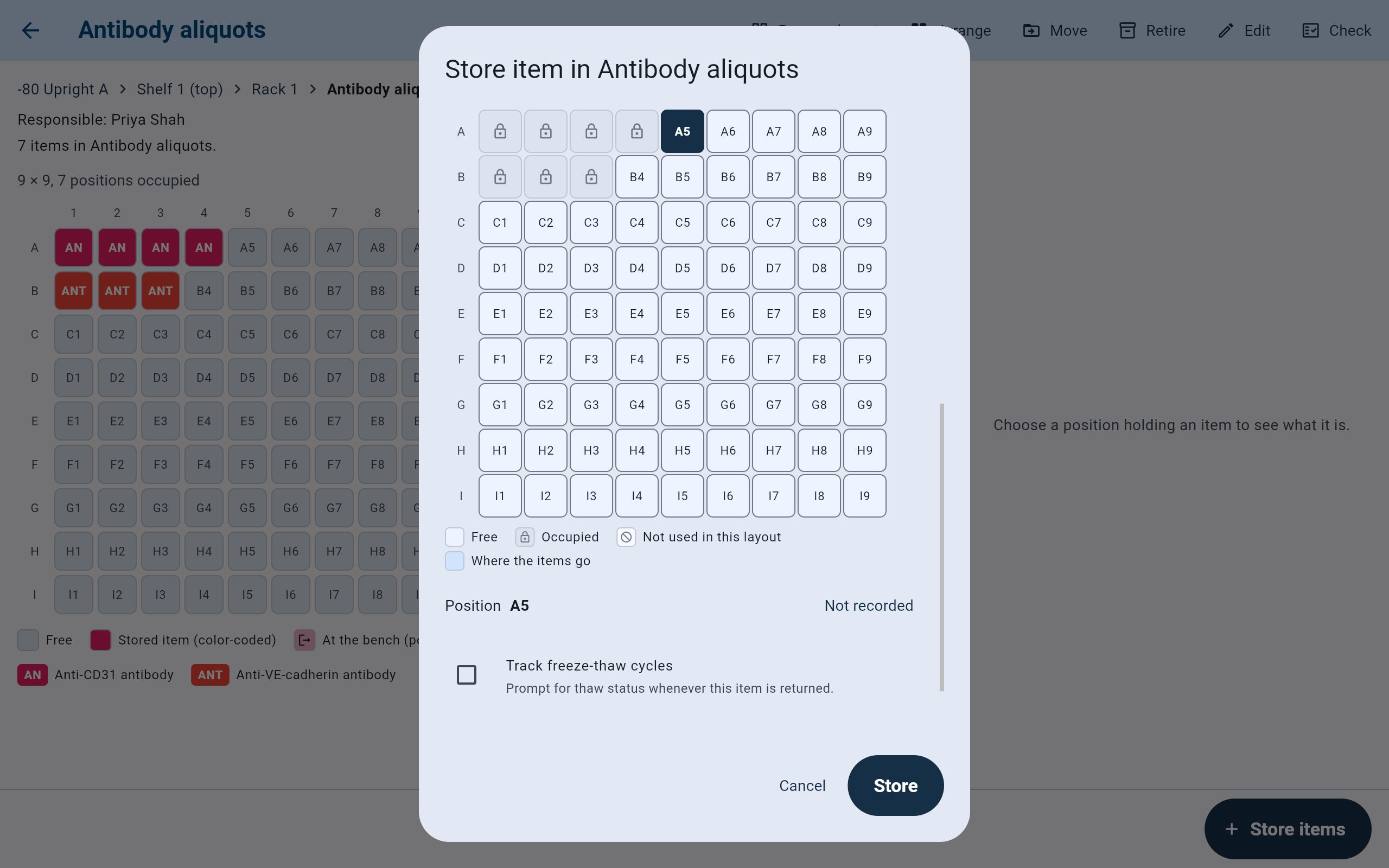
A5 is the first free position in the box, so it is chosen.
- The position chosen for this item.
- Occupied positions cannot be chosen.
- The position, and Not recorded for none.
- Track freeze-thaw cycles, offered in a freezer.
- Store.
Storing one item shows no message: the form closes and the box shows the item in its position.
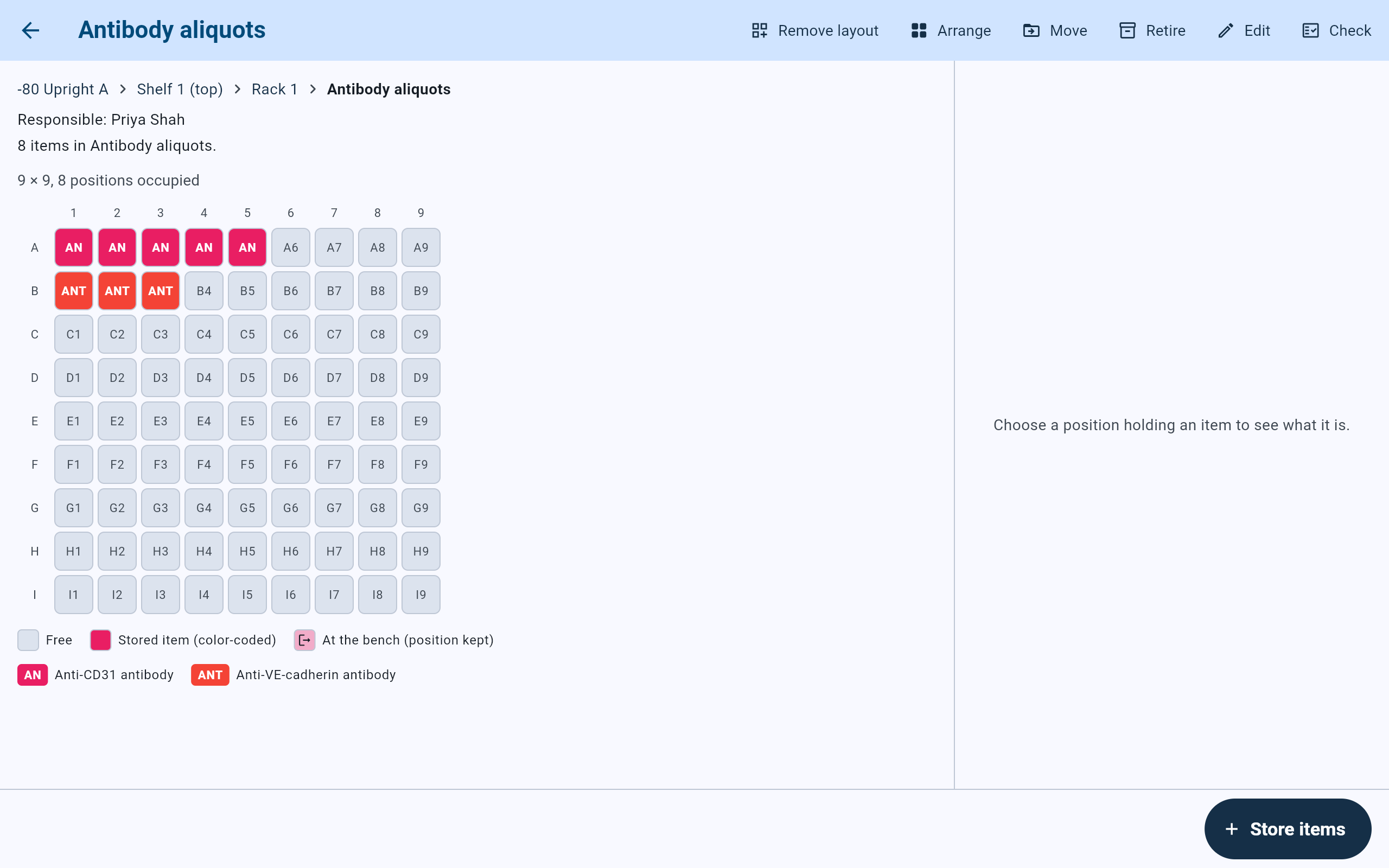
A5 now holds the new aliquot. The box counts 8 items.
- The new item in A5.
- The box's count went up by one.
- The code key says which color is which material.
- Store items stores more in this box.
A batch
Store a batch of one material and lot in one step.
- Choose A batch, then the material and lot, as for one item.
- Enter the Number to store.
- To give each item a barcode, enter a Barcode prefix. Each item gets the prefix and a number, from Starting at, with the number Padded to a set number of digits. Leave the prefix blank for items without barcodes.
- If the material is measured, enter the Amount per item, the same for each item.
- Choose Stored by, and check the Responsible person line.
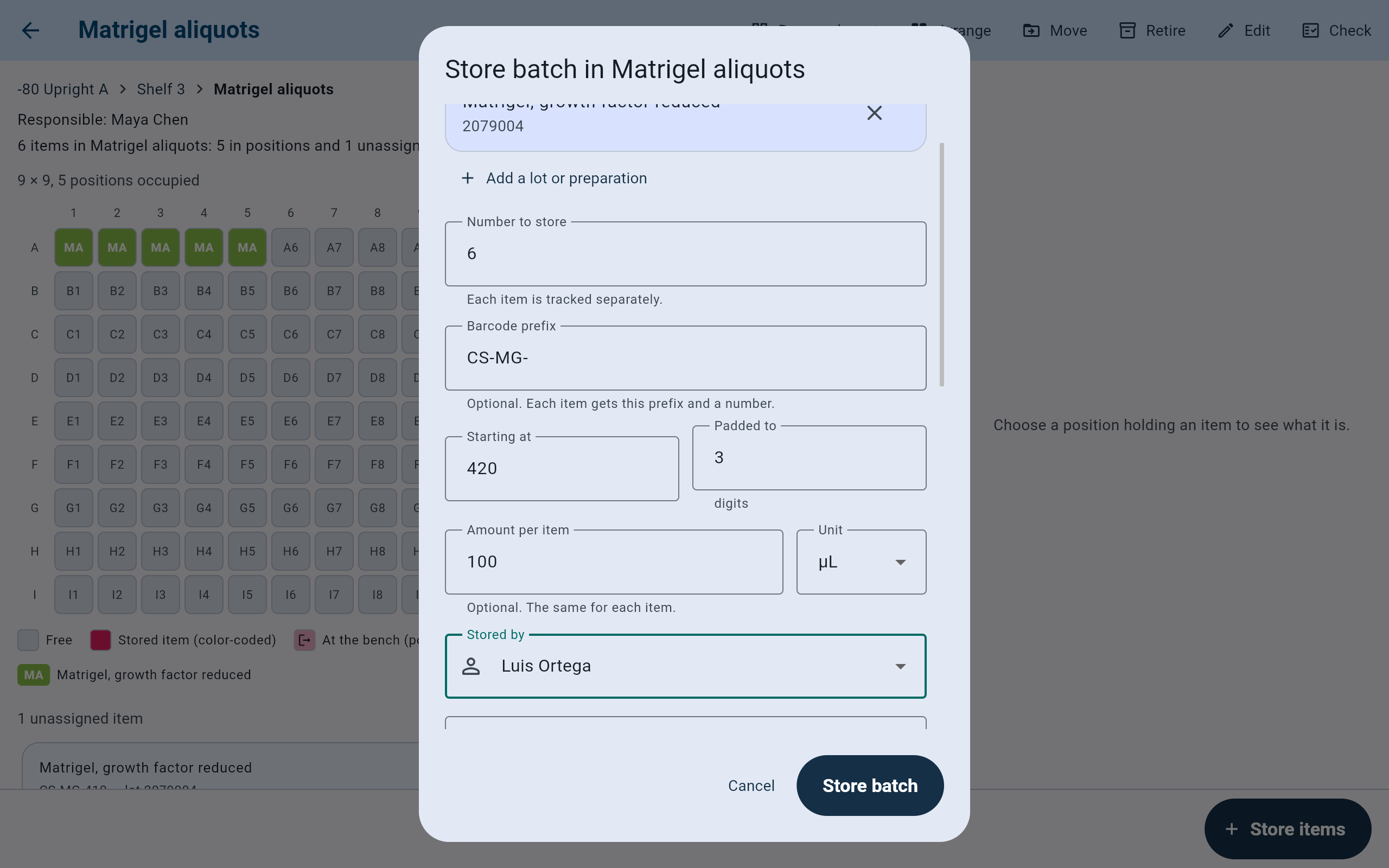
Six Matrigel aliquots of 100 µL, barcoded CS-MG-420 onward.
- How many items.
- The barcode prefix, optional.
- The first number, and how many digits each number has.
- The amount in each item.
- Who is storing the batch.
- In a box, the first free position is chosen as Start at, and the positions the items will fill are shaded. The line under the grid says where they go: in reading order, skipping positions that are already occupied.
- Tap another position to start somewhere else. If the box has too few free positions, the form says so before anything is stored; start elsewhere, choose another box with Change, or choose Leave positions unassigned.
- Choose Store batch. The batch is stored in exactly the positions shown, or not at all.
- Read Stored and the number of items, with the list of Positions, then choose Done.
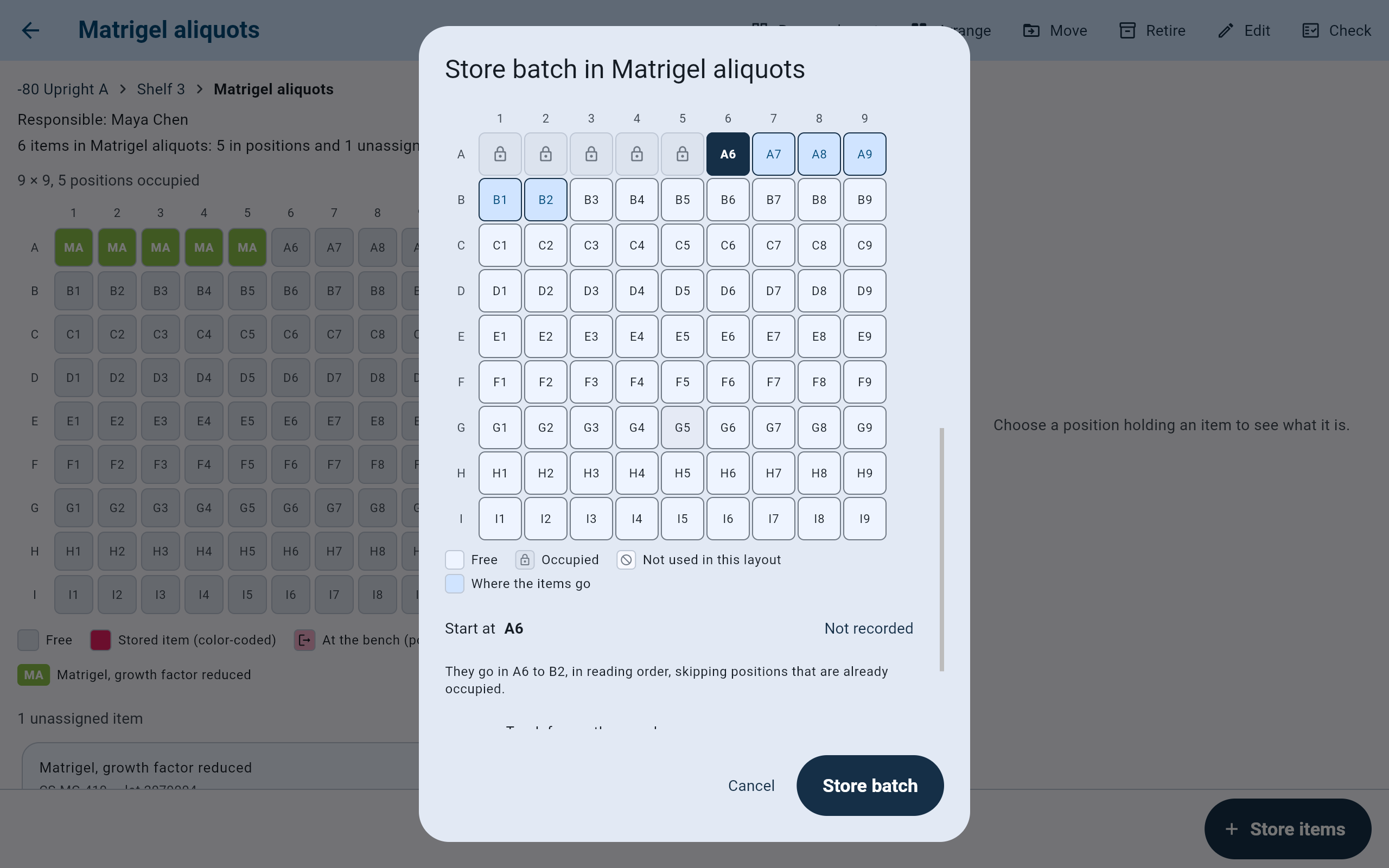
Six items go in A6 to B2, wrapping to the next row.
- The first position, Start at.
- The shaded positions the batch will fill.
- Where the items go, in the legend.
- Start at names the first position.
- Exactly where they will go, before anything is stored.
- Store batch.
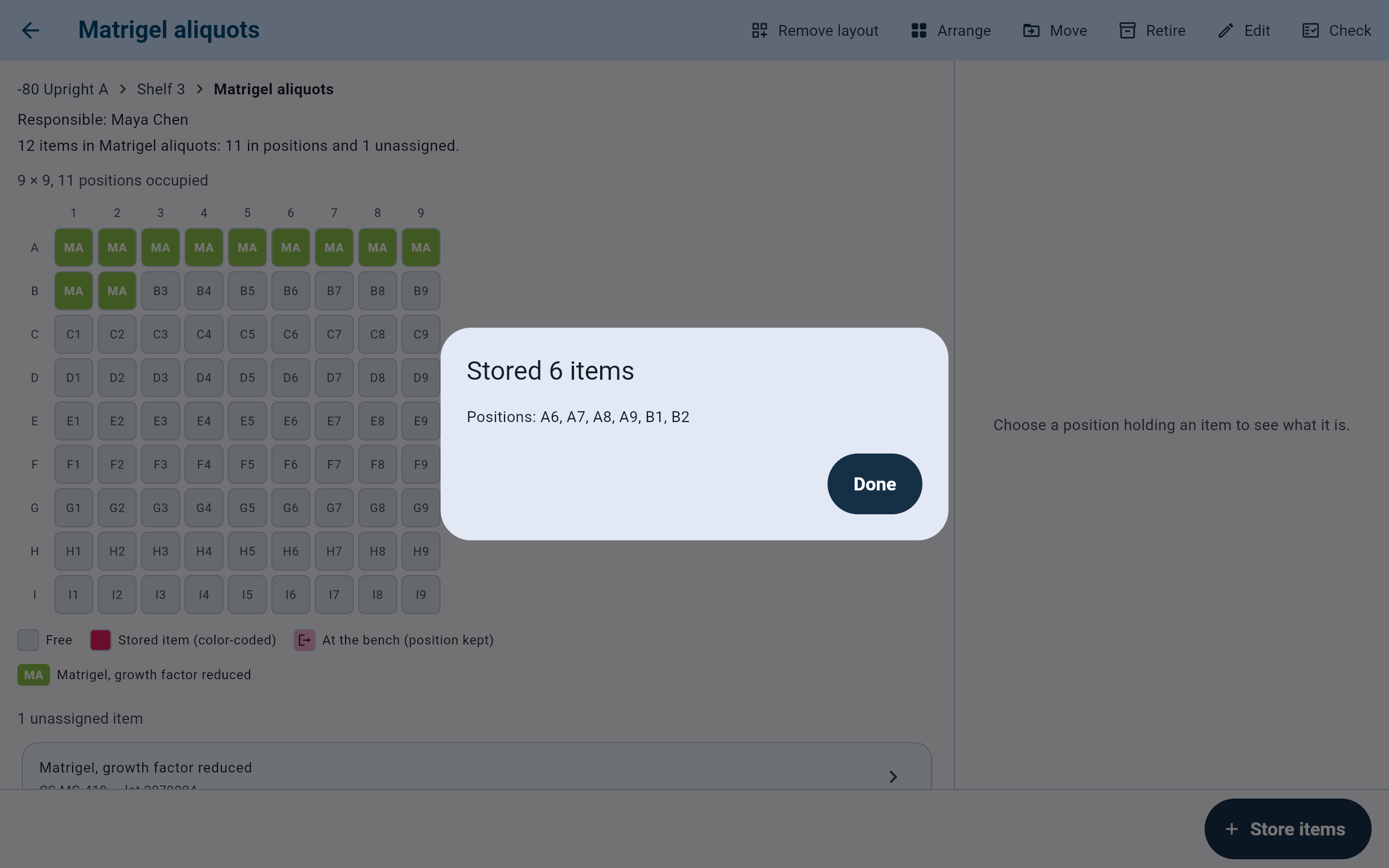
The receipt lists every position used. Label or place the items to match.
- Every position the batch used.
- Done returns to the box.
- The box behind already shows the new items.
Before choosing Store
Check what cannot be changed later.
- Nothing is stored until Store or Store batch. A material, lot, box or lab member added along the way stays, even if the store is then canceled.
- Storing never asks for the Admin PIN.
- A retired cabinet or container takes no new items.