Watch the walkthrough
Add a freezer, a fridge or a cold room
Captions are available in the player and start turned off so they do not cover the app. The written transcript is below the video.
Read the video transcript
On the Cold Storage dashboard, choose Add a cabinet.
Type the Cabinet name as the lab says it. The Storage type here is Freezer, and the Operating temperature is optional.
For a freezer, choose the Form factor, here Upright. Then choose the starting layout that matches the inside, Stacked shelves, and set the number of Shelves.
The drawing shows the cabinet as it looks when opened. Rename any shelf under Names, then choose who set it up in Set up by.
Add cabinet saves the cabinet and its shelves together. Set a defrost date? offers to remind the lab before each defrost is due.
Set a date asks how often, here every 6 months, the Next due date, and who set it.
Choose Save. The new cabinet opens, drawn as it was set up, with five empty shelves.
Other kinds offer their own layouts. A Full size refrigerator offers Shelves plus door, its shelves drawn beside the door shelves.
A chest freezer's floor is laid out as Floor spaces, in rows and columns seen from above, with optional Hanging baskets across the top.
Choose Cold room, and no Form factor is asked. Like any cabinet, it can stay One open space, which needs no Set up by.
A cold room is offered a clean-out date instead. Not now leaves it for later, and the empty cabinet opens, ready for its areas to be laid out.
Narration uses an AI-generated voice.
A starting point you can change
Any cabinet can stay one open space.
A starting layout only drafts the first shelves, drawers or sections. Areas can be renamed, divided or rearranged later, and racks and boxes are added inside them afterwards. See Divide areas, add racks, boxes and named areas.
Add a cabinet · Details
Name the cabinet and say what kind it is.
- On the Cold Storage dashboard, choose Add a cabinet. The same screen opens from the setup guide and from the empty dashboard.
- Type the Cabinet name as the lab says it, such as the label on the door. No two cabinets can share a name, even with different capitalization, and that includes retired ones.
- Choose the Storage type: Freezer, Refrigerator, Cold room or Other. The type decides the words for upkeep: a freezer is defrosted, a refrigerator or a cold room is cleaned out, and Other has neither.
- Optionally enter the Operating temperature in °C (optional), such as -80. It is used to offer freeze-thaw tracking for items stored at or below 0 °C.
- For a freezer, choose the Form factor: Upright, Chest or Under-counter. For a refrigerator: Full size or Under-counter. A cold room and Other are not asked. The form factor sets how the cabinet is drawn and which layouts are offered, and it is not offered again under Edit.
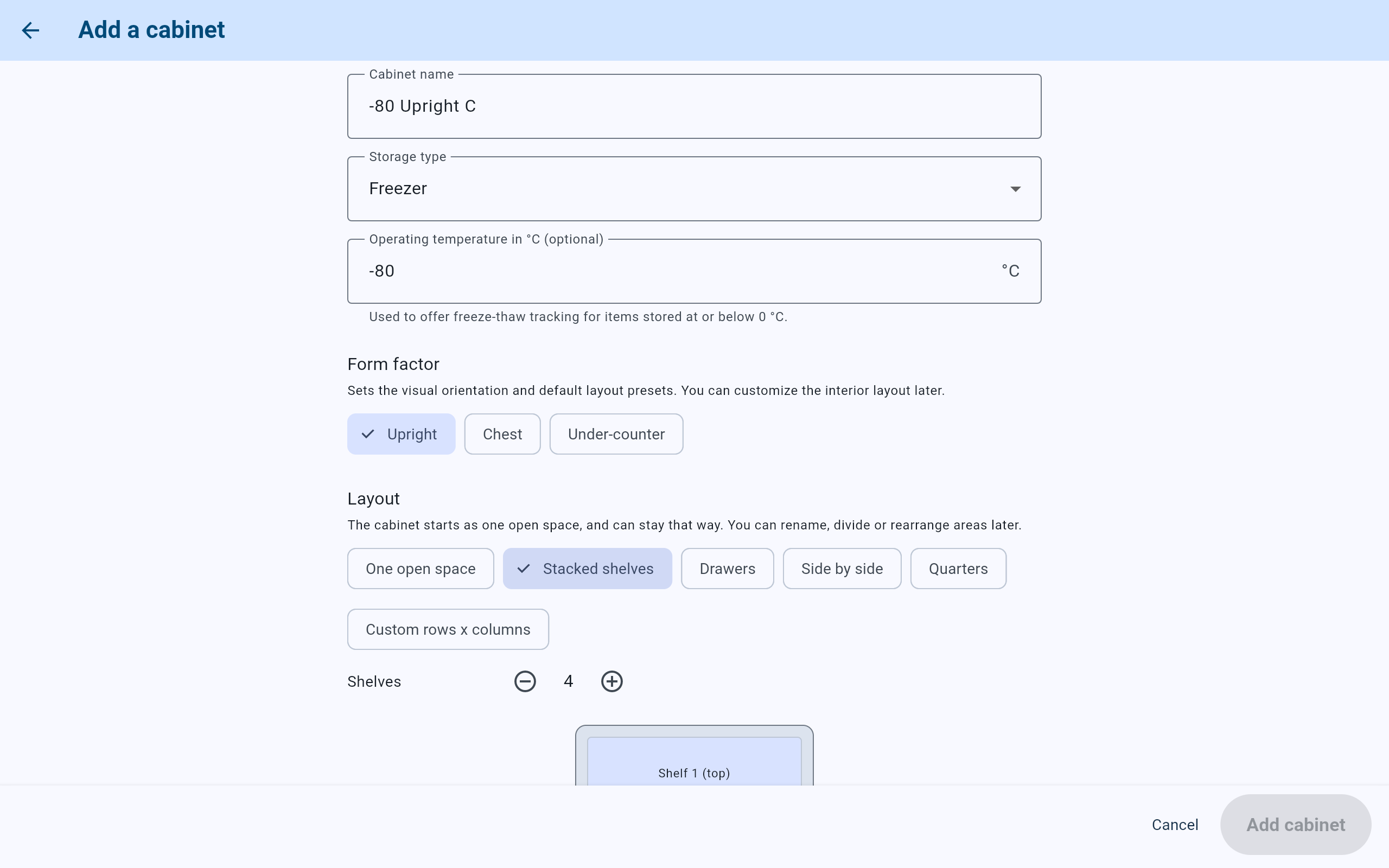
An upright freezer with stacked shelves. Add cabinet stays unavailable until the person who set it up is chosen.
- The Cabinet name.
- The Storage type.
- The temperature, used to offer freeze-thaw tracking.
- The Form factor, for a freezer or refrigerator.
- The starting layouts offered for this kind and form factor.
- The count for the chosen layout: here, how many shelves.
Add a cabinet · Layout
Choose the starting layout that matches the inside.
Every cabinet is offered One open space first and Custom rows x columns last. Between them, the choices depend on the kind and form factor. A freezer or refrigerator whose form factor is not chosen yet is offered only those two.
Stacked shelves, Drawers, Side by side, Quarters.
Floor spaces, with optional baskets across the top.
Stacked shelves, Drawers.
Stacked shelves, Shelves plus door, Side by side, Quarters.
Shelving units along the walls (how many units and Shelves in each), Sections.
Sections.
- Choose a layout, then set its count, such as Shelves, Drawers or Sections, with the minus and plus buttons.
- Check the drawing. A freezer or refrigerator is drawn from the front; a chest freezer and a cold room are drawn from above. The line under it, such as Rows x columns: 4 x 1, says the size of the grid.
- Under Names, rename any area to match its label in the cabinet.
- For Custom rows x columns, set Rows and Columns, then name the positions that are areas. A position left blank stays empty and can be named later.
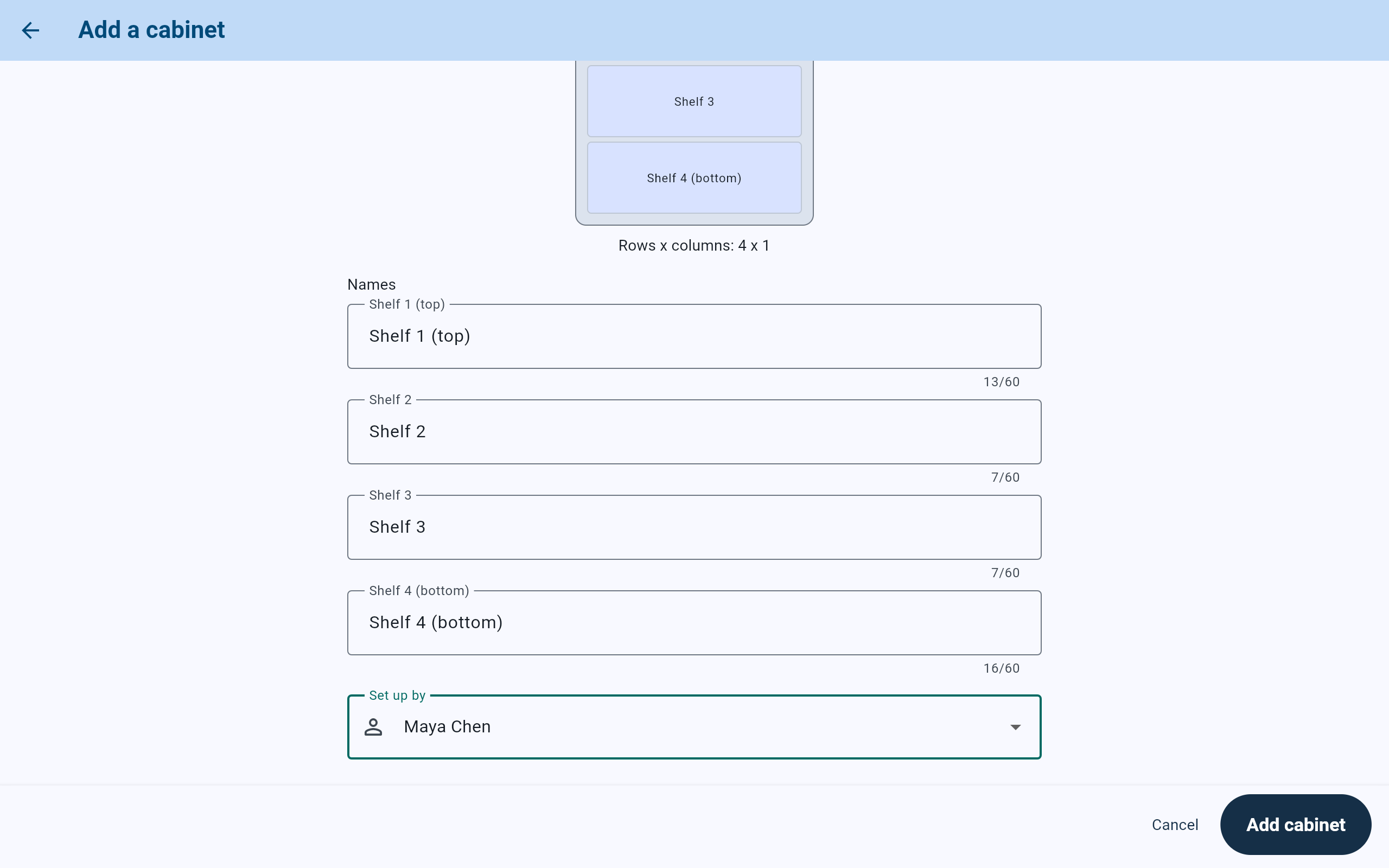
Each drafted shelf can be renamed before the cabinet is added.
- The drawing of the draft, as the cabinet looks when opened.
- Rename an area here. The drawing follows.
- Set up by is asked whenever the layout is more than one open space.
- Add cabinet saves the cabinet and its layout together.
Chest freezers
Lay out a chest freezer's floor as floor spaces.
- Choose Freezer, then the form factor Chest, then Floor spaces.
- Set the Rows and Columns of the floor as seen from above: rows run from the back wall to the front, and columns left to right.
- Turn on Hanging baskets across the top when the chest has baskets above the floor. They are drawn as the first row.
- Under Floor spaces, each floor position is named by its position, such as Floor space at B1. Each one holds items, racks and boxes, as a shelf does. Rename any of them here.
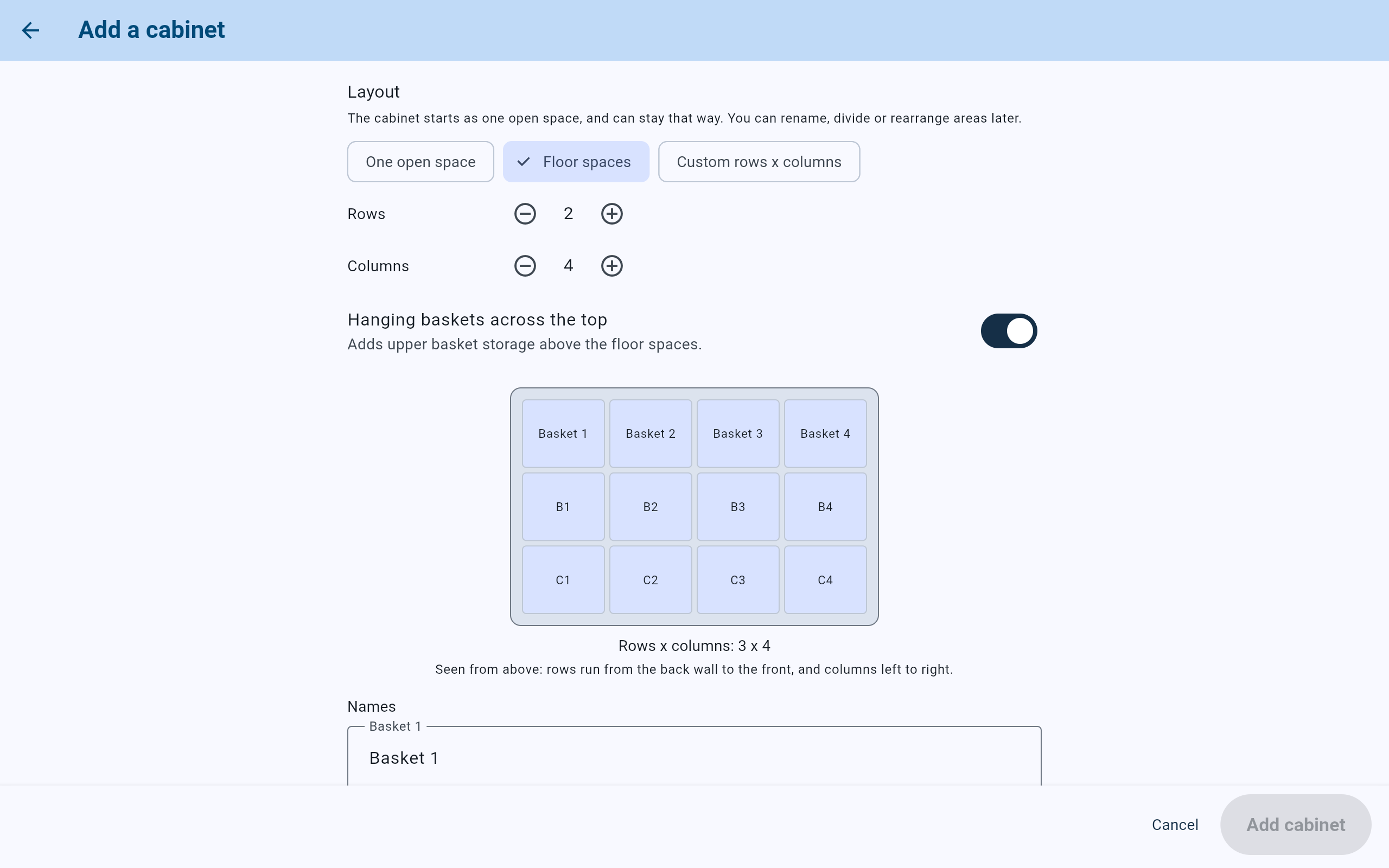
Two rows of four floor spaces, with four hanging baskets across the top.
- Floor spaces, offered for a chest freezer.
- The floor's rows and columns.
- Hanging baskets across the top.
- The baskets, drawn above the floor.
- The floor spaces, named by position until renamed.
- How to read the drawing: from above.
Refrigerators
Give a full size refrigerator its door shelves.
- Choose Refrigerator, then Full size, then Shelves plus door.
- Set Shelves for the main compartment and Door shelves for the door. The names are grouped under Main compartment and Door.
- A position the layout does not use is drawn as not used.
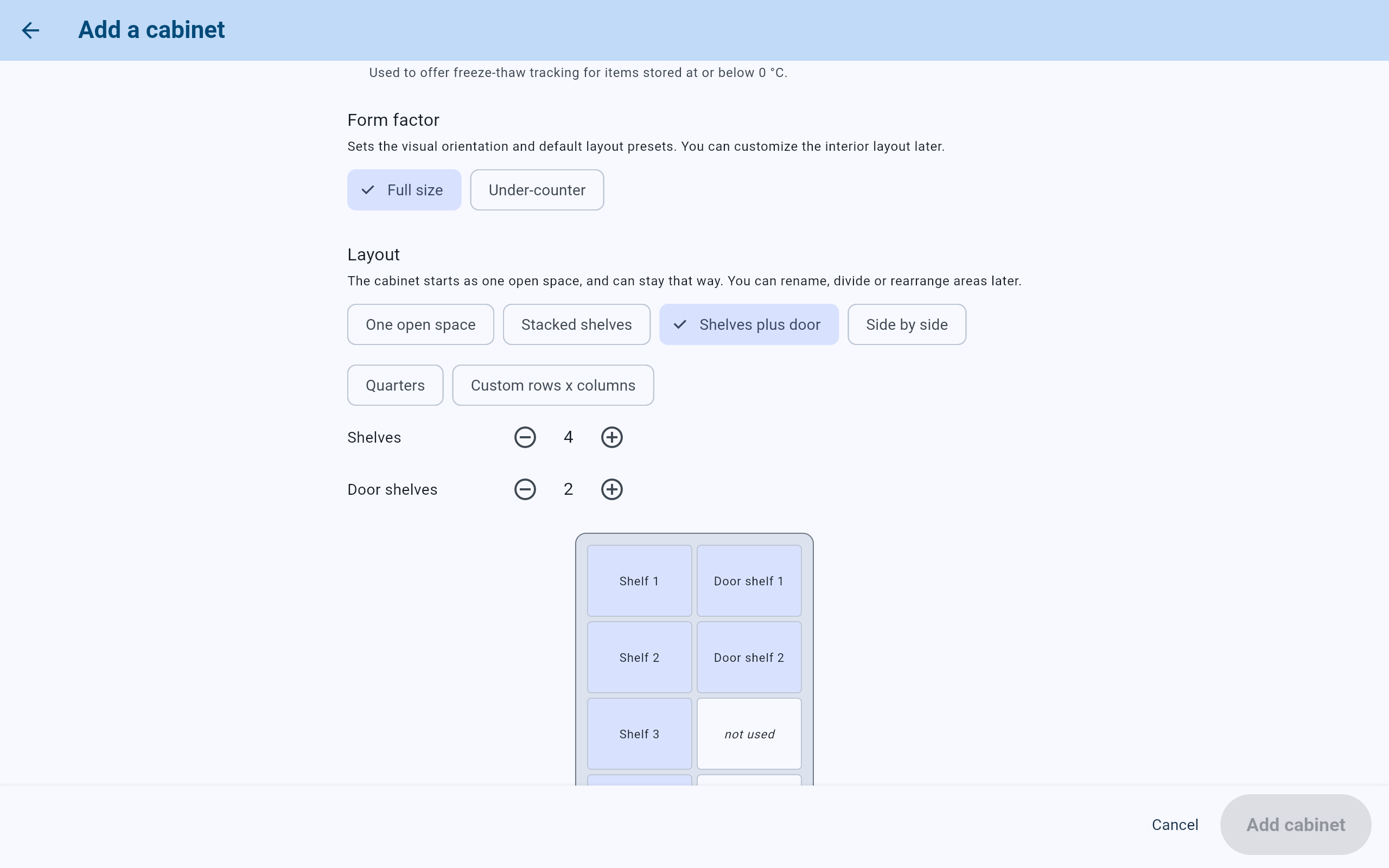
Four shelves beside two door shelves. The remaining door positions are not used.
- The form factor Full size.
- Shelves plus door.
- The counts for the main compartment and the door.
- A door shelf in the drawing.
- A position the layout leaves out.
Add a cabinet · Save
Name who set it up, then add it.
- When the layout is more than one open space, choose who set it up in Set up by. Add cabinet stays unavailable until someone is chosen. A cabinet kept as one open space names nobody.
- Choose Add cabinet. The cabinet and every drafted area are saved together. No Admin PIN is asked.
- Cancel, or going back, saves nothing.
If the temperature is refused, the field says why. Enter it as a whole number of degrees, such as -80 or 4, or leave it blank.
After Add cabinet
Set the first defrost or clean-out date, or choose Not now.
For a freezer, the app asks Set a defrost date?; for a refrigerator or cold room, Set a clean-out date?. A cabinet of the kind Other is not asked. A cabinet added from the setup guide is not asked either, because the guide has a dates step of its own.
- Choose Not now to leave the cabinet without reminders. The date can be set later by choosing Defrost or Clean out from the cabinet's menu.
- Or choose Set a date. Give how often in Every and Unit (days, months or years), the Next due date, and, if wanted, Remind in advance (days).
- Choose who is setting the date in Set by, then Save. Nothing is saved until then.
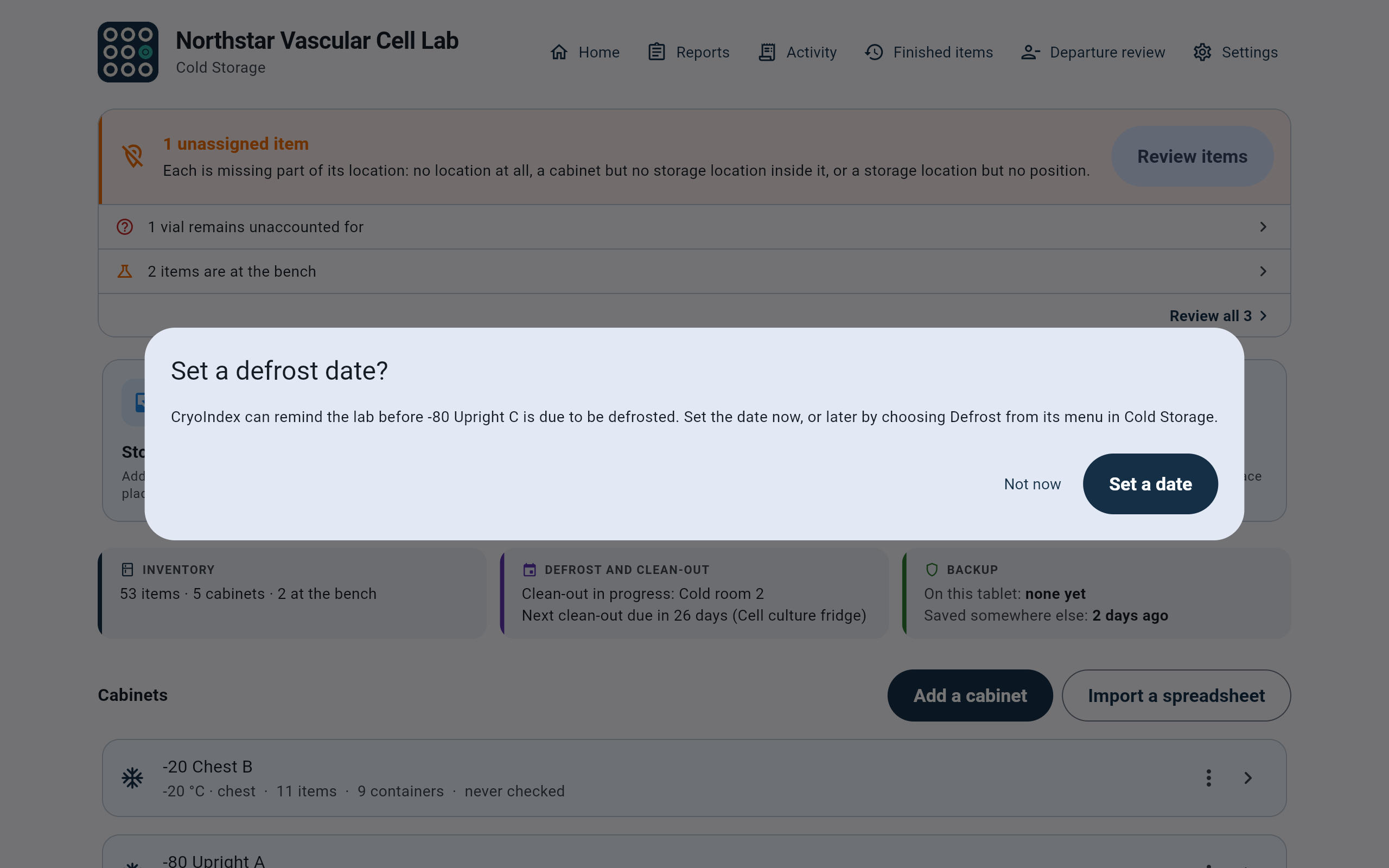
The offer appears once, right after the cabinet is added.
- The offer names the cabinet and where the date can be set later.
- Not now leaves it without a date.
- Set a date opens the schedule form.
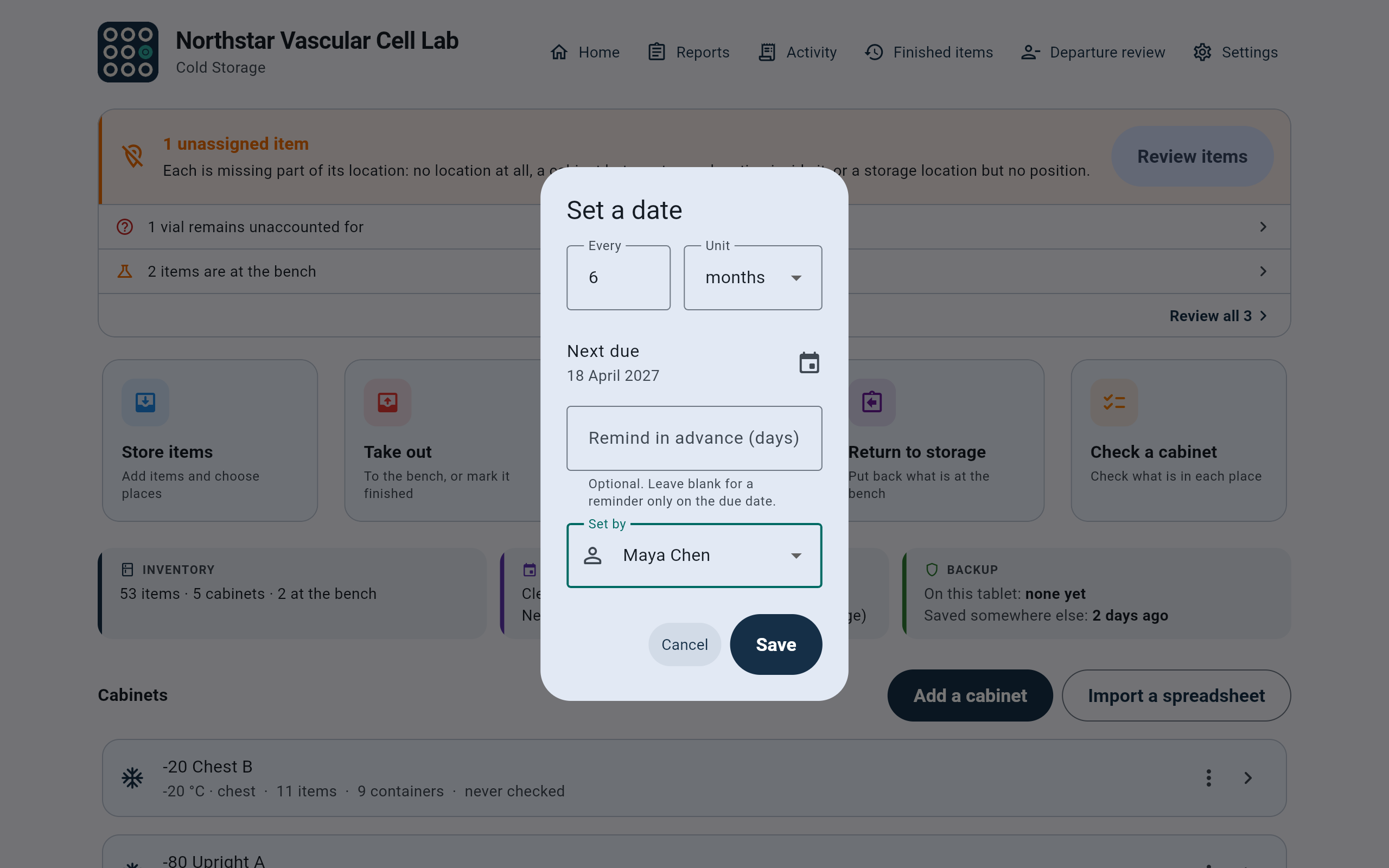
Every 6 months, next due 18 April 2027, set by Maya Chen.
- How often: Every and Unit.
- Next due, chosen from a calendar.
- Optional. Left blank, the reminder comes only on the due date.
- Who is setting the date.
- Save starts the reminders.
The new cabinet
The new cabinet opens with the layout you chose.
The new cabinet opens on its own screen. Each area is a tile; choosing one shows what it holds beside the drawing, with the ways to divide it or add racks and boxes. A cabinet kept as one open space says This cabinet is empty and offers the same ways to start organizing it.
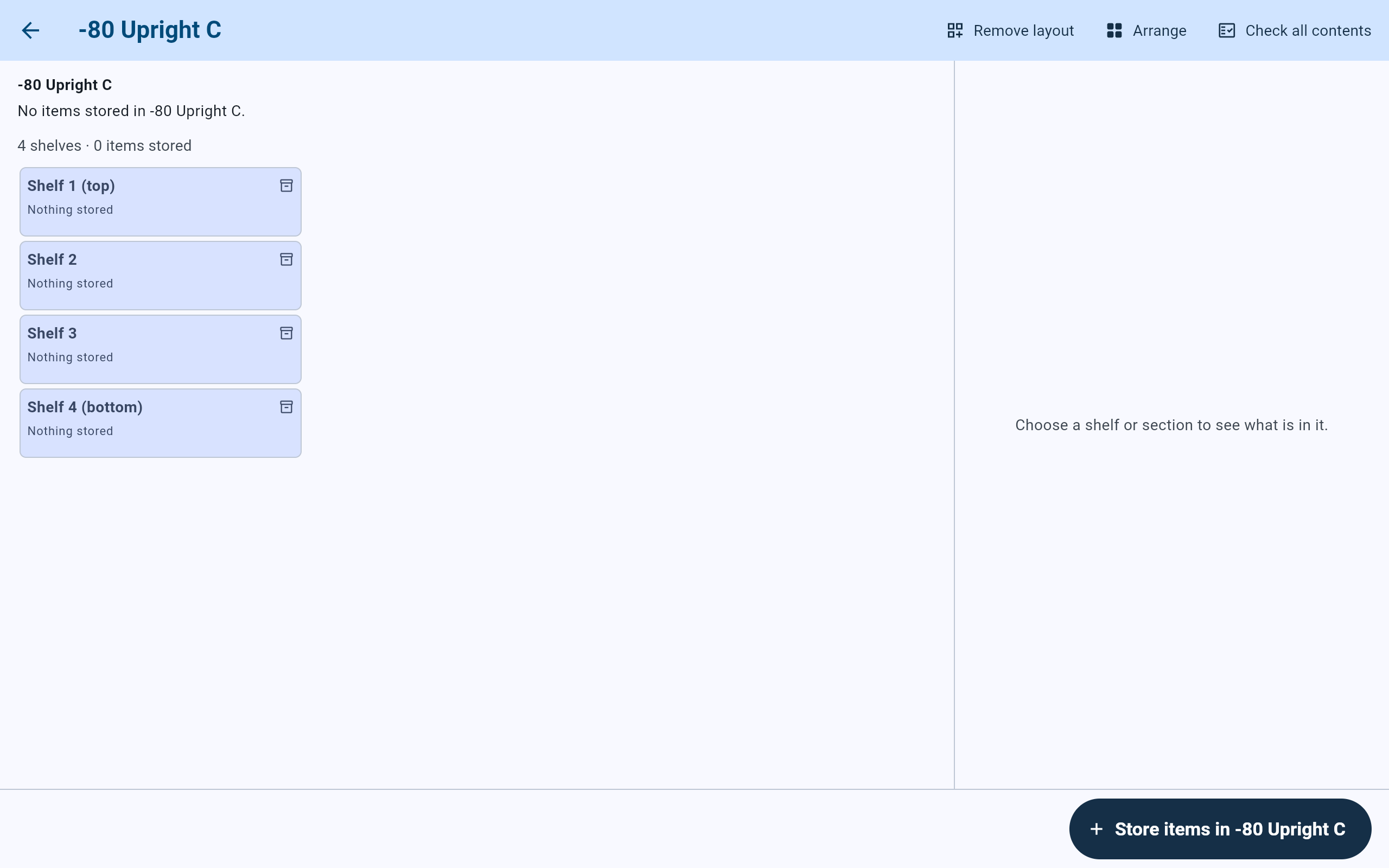
The new upright freezer, with four empty shelves.
- Each shelf is a tile. Choose one to see and change what is in it.
- The side panel shows the area chosen.
- Arrange moves shelves, racks and boxes to other positions.
- Store items in the cabinet starts storing here.
Continue with Divide areas, add racks, boxes and named areas, or go straight to Store one item or a batch.
From the Cabinets list
Edit or retire a cabinet from its menu.
- On the dashboard, open the menu at the end of a cabinet's row. It offers Check this cabinet, Defrost or Clean out (by kind), Edit and Retire cabinet.
- Edit opens Edit cabinet: the Cabinet name, Storage type and temperature, with Edited by and an optional Reason (optional). Choose Save changes.
- Retire cabinet takes a cabinet out of use without deleting it. Items and containers inside stay where they are and can still be found, but nothing new can be stored in it. If it still holds anything, the Admin PIN is asked when one is set. A retired cabinet can be brought back with Reactivate cabinet.
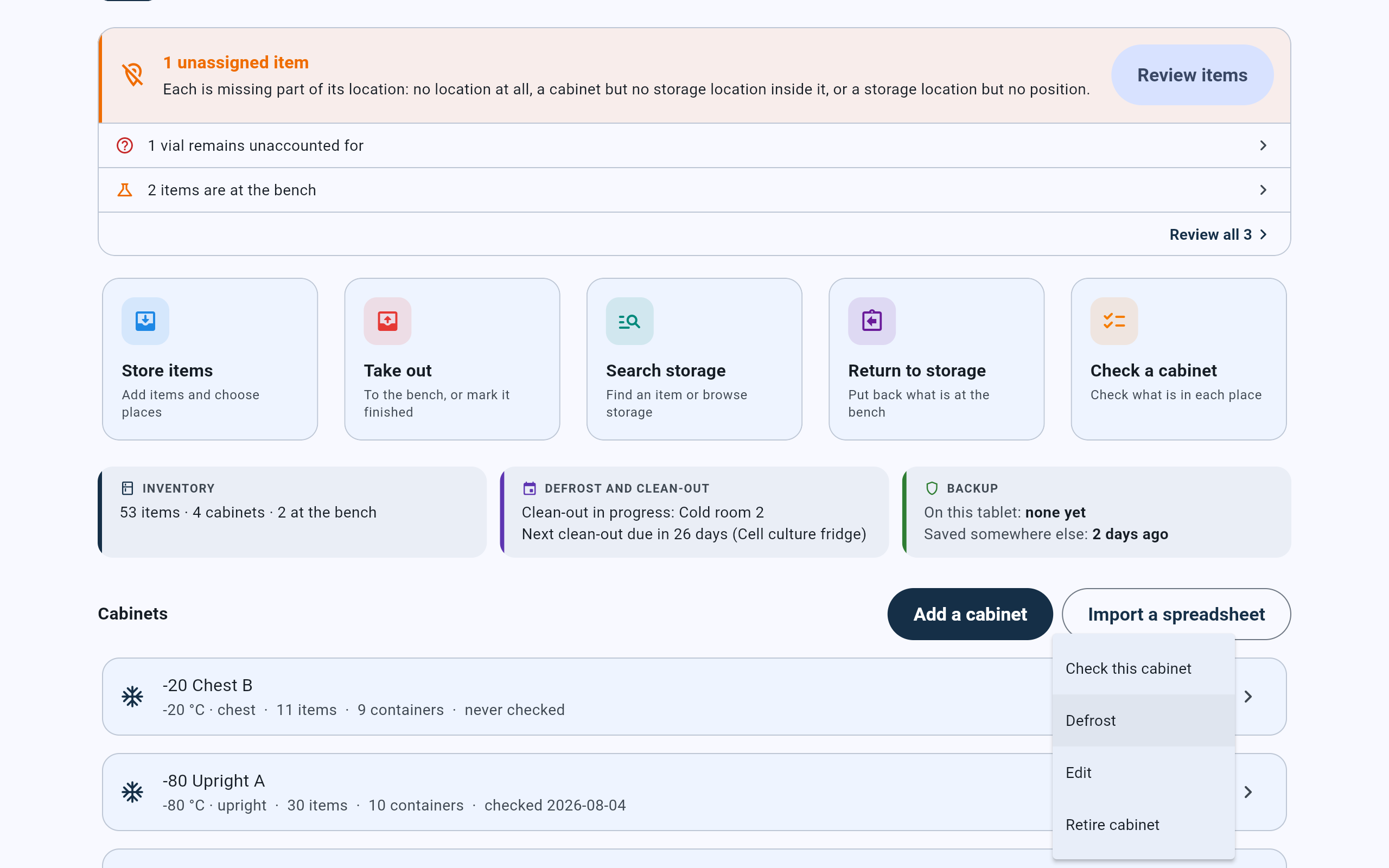
A freezer's menu offers Defrost; a refrigerator's or cold room's offers Clean out.
- Defrost opens the cabinet's defrost screen, where its date can also be set or changed.
- Edit corrects the name, type or temperature.
- Retire cabinet takes it out of use. There is no delete.