Ways in
Open the item from wherever it is listed.
Choose the item in Search storage, in At the bench, in Items to locate, in Finished items or in Activity. In a box, choose its position, then Open beside the grid. The screen is titled with the material’s name.
On a wide screen, such as the tablet held sideways, Actions and History stand in a column beside the overview, as in the pictures here. On a narrower screen they come under it: Actions straight after the place and the amounts, then the details, then History.
The overview
Read what it is, the state it is in, and where it is.
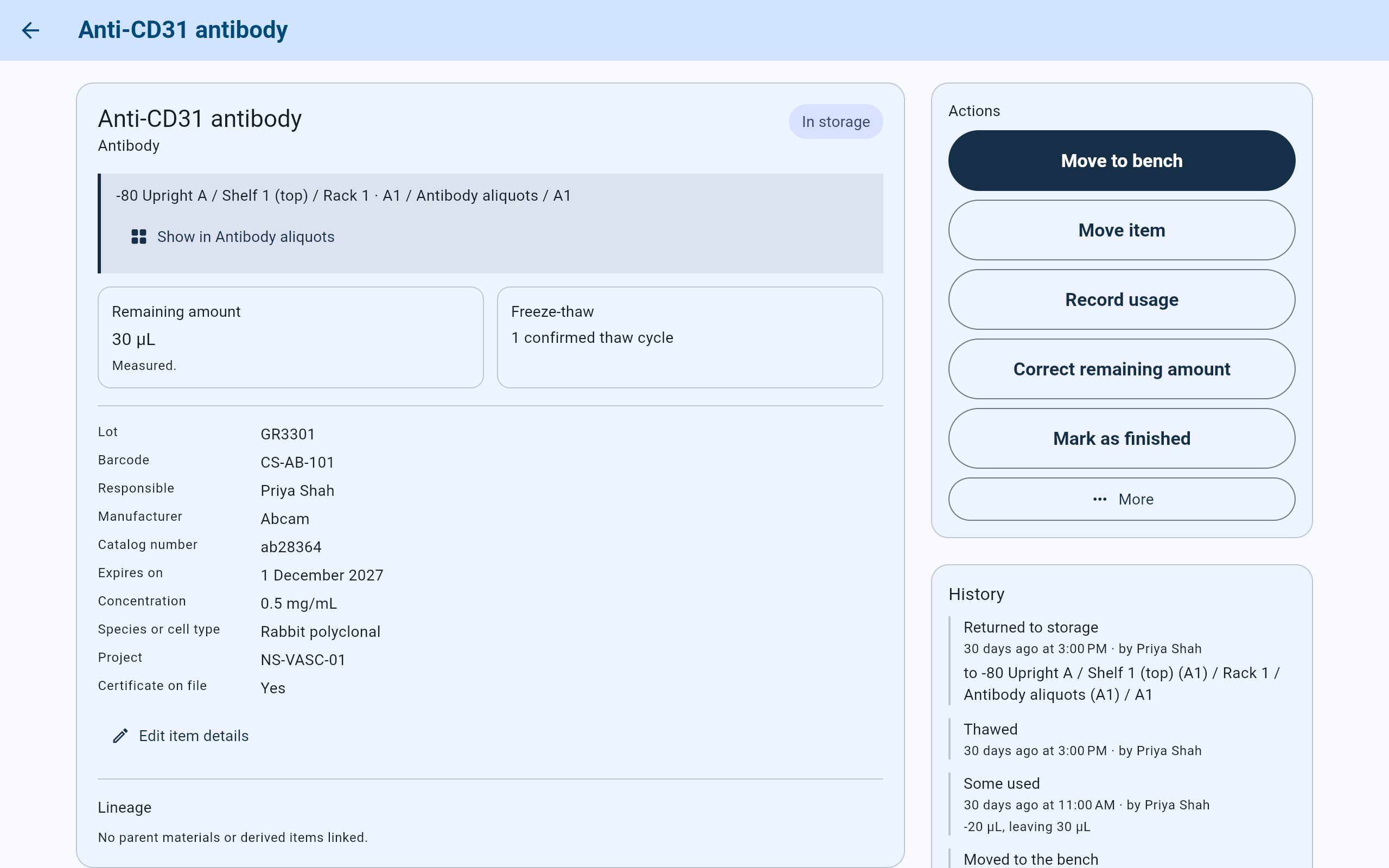
CS-AB-101, an antibody aliquot with a measured amount and one thaw on record.
- The state, beside the material’s name and type.
- Where it is, from the cabinet down to its own position.
- The button named after its box opens the box at this position.
- Remaining amount, and whether it was measured or estimated.
- Freeze-thaw: the thaws on record.
- Responsible: the lab member who makes decisions about this item now.
- The main action for its state, filled in dark.
- More holds the occasional actions.
The item is in the collection. At the bench, its position is kept for its return.
Nobody can find it. Its position has been released, and it stays listed in Items to locate until it is found or finished.
Finished. The record and its history stay, and nothing more can be done with the item.
Where it is
Read the place, then use Show in to see it in the box.
- The shaded band gives the whole path, such as “-80 Upright A / Shelf 1 (top) / Rack 1 · A1 / Antibody aliquots / A1”: the cabinet, the shelf, the rack and its place on the shelf, the box, and the item’s position in the box.
- When a part of the place was never recorded, the band says so: “Item position inside Matrigel aliquots: Not recorded”, “Exact location within this cabinet not recorded.” or “No storage location recorded.” Such items are listed in Items to locate.
- At the bench, the band is headed Reserved return location and says how long the item has been out. A finished item shows “Last known:” and the place it left.
- Select the button named after the box or shelf it is in, such as Show in Antibody aliquots. The box opens with the item’s position picked out and a line saying where it is.
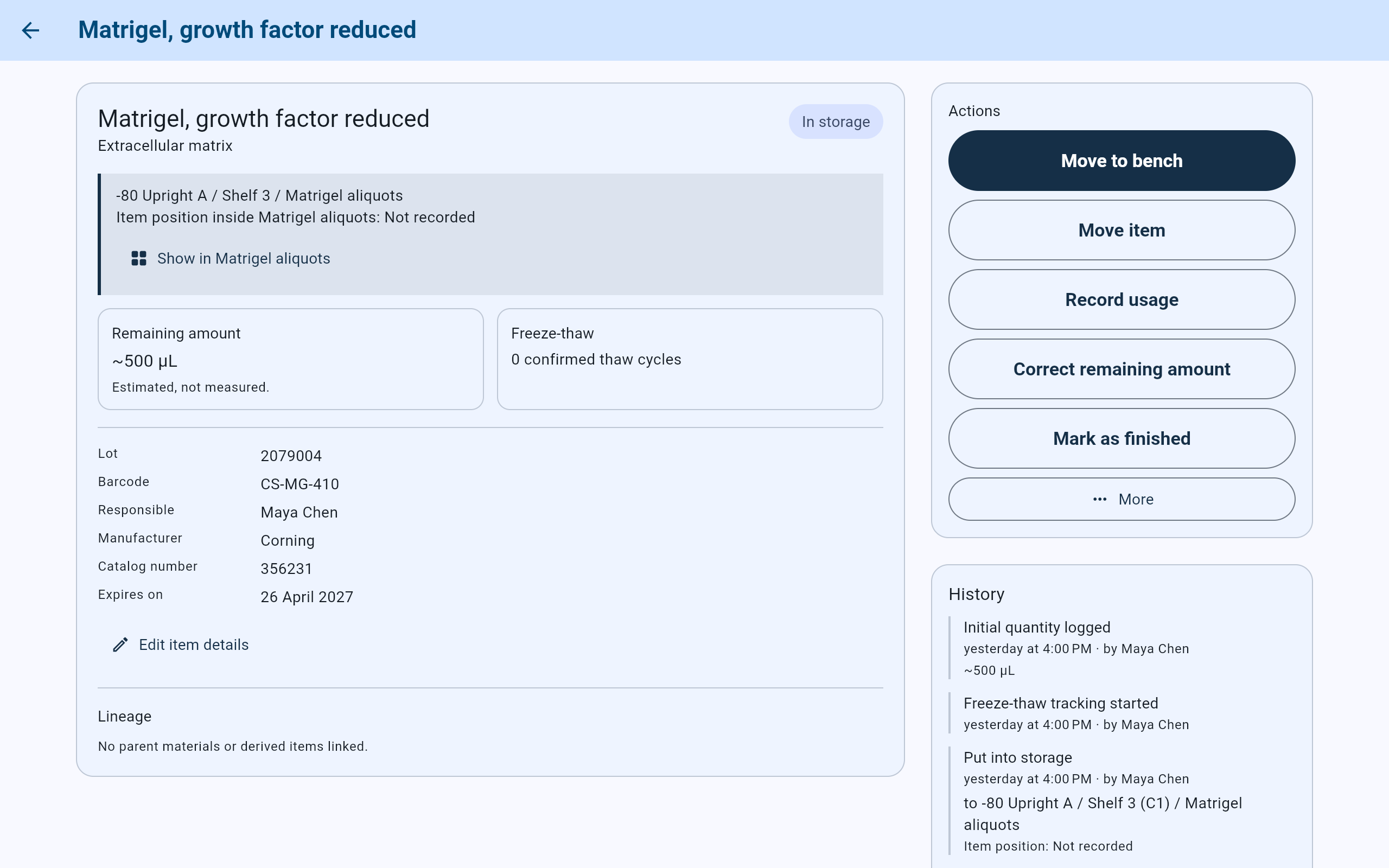
CS-MG-410 is in the box Matrigel aliquots, but nobody recorded its position.
- The box is known; the position is not.
- Show in Matrigel aliquots still opens the box.
- An estimated amount, marked with ~ and said in words.
- Tracking is on, and no thaw has been recorded yet.
- The history keeps the same fact: “Item position: Not recorded”.
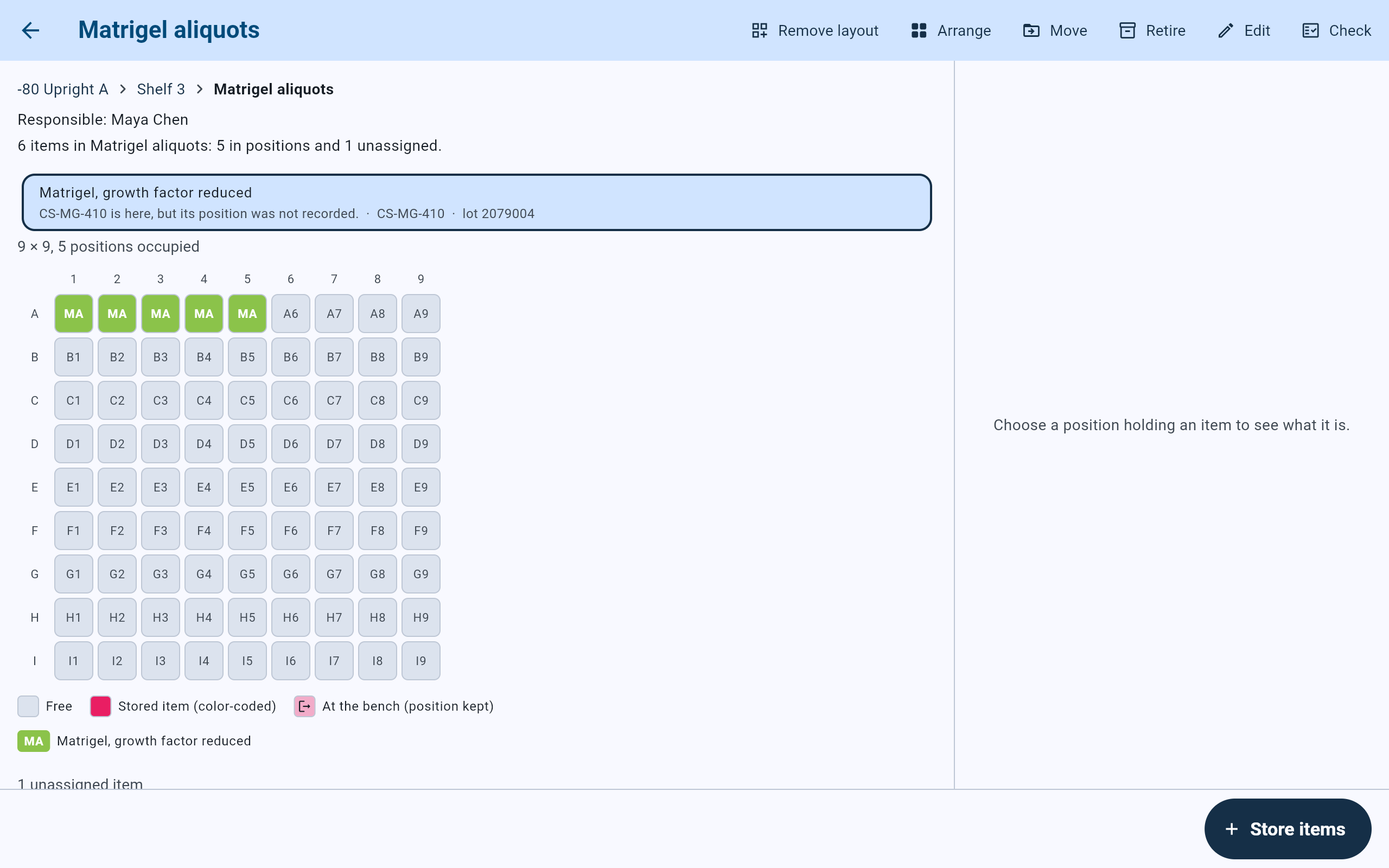
Show in for an item without a position: the box says the item is here and which part is missing.
- How many items are in the box, and how many have no position.
- “CS-MG-410 is here, but its position was not recorded.”
How much, how handled
Read the remaining amount and the freeze-thaw count.
- Remaining amount shows the amount left with “Measured.” or “Estimated, not measured.” An estimated amount also carries ~, as in ~500 µL. Where the lab does not count an item, it reads “Not tracked.”, with Start quantity tracking when the lot says what it is counted in.
- Record usage asks the Amount used, its Unit and Recorded by, and shows the current quantity. History then reads, for example, “Some used” with “-20 µL, leaving 30 µL”.
- Correct remaining amount sets the amount that is really there and asks “Was that measured, or estimated?”.
- Freeze-thaw appears once tracking is on or a thaw has been recorded. It counts confirmed thaws, such as “1 confirmed thaw cycle”, and handlings whose outcome nobody knew, such as “1 handling cycle uncertain”. The count rises only when someone answers the thaw question with Yes, it thawed or Unknown; it is never guessed from a trip to the bench.
If tracking is stopped later, the tile keeps the counts and says “Thaw status will no longer be asked when this item is returned. Thaws already recorded are kept.”
The record
Read the details, who is responsible, and the history.
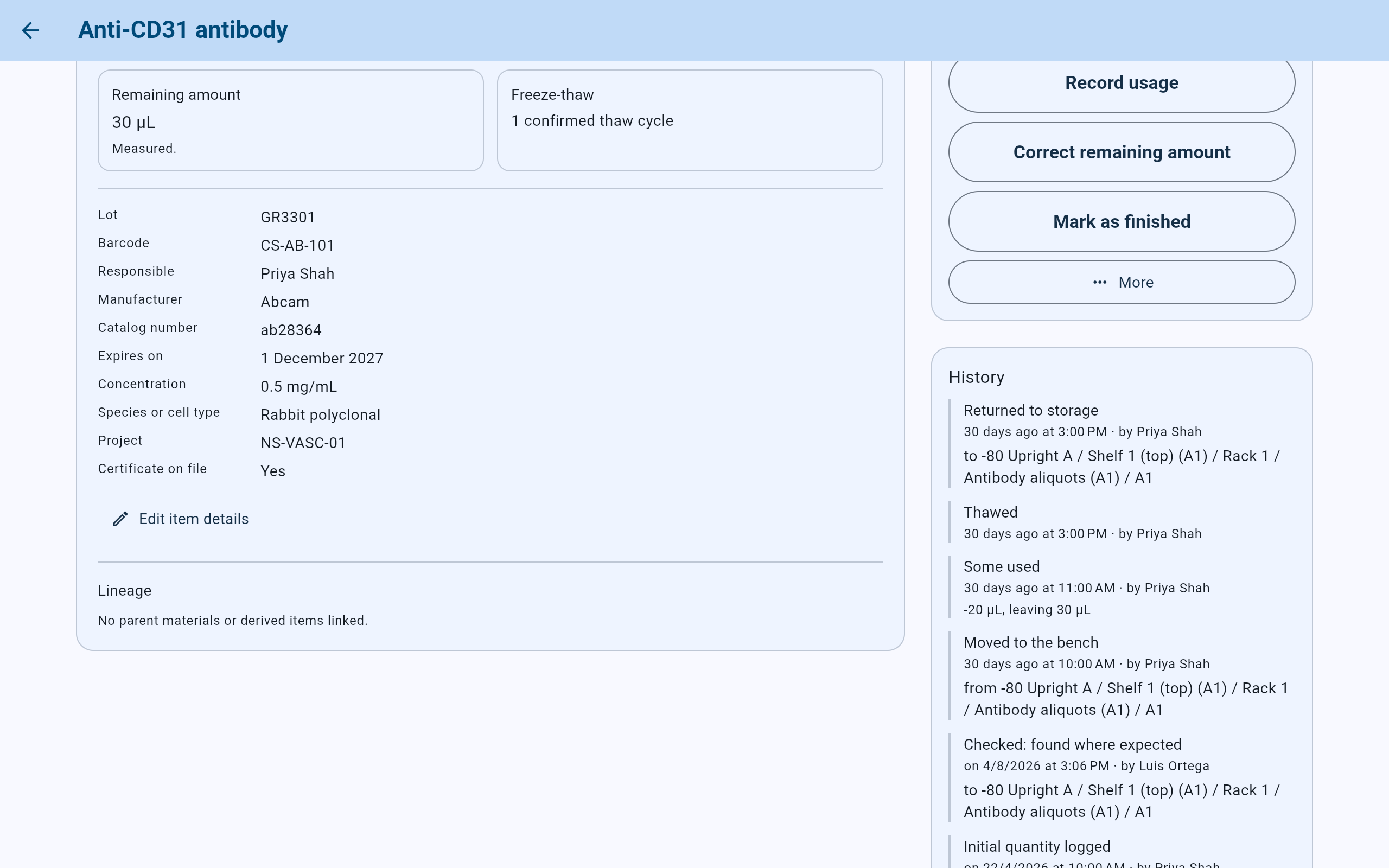
The details and lineage under the overview, and the history beside them, newest first.
- Responsible, not who stored it. A person who has left reads “(left the lab)”; nobody recorded reads “Unknown”.
- What the records hold about the material and lot, then the lab’s own fields, such as Certificate on file. Empty ones are not shown.
- Edit item details corrects the barcode or notes.
- Lineage: nothing is linked to this aliquot.
- A recorded thaw, from the answer given at its return.
- Usage, with the amount used and the amount left.
- A check that found it in its place.
- Responsible is the lab member who decides what happens to the item now. It is kept apart from who stored it, which the history records. Responsibility is handed on in a departure review.
- Edit item details changes only the barcode and the notes: “This edits the barcode and notes only. It does not move the item or change its status or amount, and its history stays as it is.” It asks Edited by and a Reason. Saved edits are listed in an Edits card under History.
- History lists everything recorded about the item, newest first: when, who recorded it, and where the item went. Show more loads older entries.
Lineage
See what an item was made from.
Under Lineage, Made from lists the sources linked when the item was stored, and Made from this lists anything recorded as made from it. HPAEC total RNA, CS-RNA-001, was extracted from a cell vial, CI-DEMO-1033. The vial is named by its cell type, HPAEC, followed by its passage, barcode, donor code and freezing date, and the app’s own record number for it (Vial 46). It says “Taken out of the dewar” because that vial has left the liquid nitrogen, and its name is drawn lighter because it is no longer in storage. An item with nothing linked shows one line: “No parent materials or derived items linked.”
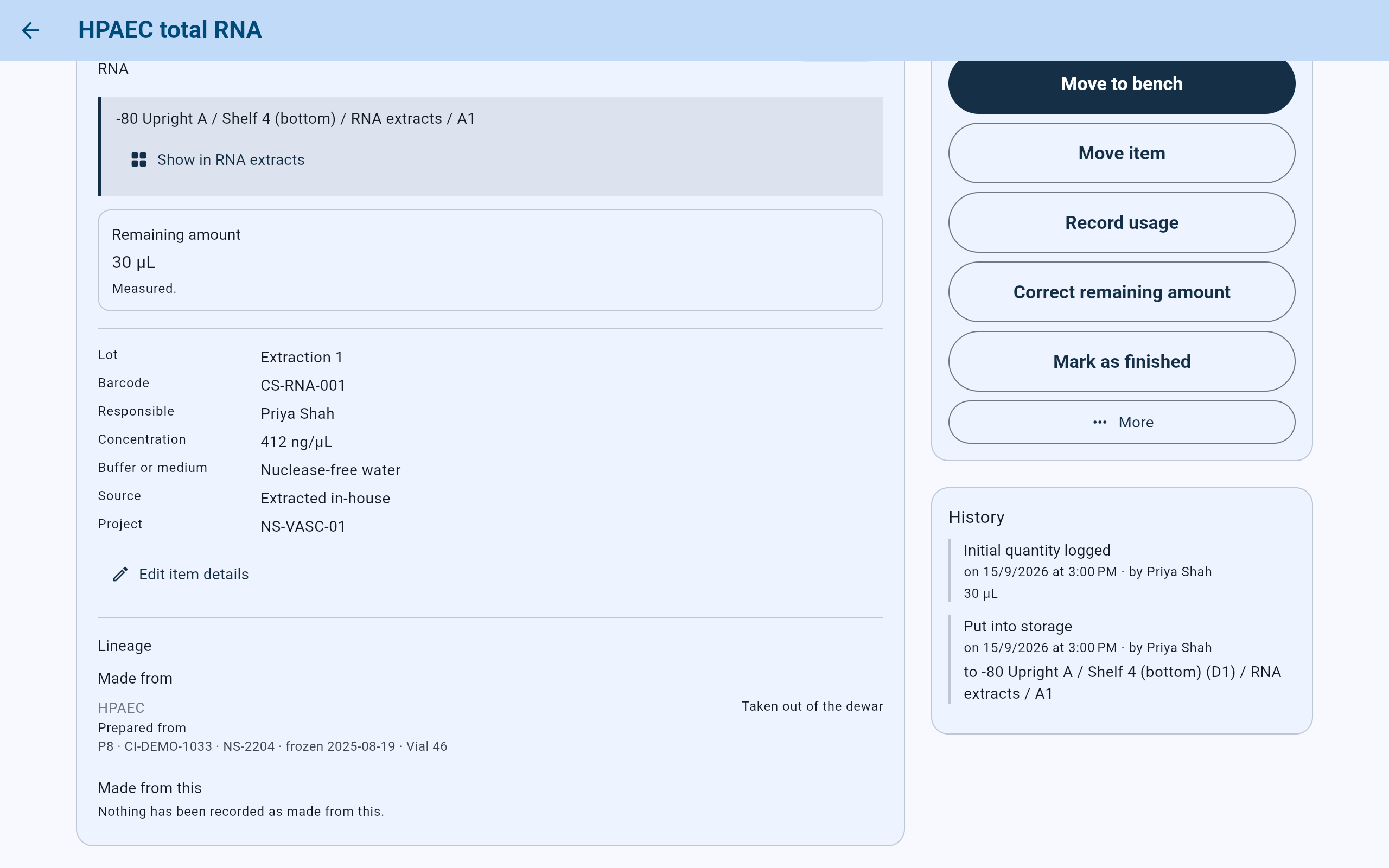
CS-RNA-001 was prepared from cell vial CI-DEMO-1033.
- Lineage, at the end of the overview.
- The cell vial it was prepared from: passage, barcode, donor code, date frozen, and the app’s record number.
- Where that vial is now: taken out of the dewar.
- Made from this: nothing has been made from the RNA yet.
The liquid-nitrogen side shows the same link, starting from the vial. See Record and trace cell lineage.
Actions
Use the main action, the everyday buttons, or More.
One action is filled in dark: the one that fits the item’s state. The everyday ones sit under it; the occasional ones are under More. A button appears only where it can work: the amount buttons only for an item whose amount is counted, Record thaw status only for a tracked item kept in a freezer, and Check this item only for an item in storage whose exact place is recorded.
Move to bench, then Move item, Record usage, Correct remaining amount and Mark as finished. Under More: Mark missing, Check this item, Record thaw status, Stop freeze-thaw tracking or Start freeze-thaw tracking, and, where a position can hold several things, an offer to make that position a named area.
The return, named for its place, such as Return to Plasmid preps · A3, then Return to another location, the amount buttons and Mark as finished. Under More: Change reserved position, Mark missing and the thaw entries.
Found it, which asks where it was found, and Mark as finished with Discarded or Removed from the collection only.
No actions. The card says, for example, “This item is used up. Its history below shows what happened to it.”
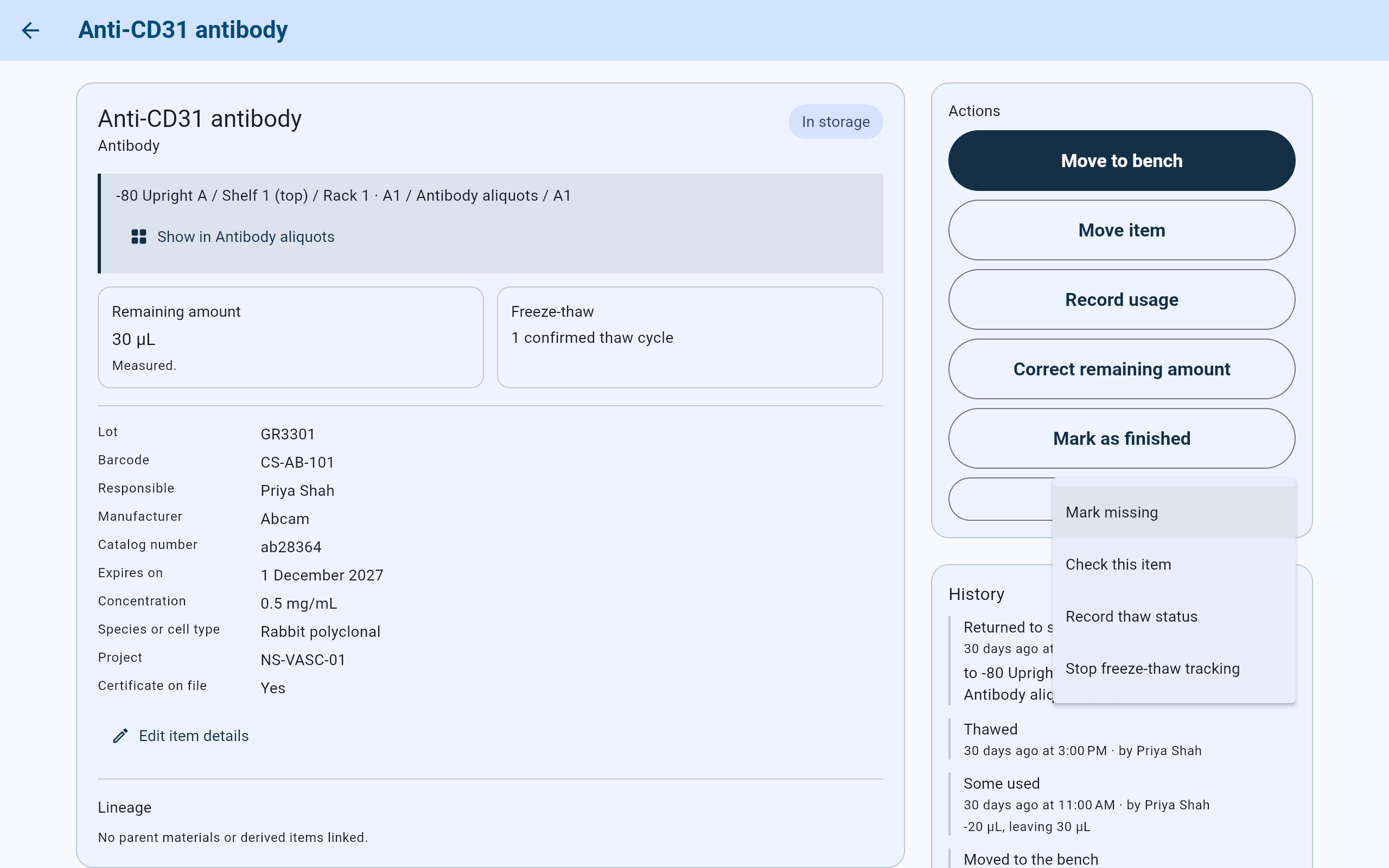
More, for an antibody aliquot in storage whose thaws are tracked.
- Mark missing releases its position and lists it in Items to locate.
- Check this item records what was found when someone looked.
- Record thaw status records whether it thawed, outside a trip to the bench.
- Stop freeze-thaw tracking stops the question at each return; the counts stay.
Taking an item out and putting it back are described in Take items out and return them. A whole cabinet is checked with Check a cabinet. Making a position into a named area is described in arranging a cabinet.
Finished with it
Mark an item as finished when it has left the collection.
- Select Mark as finished. The dialog says “Any position it held is released. The record and its history stay.”
- Choose Used up, Discarded or Removed from the collection.
- Under Recorded by, choose who is recording it, and add a note if useful.
- Select the button, which names the choice, such as Record as discarded. Until a choice is made it reads Record it and cannot be selected.
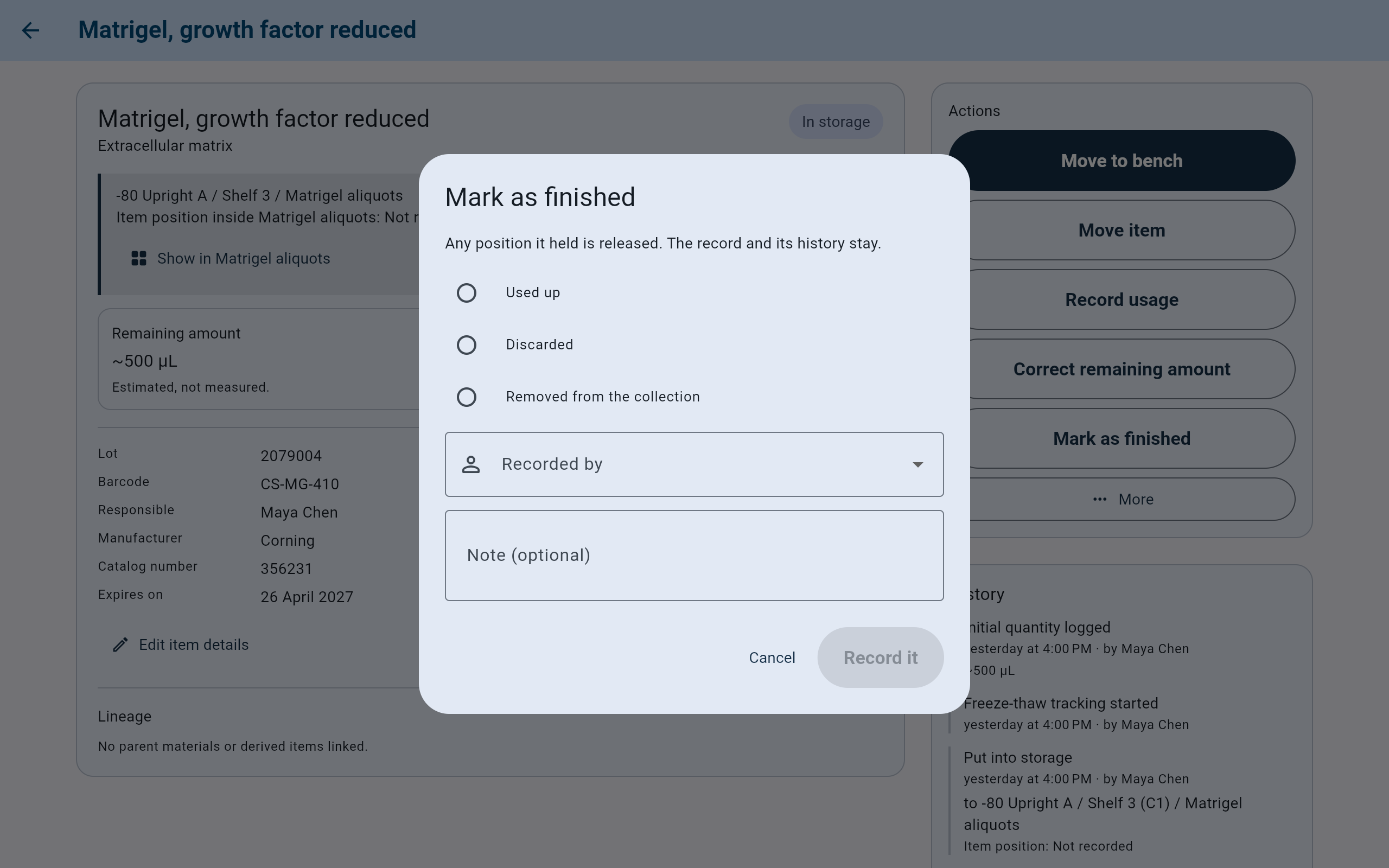
Nothing is recorded until a choice and a person are given.
- What finishing does to its position and its record.
- The three ways an item leaves the collection.
- Recorded by: who is recording it.
- The button names the choice once one is made.