Watch the walkthrough
Review what a departing lab member is responsible for
Captions are available in the player and start turned off so they do not cover the app. The written transcript is below the video.
Read the video transcript
When a lab member leaves, open Departure review in the Cold Storage dashboard's header. Each row says Active or Inactive, and how many items there are to review.
Choose who is leaving, here Luis Ortega. The list is taken once, at the time shown. Save worksheet PDF saves a sheet to walk the freezers with.
Read the list before deciding anything. It runs cabinet by cabinet, then place by place, with alike items on one line.
To decide one line, use its own buttons. Transfer to makes another lab member responsible: here Priya Shah, then Transfer.
The line moved to Decided. To decide a whole place at once, use its button, such as Decide for all 4 items: here, Transfer to Maya Chen.
Or tick several lines and choose once in the bar. Mark as finished asks how the items ended: here, Used up.
Every item now has a decision. Open Decided to check each one: a line's button changes it, and Undo takes back the last decision.
Review changes checks every decision against storage as it is now, and counts the changes. Nothing is written yet. Apply changes then asks who is applying, and the reason.
Applying is final, and writes every decision at once. Luis Ortega is still on the lab list: that is a separate decision, made in the review summary.
In the review summary, choose Decided by, then Keep on the lab list or Hide from lists. Either choice is recorded, and changes nothing in storage.
Applied reviews are kept under Past departure reviews, the history button on Departure review. Each row says what was decided about the lab list.
Narration uses an AI-generated voice.
Before you start
Nothing is written until you apply, and applying is final.
Decisions are only collected on the review screen. Apply changes writes them all at once, and the review summary keeps the record. There is no undo after that: Undo works only on decisions that have not been applied. Cell vials in the liquid-nitrogen dewars have no responsible person, so a departure review covers Cold Storage items and containers only.
From the Cold Storage dashboard
Open Departure review.
- Open Cold Storage from Home.
- Select Departure review in the dashboard's header. This is the only way into a departure review; it is not in Settings.

Departure review sits in the Cold Storage dashboard's header, beside Activity and Finished items.
- Select Departure review.
Step 1 · The lab member
Choose who is leaving.
- Read each row: whether the lab member is Active or Inactive, and how many items there are to review.
- Select the lab member who is leaving. Inactive lab members are listed too, so a review can be run after someone has already been hidden from lists.
- To read a review that has already been applied, use the history button, Past departure reviews, at the top right.

Each row says whether the lab member is active and how many items are waiting for a decision.
- Past departure reviews opens the reviews already applied.
- Luis Ortega is active and responsible for 14 items.
- Jordan Lee, a rotation student, is inactive with nothing left to review.
Step 2 · The list
Read the list before deciding anything.
The screen is titled Departure review — Luis Ortega in this example. The list is taken once, when the screen opens, and the time is shown beside the counts. Anything stored after that moment is not on it, so you can walk the freezers with a list that does not change.
- Read the counts and List as of under the heading.
- The Decisions card counts what has been decided so far. Items not yet decided remain listed under the lab member who is leaving.
- Work in Not yet decided. A decided line moves to Decided, where it can still be changed.
- The list runs cabinet by cabinet, then place by place, with matching items on one line. Open a line with its arrow, Show each item, to decide its items one at a time.

A fresh review: nothing decided yet, and the bar at the bottom says nothing changes until the decisions are reviewed and applied.
- What is on the list, and the moment it was taken.
- Save worksheet PDF makes a printable copy of this list.
- The Decisions card counts decisions as they are made.
- Not yet decided and Decided are the two lists.
- Each line has its own Transfer to…, Discard and More.
- Review changes checks what the decisions would do. It does not apply them.

Cabinet headings, then each place, then lines of matching items. The bar stays pinned at the bottom of the screen.
- A cabinet heading. The list follows the cabinets in walking order.
- A place. Decide for all 7 items answers everything in it at once.
- Tick boxes, for choosing several lines and deciding once.
- Show each item opens a line so its items can be decided one at a time.
Containers are not changed by the review. Boxes and racks the lab member is responsible for are listed under Containers Luis Ortega is responsible for at the end of the list. The app says: “The decisions above do not change these.” A container's responsible person is changed in its own details.
Optional · On paper
Print the worksheet to walk the freezers.
Save worksheet PDF makes “a printable copy of this list in walking order, with boxes to mark for each line and room for notes.” It is made from the list on screen, so a sheet marked in the cold room can be entered here line for line.
- Select Save worksheet PDF and choose where to save the file.
- Read the message at the bottom of the screen: it names the saved file, or says Nothing was saved.
- Print the PDF, walk the freezers with it, and then enter the decisions on this screen.
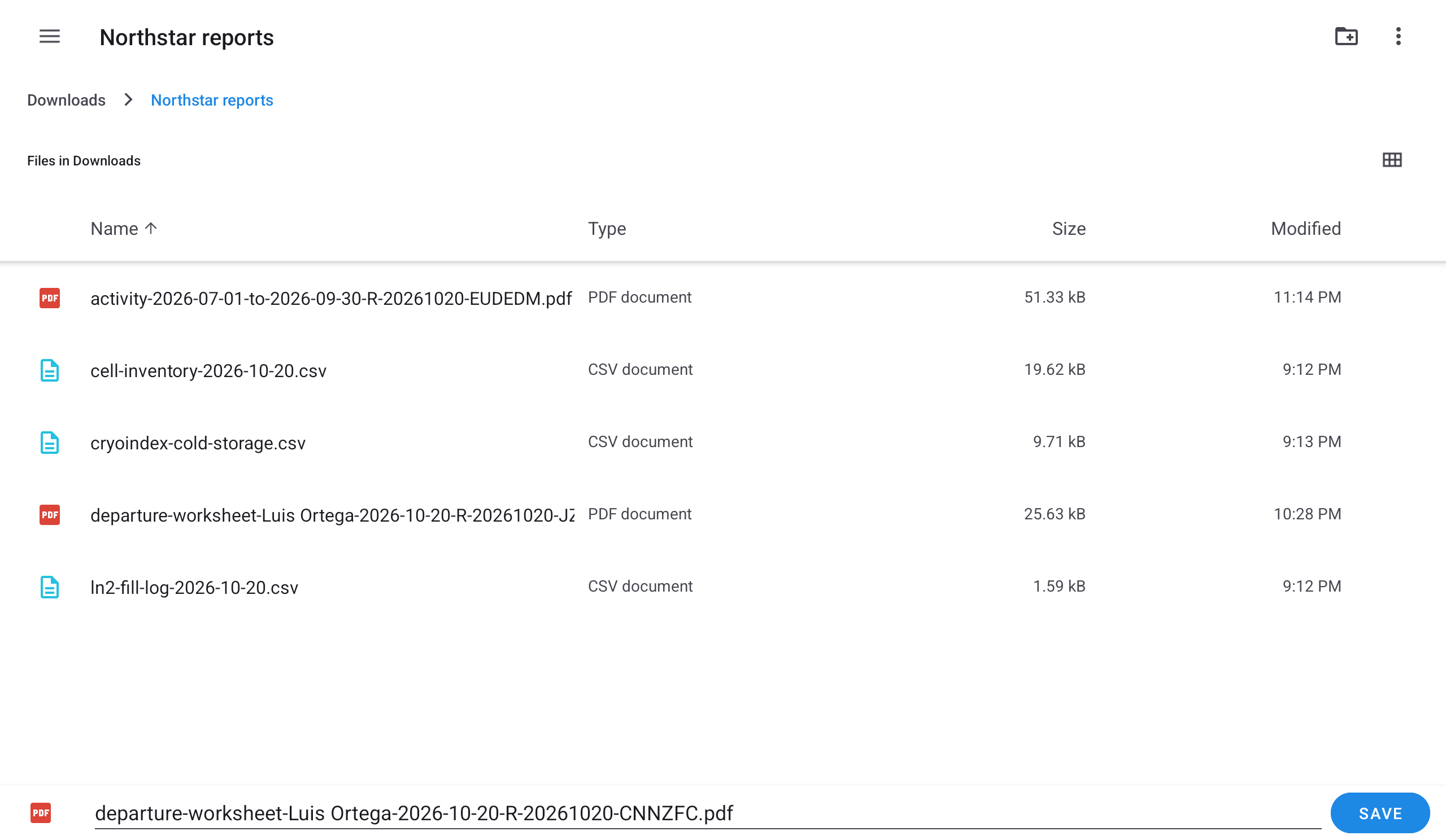
Save worksheet PDF on a tablet. The file is named after the lab member, the day and a report ID.
- The folder, here Northstar reports.
- The worksheet’s file name.
- SAVE writes the file there.

The message at the bottom names the saved file. Every item is still not yet decided: saving the worksheet changed nothing.
- Save worksheet PDF.
- The file’s name, and that it is ready to print.
Saving the worksheet writes nothing to the record. Marks on paper count only once they are entered as decisions here and applied. The web demo does not save files; the two pictures above are from a tablet.
Step 3 · One line at a time
Decide what happens to a line.
- Transfer to… makes another lab member responsible. Under Transfer to, choose who becomes responsible, and select Transfer. The person leaving, and anyone who has left the lab, cannot be chosen.
- Discard records the items as discarded when the review is applied.
- More holds the other answers: Keep with Luis Ortega, Mark as finished… and Mark missing.
- A decided line leaves Not yet decided and moves to Decided.

More holds the answers that are not on the line's own buttons.
- Keep with Luis Ortega leaves the items with the lab member on purpose.
- Mark as finished… records how the items ended.
- Mark missing is for items nobody can find.
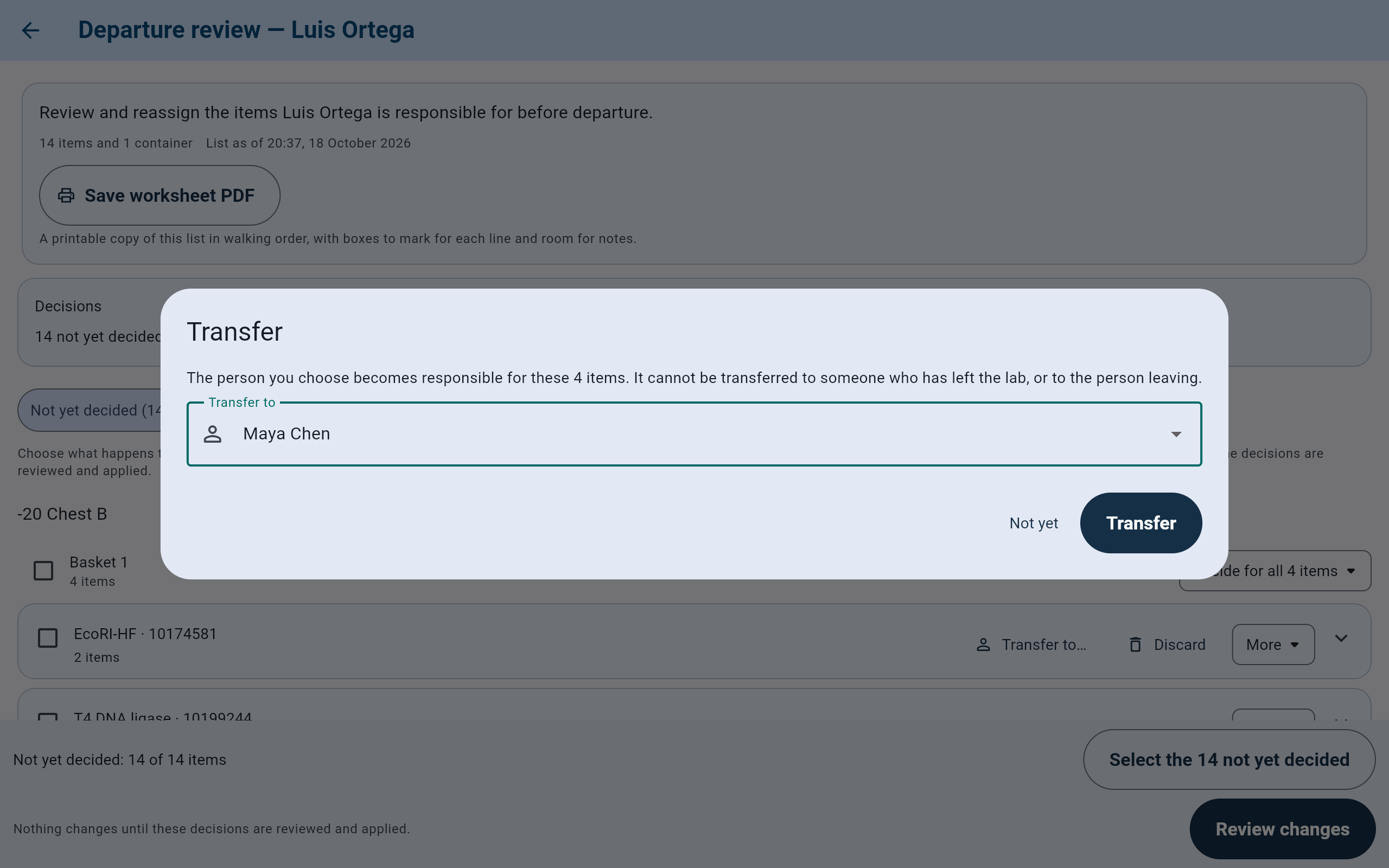
The four enzyme items in Basket 1 of -20 Chest B are being transferred to Maya Chen with one decision for the whole place.
- Choose who becomes responsible under Transfer to.
- Transfer records the decision; Not yet closes without one.
Step 3 · Several at once
Decide a whole place, or tick several lines and choose once.
- For everything in one place, use the place's button, such as Decide for all 4 items or Decide for both items.
- Or tick the lines you want. The bar at the bottom changes to show how many are selected, with Transfer to…, Discard, Mark as finished… and More choices.
- Select the 14 not yet decided in the bar ticks everything still undecided at once. The number follows what is left.
- The X at the left of the bar, Clear selection, unticks everything.

Two agarose bottles in Cold room 2 are ticked. The bar now acts on the ticked items.
- The ticked line.
- Containers the lab member is responsible for. The decisions above do not change them.
- How many items are selected.
- The answers for every ticked item, with More choices at the end.
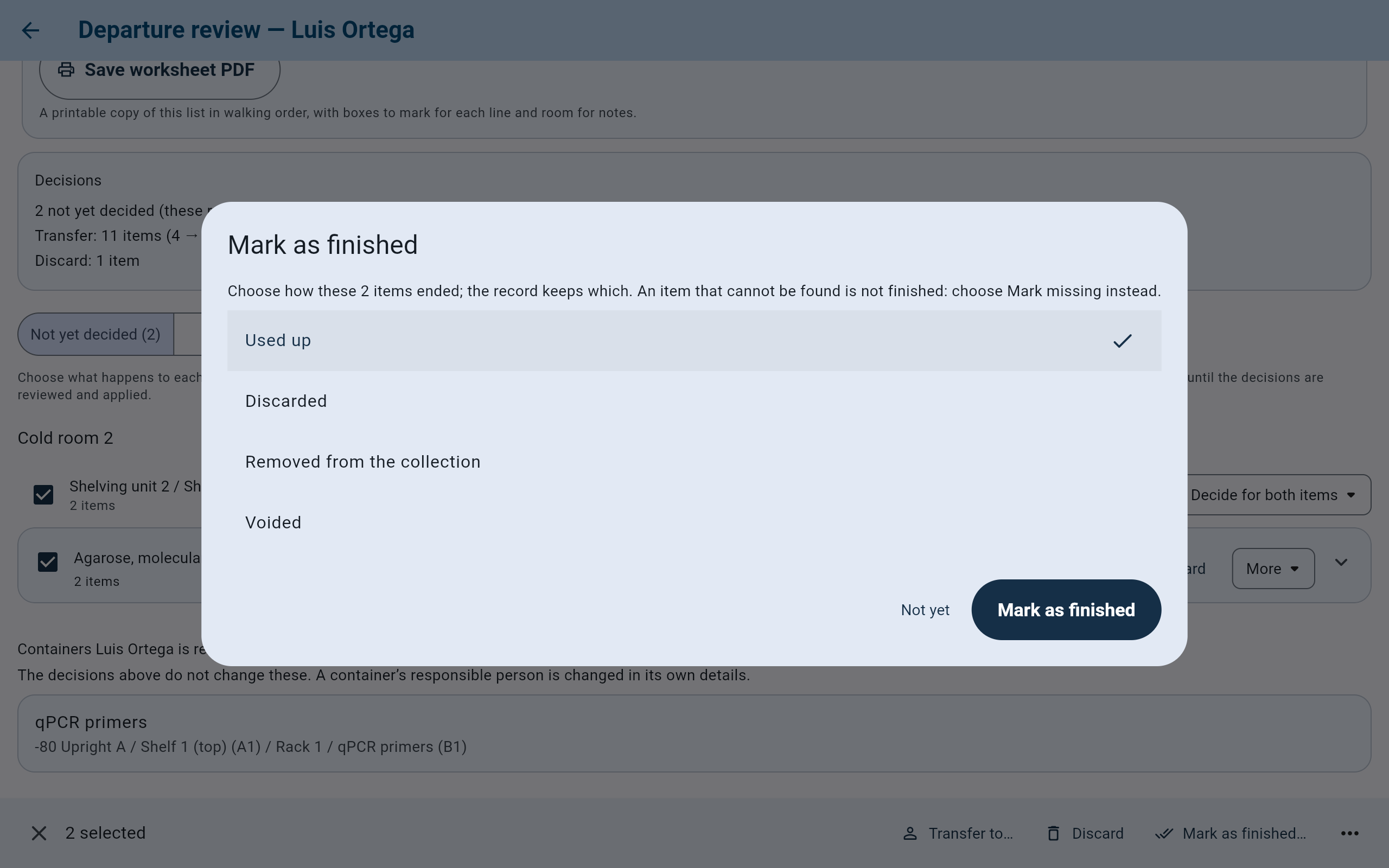
Mark as finished asks how the items ended, and the record keeps the answer.
- Choose one ending: Used up, Discarded, Removed from the collection or Voided.
- An item that cannot be found is not finished. Use Mark missing instead.
- Mark as finished records the decision for both items.
Step 4 · Before applying
Check, change or undo a decision.
- After each decision, the bar says what it did, for example Transfer to Maya Chen: 4 items, moved to Decided. Undo beside it takes that decision back.
- Open Decided to read every decision by place. Each line's button shows its decision; choose it to change the answer, or choose Back to not yet decided.
- A place in the Decided list offers Change all 4 items, and so on, for the whole place.

The four items moved from Not yet decided to Decided, and the bar offers Undo.
- The Decisions card now counts the transfer.
- Decided (4): the line has left the working list.
- The last decision, said in words.
- Undo takes it back.
Leaving the screen
Leaving with decisions not applied asks first.
If you go back with decisions made and not applied, CryoIndex asks Leave without applying? and says how many decisions would be dropped.
- Select Keep reviewing to stay on the review with every decision still there.
- Select Leave without applying only if the decisions should be dropped. Nothing changes in storage, and a later review starts from a fresh list.
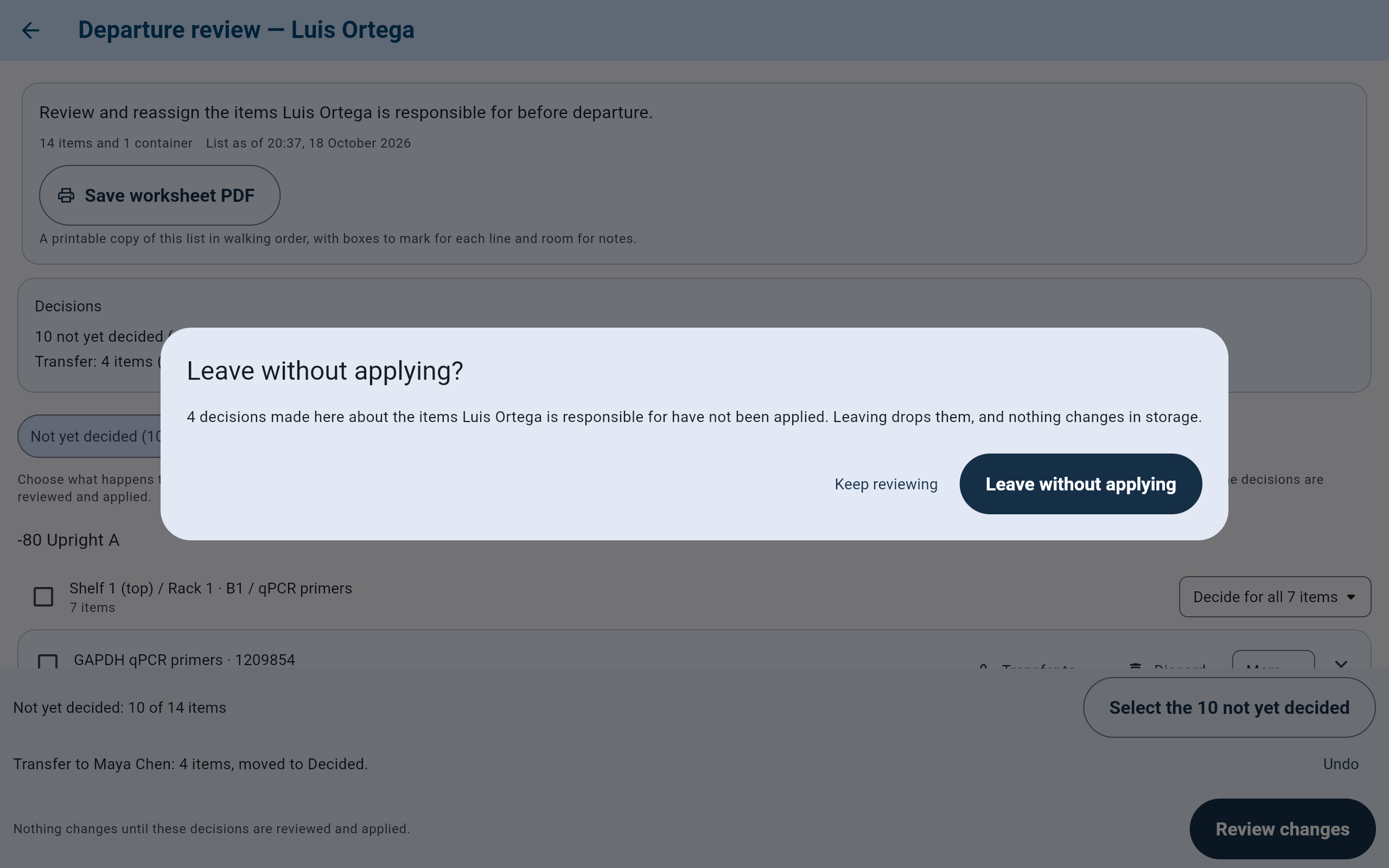
Back with four decisions made and not applied.
- Keep reviewing keeps the decisions.
- Leave without applying drops them.
Step 5 · Review and apply
Review the changes, then apply them.
- When every line has a decision, the bar reads Every item has a decision. A review can also be applied with items still undecided; those items stay with the lab member who is leaving.
- Select Review changes. CryoIndex checks the decisions against storage as it is now and says how many changes would be made. Changing any decision afterward clears that answer, so select Review changes again. Review again repeats the check when storage may have moved in the meantime.
- Select Apply changes. The dialog lists the changes and says that the lab member stays a member of the lab.
- Choose Applied by and type the Reason for these decisions. The dialog's Apply changes stays off until both are filled in.
- Select Apply changes, or Not yet to go back without writing anything.
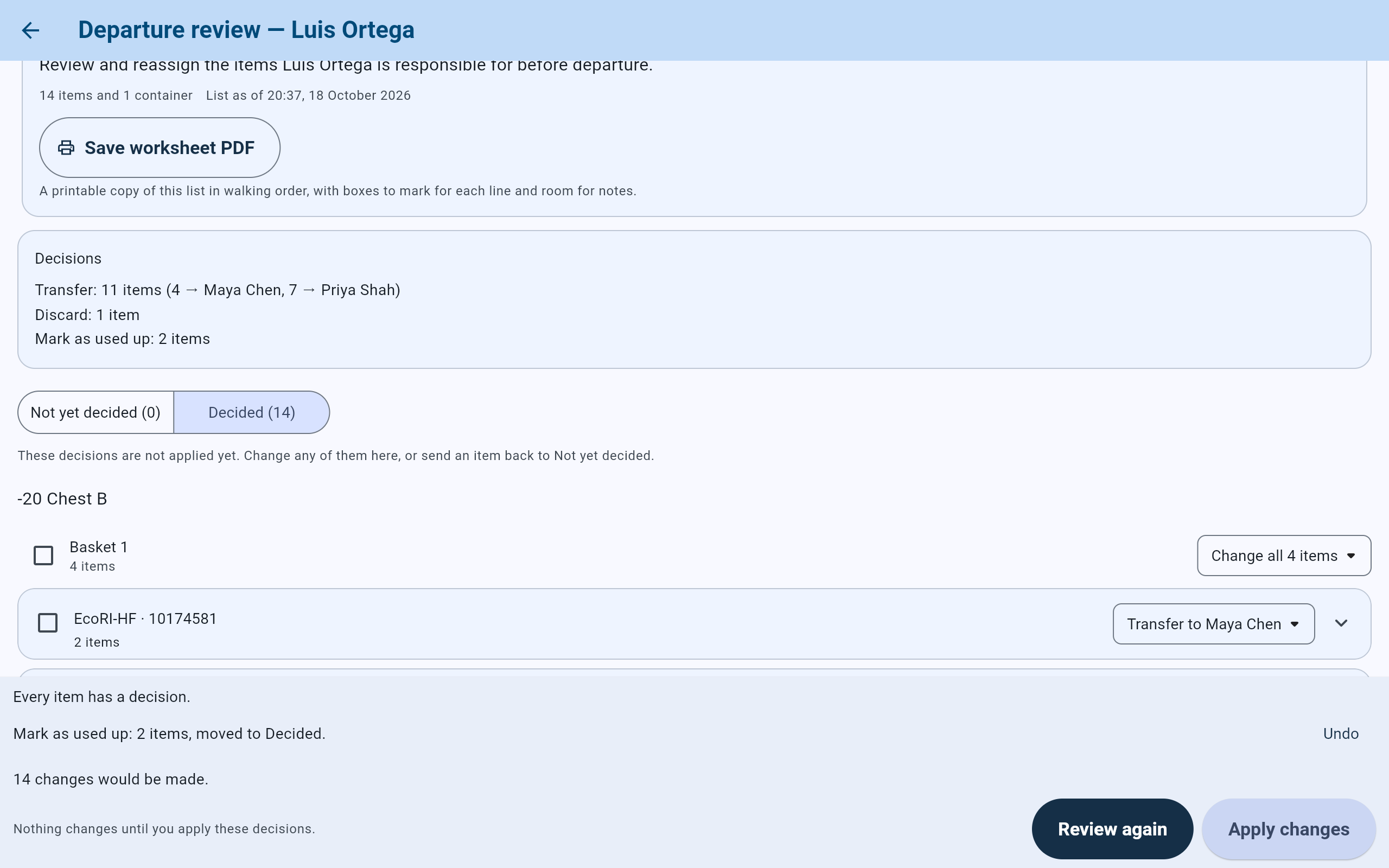
After Review changes: 14 changes would be made, and Apply changes is now offered.
- In Decided, each line's button shows its decision and can change it.
- What applying would do.
- Review again after changing anything.
- Apply changes opens the final step.
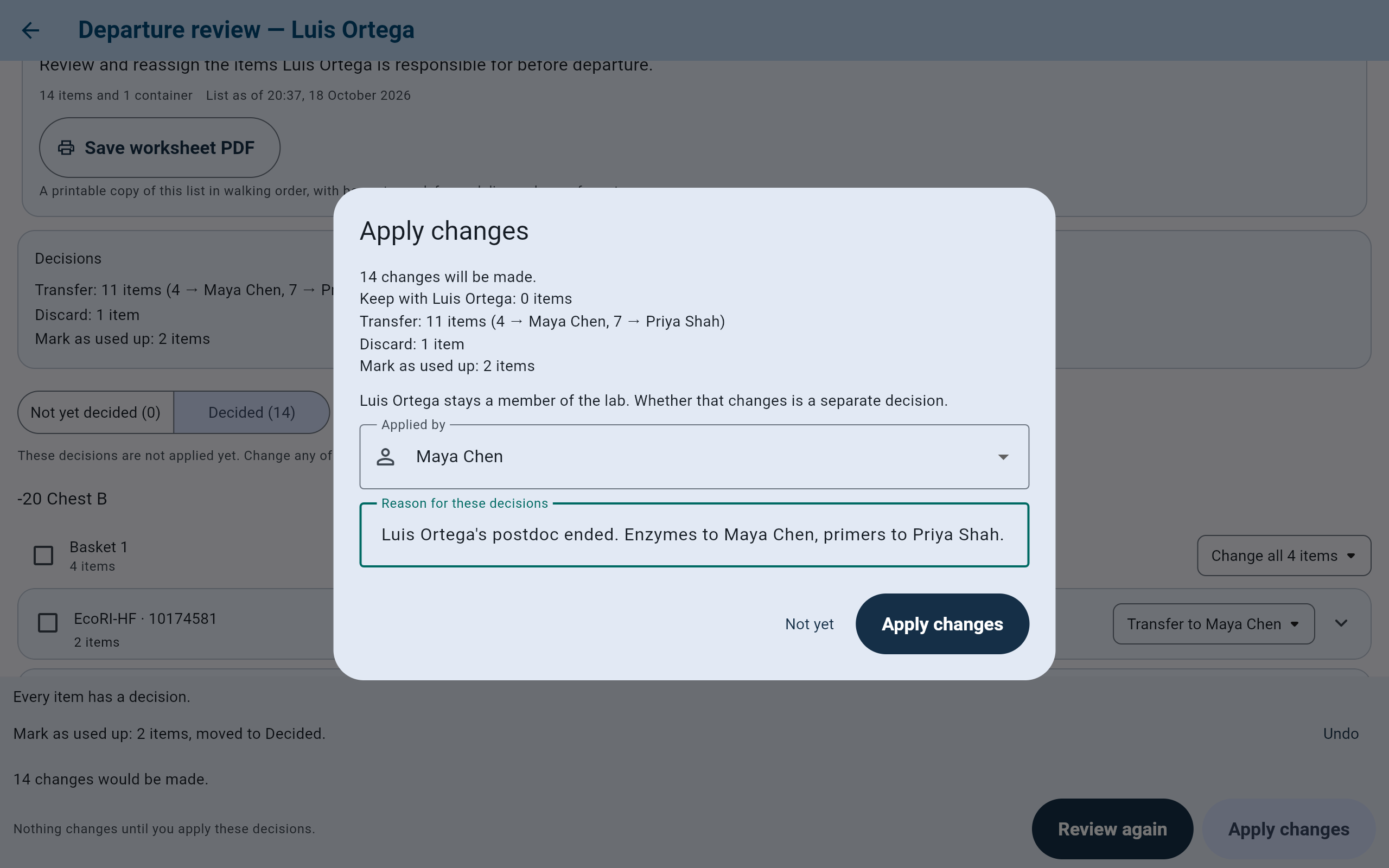
The person applying and the reason are recorded with the review.
- Exactly what will be written.
- Applied by: who is carrying the decisions out.
- Reason for these decisions is required.
- Apply changes writes everything at once.
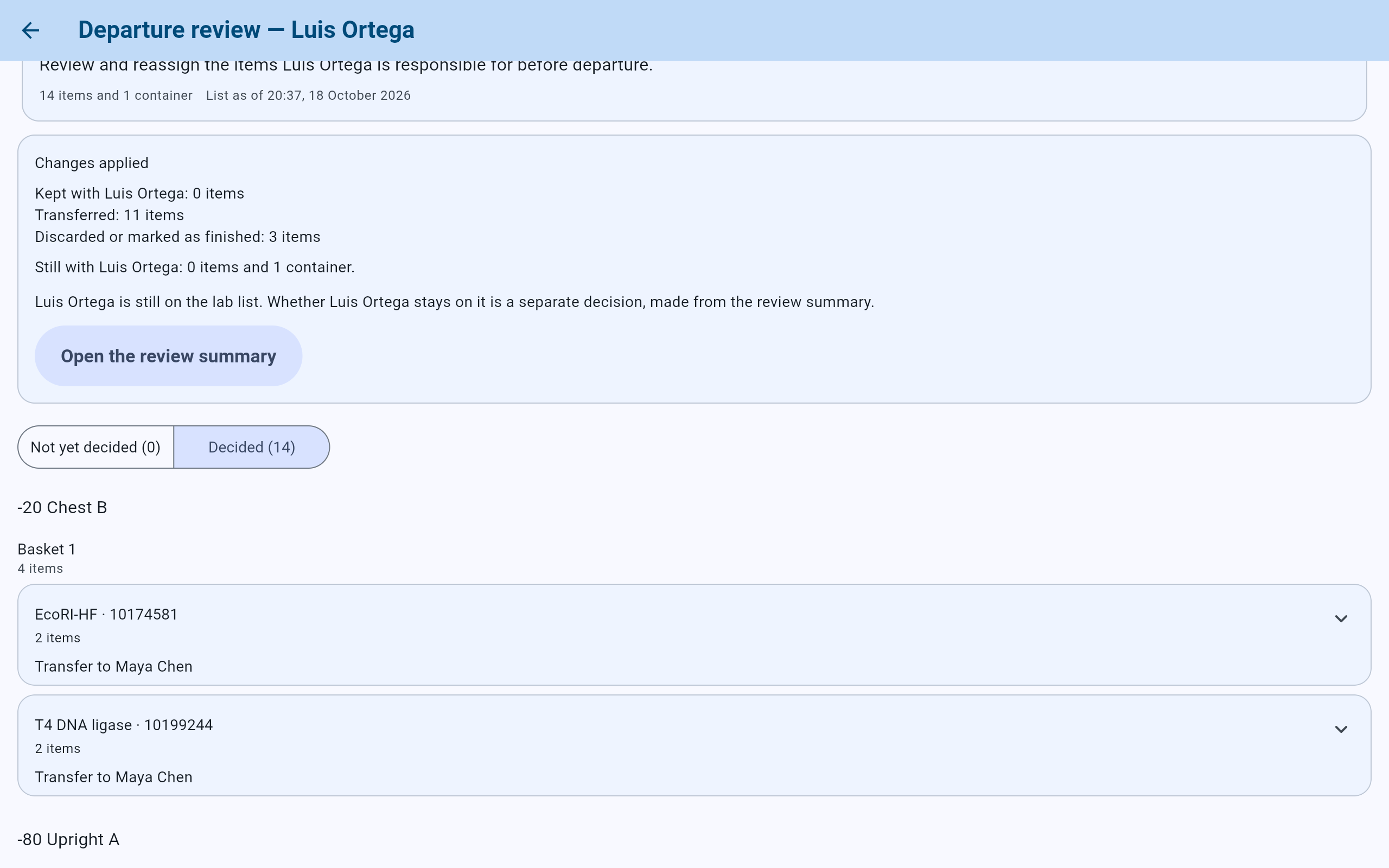
What the record now holds. The qPCR primers box is still with Luis Ortega, because the review does not change containers.
- What was carried out.
- What the lab member is still responsible for.
- Applying does not take anyone off the lab list.
- Open the review summary.
Step 6 · The review summary
Decide whether the lab member stays on the lab list.
The review summary is the permanent record of the review: who applied it and when, the reason, what was on the list, and every decision. It is also where the lab decides whether the lab member stays on the lab list. That is a separate decision, and it can be made later.
- Choose Decided by.
- Select Keep on the lab list or Hide from lists. Either choice is recorded, and neither changes anything in storage.
- If the lab member is still responsible for anything, Hide from lists says so first and offers Hide from lists anyway. Use it only if that is what the lab means.
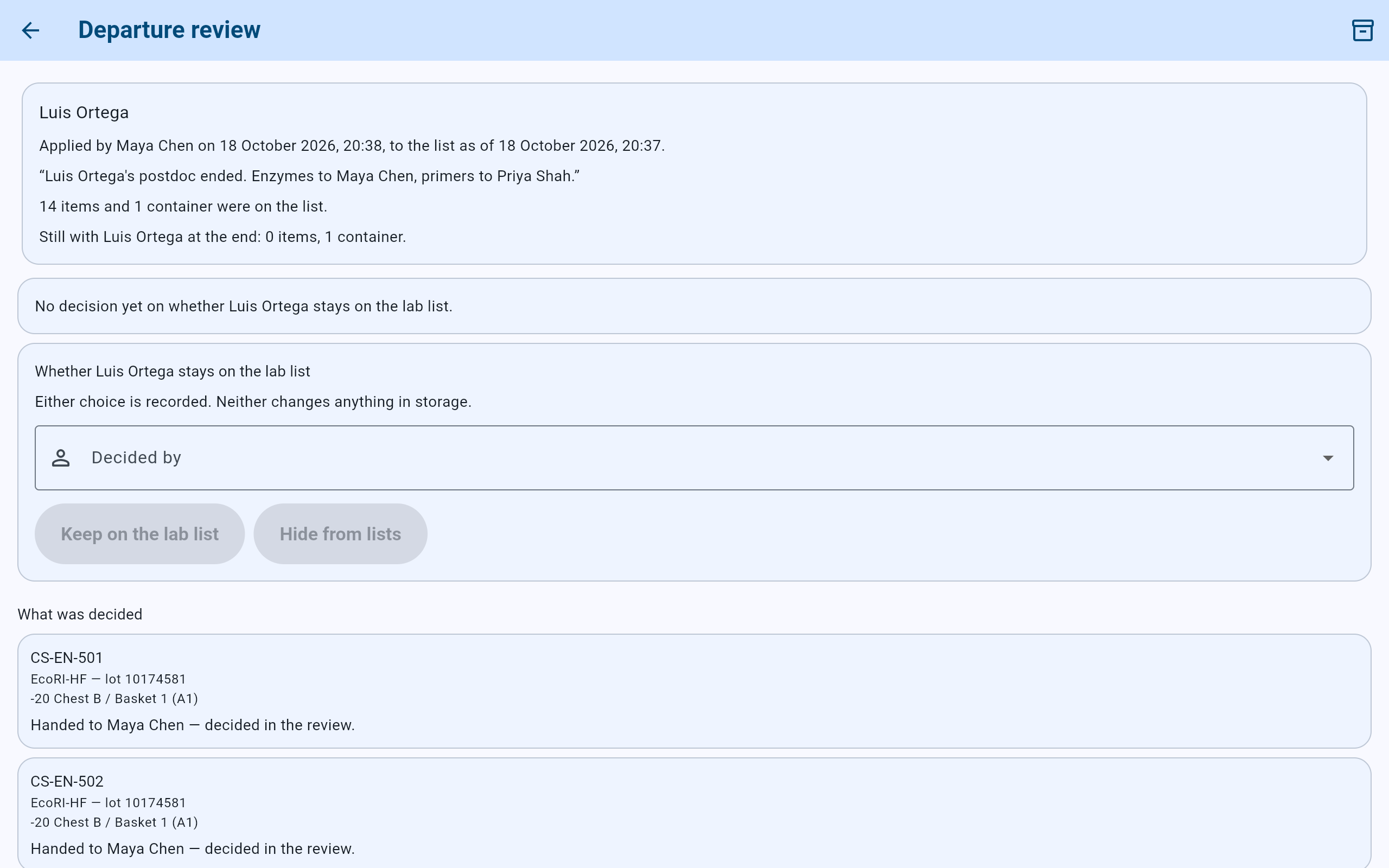
The summary keeps the review as it was applied, item by item.
- Who applied the review, when, and the reason given.
- Whether Luis Ortega stays on the lab list.
- Choose Decided by first.
- Keep on the lab list or Hide from lists.
- Each item, where it was, and what was decided.
- Export report bundle saves the review as a PDF and a CSV file.
Export report bundle makes “two files: the review as a PDF, and every row as a CSV file.” The files say what the review recorded on the day it was applied. The web demo does not save files, so the export has no picture here.
A lab member who is hidden from lists can be made active again under Lab members in Settings. A lab member who is still responsible for Cold Storage items cannot be deleted there; finish the departure review first.
Later · The record
Find a past departure review.
- Open Departure review from the Cold Storage dashboard and select the history button, Past departure reviews.
- Each row gives the lab member's name, the date the review was applied, and whether that lab member stayed on the lab list, was hidden from lists, or has no decision recorded yet.
- Select a row to open its summary. A review that still says no decision recorded yet can be finished from there.
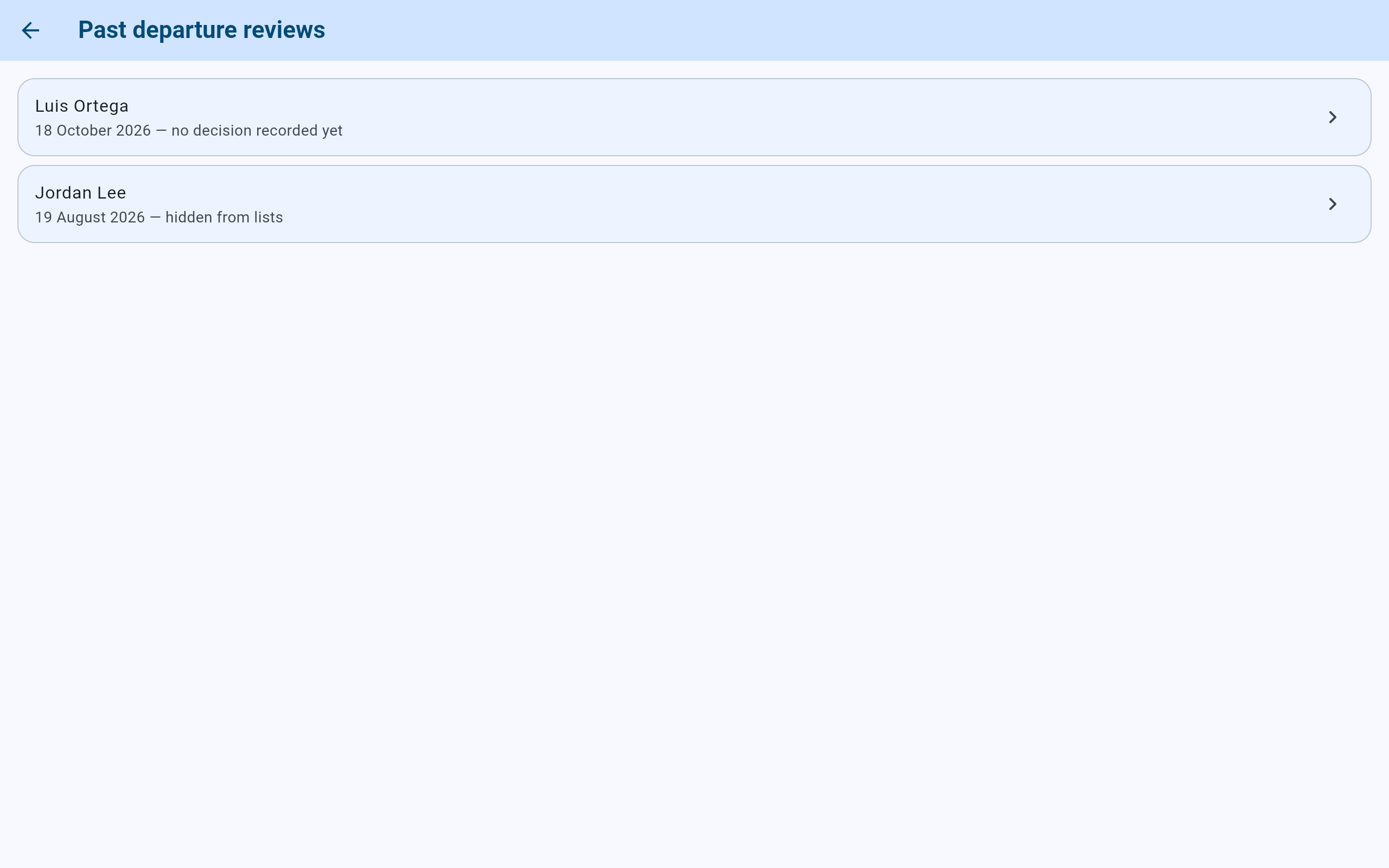
The review just applied, and Jordan Lee's from August.
- Applied today, with the lab-list decision still to make.
- Jordan Lee's review, finished with Jordan Lee hidden from lists.

A finished review reads the same months later: the names, places and decisions are kept as they were on the day.
- The reason given when it was applied.
- The lab-list decision, who made it and when.
- Each item and what was decided for it.