Start with one question
What happened to the physical vial?
If it still exists in storage at another address, move it. If it left storage, remove it. If the vial stayed put but its metadata is wrong, correct it. If no physical vial ever existed, strike out the erroneous record.
Open the vial
Search for it or select its position in the box.
Review the barcode or identifier, cell type, passage, freeze date, and current location before changing anything. The action sheet begins with the most common physical changes.
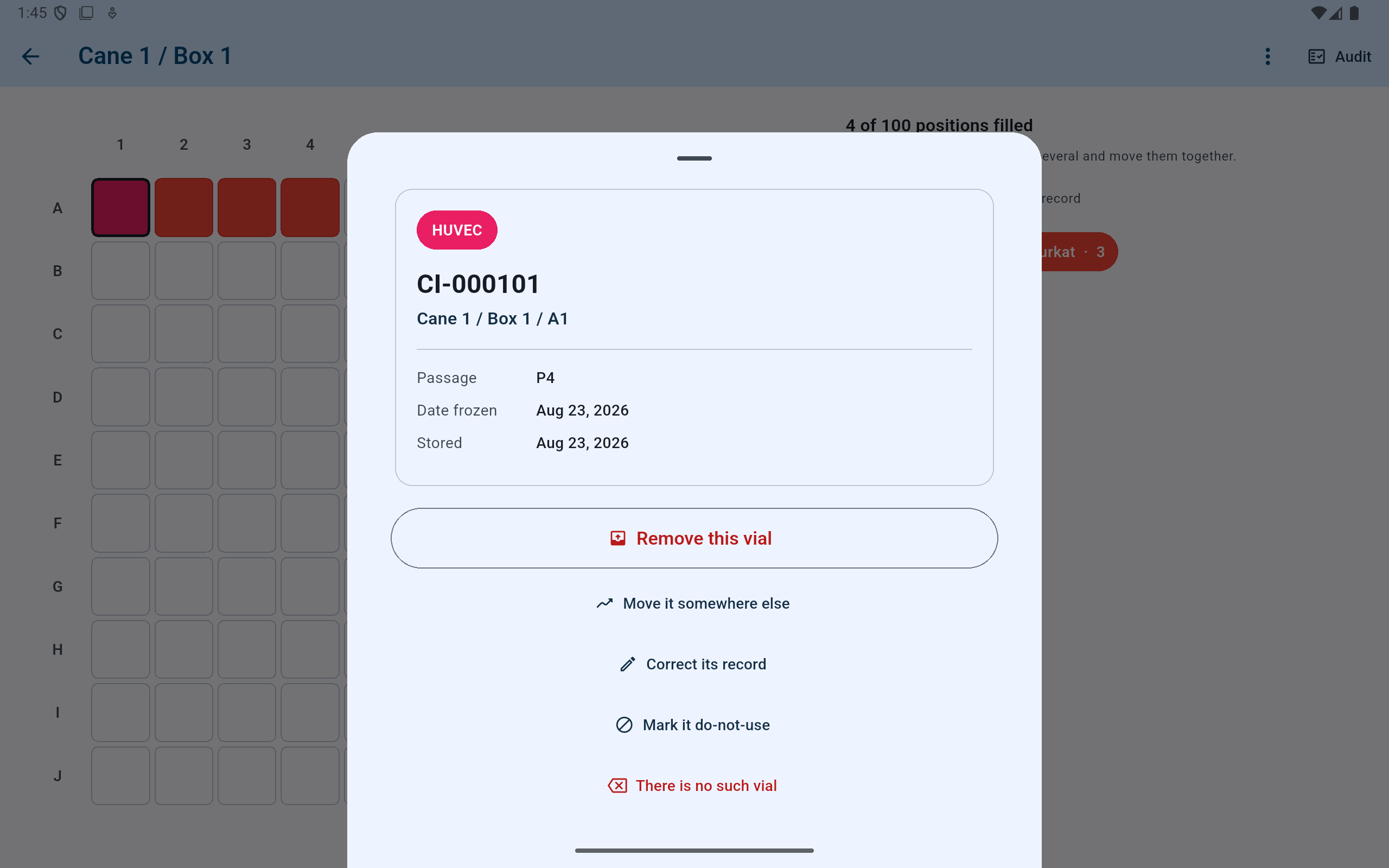
The action is attached to this existing vial record; there is no need to create a replacement record to move or correct it.
- Verify the vial identity and current address first.
- Remove when the physical vial leaves storage.
- Move when the same physical vial is found elsewhere.
- Correct metadata without changing the recorded position.
- A do-not-use hold leaves the vial in place and counted.
Same vial, different position
Select where the vial physically is now.
- Choose Move it somewhere else.
- Select the destination dewar when applicable, then its cane and box.
- Select the exact empty position shown by the physical box.
- Name the person performing the move and add a reason when useful.
- Complete the move and read the confirmation. The vial keeps its original storage, correction, and handling history.
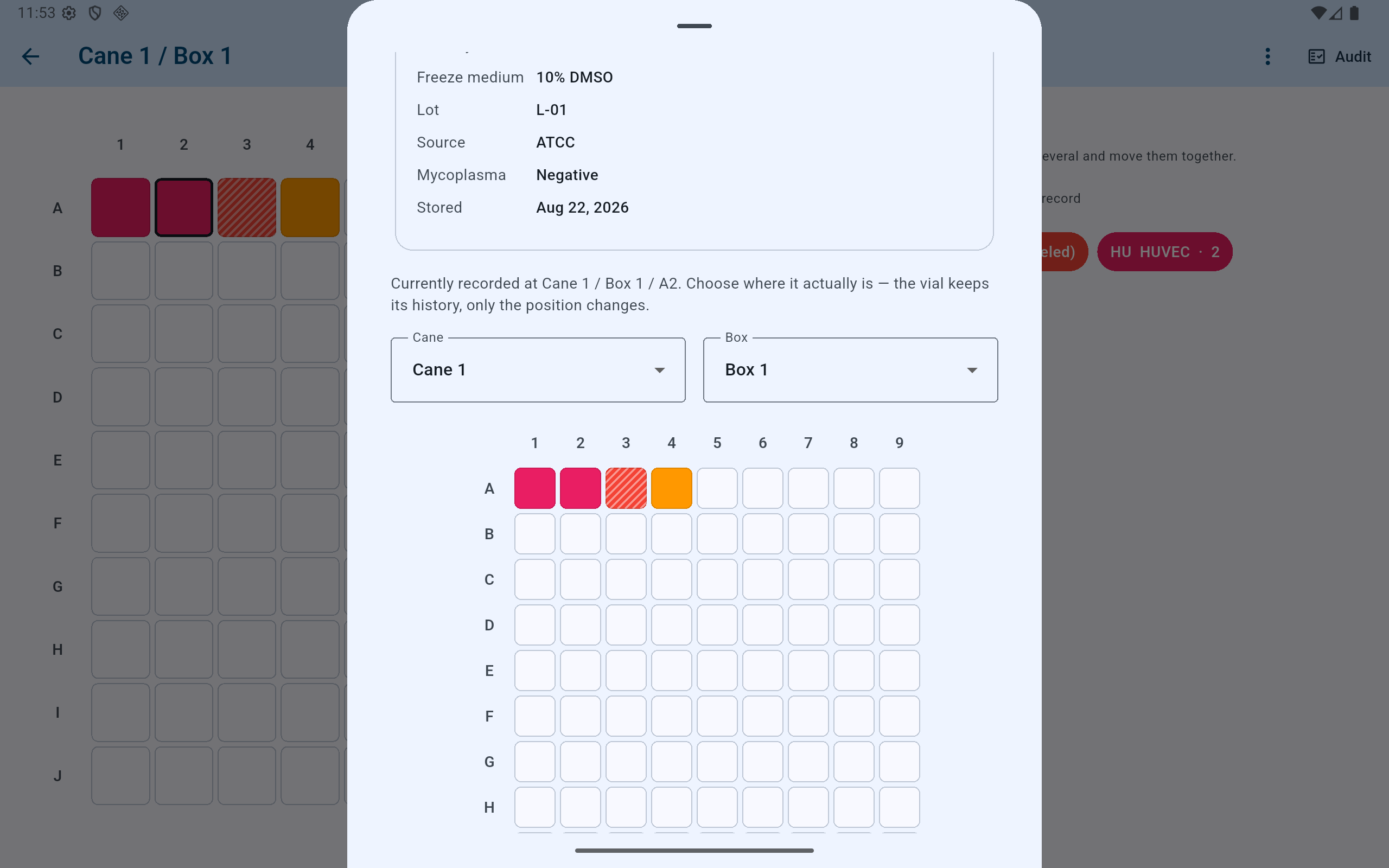
A destination must be an active, empty physical position. CryoIndex refuses an occupied or retired location.
- Read the currently recorded address before choosing a destination.
- Select the destination cane and box.
- Tap the exact physical destination in the grid.
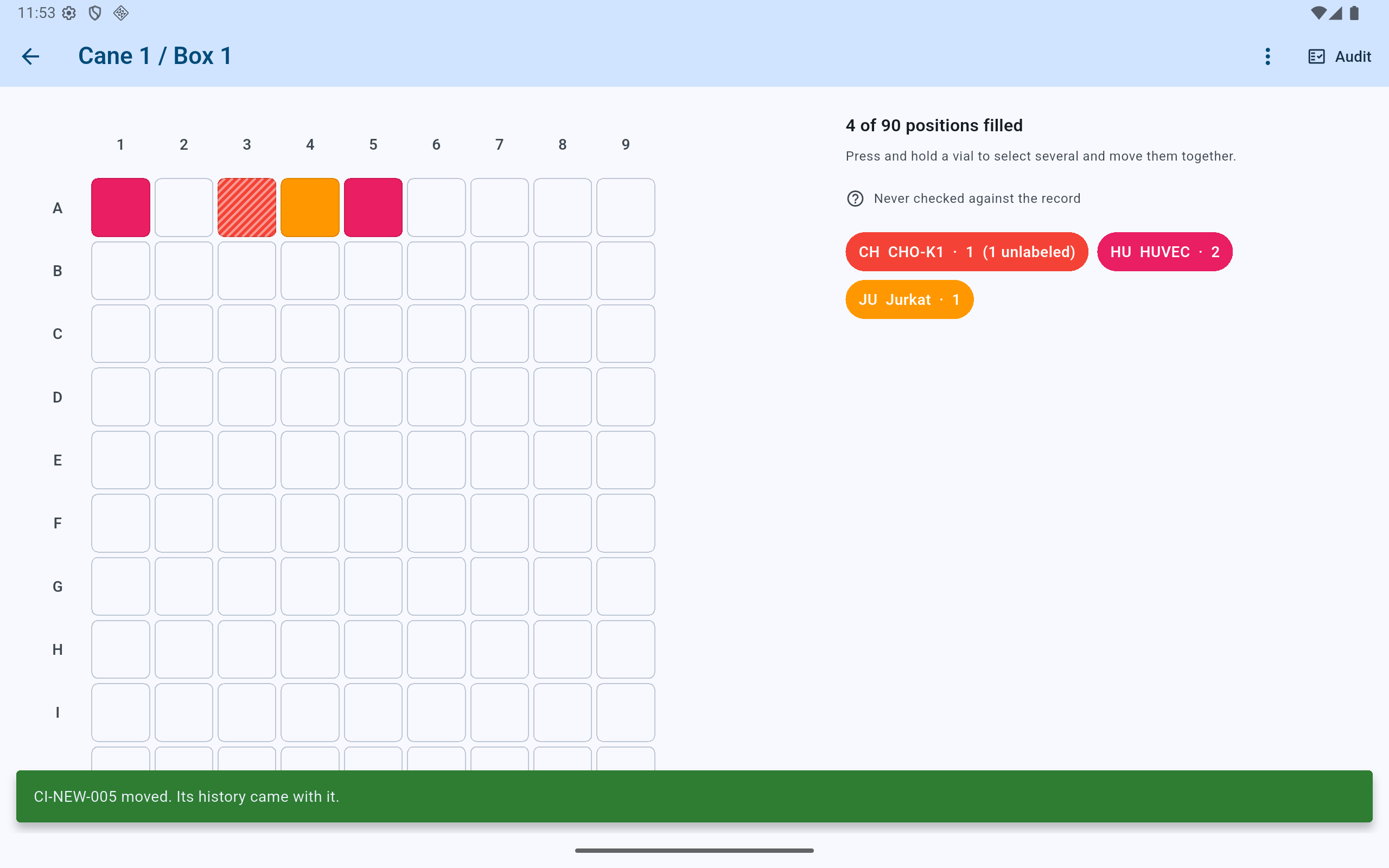
The destination position is now occupied and the former position is free; the green banner confirms that the existing record moved.
- Verify the vial at its new grid position.
- Read the explicit history-preservation confirmation.
Vial leaves storage
Record who removed it and what happened.
- Choose Remove this vial.
- Select the person who physically removed it.
- Optionally select Thawed for use, Discarded, Transferred or shipped, Removed temporarily, or Other.
- Read whether barcode confirmation will happen now or remain outstanding, then select the red removal action.
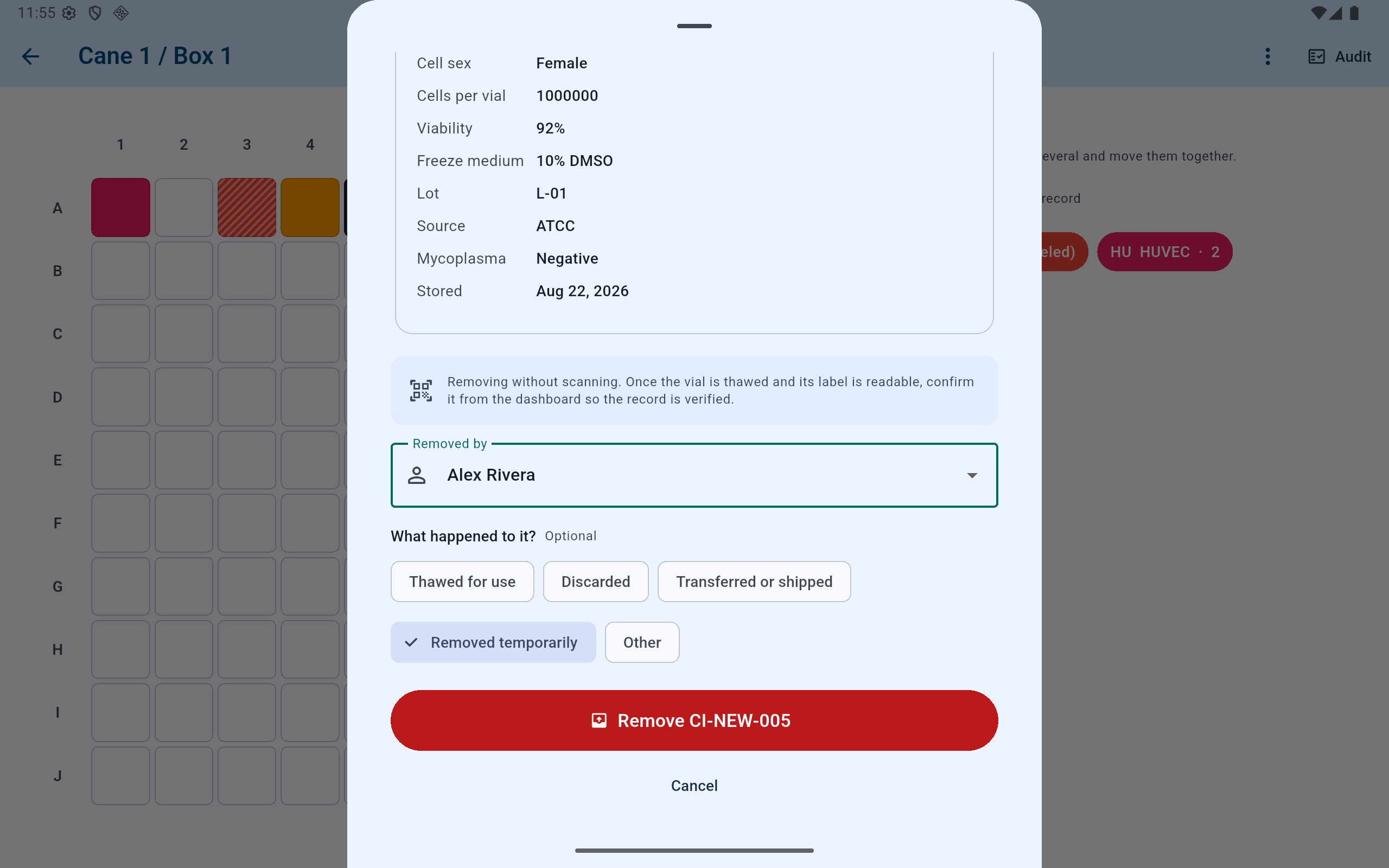
This example was opened from the box rather than by scanning the vial, so the barcoded removal remains awaiting later confirmation.
- Read the barcode-confirmation consequence.
- Attribute the physical removal to the correct person.
- Describe the disposition when known.
- Remove only after the physical event and record agree.
“Removed temporarily” does not make thawing reversible. Use it only when the intact vial remains under handling conditions approved by the lab and is genuinely expected to return. Do not return a thawed cryovial to storage merely because the app offers a put-back action.
Identity check after retrieval
Confirm an unscanned removal once the label is readable.
A vial removed by tapping a list has not had its physical barcode compared with the database. It appears under Confirm removals and remains visible as an outstanding task.
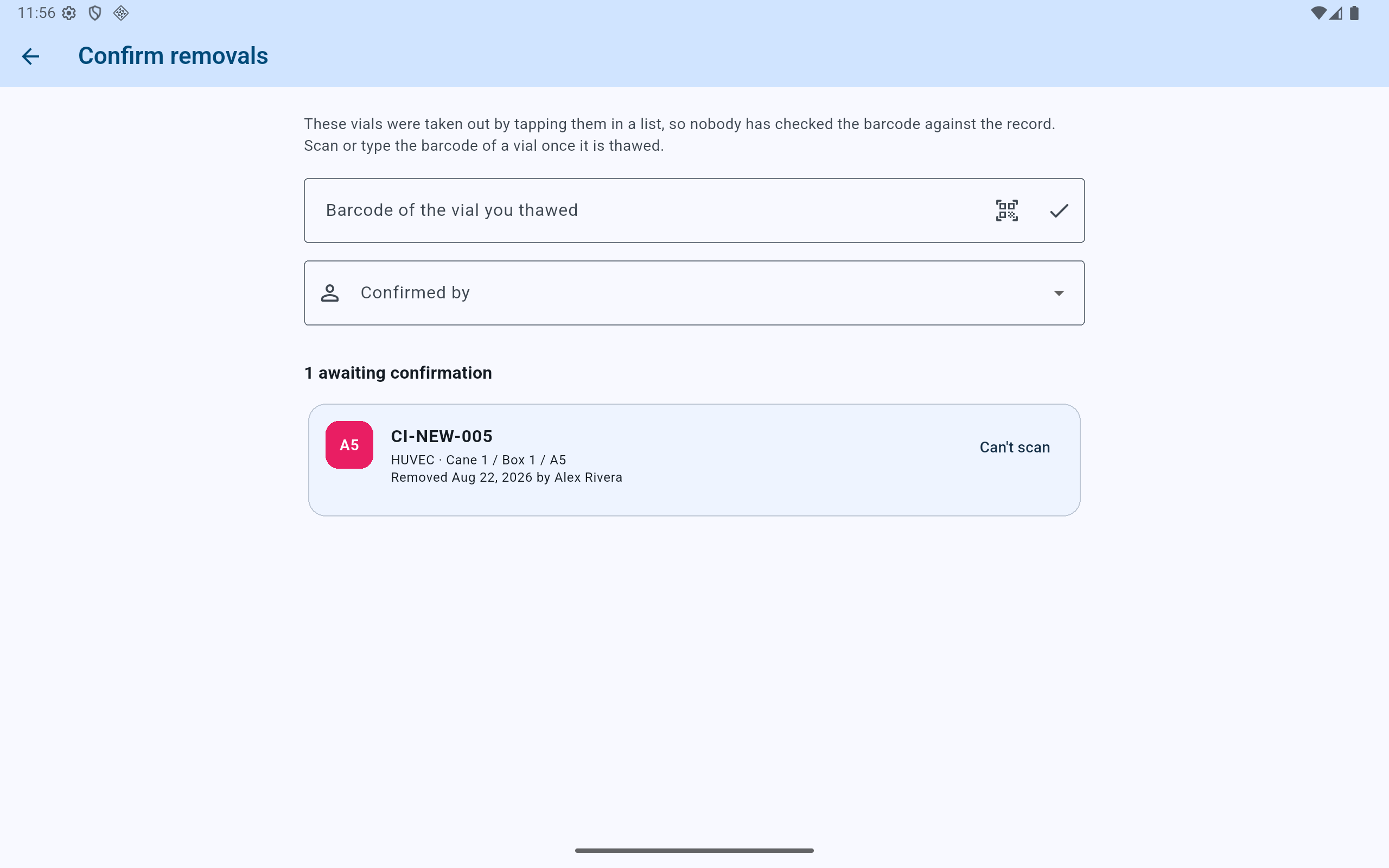
Scan or type the barcode printed on the vial that was actually thawed—not a barcode copied from the screen.
- Scan with the camera, hardware scanner, or type the physical label.
- Select the person performing this identity check.
- Compare the awaiting record and its former location.
- Use Can't scan only with an honest reason when the physical label cannot be verified.
Undo an erroneous or temporary removal
Put back restores the original record only when its position is usable.
Recently removed keeps the original freeze details, passage, user history, and former address. The old position must still be free and active. If another vial now occupies it, stop and reconcile the physical box rather than displacing a record to make the undo work.
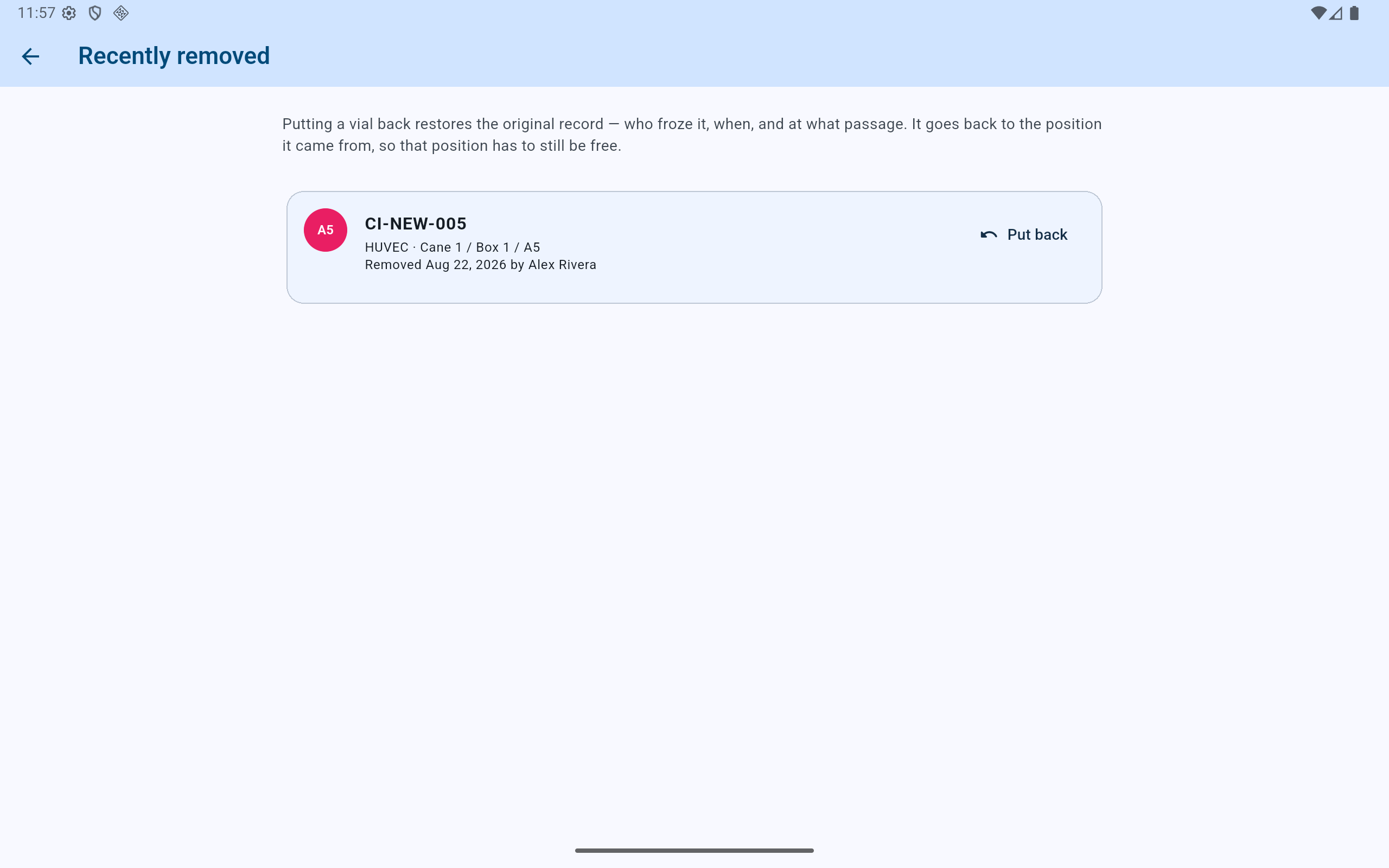
Put back is for the same physical vial or an erroneous removal record; it is not a way to create a second vial from an old history.
- Verify the vial and its original address.
- Verify who removed it and when.
- Use Put back only when the original physical position is free and appropriate.
Vial stays in storage but should not be used
Mark it do-not-use and state why.
A do-not-use hold leaves the vial in its position and includes it in inventory totals. It adds a visible warning and interrupts removal with an additional confirmation, but it is not a physical lock. Record the responsible person and a useful reason, and continue to follow the lab's SOP.
Lift the hold only when the lab has resolved the reason. Both placing and lifting the hold remain in the record.
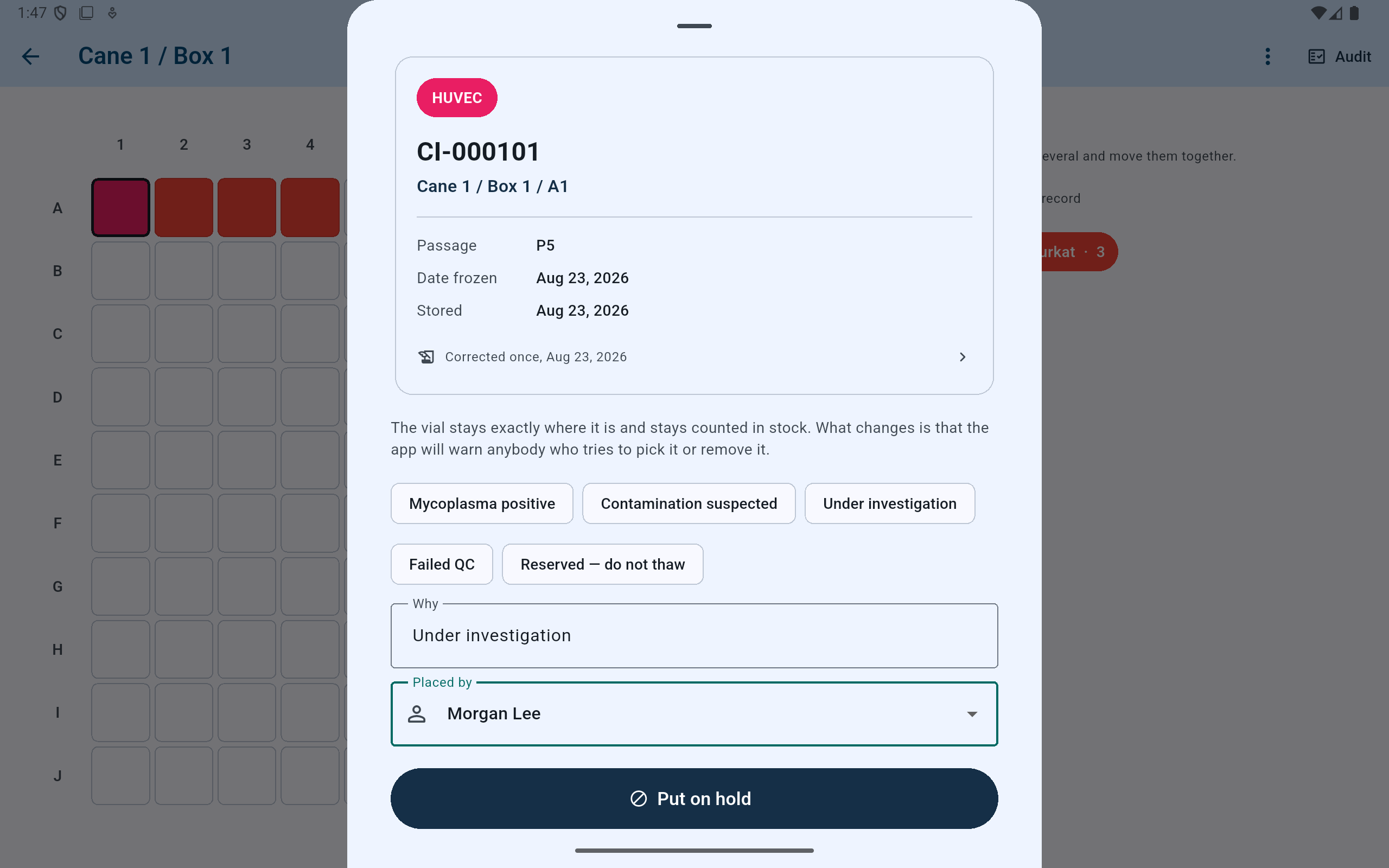
The hold form restates that the vial stays in its position and remains counted in stock.
- Choose a useful preset reason or enter an accurate explanation.
- Record who placed the vial on hold.
- Put it on hold only after the reason and physical vial are verified.
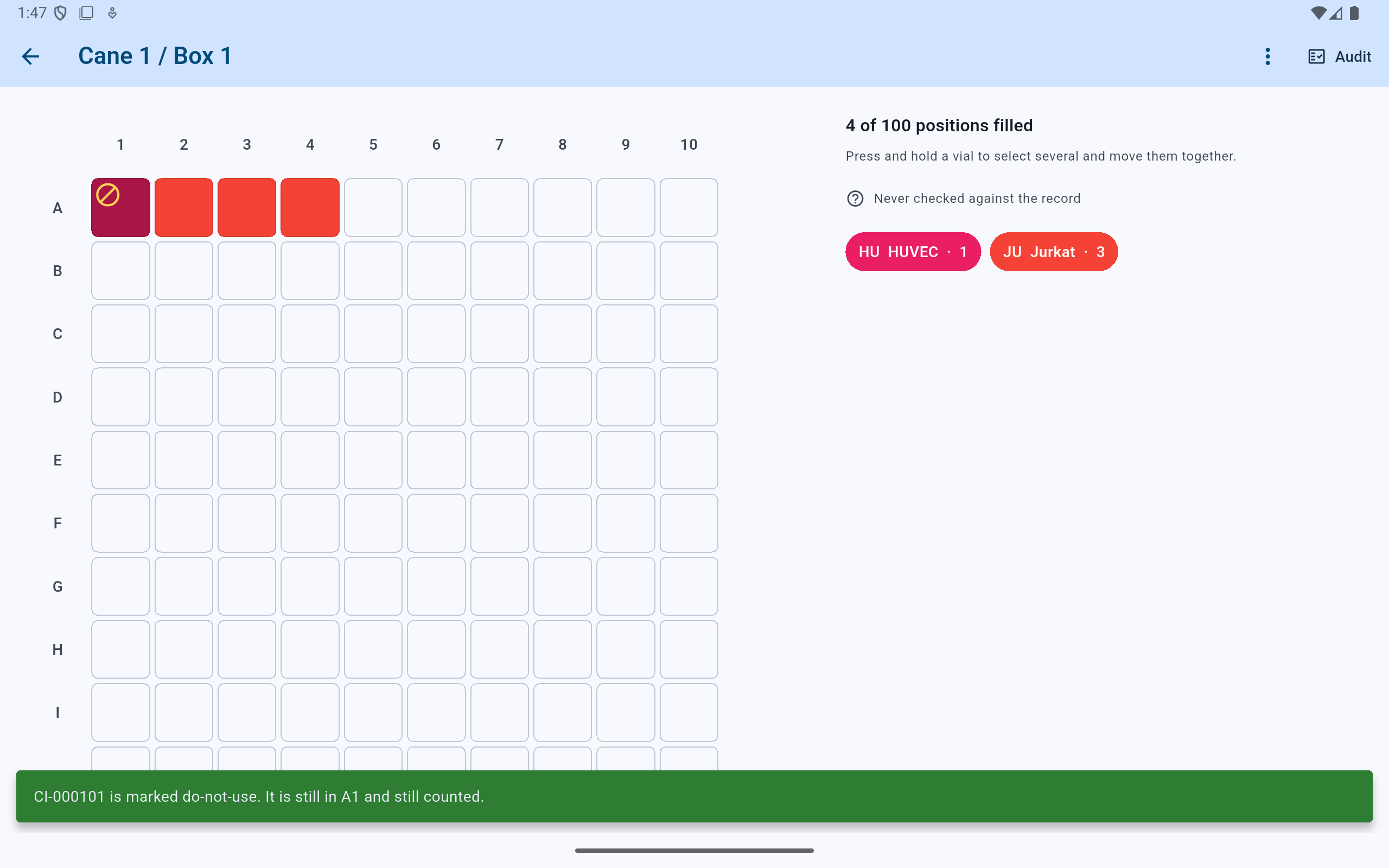
The symbol changes the vial's state without freeing its position or reducing the inventory count.
- The do-not-use symbol remains attached to the occupied position.
- The confirmation explicitly says the vial is still in A1 and still counted.
Metadata error or nonexistent record
Correct a real vial; strike out a record that should never have existed.
Use for a real vial whose barcode, cell type, passage, freeze date, Origin, or other metadata is wrong. Select who corrected it and give a reason. The former values—including a changed parent—remain in history. Use Move—not correction—for location.
Use only for an erroneous database row when no corresponding physical vial exists. It frees the position and preserves the struck record with its reason; it is not a normal specimen removal.
CryoIndex rechecks both sides of lineage before saving a correction. A parent's cell line, passage, or freeze date cannot be changed when that would make a recorded daughter impossible; a removed or struck vial cannot be restored when doing so would reintroduce a lineage contradiction. Open Trace lineage to review the affected records and correct the inaccurate record rather than erasing a known relationship.
Do not change Origin to Not recorded merely to make a correction pass. That would replace known provenance with a false statement. Confirm which vial or metadata is wrong, then make the attributable correction that matches the lab record.
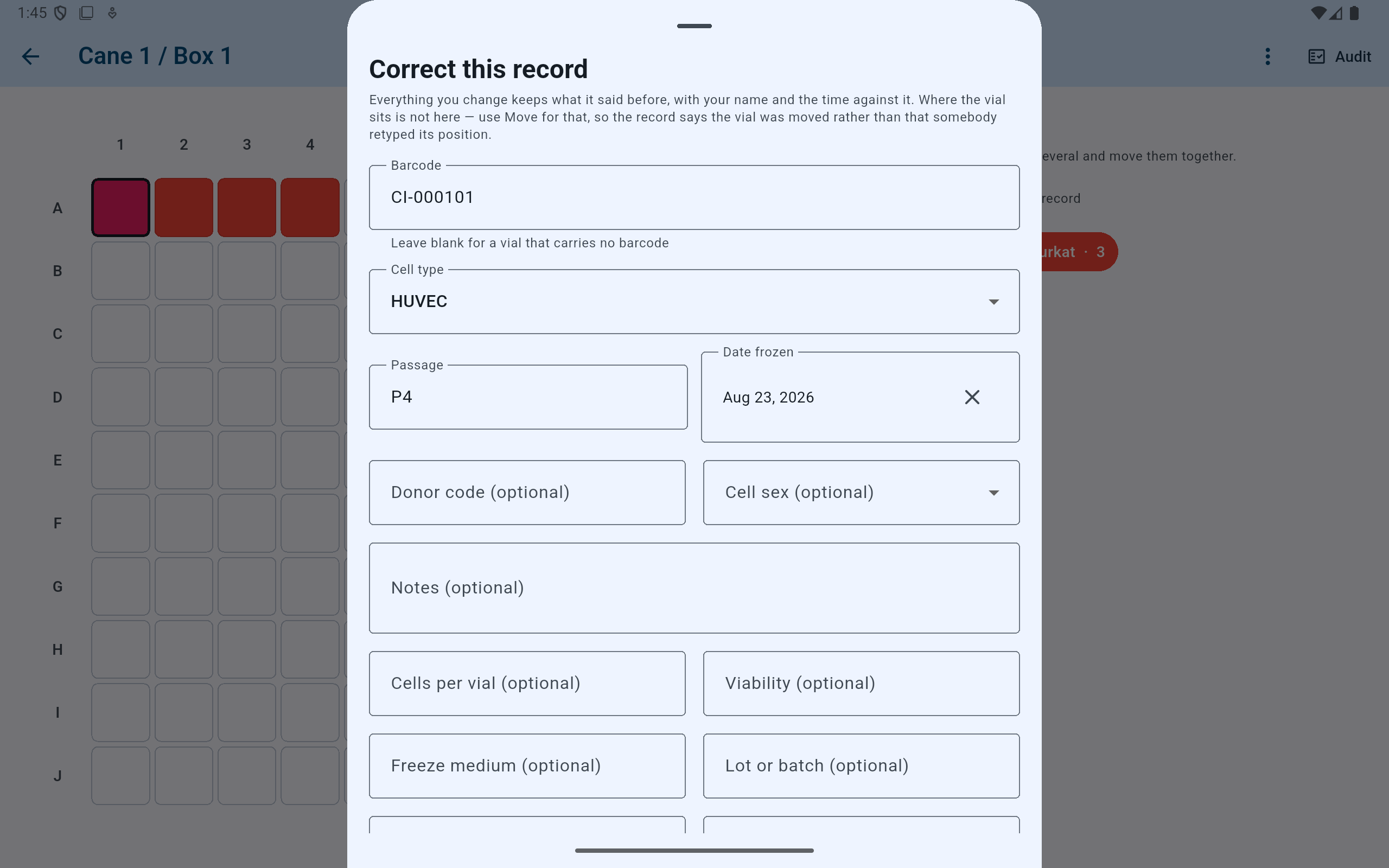
Change only the fields that are wrong. The form does not allow location editing because a physical relocation must be recorded as a move.
- The opening explanation confirms that former values and attribution are kept.
- Correct identity and biological metadata here.
- Use Move instead if the error concerns where the vial physically sits.
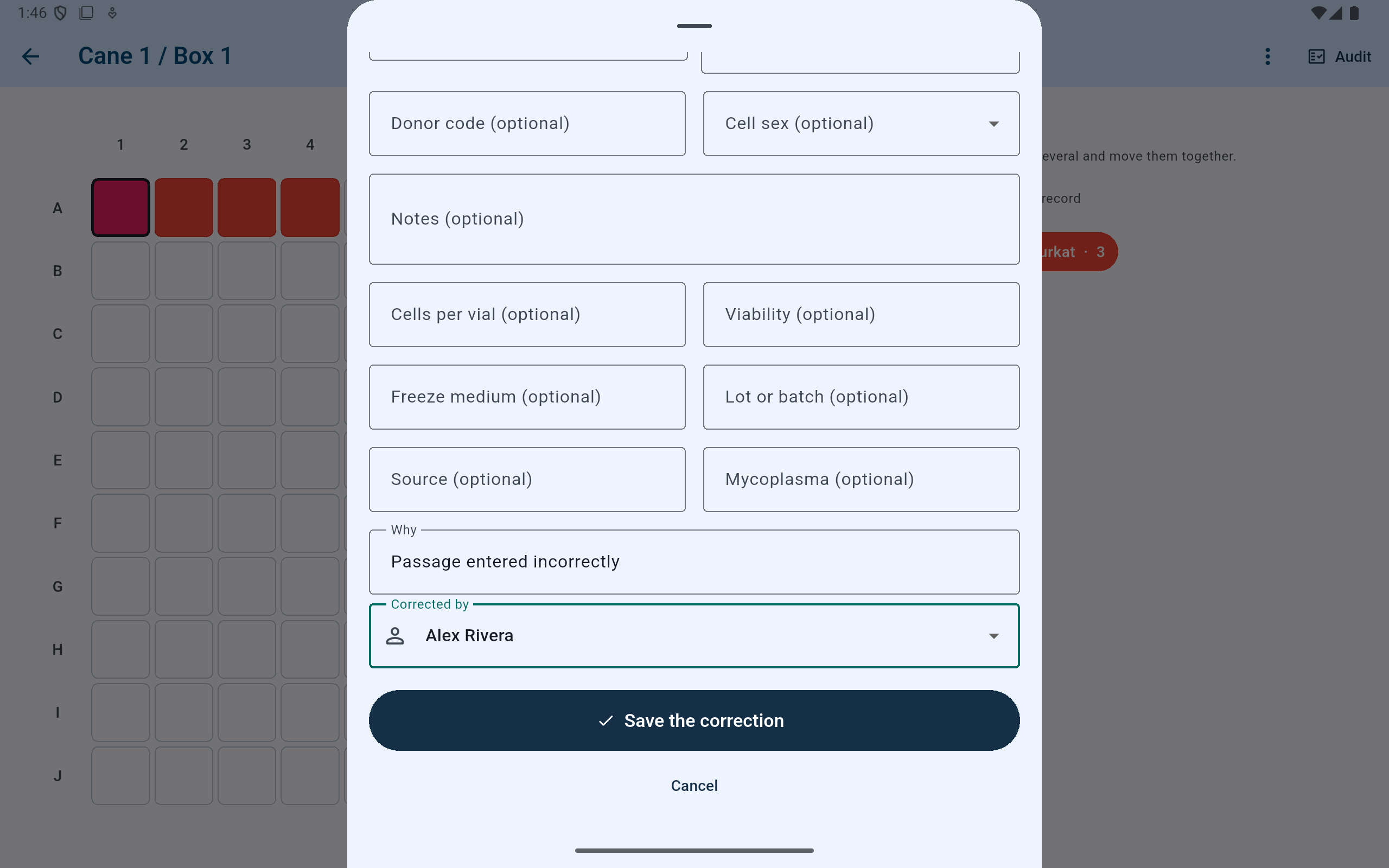
Origin can be corrected here too, and a reason and correcting user make the change attributable without erasing what the record said before.
- State why the record is being corrected.
- Choose the person who verified and made the correction.
- Save only after the corrected values and reason are complete.
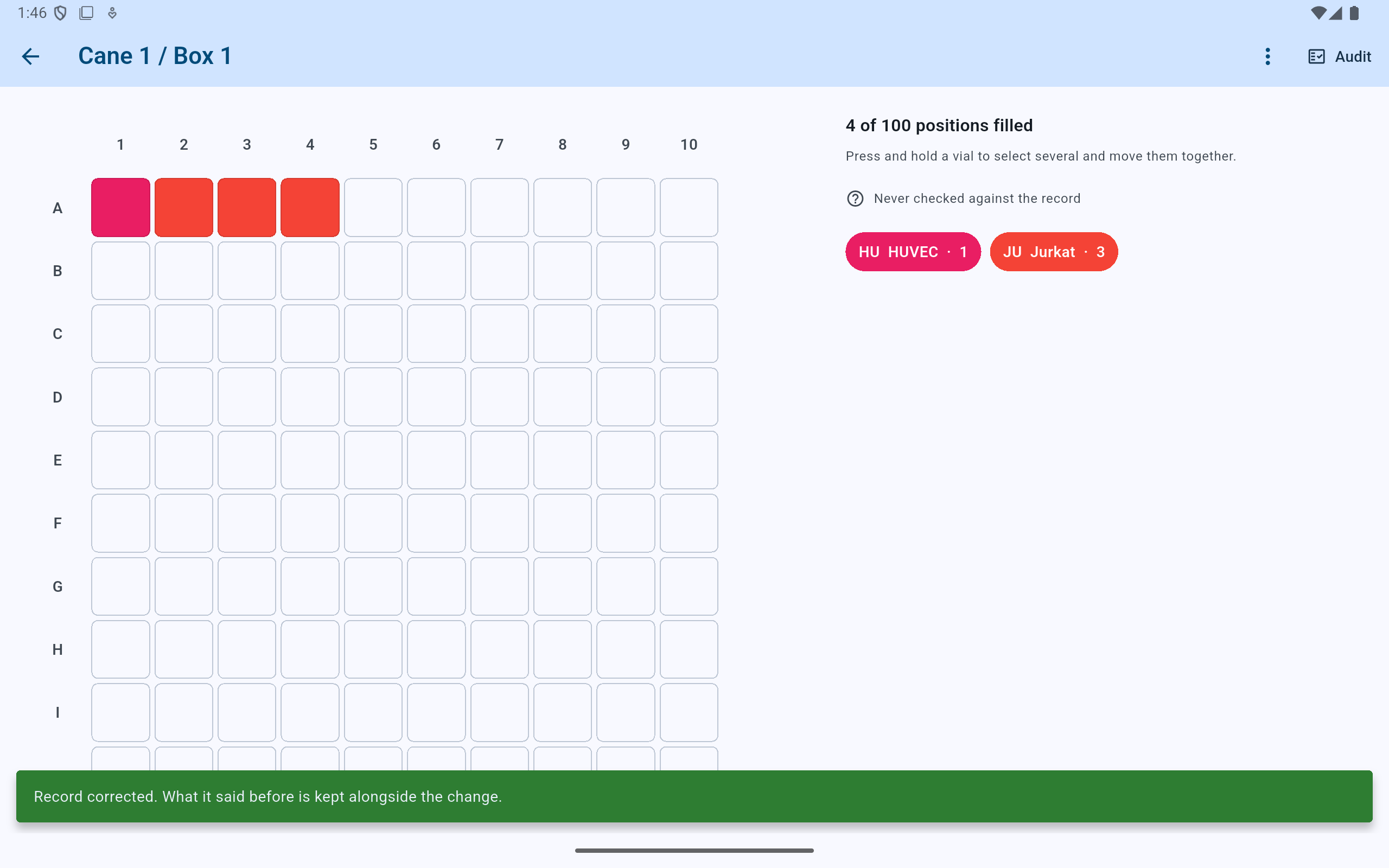
The vial stays in the same occupied position; only its metadata changes, with the former value preserved in history.
- The physical box remains unchanged after a metadata correction.
- Read the confirmation that the earlier value remains in the record.