Before changing a working lab
Create a verified external backup and pause inventory work.
A layout change can alter which physical addresses exist. Finish active store, move, remove, import, and audit workflows first, then preserve a current backup outside the tablet.
Settings → Storage
Read the existing shape and fill schedule before opening it.
- Compare the displayed cane count, boxes per cane, and box grid with the physical dewar.
- Use Fill schedule to set when the dashboard should warn that this dewar is due for a top-up.
- Open Dewar layout only if the physical shape or its stored description needs correction.
Dewar layout · Physical counts
Count what the hardware can hold, not what is currently occupied.
- Set Canes in the dewar to the number of physical cane positions the lab uses.
- Set Boxes on each cane to the number of box positions on a cane.
- Set Rows and Columns from one physical box—for example, 9×9 or 10×10.
- Read the calculated box and position total. Investigate any total that does not match the hardware.
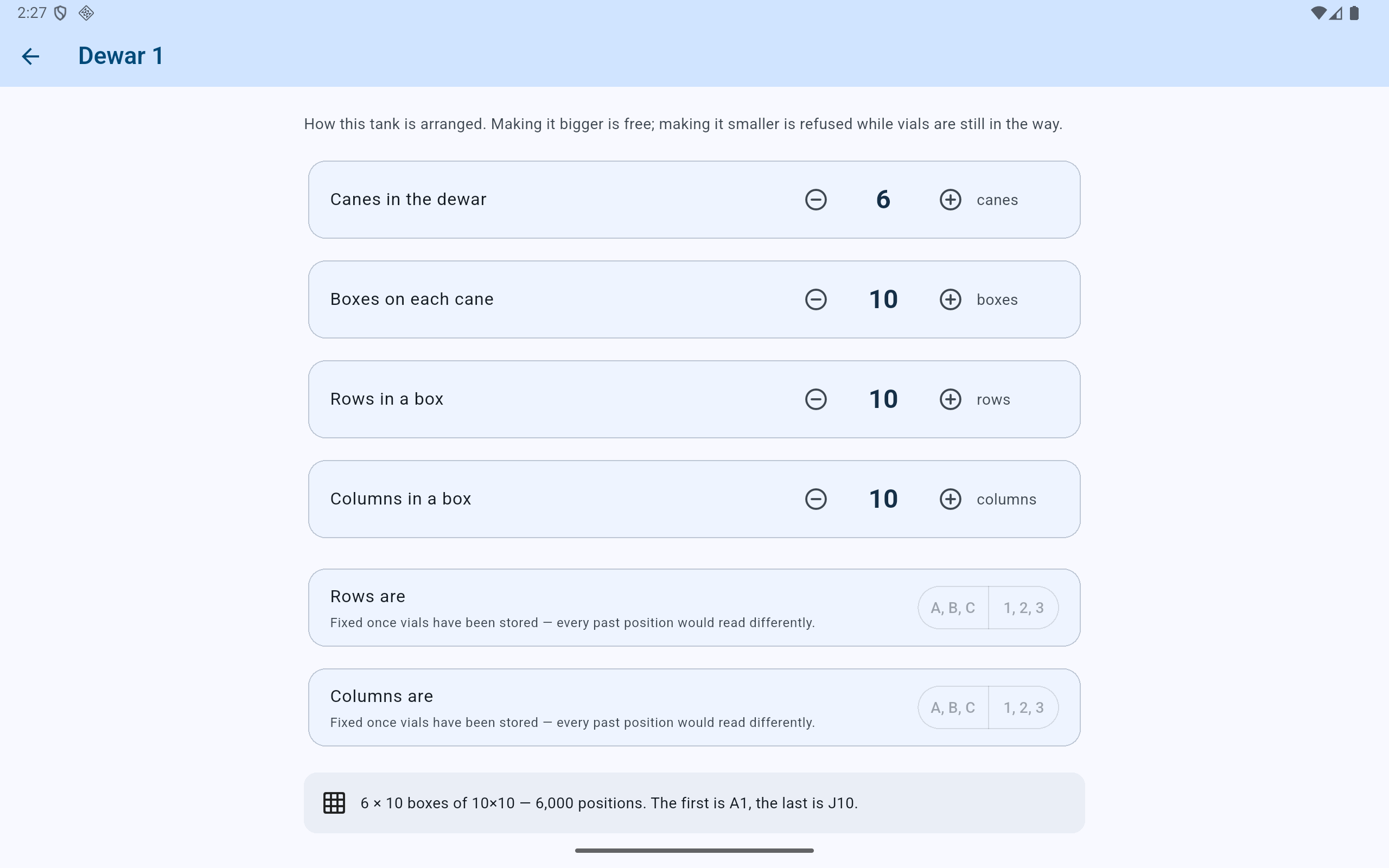
The example describes 60 boxes with 100 positions each, for 6,000 possible vial positions.
- Set the physical cane count.
- Set the physical box count on each cane.
- Set the grid rows and columns from the box itself.
- Confirm the coordinate convention and capacity summary.
Coordinate convention
Do not relabel a populated inventory.
Rows and columns can use letters or numbers during initial setup. Once vials have been stored, those choices are fixed because changing them would make every historical position read differently. The summary states the first and last position so the lab can verify the convention before use.
Changing box dimensions is different from moving stock. CryoIndex refuses a smaller shape while a stored vial would be left outside it. It does not automatically choose a new physical position for that vial.
Optional phase labels
Identify box levels in liquid only when the lab uses that distinction.
Select the box levels that physically sit in liquid nitrogen. CryoIndex can then describe whether a vial is in liquid or vapour phase. Leave every box unselected when the lab does not maintain or report that distinction.
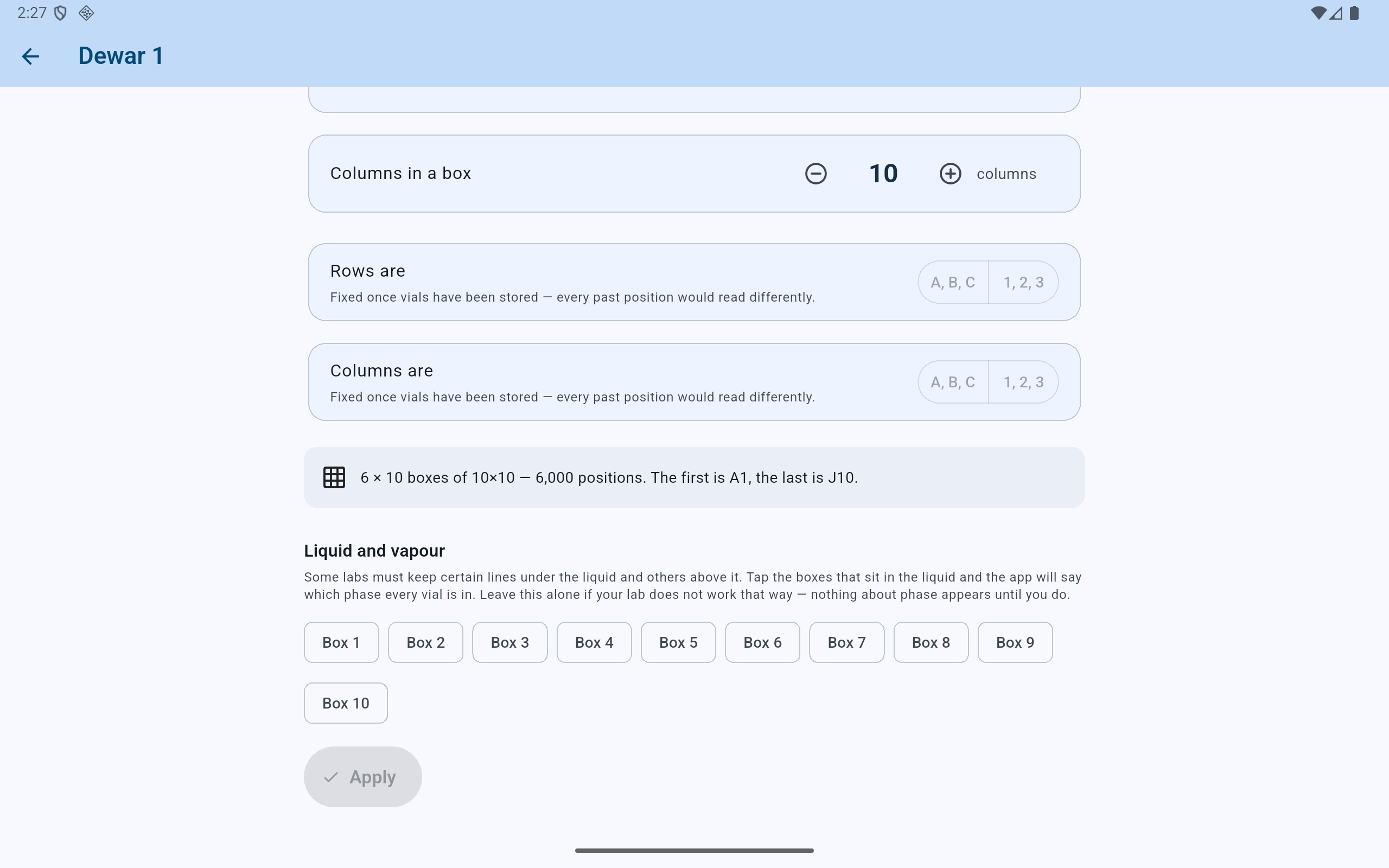
No phase wording appears for vials until at least one box level is marked as liquid phase.
- The coordinate labels are fixed after storage begins.
- Recheck the calculated first and last positions.
- Mark only box levels that are physically maintained in liquid.
- Apply remains unavailable until a setting actually changes.
Review the capacity
Compare the proposed shape with the hardware before applying.
- After changing a count, compare the capacity summary—canes, boxes, grid size, total positions, and first and last coordinate—with the physical hardware.
- Select Apply only when that proposed shape is the physical arrangement the lab intends to record.
- If CryoIndex refuses the change because stored vials are in the way, it lists the affected records and reports that nothing was changed. Cancel and use each vial's Move action first.
- If custom or uneven box labels make the requested resize ambiguous, CryoIndex refuses it. Reconcile the physical labels instead of inventing locations.
- Browse representative edge boxes and search known vials after the change, then create another external backup.