Home
Read Home, then choose a storage environment.
- Read the lab's name at the top. Settings beside it opens the lab-wide settings without choosing a side first.
- Read the alerts. Home shows what needs attention on both sides, in the same words the two dashboards use.
- Under Select a storage environment, choose Liquid Nitrogen Cell Storage or Cold Storage. Each card counts what it holds and, when there is one, names the next fill, defrost or clean-out due.
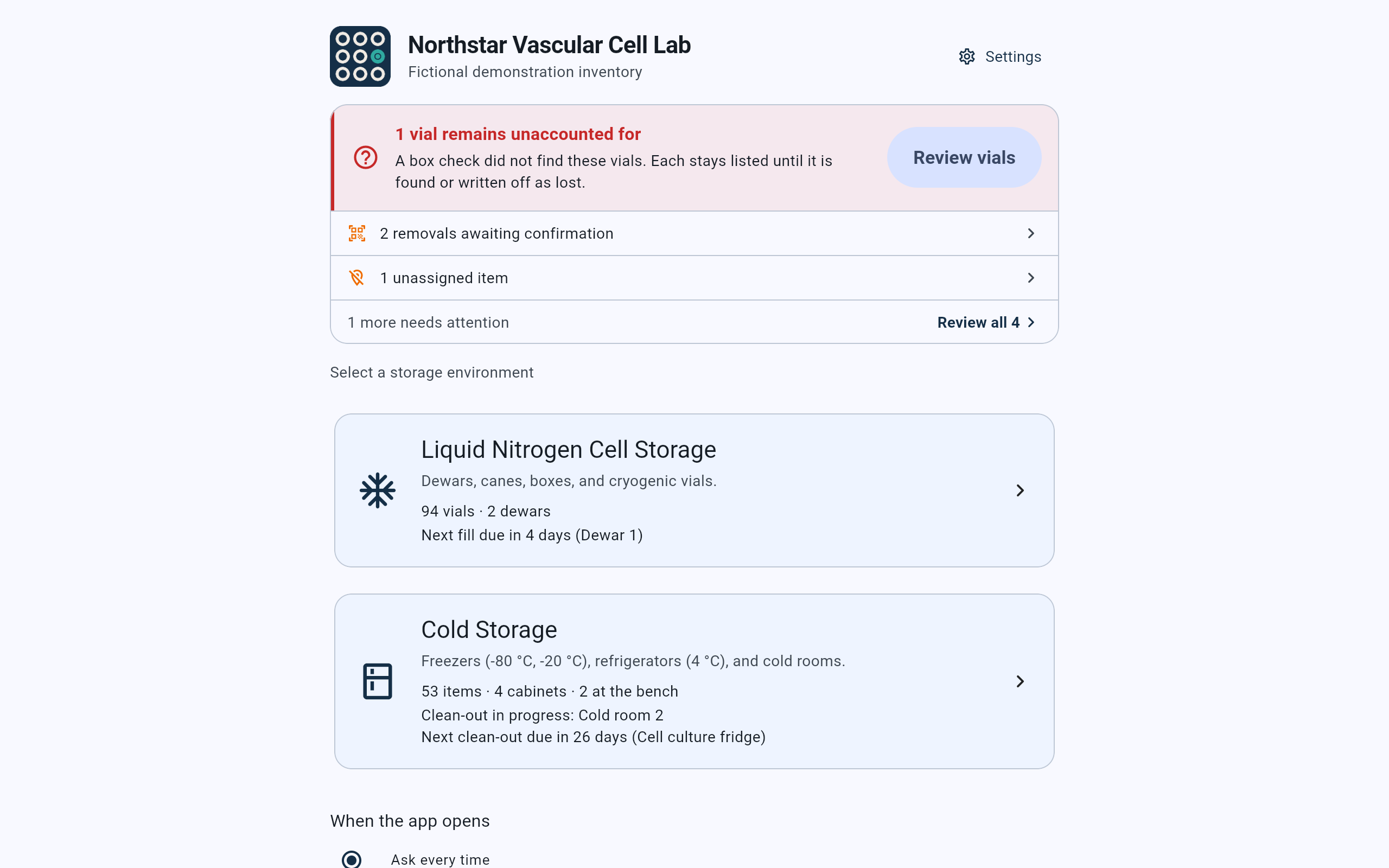
Home in the demo lab. Both cards are always shown, whether or not the lab has started using that side.
- Settings for the whole lab: its name, lab members, dewars, Cold Storage and data.
- Alerts from both sides. Review all 4 lists every one.
- Liquid Nitrogen Cell Storage opens the cell storage dashboard: vials, dewars and the next fill due.
- Cold Storage opens the Cold Storage dashboard: items, cabinets, what is at the bench, and defrosts and clean-outs.
Each side has its own setup guide. The first time Liquid Nitrogen Cell Storage is opened, its setup guide asks how the dewar is arranged. The first time Cold Storage is opened, its own guide asks about cabinets. Each guide keeps opening until it is finished or skipped. See Set up a lab without a spreadsheet and Open Cold Storage for the first time.
Home · When the app opens
Choose what the app shows when it starts.
- On Home, scroll down to When the app opens.
- Choose one of the three answers below. It is saved as soon as it is selected.
- Nothing opens when you choose. The answer takes effect the next time CryoIndex starts.
Opens on Home, with both cards. This is how CryoIndex starts until something else is chosen.
Opens straight into the cell storage dashboard, the one the Liquid Nitrogen Cell Storage card opens.
Opens straight into the Cold Storage dashboard.
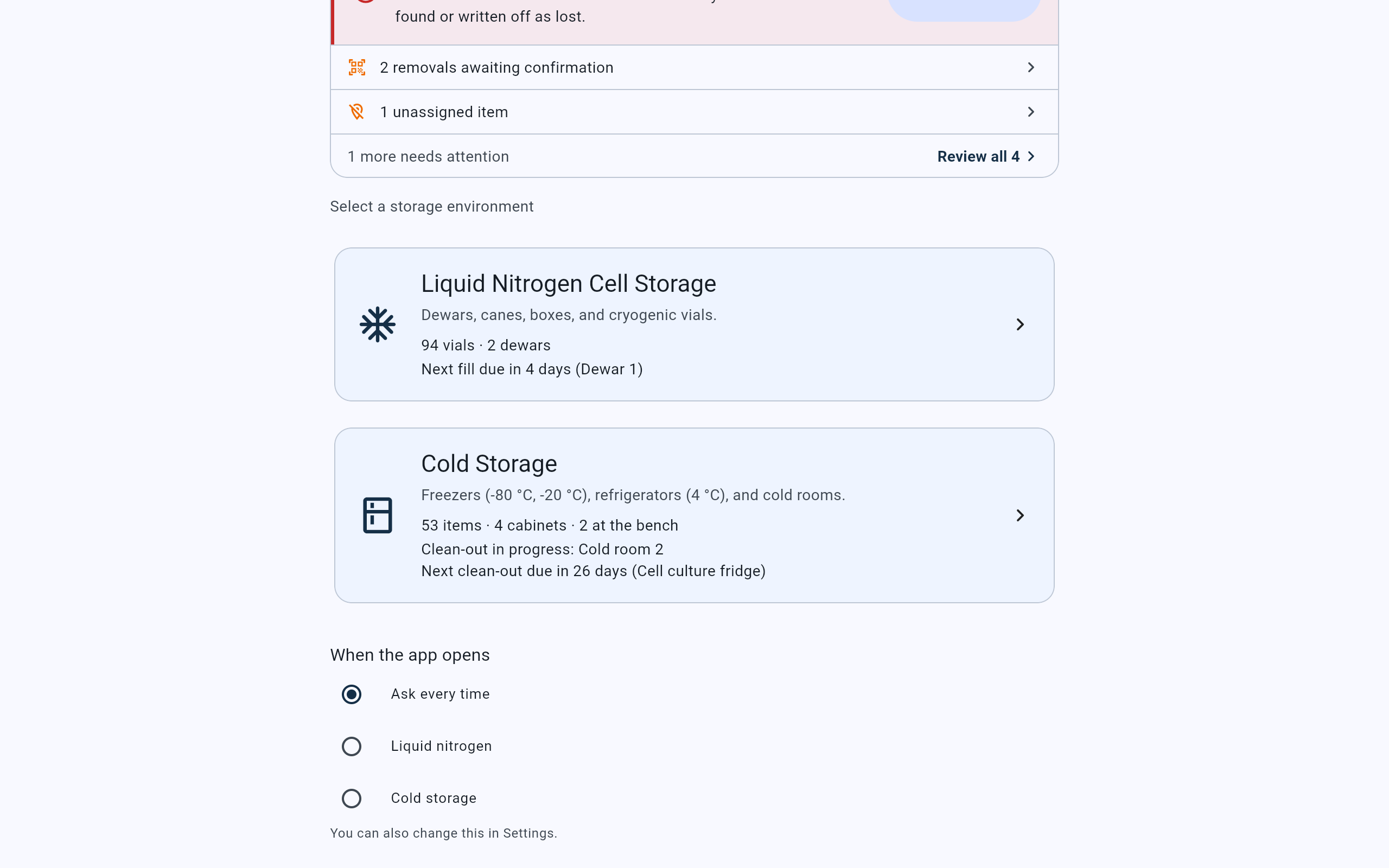
Ask every time is selected, so the app opens on Home.
- Ask every time: the app opens on Home.
- Liquid nitrogen: the app opens on the cell storage dashboard.
- Cold storage: the app opens on the Cold Storage dashboard.
- The same choice is in Settings.
Home · After a side is chosen
Home says where the app will open.
Once Liquid nitrogen or Cold storage is chosen, Home stops asking. In place of the three answers it says “It opens straight into Liquid Nitrogen Cell Storage.” or “It opens straight into Cold Storage.”, with Change in Settings beneath. Both cards stay on Home, so the other side is still one tap away.
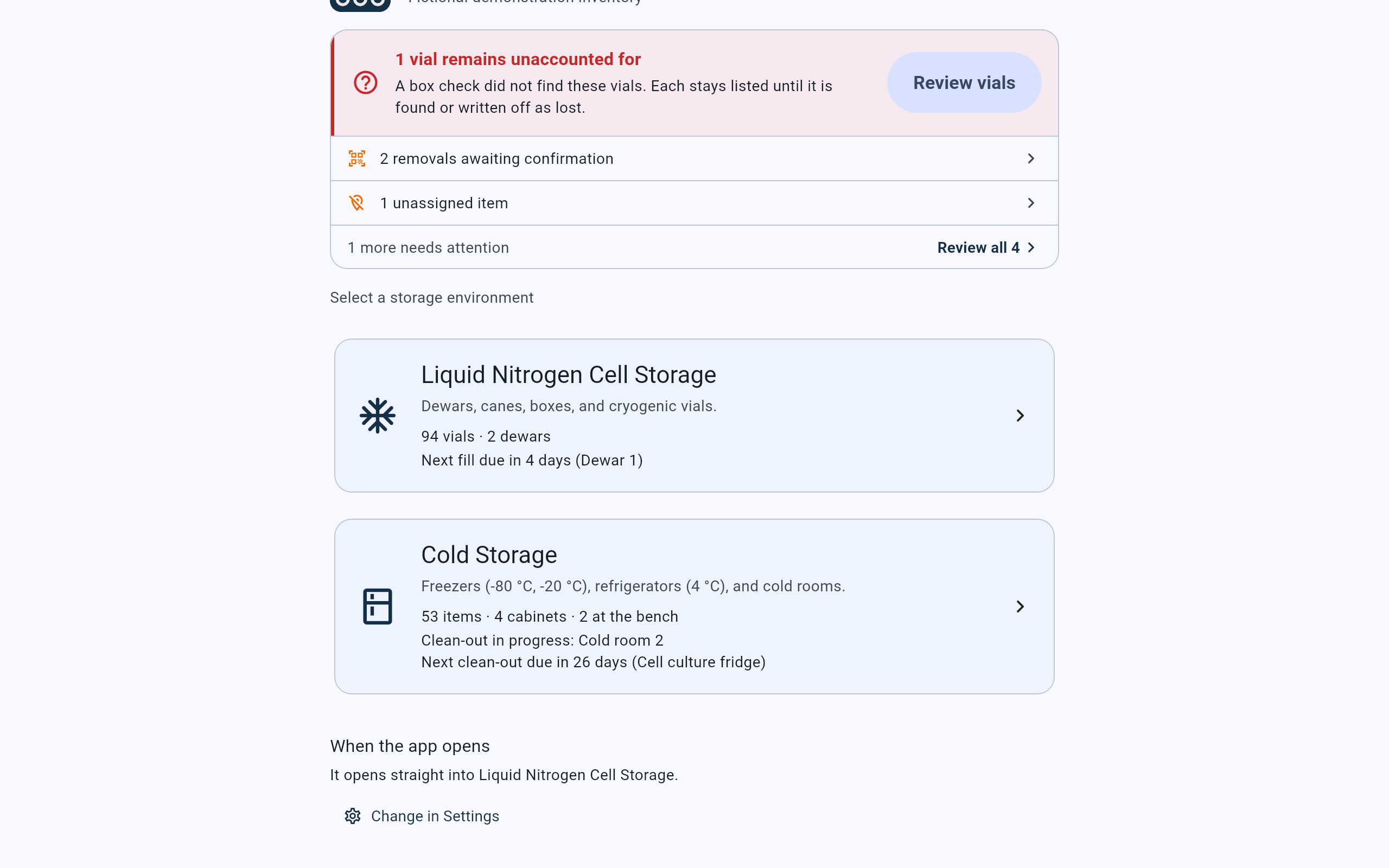
Liquid nitrogen was chosen. The next time CryoIndex starts, it opens on the cell storage dashboard.
- Both cards stay on Home.
- Where the app will open.
- Change in Settings opens Settings, where the choice can be changed or cleared.
CryoIndex goes straight to the chosen side once, when it starts. If you go back to Home after that, Home stays open: the app does not jump to that side again until it next starts. If the app cannot read the choice, it opens on Home.
From either dashboard
Select Home in the dashboard's header.
Home is the first control in the header of both dashboards, before Activity, Reports and the rest. It goes back to Home; nothing is closed or lost.

The cell storage dashboard. Home leads the header.
- Home returns to Home.
- Cold Storage appears once the lab has a cabinet. It opens Cold Storage on top of this dashboard.
- Settings opens the same lab-wide settings as Home.
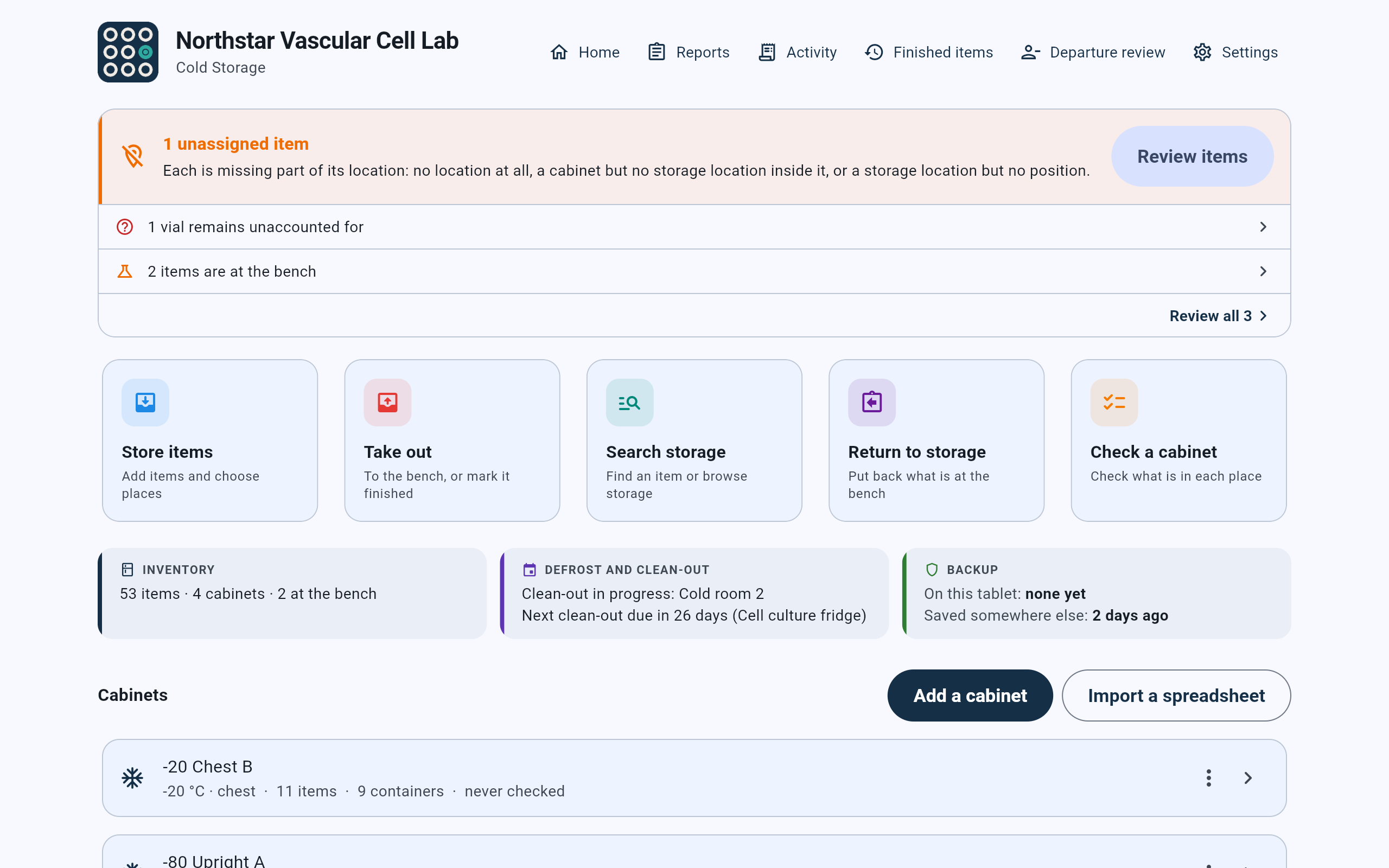
The Cold Storage dashboard, opened from Home. Its second line says Cold Storage.
- The words Cold Storage under the lab name say which side this is.
- Home returns to Home.
- Settings here opens Settings at its Cold Storage section.
Sometimes the header starts with Back. When Cold Storage is opened from the cell storage dashboard's Cold Storage button, its header starts with Back, which returns to the cell storage dashboard. Home there returns to Home.
Settings → Lab
Change or clear the choice in Settings.
- Open Settings from Home or from either dashboard, or select Change in Settings on Home.
- Select Lab in the bar of sections at the top, then scroll down past the two setup guides to When the app opens.
- Choose Ask every time to start on Home again, or the other side to open straight into it. The choice is saved as soon as it is selected.
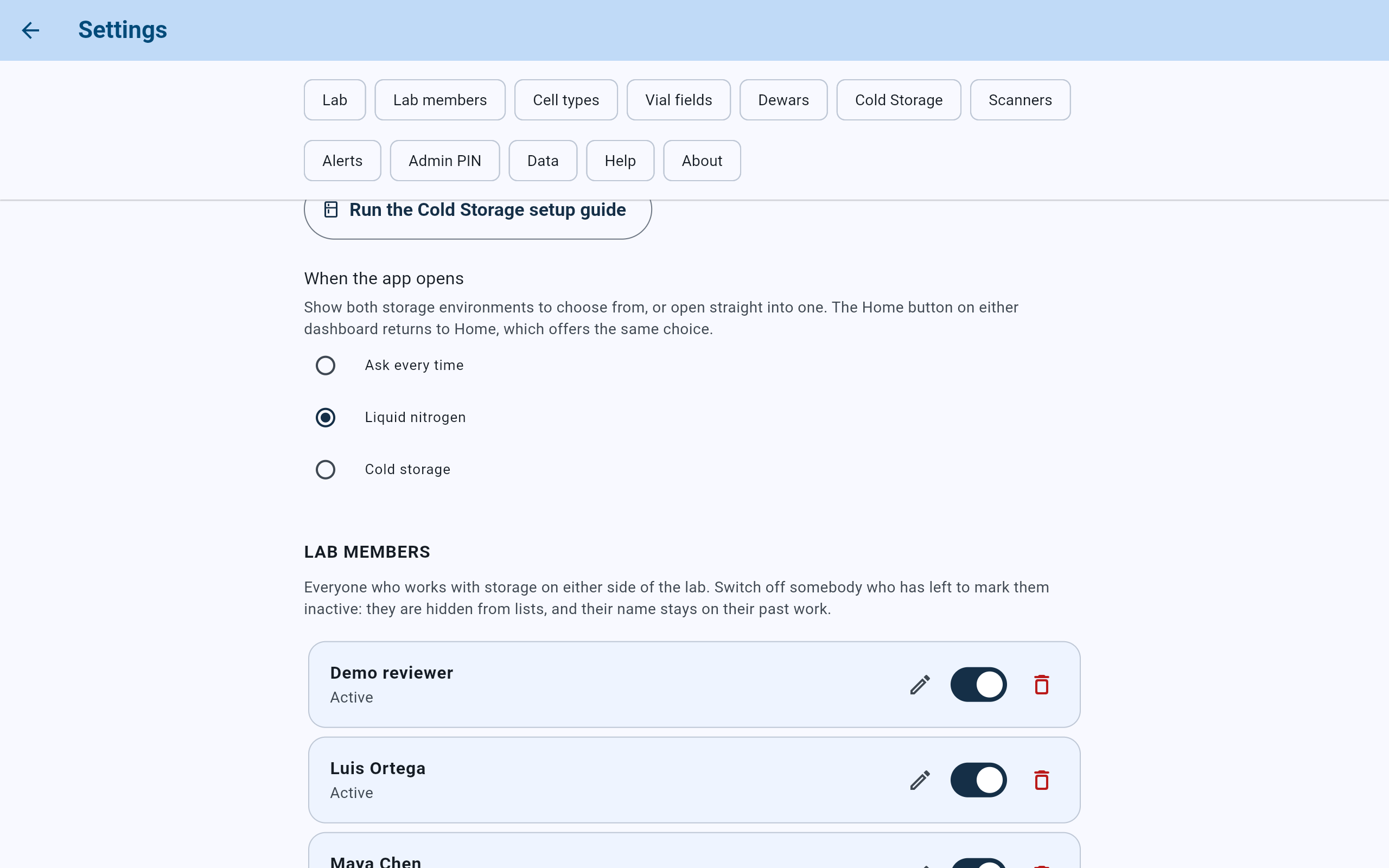
Settings shows the same three answers as Home. Here Liquid nitrogen is chosen.
- When the app opens sits in the Lab section, under the setup guides.
- Ask every time puts Home back as the first screen.
- The current choice.
Backups and replacement tablets
Each tablet or PC keeps its own choice.
Where the app opens is saved on the device itself, apart from the lab's records. Restoring a backup keeps the choice already set on the device and ignores the one in the backup file, so a replacement tablet opens on Home until the choice is made on it again. See Move CryoIndex to a replacement tablet.