Watch the walkthrough
Find an item and read its screen
Captions are available in the player and start turned off so they do not cover the app. The written transcript is below the video.
Read the video transcript
On the Cold Storage dashboard, select Search storage. It looks through every cabinet at once, and only looks: nothing is recorded here.
Type what you remember: a barcode, the material, the lot, a box or a cabinet. Matching boxes come first, then the items and where each one is.
A lab member's name finds the boxes that person is responsible for. Maya Chen is responsible for Matrigel aliquots, and its six items follow.
A scanned barcode gives the one item that wears it. Typing CS-AB-101 shows the same: that item, under Exact barcode match.
Choose it to open its screen: what it is, its state, here In storage, and where it is, from the cabinet down to position A1.
Remaining amount says how much is left and whether it was measured. Freeze-thaw counts the thaws on record: here, one confirmed thaw cycle.
Responsible names the lab member who decides what happens to the item now, here Priya Shah. History lists everything recorded about it, newest first.
Show in Antibody aliquots opens the box, with the item's position outlined and a line saying CS-AB-101 is at A1.
Open CS-RNA-001, HPAEC total RNA. Under Lineage, Made from names the cell vial it was prepared from, CI-DEMO-1033, now taken out of the dewar.
Narration uses an AI-generated voice.
From the dashboard
Open Search storage from the Cold Storage dashboard.
On Home, open Cold Storage, then select Search storage. The screen opens on the Search or scan tab; Browse storage is the other tab. The Inventory summary on the dashboard opens the same screen straight on Browse storage.
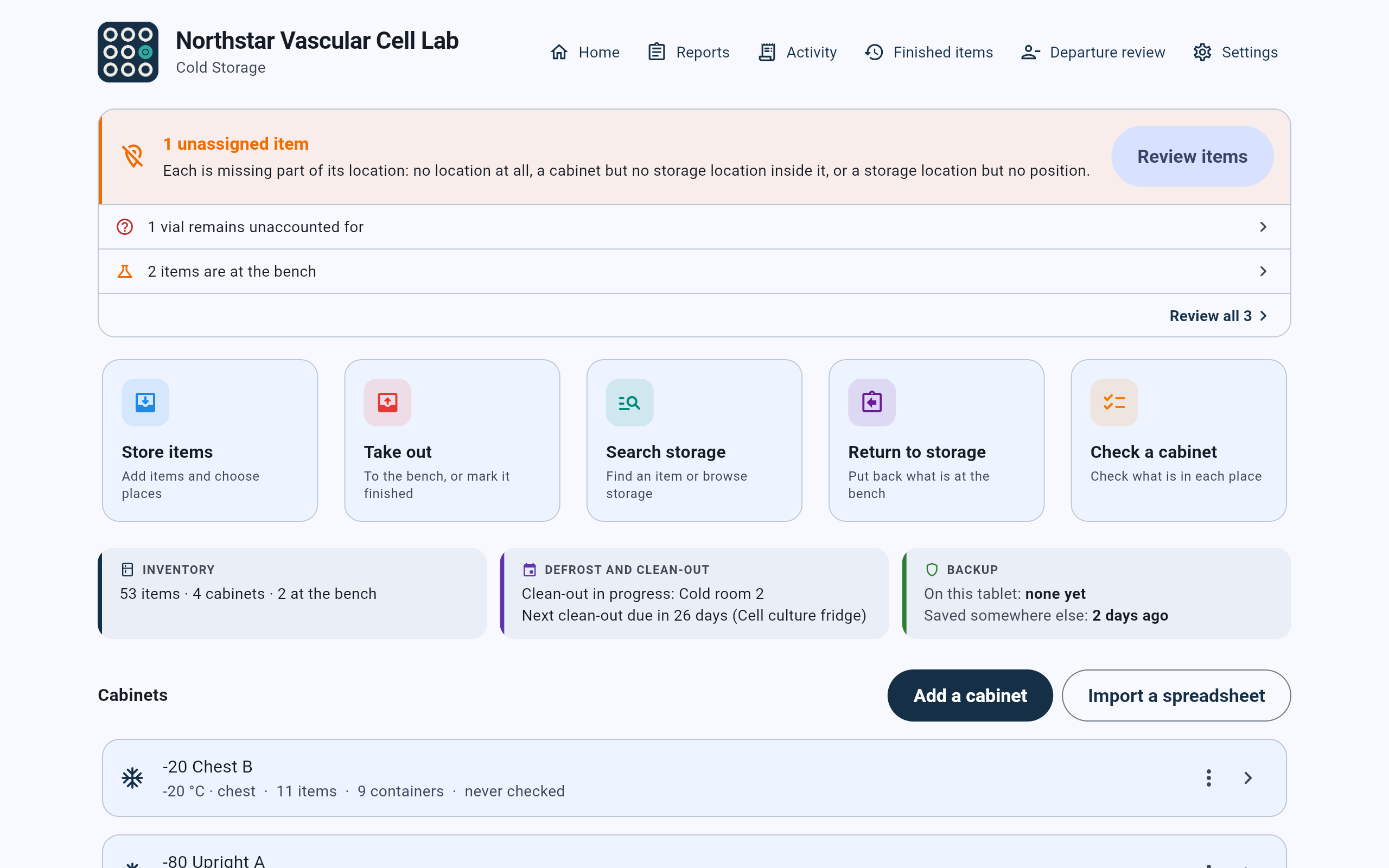
Search storage is the third task card on the Cold Storage dashboard.
- Select Search storage to look something up. Nothing is recorded from this screen.
- Take out uses the same search, but to move items to the bench. See Take items out and return them.
- The Inventory summary opens the search on Browse storage.
- Finished items lists what is used up, discarded, removed from the collection or voided. The search leaves those out.
Search or scan
Type or scan what you remember.
- Tap What are you looking for? and type part of a barcode, the material’s name, the lot, the name of a box, or the name of a cabinet. Results appear as you type, and capital and small letters match alike.
- Or scan the label. A barcode scanner’s scan goes straight into the search, even when the field has not been tapped. On a tablet with a camera, Scan barcode at the end of the field reads the label with the camera.
- To start again, select Clear (the cross in the field).
The barcode and the item’s notes; the material’s name, type, catalog number, description and biosafety note.
The lot or preparation and its notes, and any of the lab’s own fields recorded for the item, its lot or its material.
The cabinet’s name, the name of any box, rack, shelf or area it is inside, and the person responsible for any of them.
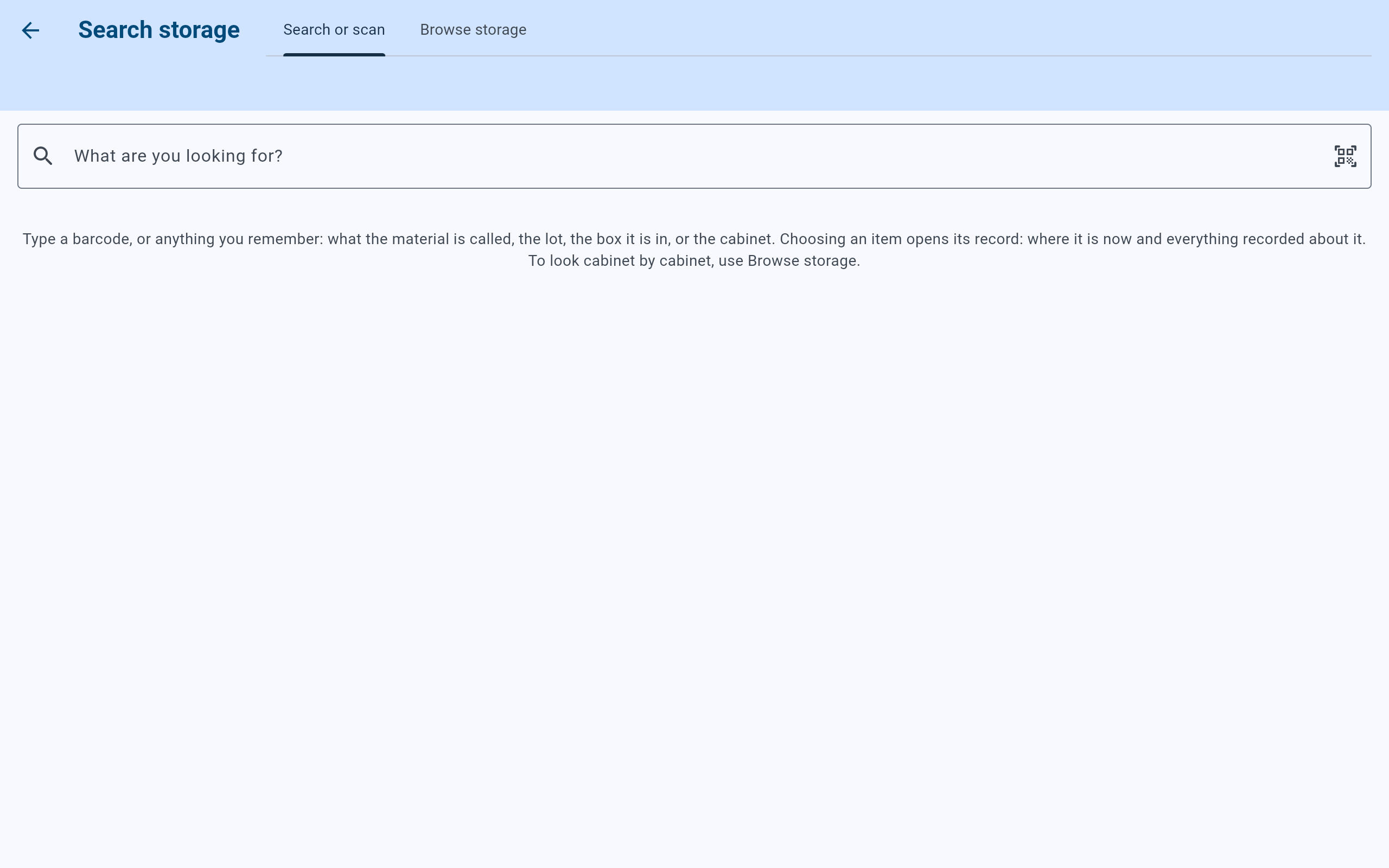
Before anything is typed, the screen says what the search is for.
- Search or scan, the tab this lesson uses.
- Browse storage walks the cabinets instead of searching.
- Type here, or scan a label with a barcode scanner.
- Scan barcode uses the tablet’s camera.
- The app’s reminder: choosing an item opens its record, where it is now and everything recorded about it.
The results
Read the boxes first, then the items.
The results come in two groups. Boxes and other containers whose name matches come first, under a heading such as “1 container”. Items come next, under a heading such as “7 stored items”, sorted by material.
- A box row gives its name and short reference (such as c-20), its type, who is responsible for it, how many items it holds, and where it is. Two boxes with the same name are told apart by the reference and the path.
- An item row gives the material, the barcode and lot, the path to the box it is in, and its own position, such as “Item position inside Antibody aliquots: A1”. An item at the bench or marked missing also shows that state, such as Out at the bench.
- If more results match than fit, select Show more under the list.
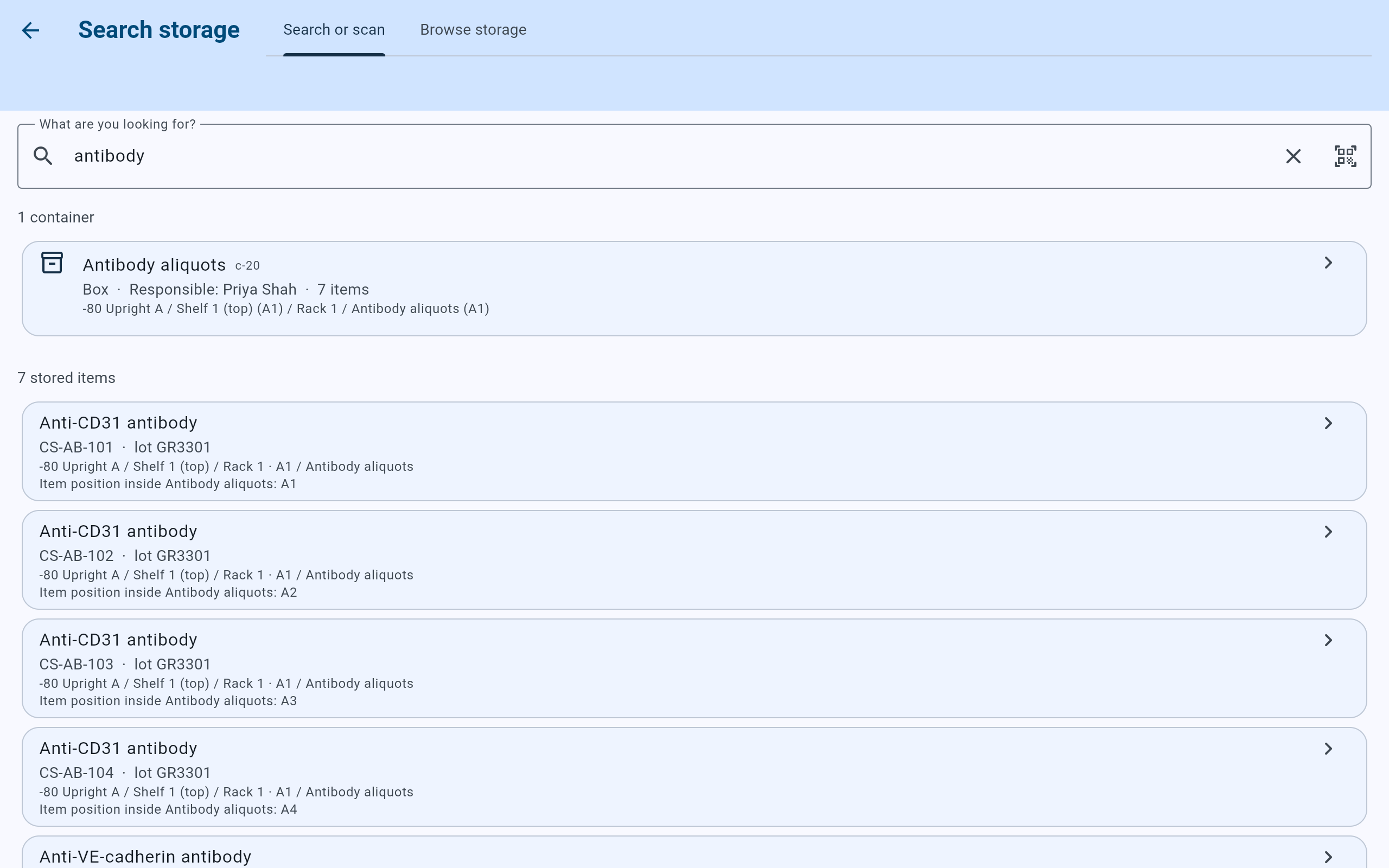
A search for “antibody” finds the box called Antibody aliquots and the seven antibody items in it.
- A matching box, with its reference, type, the person responsible, its item count and its place in the cabinet. Choosing it opens the box.
- How many items matched.
- One item: the material, barcode and lot, the path to its box, and its position in the box.
- Clear empties the field.
There are no filters to set. One search covers every cabinet, retired ones included, and every item in storage, at the bench or marked missing. An item whose material has been archived is still found and is marked archived material. To narrow the list, type more of the name, lot or barcode.
Who is responsible
Find the boxes a lab member is responsible for.
Typing a lab member’s name finds every box, rack or shelf that person is responsible for, and every item inside them. The search does not cover the person responsible for a single item; to see that, open the item and read Responsible.
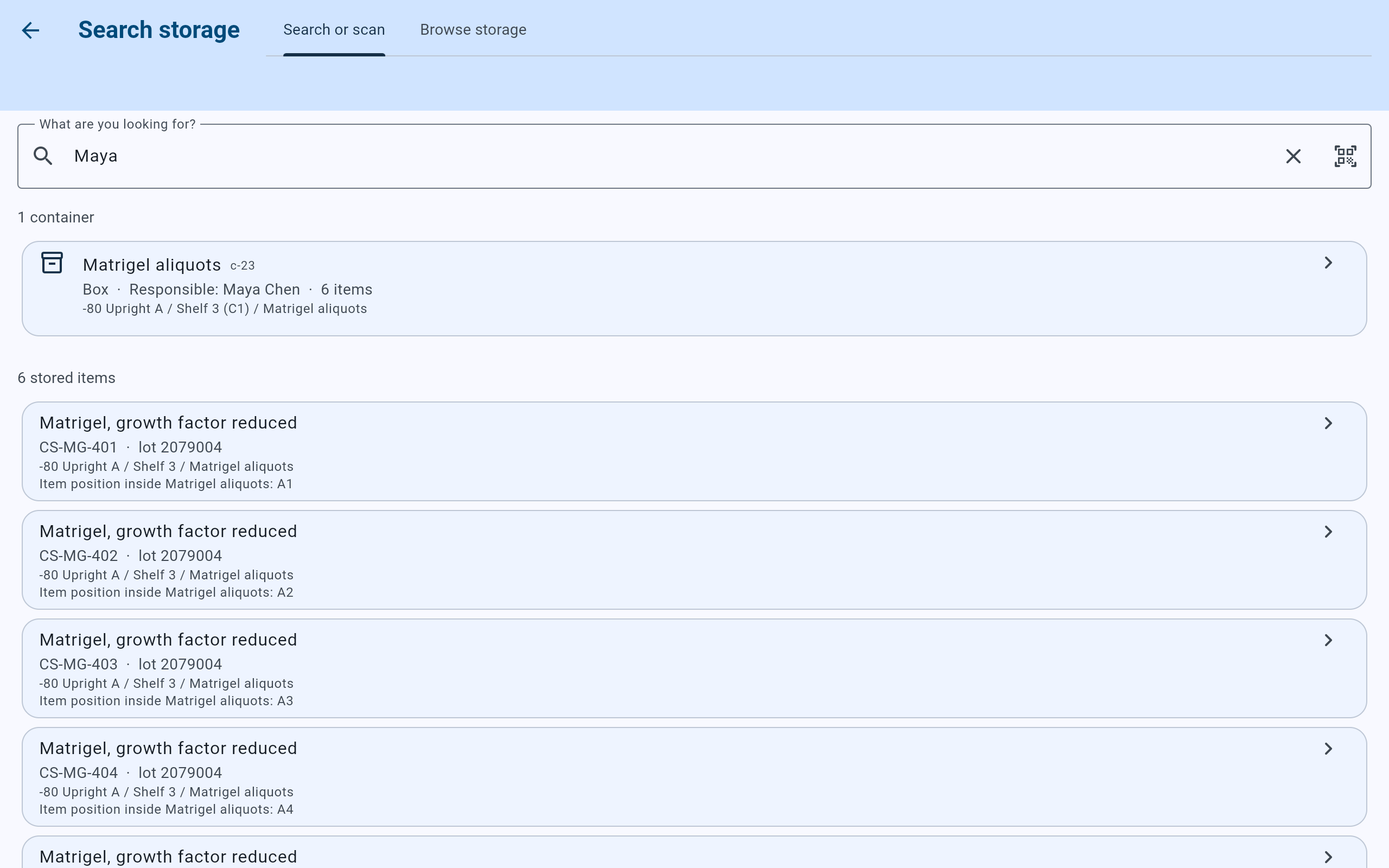
“Maya” finds the box Maya Chen is responsible for, and the six items in it.
- A lab member’s name, or part of it.
- The box whose Responsible person matches.
- The items in that box are found too.
Scan a label
Scan a barcode to find the item with that barcode.
When the text in the field is a whole barcode, the item with that barcode is shown first, highlighted, under Exact barcode match. Other items that only mention the same text follow under “other stored items”.
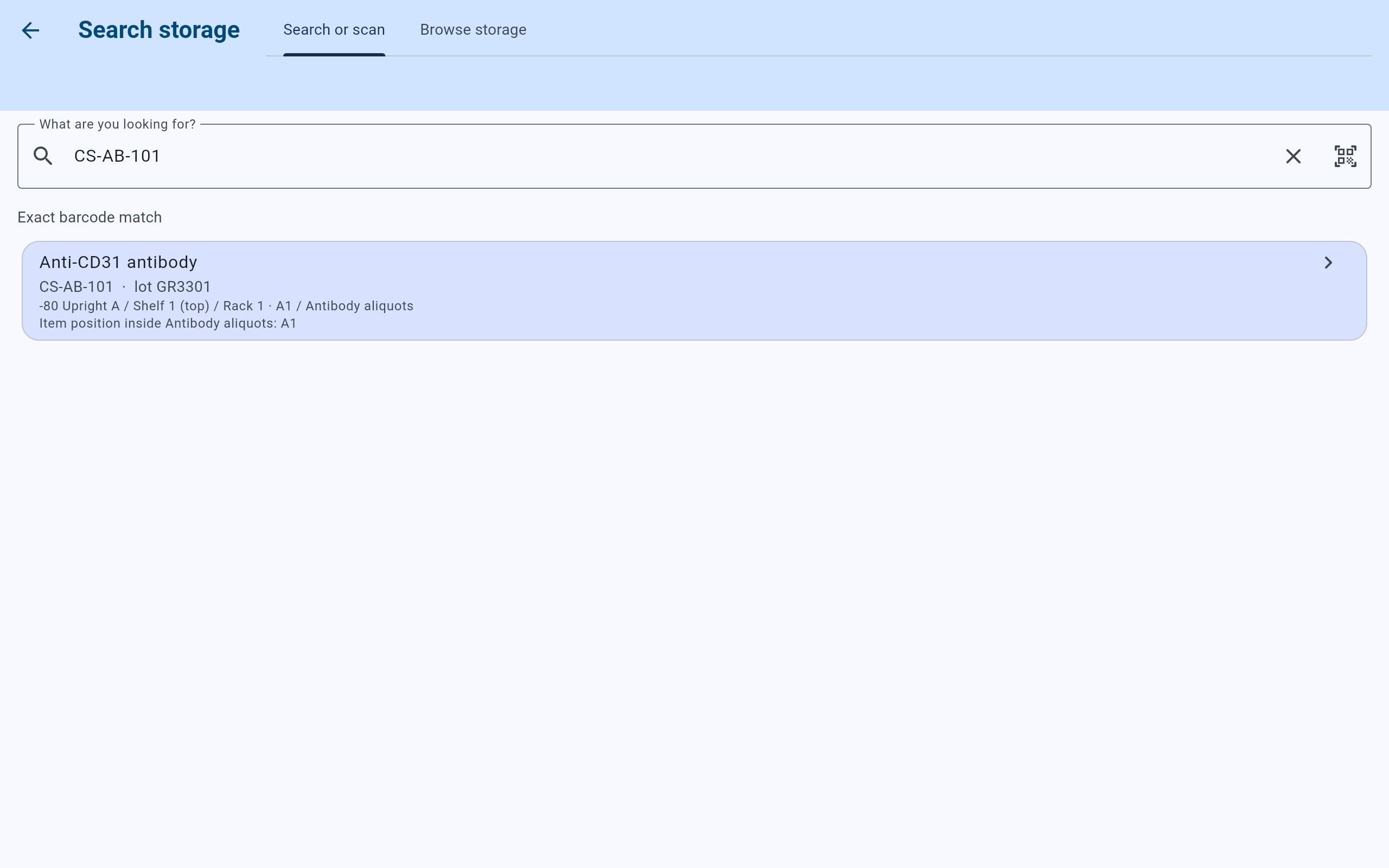
Scanning CS-AB-101 answers with that one item and where it is.
- Exact barcode match heads the item that has exactly this barcode.
- Choose the row to open the item’s screen.
A barcode that belongs to an item already used up, discarded, removed from the collection or voided is still shown, under That barcode is not in inventory any more, so its history can be opened. A search that finds nothing at all says: “No matching items. The search covers items in storage, at the bench and marked missing; items that are used up, discarded, removed from the collection or voided are not included.” Look for those under Finished items.
Open it
Open the item, then the box it is in.
- Choose an item in the results. Its own screen opens, with its state, its place, its amount, its details and its history. Read an item’s screen explains each part.
- Select the button named after its box, such as Show in Antibody aliquots. The box opens with the item’s position outlined and a line such as “CS-AB-101 is at A1.”
- The path above the grid leads back up to the rack, the shelf and the cabinet, so the walk to the freezer can be read from the screen.
- Coming back to the search runs it again, so a result never offers an item that has just been moved or taken out.
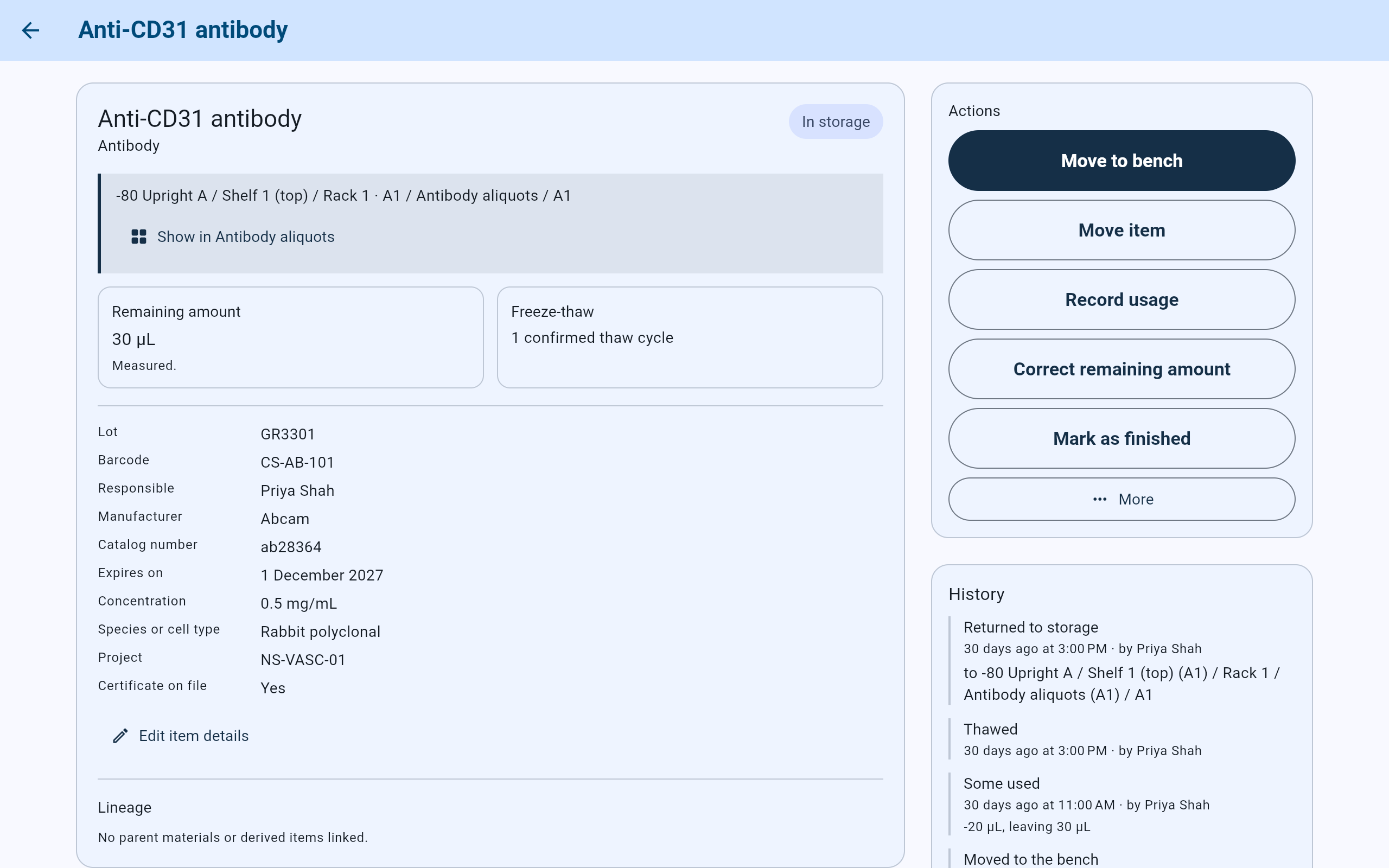
The item’s screen, opened from the search.
- The item’s state: here In storage.
- Where it is, from the cabinet down to its own position.
- Show in Antibody aliquots opens the box with this position outlined.
- What can be done with it. Move to bench records that it was taken out.
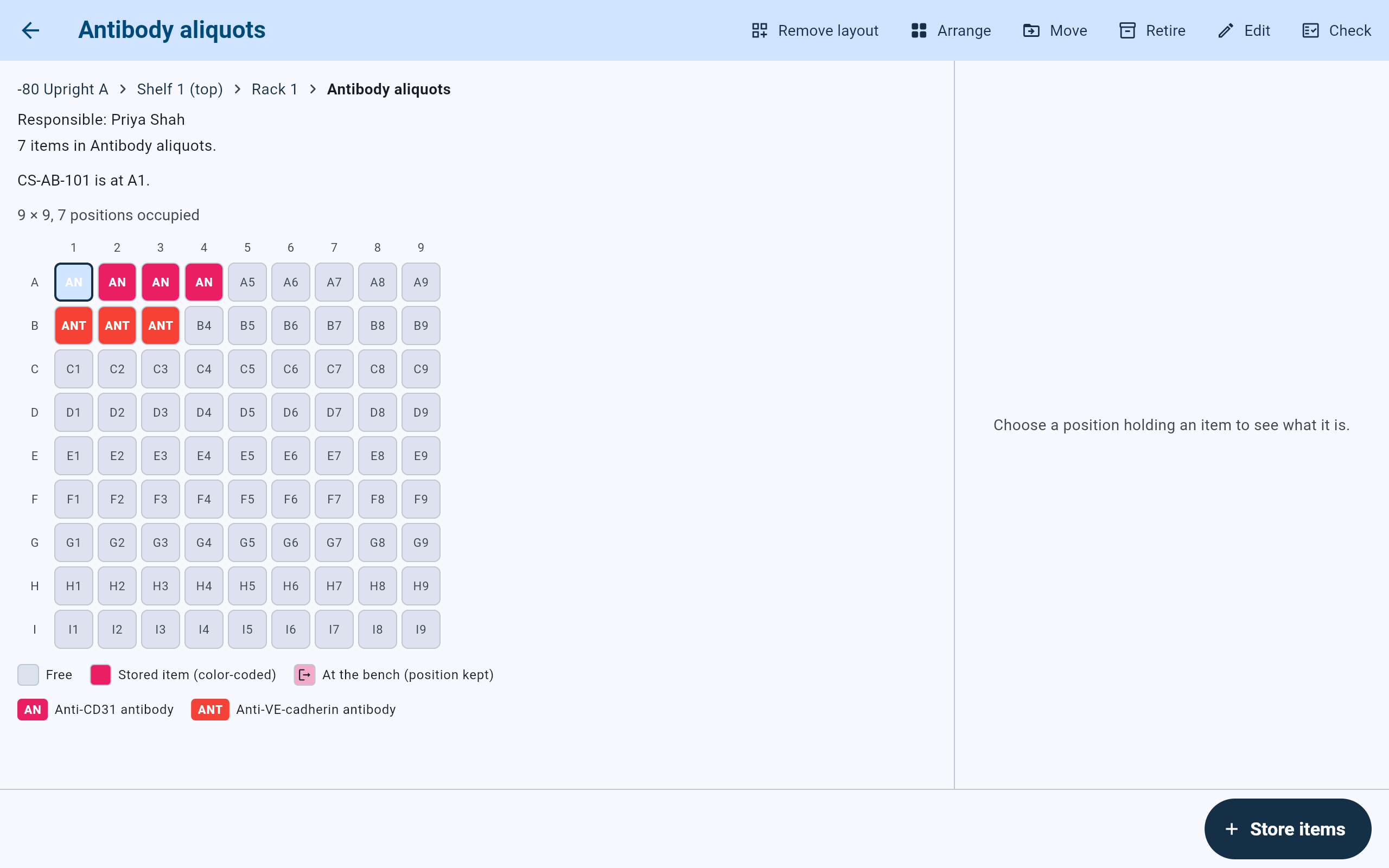
Show in opens the box with CS-AB-101 picked out at A1.
- The path back up to the rack, shelf and cabinet. Each name opens that level.
- The position, in words.
- The same position, outlined in the grid.
- The key to the grid. An item at the bench keeps its position, drawn with its own mark.
Choosing a box in the results opens that box in the same way, with the path to it.
Browse storage
Walk the cabinets when there is nothing to search for.
An item without a barcode, or one nobody can name, is easier to find by walking down to it. Select Browse storage. Every cabinet is listed with its temperature, its kind and its number of items; a retired cabinet is listed too, marked Retired. Choose a cabinet, then a shelf or area, then a box, and choose the position holding the item.
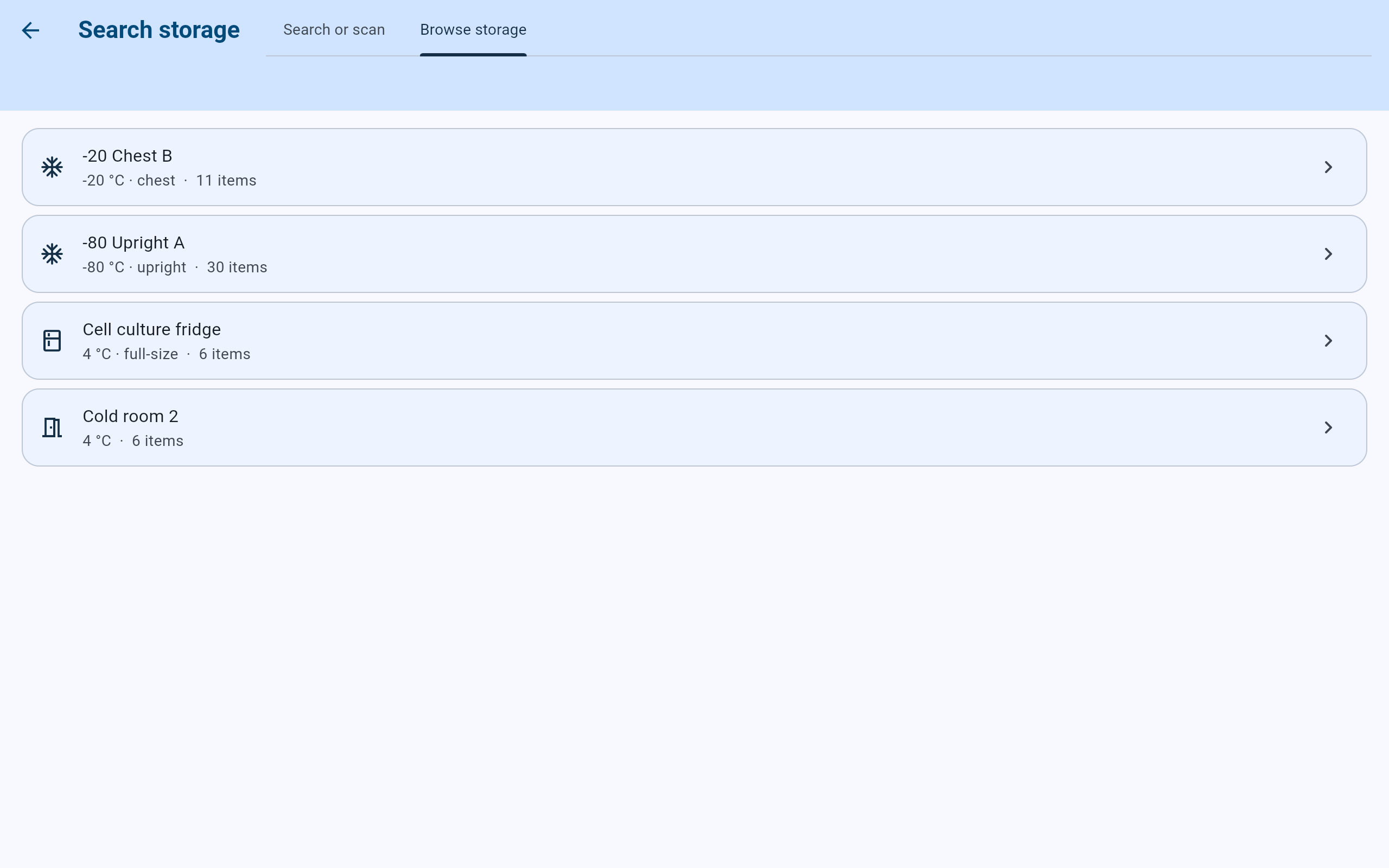
Browse storage lists the lab’s four cabinets.
- The Browse storage tab.
- Choose a cabinet to open it and walk down to the box.