One lab, two kinds of storage
Cold Storage never changes the dewars.
Lab members are one list shared by both sides, so a lab member added here also appears on the liquid-nitrogen side. Cabinets, items and their history belong to Cold Storage alone. A lab that only uses liquid nitrogen never needs to open it.
From Home
Choose the Cold Storage card.
- On Home, choose Cold Storage. The card counts the items and cabinets, says how many items are out at the bench, and names the next defrost or clean-out that is due.
- The first time Cold Storage is opened, its setup guide opens over the dashboard. It keeps opening each time until it is finished or skipped.
- Cold Storage can also be opened from Settings, in the Cold Storage section, and from the liquid-nitrogen dashboard's Cold Storage link once the lab has a cabinet.
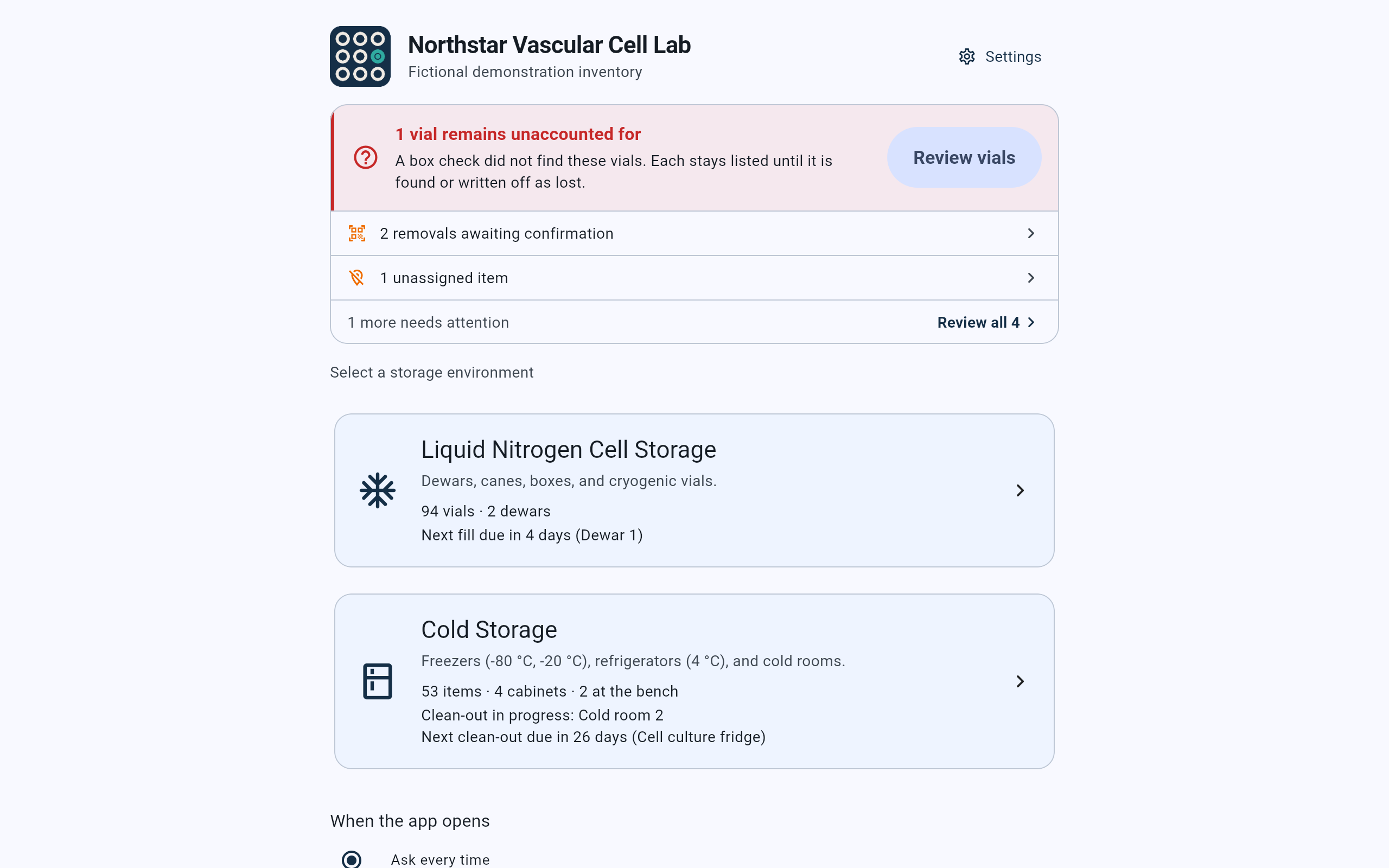
Home shows both kinds of storage. The Cold Storage card opens its dashboard.
- Choose Cold Storage. The first time, its setup guide opens.
- The card's summary: items, cabinets, items at the bench, and any defrost or clean-out in progress or due.
- Settings holds the lab-wide settings, including the way to run the guide again.
- When the app opens can make the app open straight into one side. It is a choice for this device.
Setup guide · Lab members
Name everyone who stores or takes out items.
The top line counts the steps, such as Cold Storage · Step 1 of 3. If the lab is still called CryoIndex, the guide first asks What is this lab called? with a Name and a Second line (optional). That name is saved only when the guide is finished.
- On Who uses Cold Storage?, type a name and choose Add. Each name is saved as soon as it is added.
- People already on the lab's list appear as chips. Choose a chip's pencil to fix a misspelled name. The guide does not remove anyone.
- A cabinet can be added without a lab member, but laying out its shelves or drawers needs one, because every layout records who set it up.
- Choose Next. A name still typed in the field is added first.
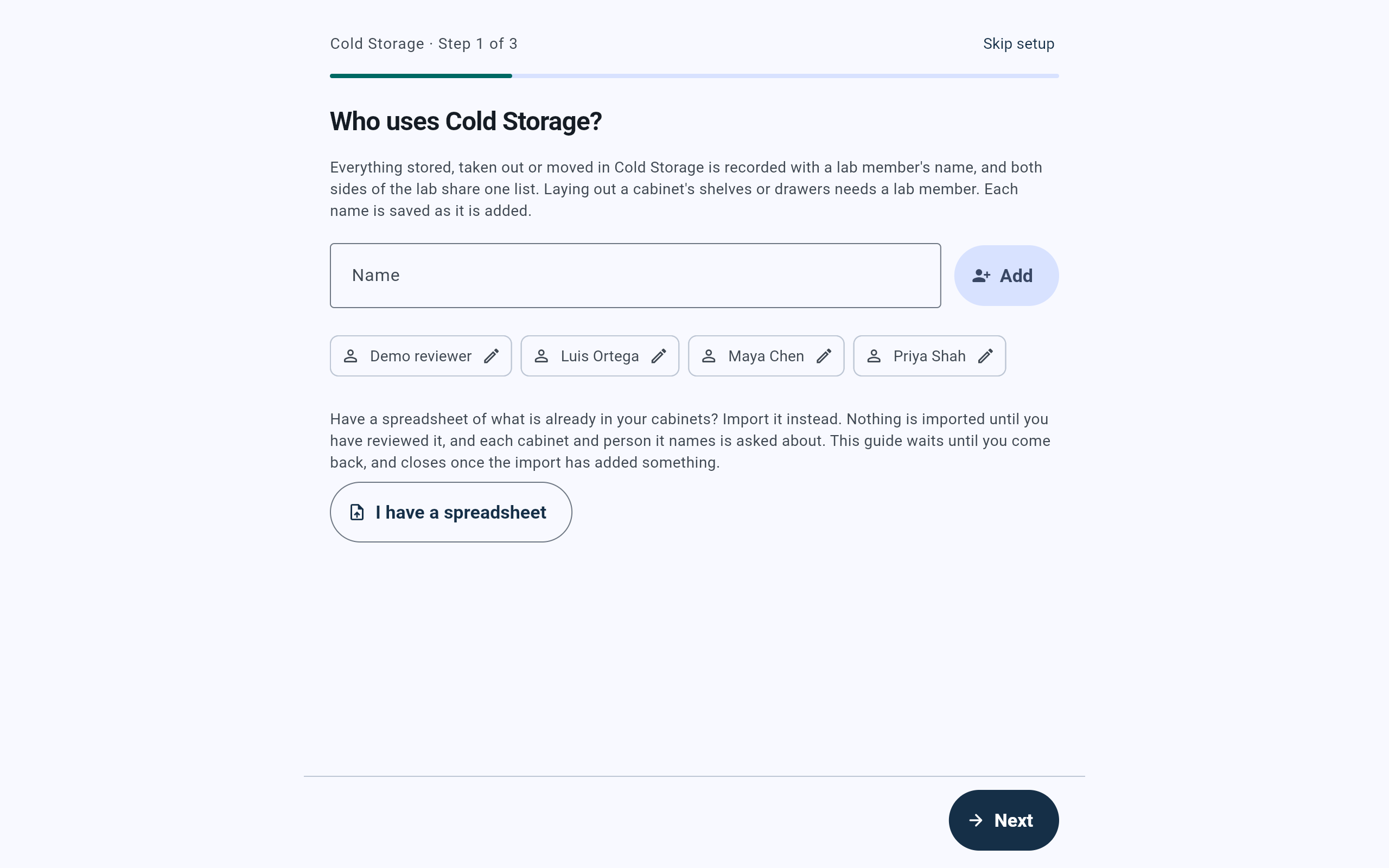
Run again in the demo lab, the guide lists the lab's four active members.
- Type a name and choose Add.
- The pencil on a chip fixes a misspelled name.
- I have a spreadsheet opens the Cold Storage import. The guide waits, and closes only if the import added something.
- Skip setup leaves the guide for good. See below.
Setup guide · Cabinets
Add each freezer, refrigerator and cold room.
- On Which cabinets does the lab have?, choose Add a cabinet (or Add another cabinet once one is listed).
- The full Add a cabinet screen opens: name, storage type, temperature, what it looks like and its starting layout. It is explained in Add a cabinet and choose its layout.
- Repeat for every cabinet, then choose Next. Shelves, racks and boxes can also be added later.
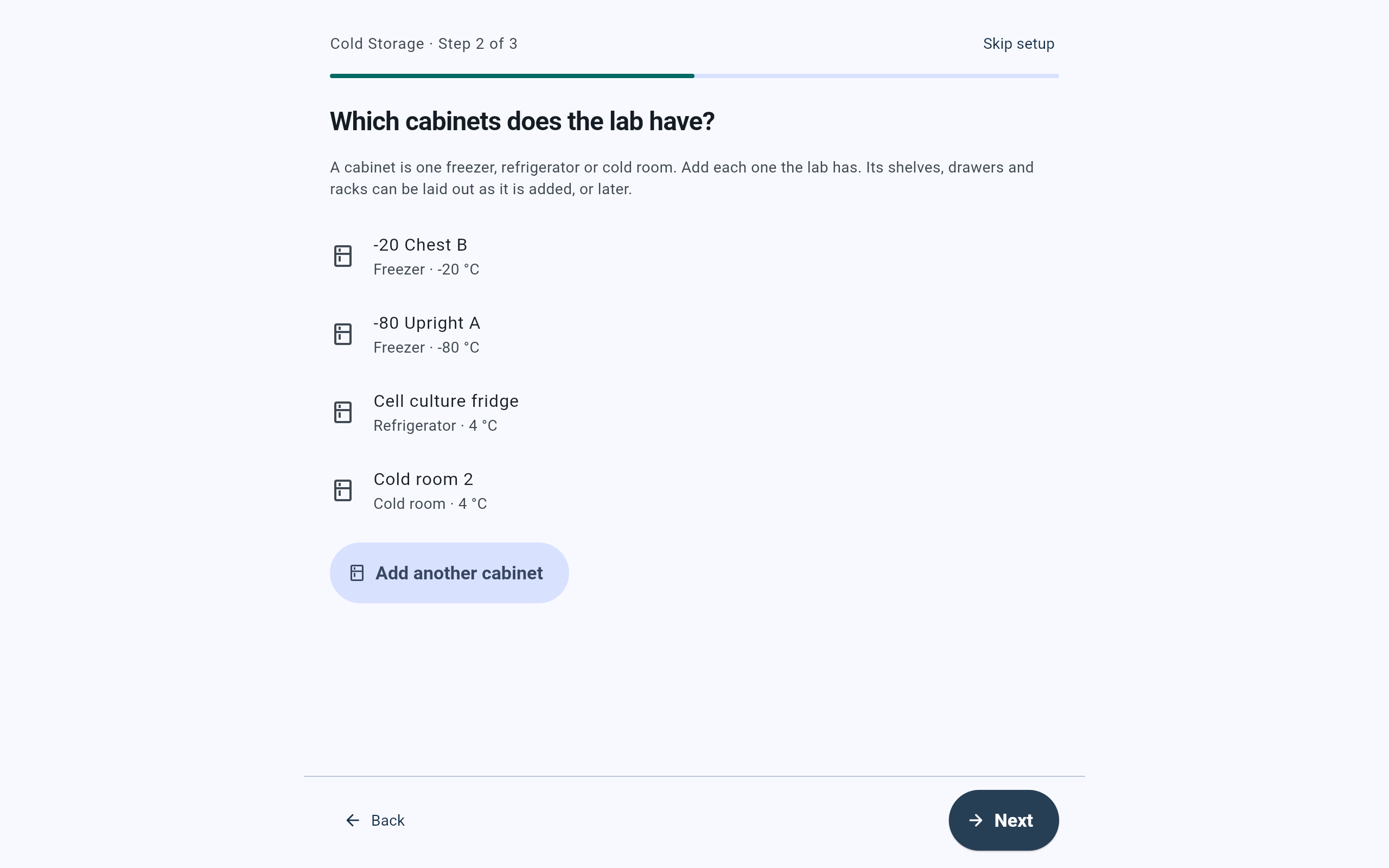
Each cabinet in use is listed with its kind and temperature.
- The cabinets the lab already has. Running the guide again changes none of them.
- Add another cabinet opens the Add a cabinet screen.
- Next moves on. Back returns to the previous step.
Setup guide · Dates
Set when each one is defrosted or cleaned out, if the lab keeps a date.
This step appears only when the lab has an active freezer, refrigerator or cold room. A freezer is defrosted; a refrigerator or a cold room is cleaned out. A cabinet of the kind Other has neither.
- Choose Set a date beside a cabinet with no schedule, or Change beside one that has a date.
- In the form, give how often (Every and Unit), the Next due date, an optional Remind in advance (days), and who is setting it in Set by. Each date is saved with its own Save.
- The whole step is optional. A cabinet with no date can still be defrosted or cleaned out at any time.
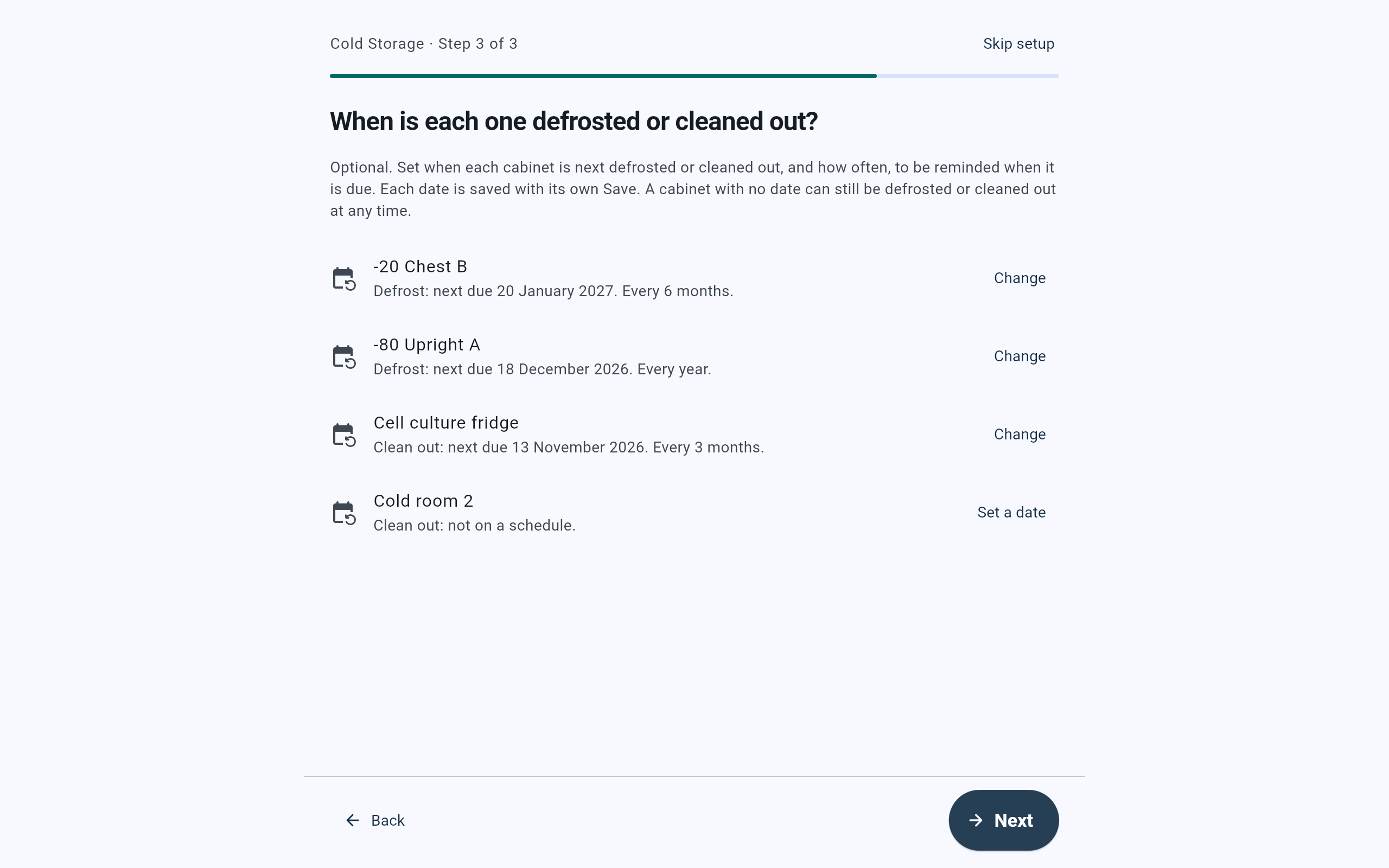
The demo lab has dates for three cabinets. Cold room 2 has none.
- Each cabinet says whether it is defrosted or cleaned out, when it is next due and how often.
- Change edits a date that is already set.
- Set a date starts reminders for a cabinet with none.
Setup guide · Ready
Read the summary, then choose where to go next.
The last step, headed Cold Storage setup, lists the lab name, the lab members, the cabinets and any schedules. Everything on it can be changed later.
Finishes the guide and opens Store items. It is offered once the lab has a cabinet.
Finishes the guide and opens the Cold Storage import.
Finishes the guide and shows the Cold Storage dashboard.
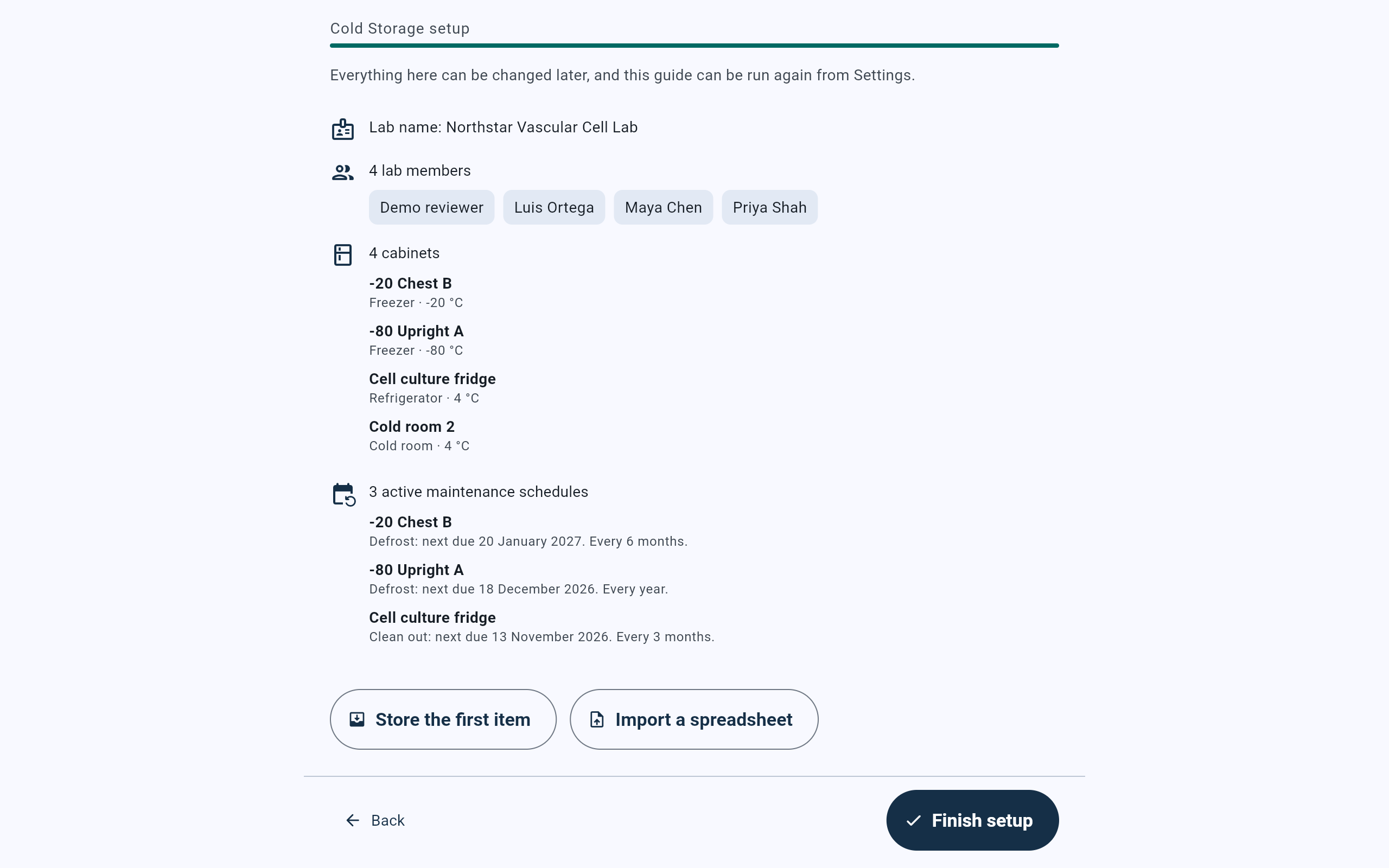
The Ready step recaps what the guide found and added.
- The recap: lab name, lab members, cabinets and schedules.
- Store the first item goes straight to storing.
- Import a spreadsheet goes to the import.
- Finish setup closes the guide and saves a lab name typed on its first step.
If the guide is not wanted now
Leave early with Skip setup.
- Choose Skip setup, or use the device's Back gesture. Both leave the guide.
- If anything was added or typed, Leave the Cold Storage guide? says what stays saved and what was not saved. Choose Keep going to return, or Leave the guide.
- Lab members, cabinets and dates added in the guide stay saved. A lab name typed on its first step is not saved.
- After leaving, the guide does not open by itself again. Run it from Settings when it is wanted.
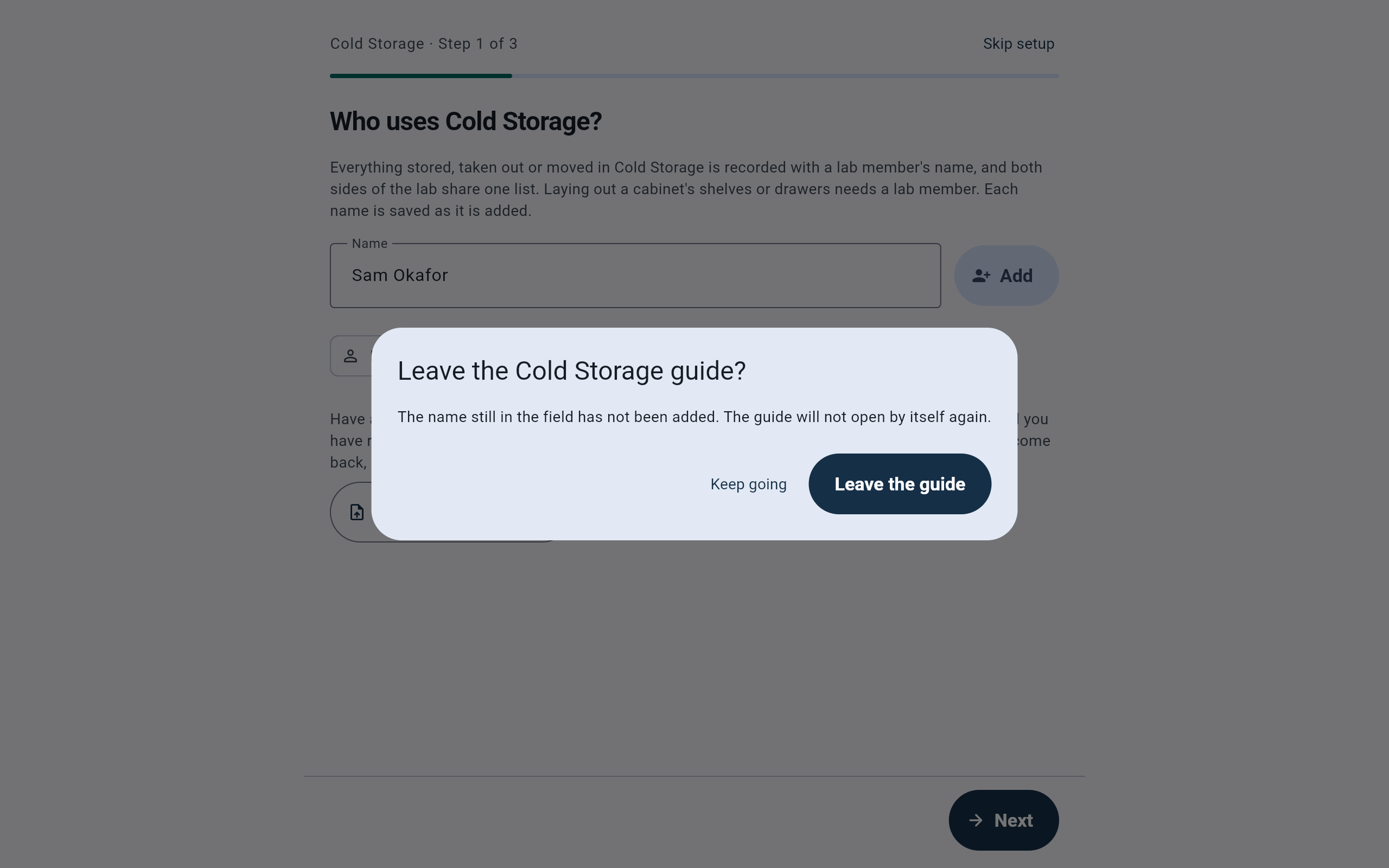
A name was typed and not added, so the dialog says so before leaving.
- What is saved and what is not, for this visit.
- Keep going returns to the step.
- Leave the guide closes it for good.
Settings · Lab
Run the guide again from Settings.
- Open Settings from Home or from the Cold Storage dashboard.
- In the Lab section, choose Run the Cold Storage setup guide. No Admin PIN is asked.
- Running it again adds lab members, cabinets and dates. It lists the cabinets the lab already has and changes none of them, and it never removes a lab member.
The two guides are separate. Run the cell storage setup guide, just above, is the liquid-nitrogen guide. It can change how a dewar is arranged and asks for the Admin PIN when one is set.
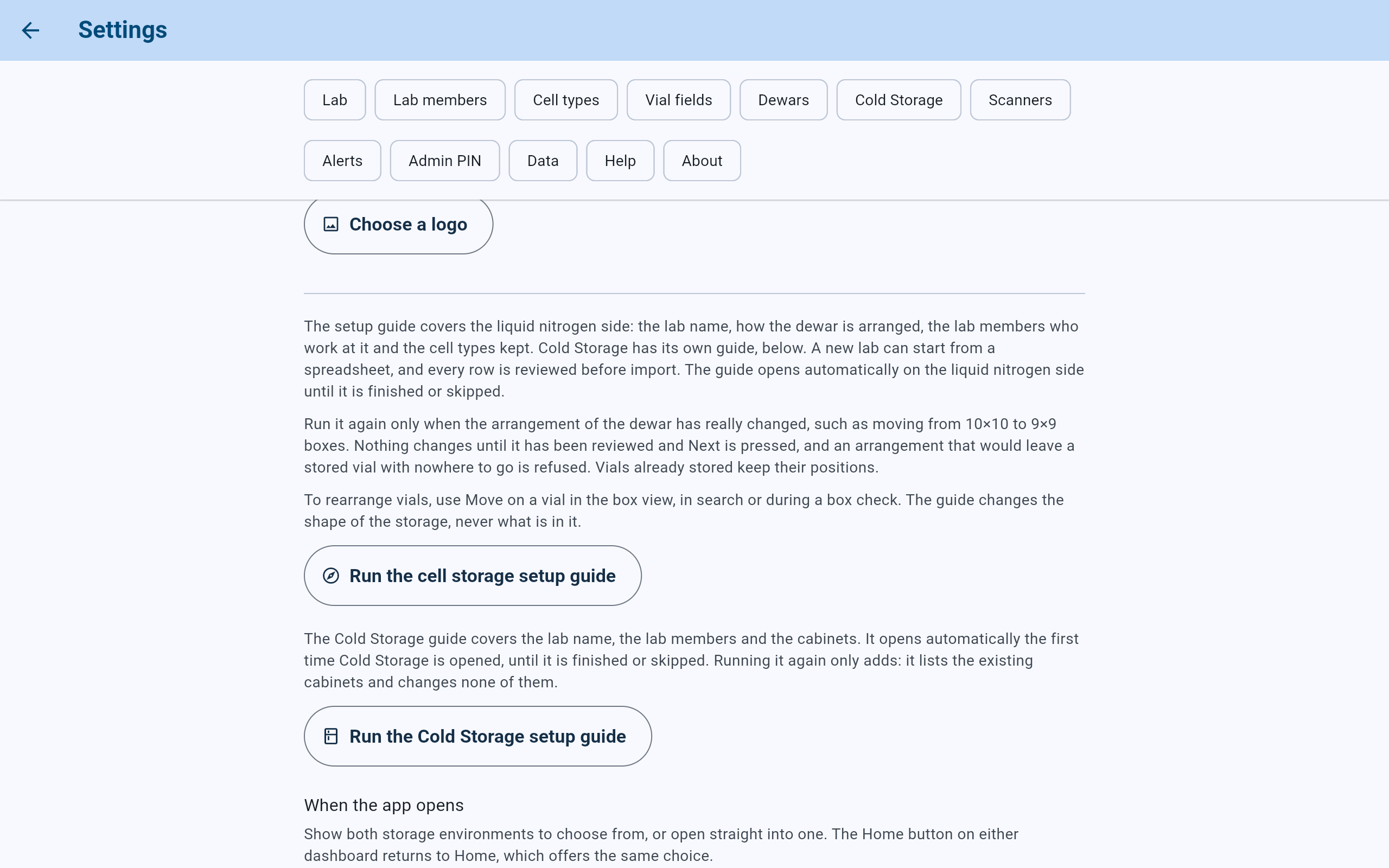
Both setup guides are in the Lab section of Settings.
- The Lab section, at the start of Settings.
- Run the Cold Storage setup guide opens the same guide.
- The Cold Storage section holds one row that opens the Cold Storage dashboard.
The Cold Storage dashboard
Start everyday work from the five cards.
The second line under the lab name says Cold Storage. Across the top are Home, Reports, Activity, Finished items, Departure review and Settings. Below them are the alerts that need attention.
Choose a place, then store one item or a batch. See Store one item or a batch.
Move an item to the bench, or mark it finished.
Find an item, or browse the cabinets, without recording anything.
Lists what is at the bench, so each item can be put back.
Walk a cabinet and confirm what is in each place.
Under the cards, Inventory counts items and cabinets and opens the storage to browse, Defrost and clean-out shows what is in progress or due next, and Backup says when the lab was last backed up. The Cabinets list ends the page, with Add a cabinet and Import a spreadsheet.
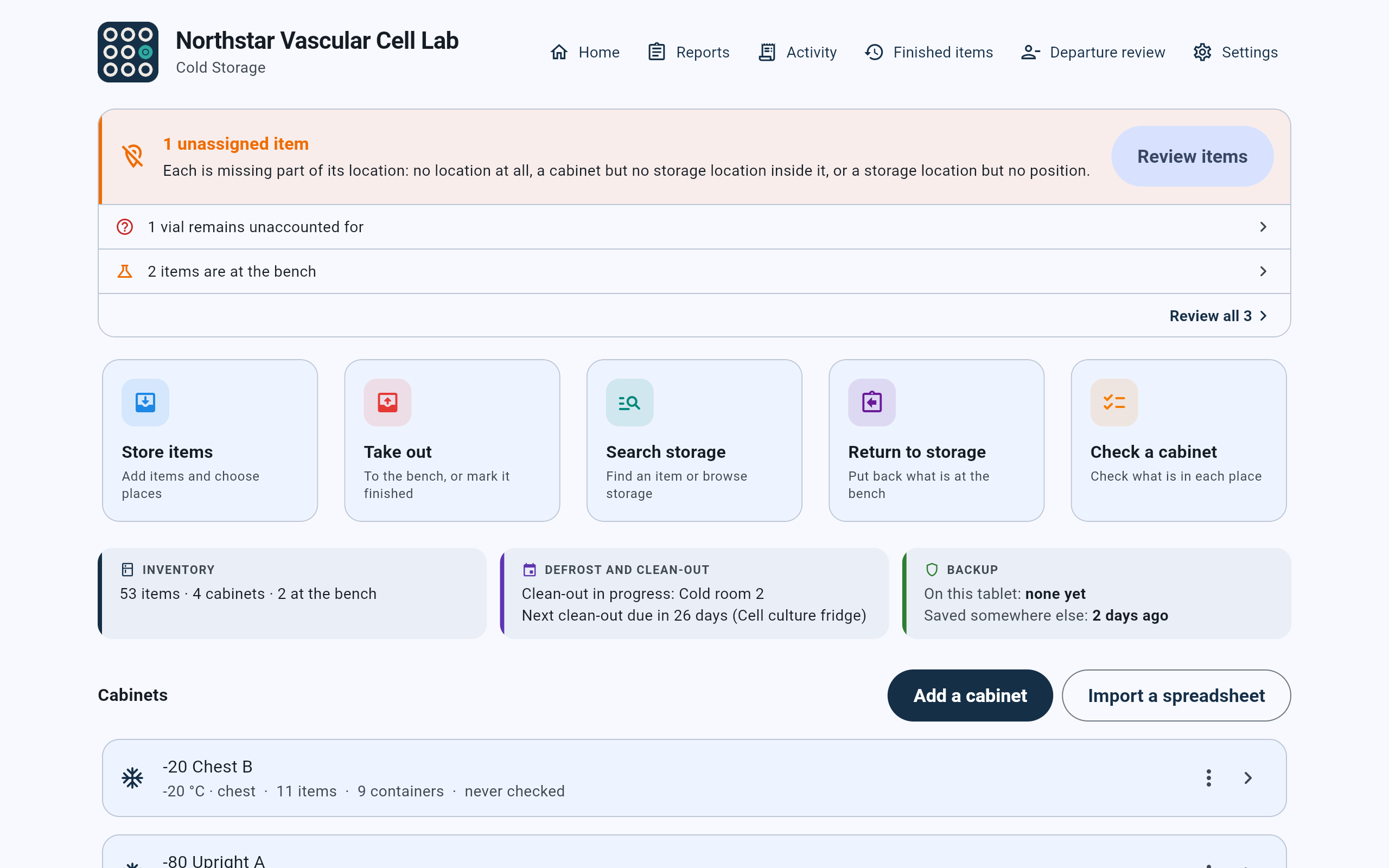
The demo lab has four cabinets, two items at the bench and a clean-out in progress.
- Header links: Home, Reports, Activity, Finished items, Departure review, Settings.
- Alerts that need attention, the most urgent first.
- The five everyday tasks.
- The summary cells: Inventory, Defrost and clean-out, Backup.
- Add a cabinet adds one more cabinet.
- Import a spreadsheet brings in a list of what is already stored.
- Each cabinet row opens the cabinet; its menu offers Check this cabinet, Defrost or Clean out, Edit and Retire cabinet.
Before the first cabinet
An empty Cold Storage offers two ways to start.
Until the lab has a cabinet, the Cabinets list shows No cabinets yet with a short explanation, and two buttons at the end of it: Add a cabinet and Import a spreadsheet. The same two buttons move to the top of the list once a cabinet exists.
- Choose Add a cabinet to describe one freezer, refrigerator or cold room and lay out its shelves. Continue with Add a cabinet and choose its layout.
- Choose Import a spreadsheet when the lab already keeps a list of what is in its cabinets. Continue with Bring a spreadsheet into Cold Storage.
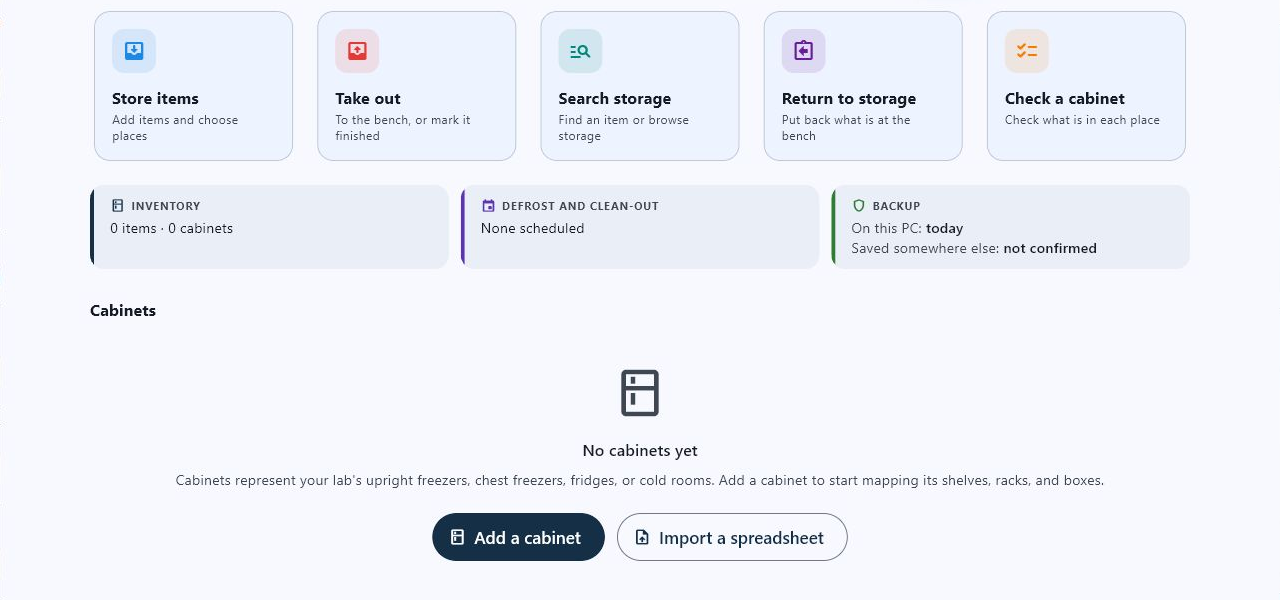
An empty Cold Storage dashboard, shown here on a Windows PC. A tablet shows the same screen.
- Inventory counts no items and no cabinets yet.
- On a tablet, Backup says On this tablet where a PC says On this PC.
- No cabinets yet, with a short explanation, until the lab has a cabinet.
- Add a cabinet describes one freezer, refrigerator or cold room and lays out its shelves.
- Import a spreadsheet brings in the list of what is already stored.