External means elsewhere
An on-tablet automatic copy is not the pre-update backup.
Save the .cix-backup to removable storage or an approved remote destination. If the app or tablet becomes unusable during maintenance, a copy trapped on that same device may be inaccessible.
Before the maintenance window
Pause changes and record a baseline.
- Finish any in-progress store, remove, pick, audit, fill, import, or correction workflow.
- Resolve or deliberately note outstanding warnings; do not clear them merely for the update.
- Record dashboard vial, cell-type, box, fill, and backup status.
- Search several known vials and record their identifiers and physical addresses for comparison.
Settings → Data → Back up or restore
Create a current external copy.
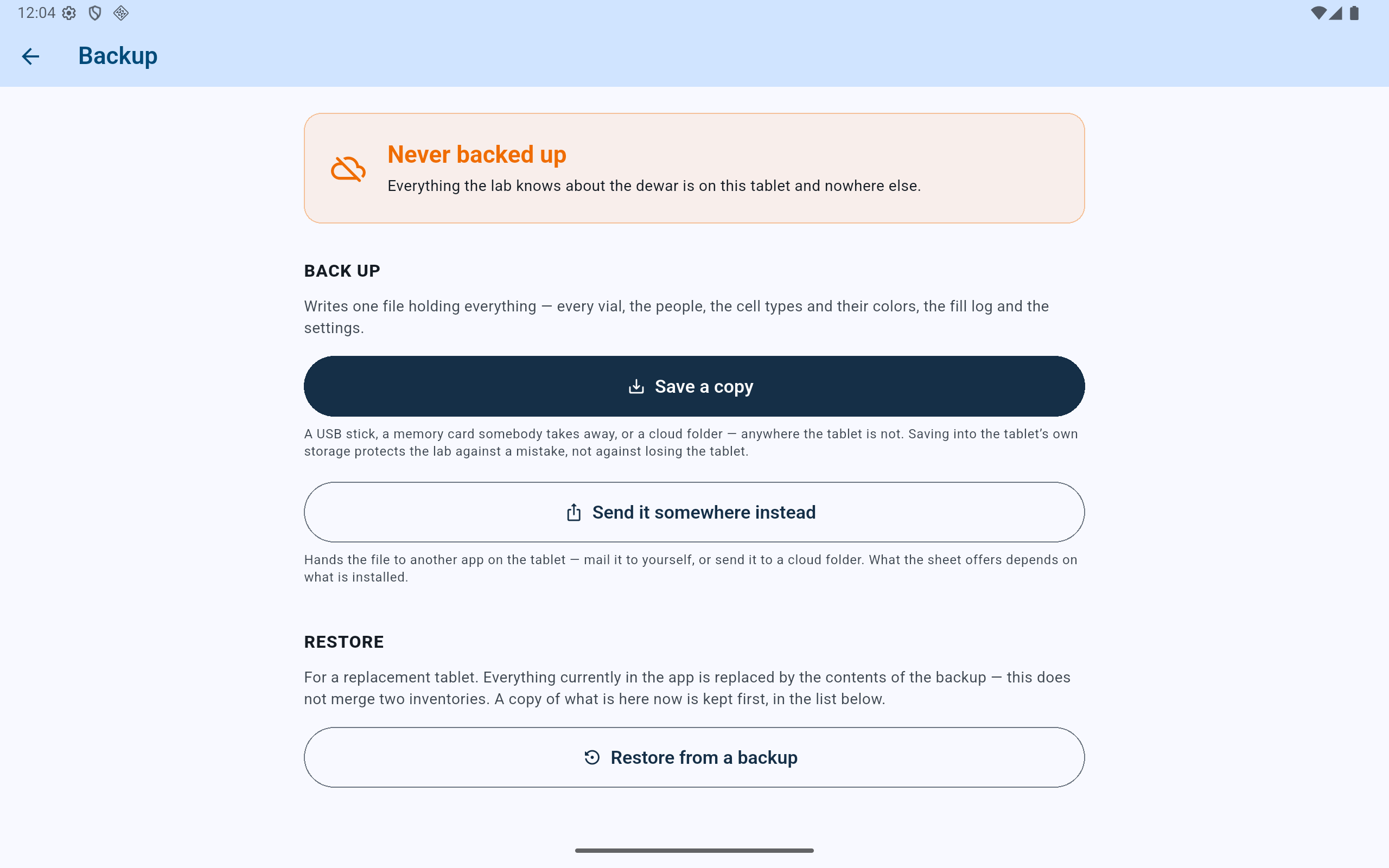
Choose a destination outside the tablet and keep the resulting file unchanged through the update.
- Save the complete lab as one backup file.
- Use an approved external destination.
- Do not start a restore during update preparation.
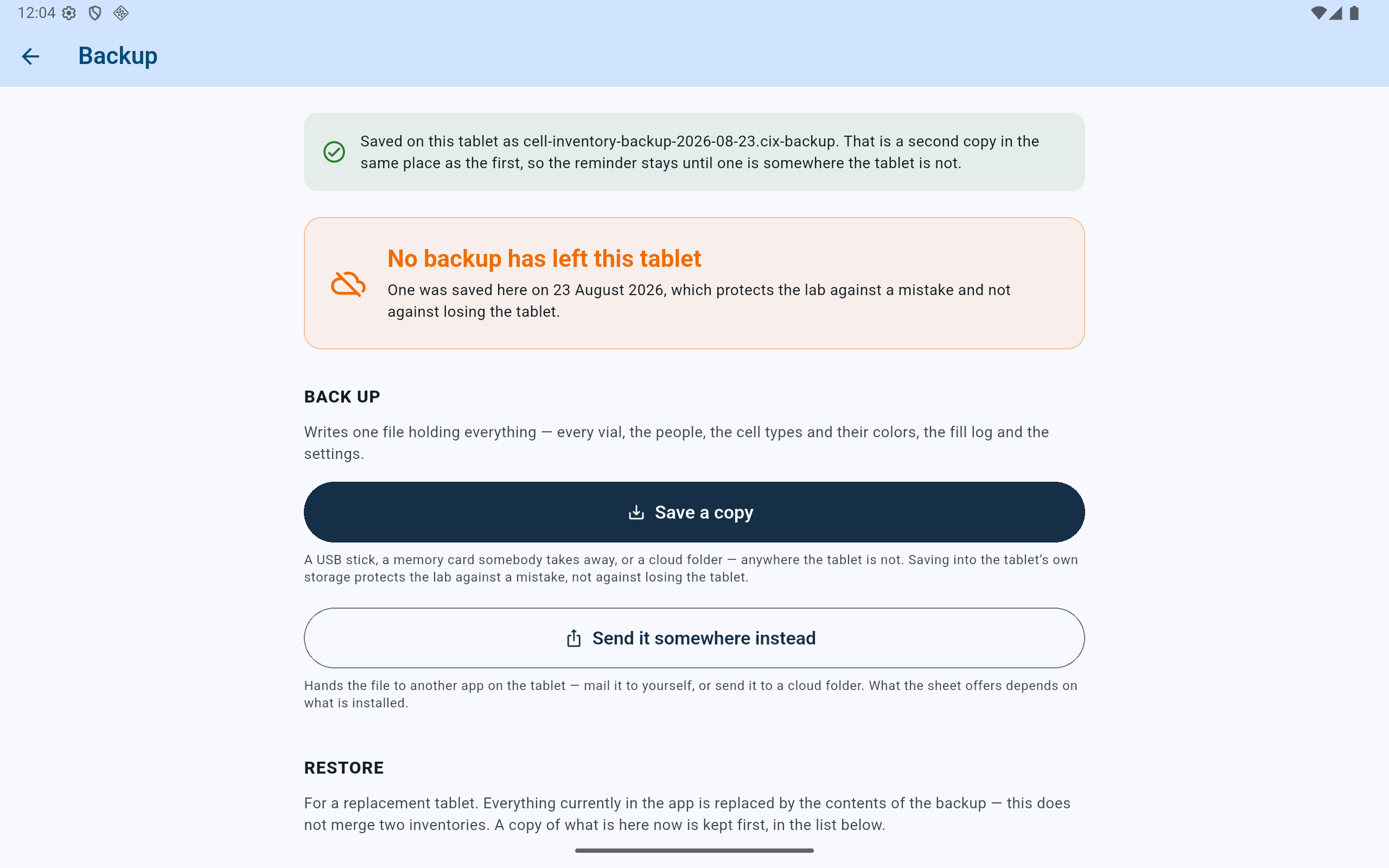
A successful app message is only the first check; verify the expected filename, date, and nonzero size at the external destination.
- Read the save confirmation and timestamp.
- Confirm separately that the file exists outside the tablet.
Google Play
Update through the official app listing.
Leave the app closed while Google Play applies the update. Do not uninstall first, clear app storage, sideload an unrelated package, or modify the backup. Keep the tablet powered and avoid interrupting Android while installation is in progress.
Post-update acceptance
Verify before returning the tablet to the bench.
- Open CryoIndex and confirm the lab identity and dashboard baseline.
- Review People, Cell types, Storage, recent Activity, liquid-nitrogen status, and outstanding items.
- Search the representative vials and compare their exact addresses and metadata.
- Open one box, one fill-log row, Backup, and the scanner checker as read-only checks.
- Confirm Plus access when the lab uses it.
- If anything is wrong, stop data entry and preserve both the pre-update backup and the tablet's current state for investigation.
- After acceptance, create a new external backup from the updated build.