For starting over on this device
Erasing keeps a way back on the same device.
Use it to retire a device once its replacement has been accepted, so nobody records work on it by mistake, or to start again after trying CryoIndex with practice entries. It is not a way to clear a device for someone else: the copy saved first stays on the device, and anyone using it later can restore the lab from it.
Before erasing
Make sure nothing on this device is still needed.
- If the lab may ever need these records again, save a backup off the device first. The copy that erasing saves stays on this device only.
- If this device was replaced, check that the new device holds the whole lab and that work is being recorded there.
- Find out whether the lab has an Admin PIN. Erasing asks for it when one is set.
Every vial, item, cabinet, dewar and lab member, and the full recorded history of both sides, along with the lab name, the Admin PIN and the startup choice. Cell types and the lab’s settings go too.
The copy saved just before erasing, the automatic copies taken before it, and the app itself. Backup files saved elsewhere are not touched.
Settings → Data → Advanced
Open Advanced at the bottom of Data.
- On Home, select Settings, then Data in the bar at the top.
- Scroll to the bottom of the section and select Advanced. It stays shut until someone opens it. Its line reads “Erasing this lab. Its inventory and history can be brought back by restoring the copy CryoIndex saves first.”
- Read the text it shows: “Erasing removes every vial, item, cabinet, dewar and lab member, and the full recorded history of both sides, along with the lab name, the Admin PIN and the startup choice. A copy is saved first and kept; restoring the whole lab from it brings back all of this except the Admin PIN and the startup choice. If the copy cannot be saved, nothing is erased.”
- Select Erase this lab and start over.
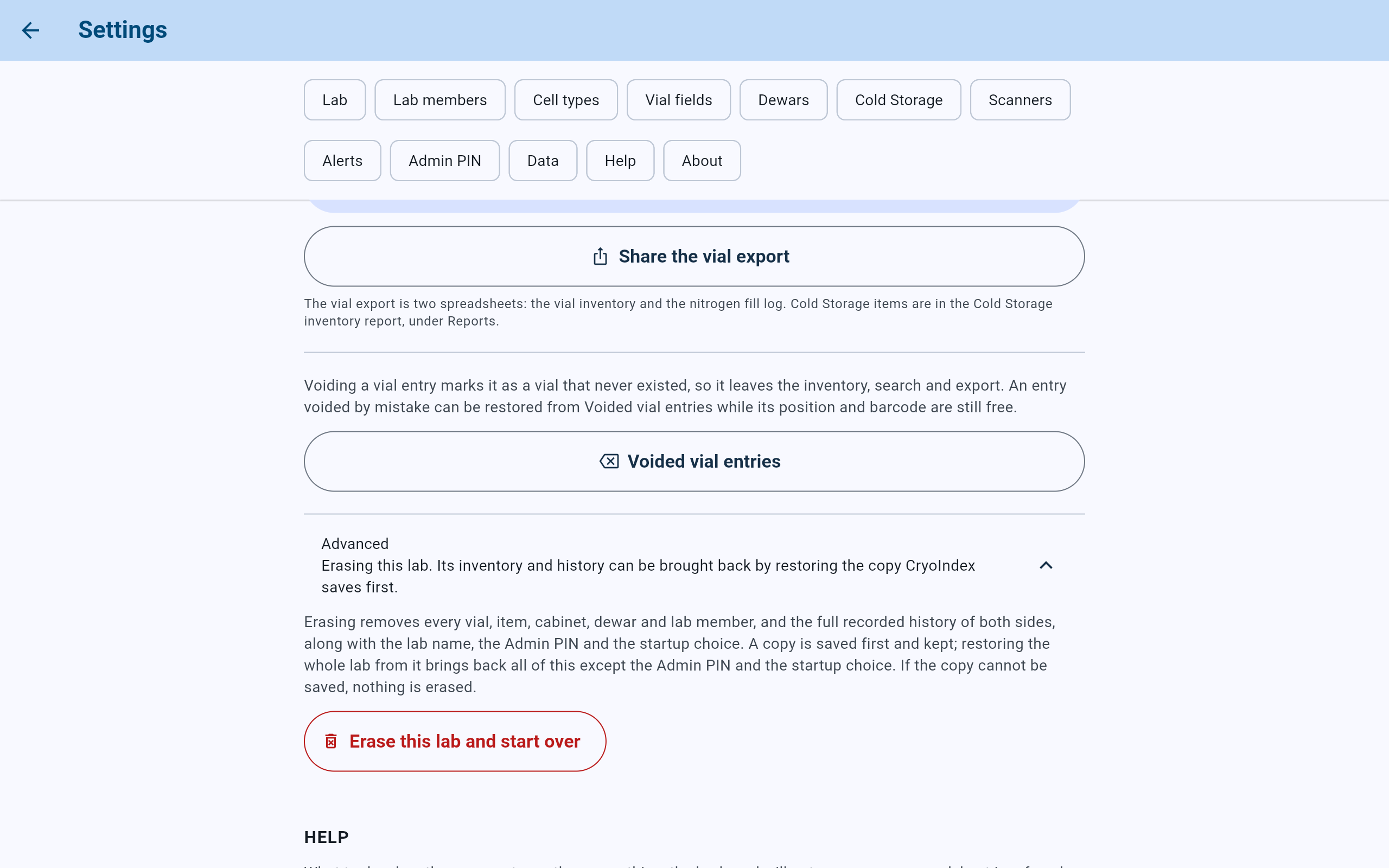
Advanced is the last thing in Data. Selecting the red button only starts the questions; nothing is erased until Erase everything.
- Data in the bar jumps to the section.
- Advanced opens and shuts this part of the section.
- What is erased, and what restoring the copy brings back.
- Erase this lab and start over asks for the Admin PIN, if there is one, and then for the word ERASE.
Two questions
Enter the PIN, then type ERASE.
- If the lab has an Admin PIN, enter it and select Continue. The PIN dialog says “Erasing this lab and starting over.”
- Read Erase this lab?: “This removes everything the lab has recorded: vials and items, dewars and cabinets, lab members, and the full history of all of them.” It also says “CryoIndex saves a copy of the whole lab before it removes anything, and keeps that copy. If the copy cannot be made, nothing is erased.” and “This erases the lab from CryoIndex. It is not a secure wipe of the device.”
- Under “Type ERASE to confirm.”, type ERASE. Erase everything cannot be selected until the word is typed.
- Select Erase everything, or Keep this lab to close the dialog with nothing changed.
- Keep the screen open while it reads “Saving a copy of this lab, then erasing it. Keep this screen open until erasing finishes.” Nothing else can be selected until it finishes.
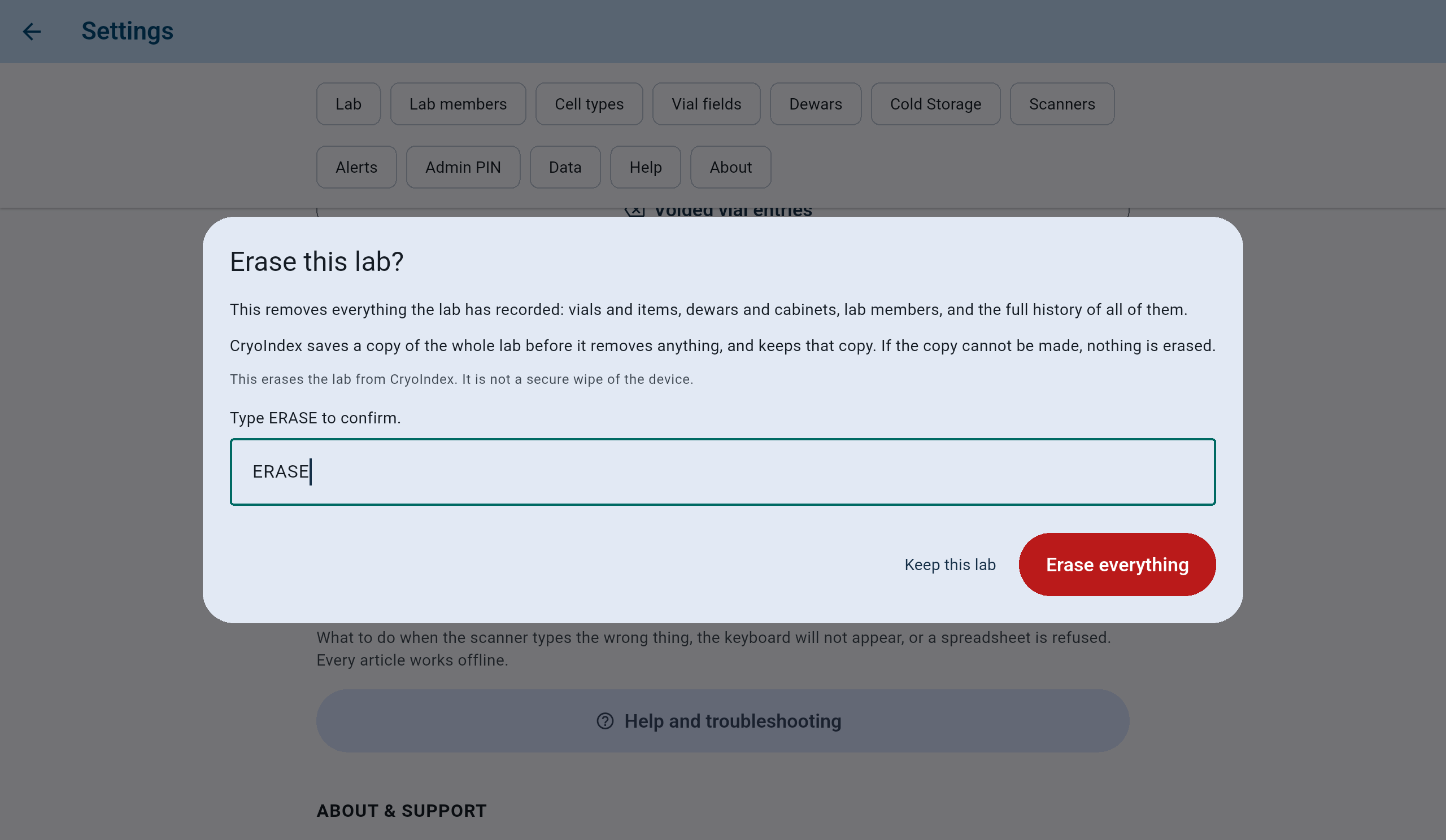
ERASE is typed, so Erase everything can be selected. This test lab had no Admin PIN, so none was asked.
- What erasing removes, and the copy saved first.
- Not a secure wipe of the device.
- The word ERASE, typed.
- Keep this lab changes nothing. Erase everything saves the copy, then erases.
The word is asked every time, PIN or not, because many labs never set a PIN and erasing should never be a single tap.
After erasing
The device is back to its first day.
- CryoIndex returns to Home, as on a new device. The lab’s name is gone, both sides are empty, and When the app opens is asked again. Each side’s setup guide opens the first time that side is opened.
- The copy appears on the Backup screen under On this tablet as Taken just before this lab was erased, with its date and size. CryoIndex never removes it when it tidies the automatic copies.
- To bring the lab back, open Settings, Data, Back up or restore, and select Restore beside that copy. Restoring the whole lab from it brings back everything except the Admin PIN and the startup choice; see Use an automatic copy after a mistake.
- If the copy could not be saved, nothing was erased, and the message below the button reads “Could not erase this lab. This lab was not changed. Try again.”
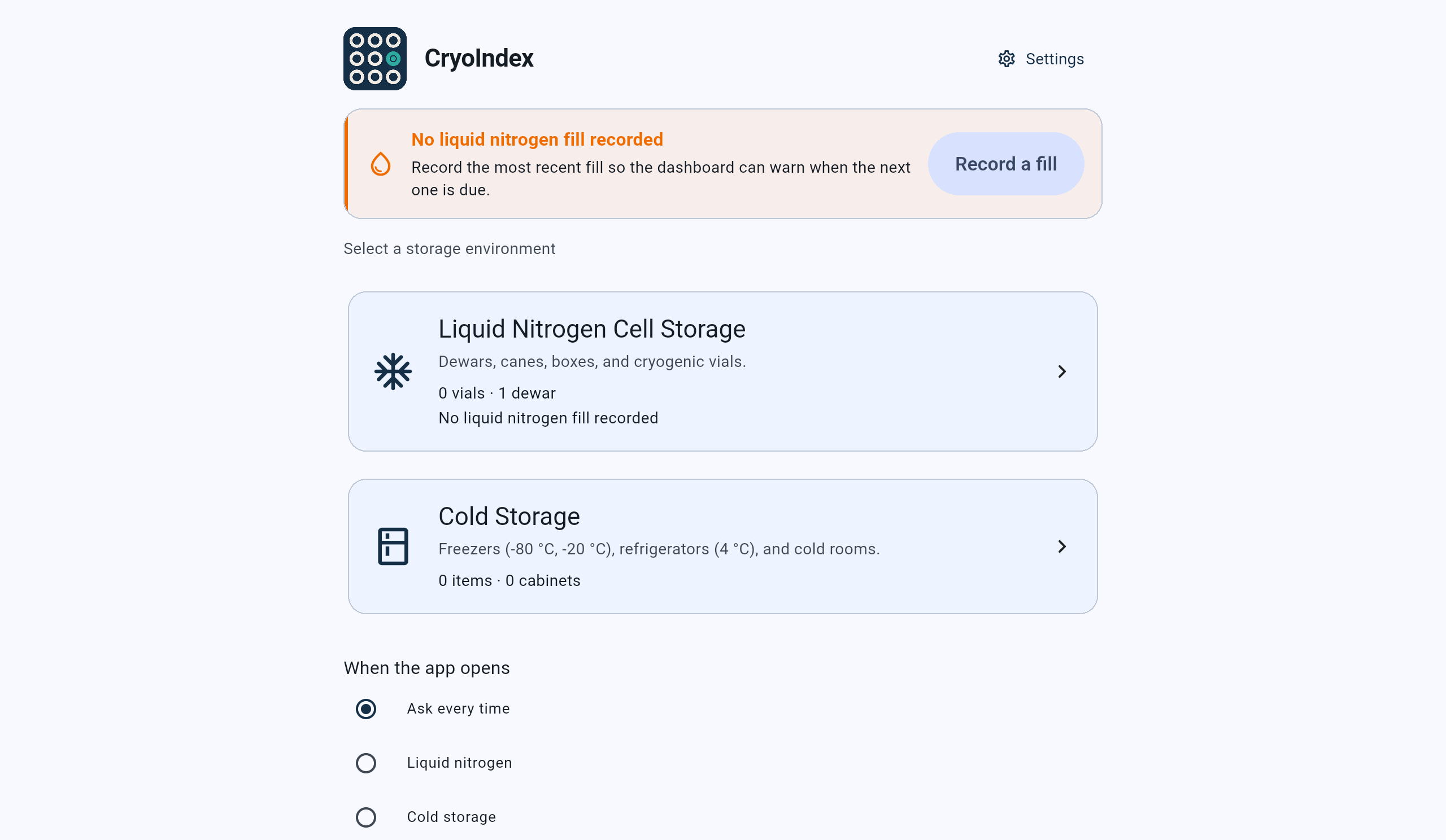
Home straight after erasing, as on a new device.
- The lab’s name is gone, and CryoIndex shows its own.
- No vials. The one dewar is the empty one a new device starts with.
- No items and no cabinets.
- When the app opens is asked again.
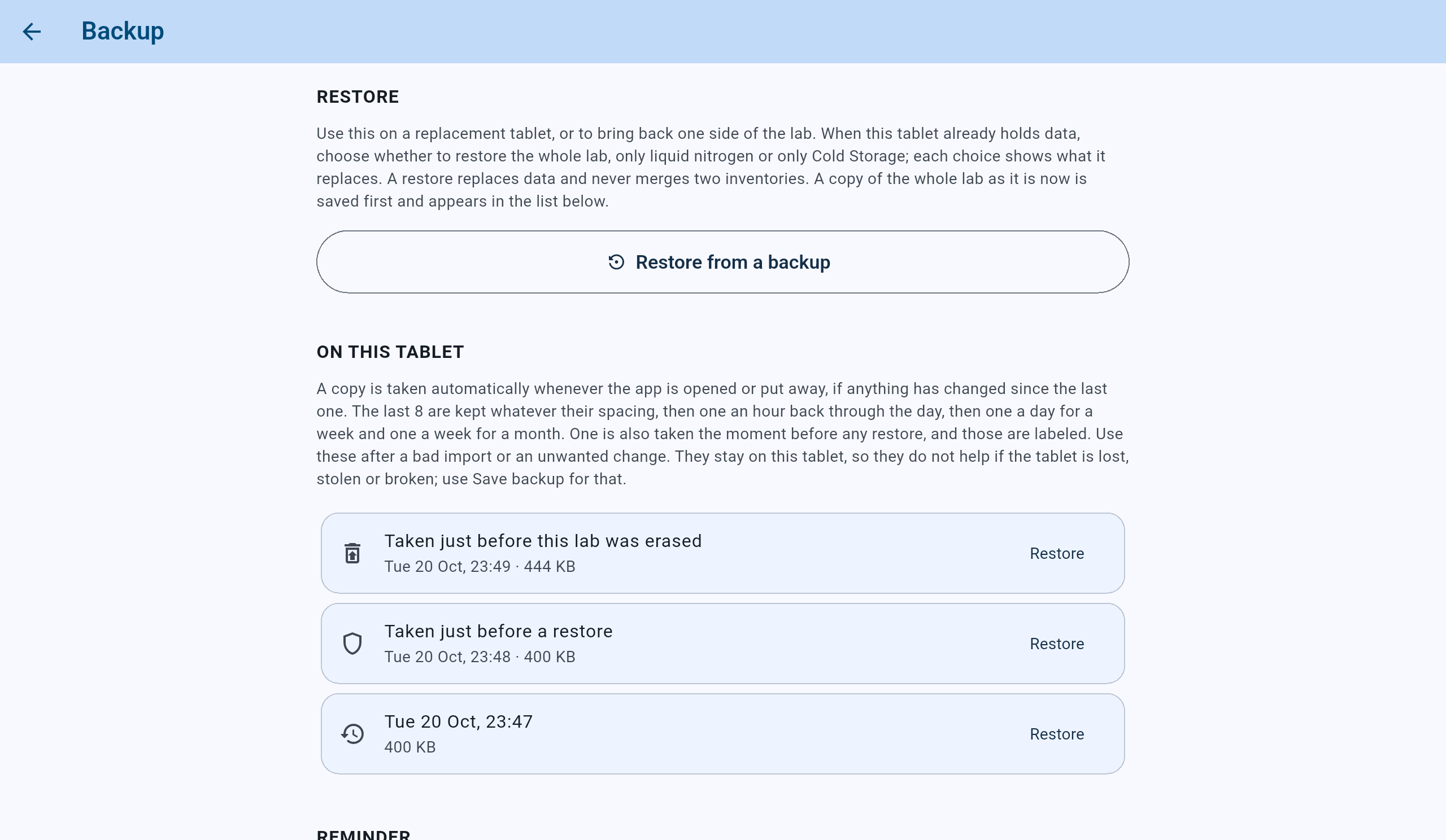
The copy saved before erasing is first in the list, under its own label.
- Taken just before this lab was erased, with its date and size.
- Restore beside it brings the lab back, all but the Admin PIN and the startup choice.
What erasing does not do