Restore replaces; it never combines
Stop if either inventory contains newer work that must survive.
Restoring lab A over lab B does not combine their vials or histories. The destination becomes the state captured in the selected file. Export or back up anything that must be retained before proceeding.
Prepare and inspect
Update first, then choose the known backup file.
- On a replacement tablet, install or update CryoIndex from Google Play before opening the backup.
- Open Backup and select Restore from a backup. Enter the optional admin PIN when required.
- Choose the expected
.cix-backupfile. CryoIndex reads and validates it before showing any destructive confirmation. - If the file is on removable storage, keep the device connected until the app finishes.
Last check before replacement
Match the date and counts to the lab you intend to recover.
The confirmation names the file and reports its backup date, vial count, cell-type count, people count, and fill-record count. These are identity checks, not decoration.
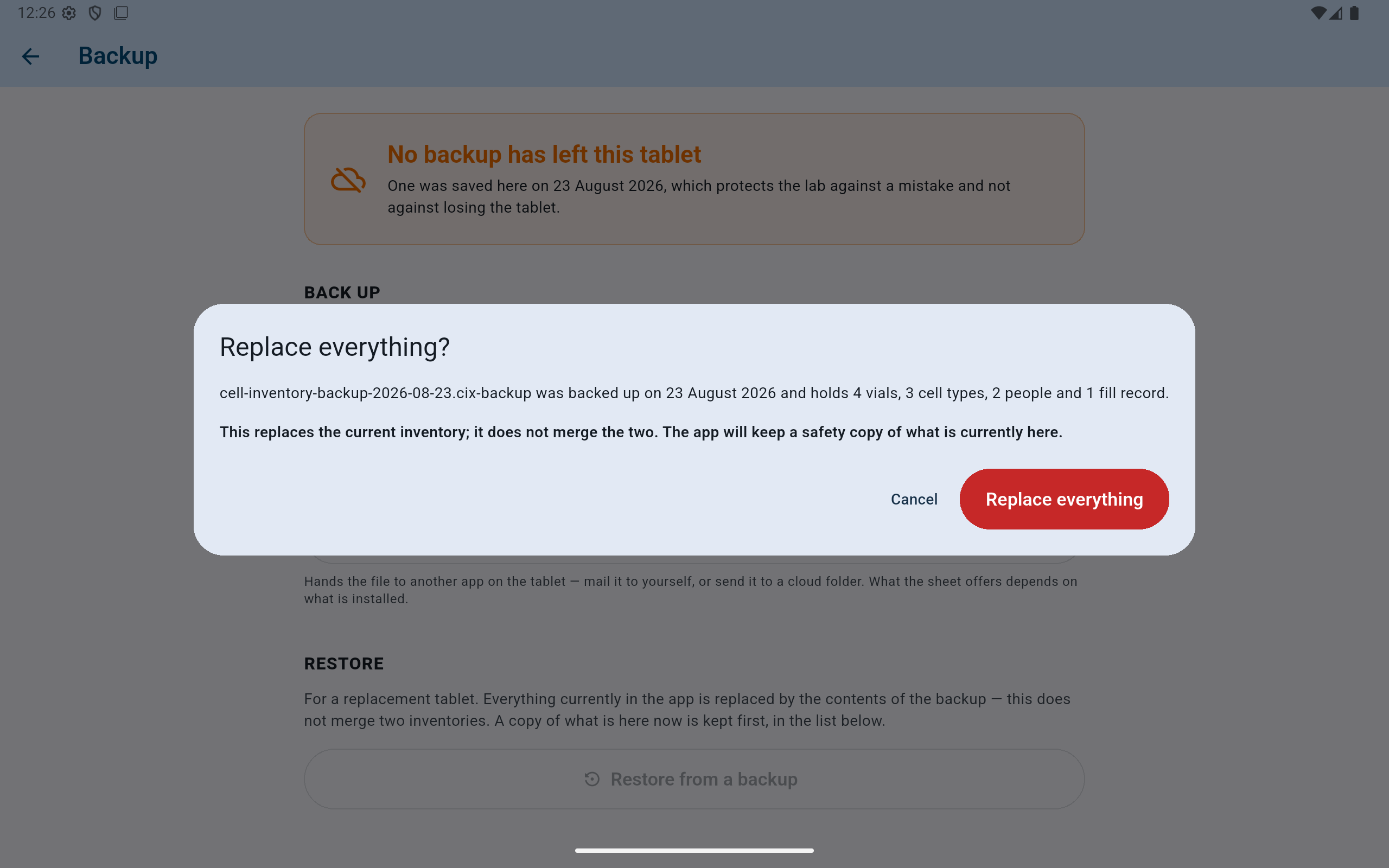
Cancel if the summary does not describe the expected lab and backup date. Nothing has been replaced at this point.
- Confirm the exact filename and date.
- Compare all four counts with what the lab expects.
- Read the replacement and safety-copy statement.
- Select Cancel for any uncertainty.
- Authorize replacement only when the file is correct.
Before the live database changes
Let CryoIndex keep the current tablet state first.
Immediately before replacement, CryoIndex writes a labelled automatic copy of what is currently on the tablet. It appears in the on-device copy list as taken just before a restore.
If that safety copy cannot be written, the app tells you that nothing has changed and asks whether to cancel or continue without it. Cancel unless the lab has deliberately accepted the loss of that recovery path.
After completion
Verify the recovered lab before returning the tablet to service.
- Read the completion banner and its restored vial count.
- Confirm the lab name, users, cell types, dewar layout, and inventory totals.
- Search for several known vials in different boxes and compare their exact locations and histories.
- Review the latest liquid-nitrogen fill and recent activity.
- Create a new external backup after verification so the lab has a current copy from the recovered device.
A refusal protects the live lab
Follow the stated remedy; do not alter the file to force it through.
A refusal ends with Nothing was changed. CryoIndex may refuse a damaged, incomplete, structurally impossible, foreign, or newer-format file before it touches the current inventory.
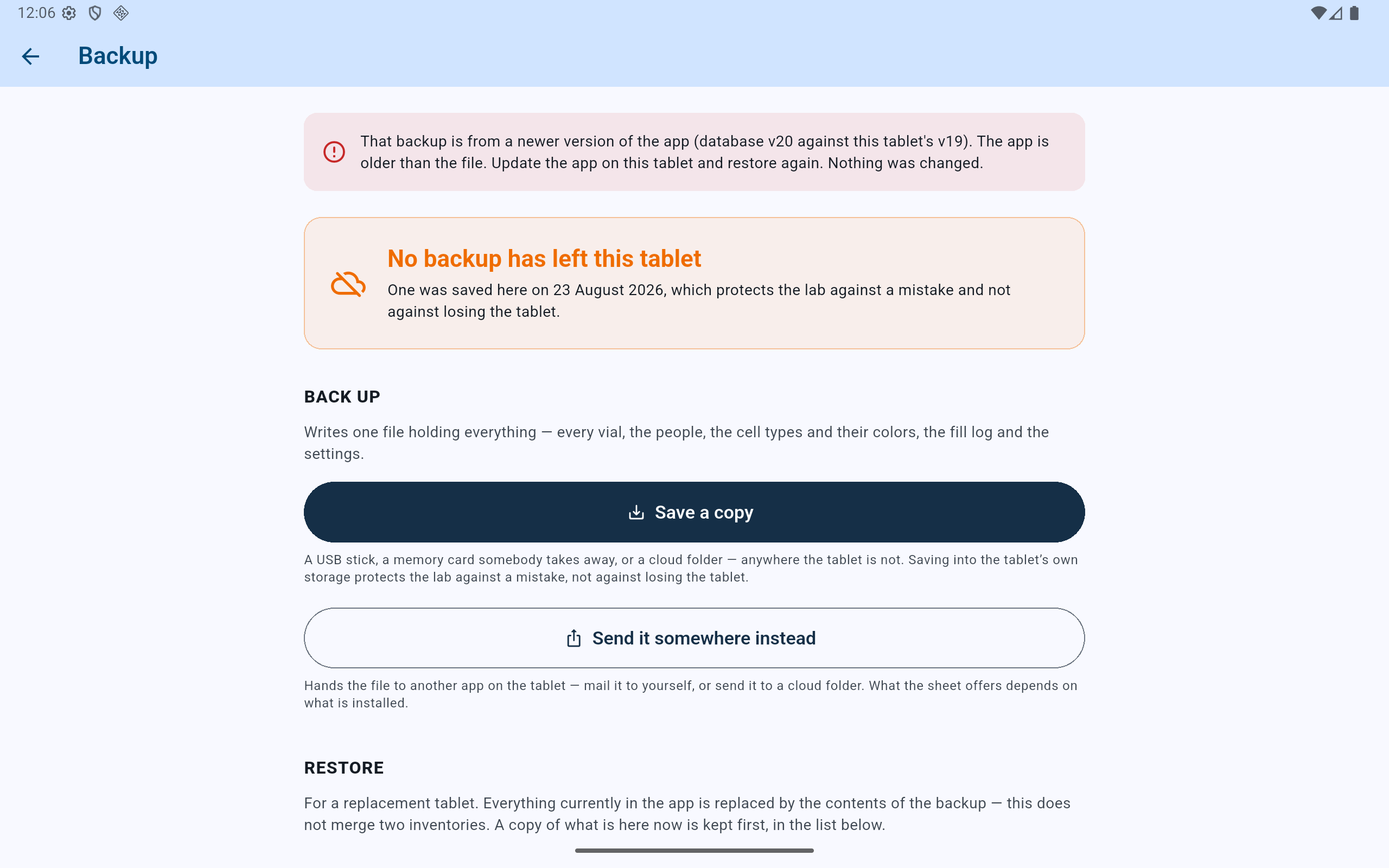
An older app cannot safely interpret a newer database. Updating the app is the remedy; editing or converting the file by hand is not.
- Read both version numbers and the stated action.
- The refusal confirms that the current inventory was not changed.
- Update CryoIndex, reopen Backup, and select the same file again.
Preserve the original backup. Work from another copy if support ever asks you to investigate a file. Do not overwrite the only recovery artifact.