Two different protections
Automatic copies stay on the same tablet.
Use them to recover from an on-tablet mistake. Use a recently verified external .cix-backup file for tablet failure, loss, theft, replacement, or reinstall. An automatic copy is not evidence that data exists anywhere else.
Settings → Data → Back up or restore
Choose a timestamp from before the unwanted change.
CryoIndex retains the latest eight copies regardless of spacing, then thins older copies to approximately hourly, daily, and weekly recovery points. A labelled safety copy is also taken immediately before a restore.
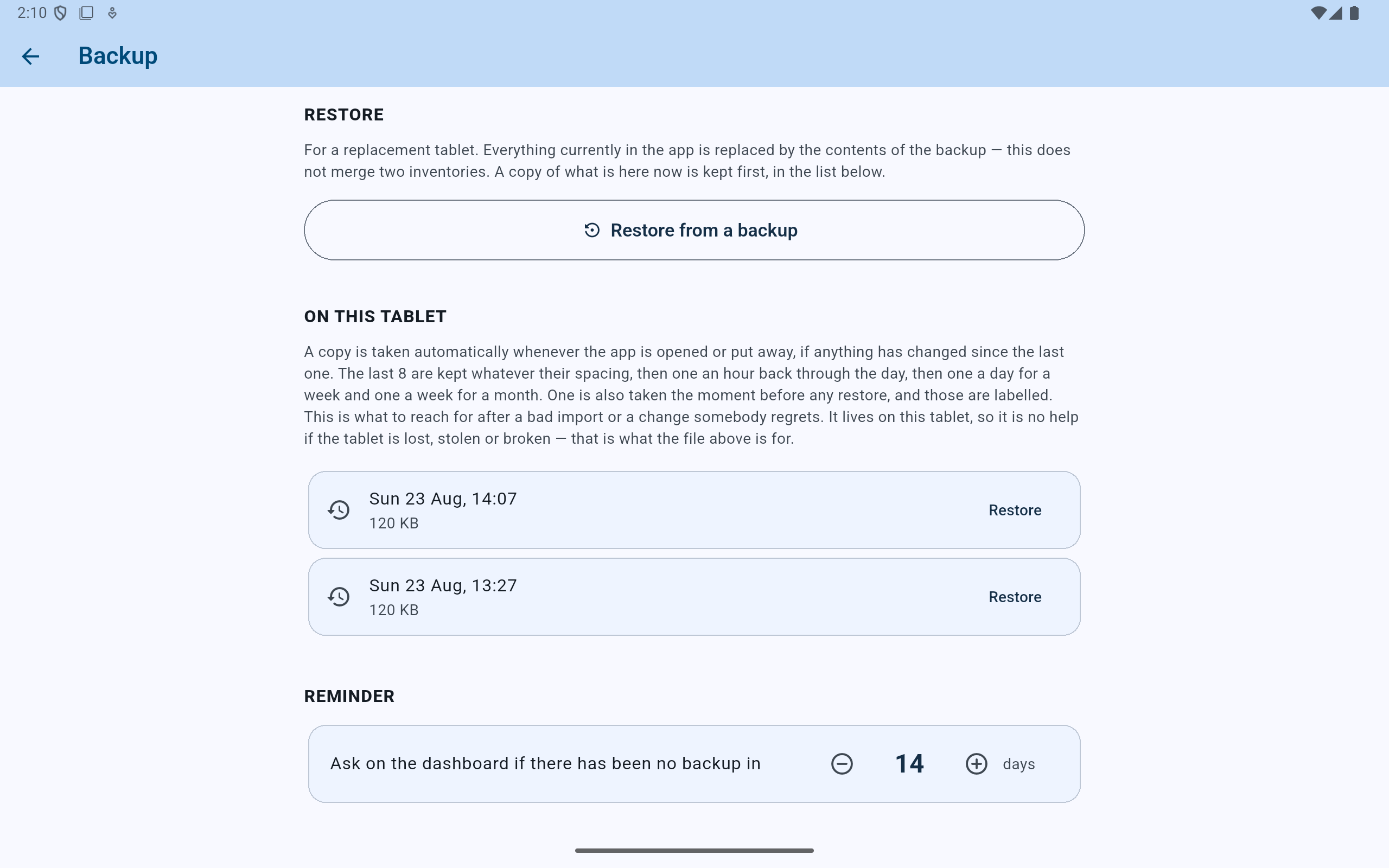
The timestamp and file size help identify a candidate, but the next dialog's contents are the stronger check.
- Read how automatic copies are created, retained, and limited to this tablet.
- Choose a copy from before the mistake.
- Older snapshots may contain much less data than the current lab.
- The reminder below concerns external backups, not these copies.
Restore
Compare the selected copy with the current lab.
The warning states when the copy was made and how many vials, cell types, people, and fill records it holds. It also states that restore replaces rather than merges. Cancel whenever those facts do not match the intended recovery point.
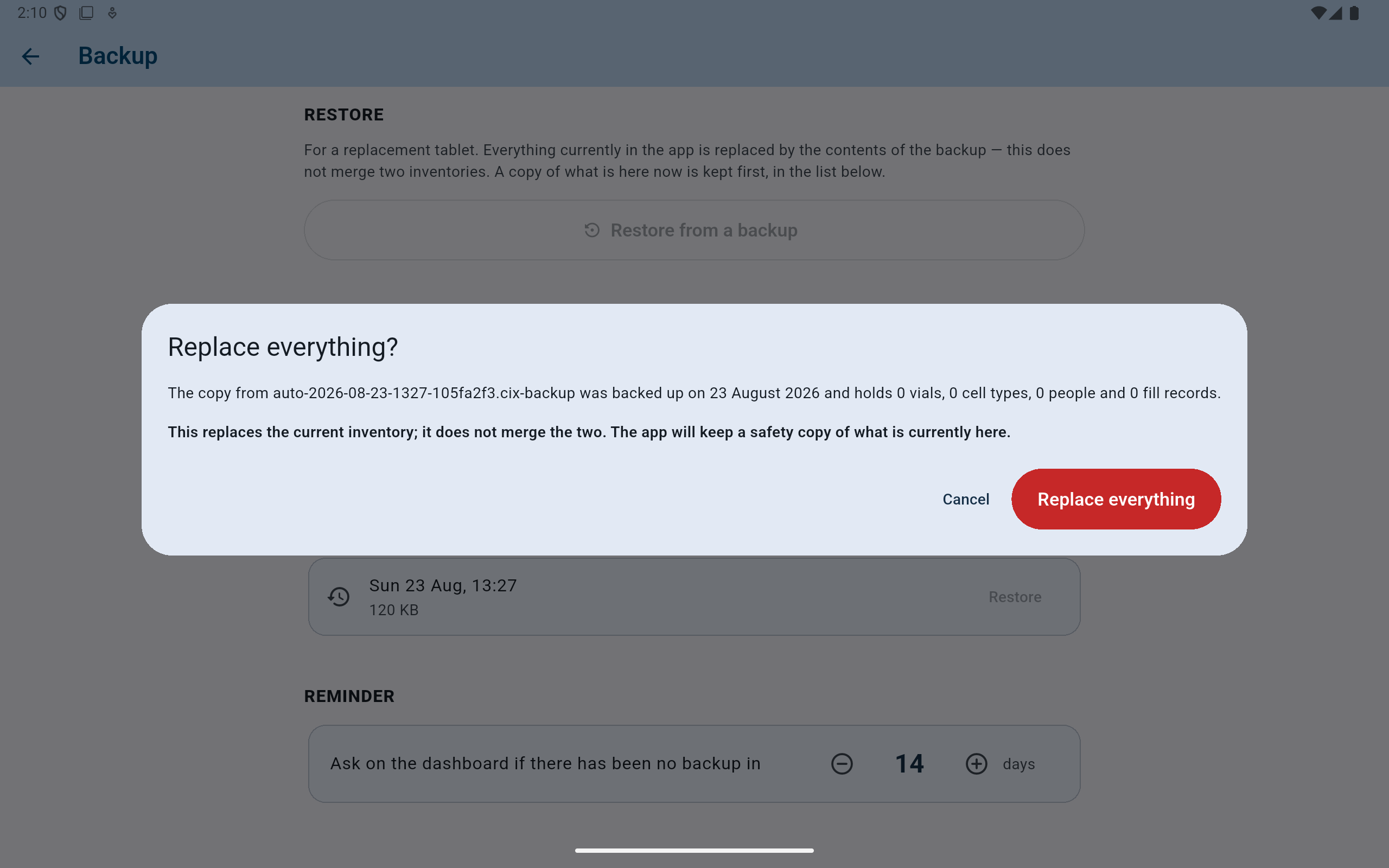
This fictional older copy is clearly wrong for the current four-vial lab, so the safe action is Cancel.
- Read the backup date and every record count.
- Restore replaces the whole current inventory and does not merge.
- Cancel when the selected copy is not the intended complete state.
- Replace everything is deliberately explicit and destructive.
After an intentional restore
Verify the restored lab before resuming work.
- Wait for CryoIndex to complete the restore and refresh the restored state on screen.
- Compare dashboard vial, cell-type, and box counts with the chosen recovery point.
- Search for several known identifiers and confirm their physical addresses.
- Review People, Cell types, Storage, fill history, and recent Activity.
- Create and verify a new external backup after the restored state has been accepted.
The app keeps a safety copy of the state that existed immediately before the restore. That is a recovery aid, not permission to skip the checks above.