Watch the walkthrough
Take items to the bench and return them
Captions are available in the player and start turned off so they do not cover the app. The written transcript is below the video.
Read the video transcript
On the Cold Storage dashboard, choose Take out. The station opens with nobody chosen under Taken out by.
Choose who is taking items out. The station asks once per visit, and records every item moved to the bench under Maya Chen.
Scan or type the barcode, and check the card against the item in your hand. Moving it keeps its position reserved and records nothing as used.
Select Move to bench. The message names the item, the field is empty for the next scan, and the item joins Moved to the bench this visit.
If the next item will not come back, such as a Matrigel aliquot to be used up today, scan it the same way.
Choose Mark as finished instead. Pick Used up, Discarded or Removed from the collection, then choose the person again under Recorded by.
Select Record as used up. Take out says the item is marked as finished, and the station is ready for the next scan.
Back on the Cold Storage dashboard, Return to storage opens At the bench. Three items are out, including the antibody just moved.
Open an item. Its Reserved return location is kept while it is out, and the main action returns it there. Return to another location puts it somewhere else.
Select the main action. Answer the thaw question, choose who is returning it under Recorded by, then select Return to storage.
The item is In storage again, back in A3. Its history records the return under Luis Ortega, and the thaw answer.
Narration uses an AI-generated voice.
What the bench means
Moving an item to the bench records nothing as used.
The item stays in the record with its position held for it, so it can go straight back. Use Record usage on the item’s screen to record an amount used, and Mark as finished when it will not come back.
Start a visit
Open Take out and choose who is taking items out.
- On the Cold Storage dashboard, select Take out. The screen is titled Take out an item.
- Under Taken out by, choose who is taking items out. Only active lab members are listed; Add lab member at the end of the list adds someone without leaving the screen.
- Read the line under it. Until someone is chosen it says “Choose who is taking items out. Each item moved to the bench is recorded under that person.” Afterwards it names the person, such as “Each item moved to the bench is recorded under Maya Chen until you choose someone else.”
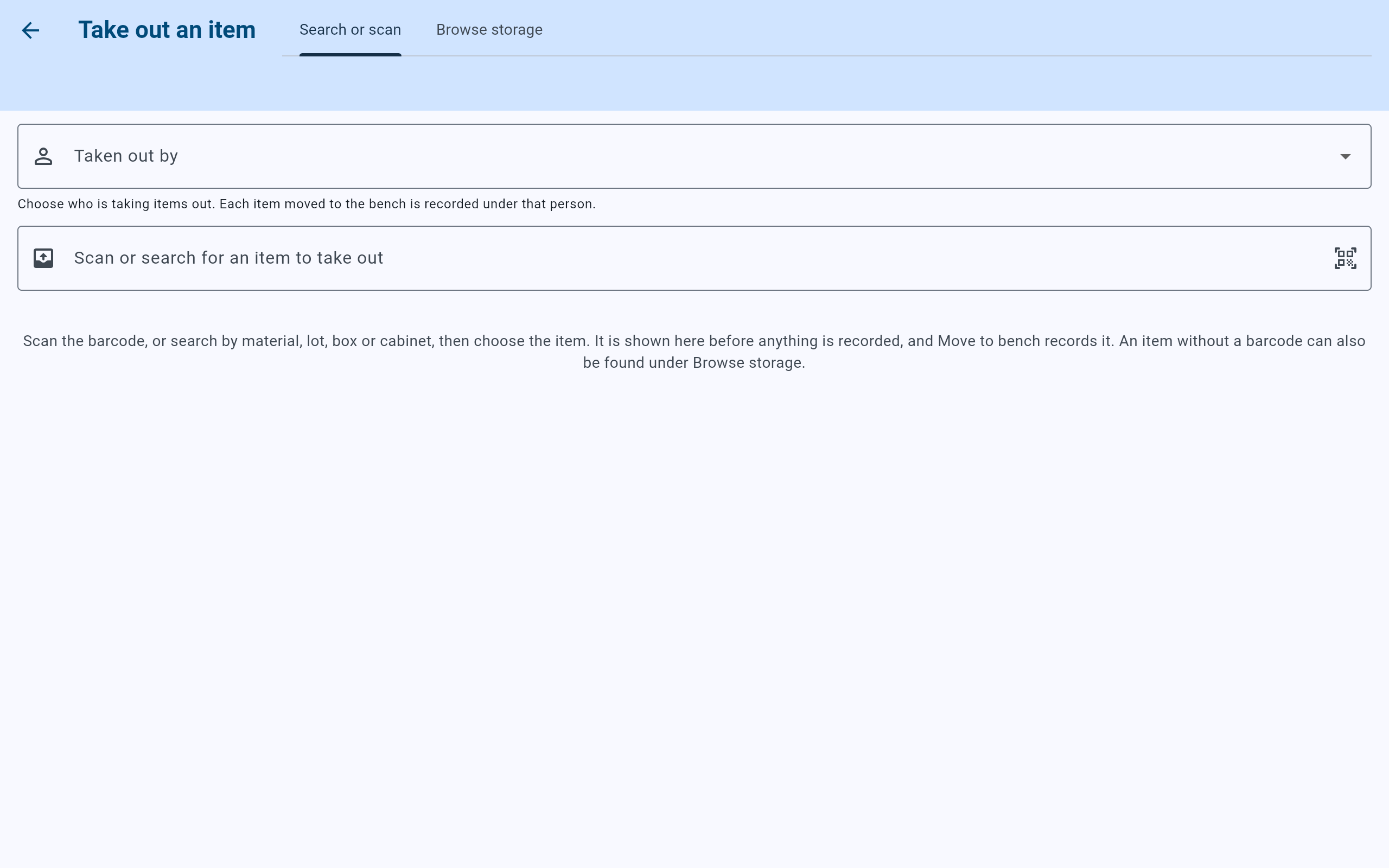
Take out opens with nobody chosen. The choice lasts for this visit only.
- Taken out by: the person every item on this visit is recorded under.
- The line that says who items will be recorded under.
- Scan here, or type a material, lot, box or cabinet.
- The app’s reminder: the item is shown before anything is recorded, and Move to bench records it.
The choice is not remembered. Leaving Take out clears it, so the next visit starts with nobody chosen. Choose again whenever someone else takes over the station.
One item
Scan or choose the item, check the card, then move it.
- Scan the item’s barcode. The barcode fills Scan or search for an item to take out and the item goes straight into the card. Typing the whole barcode and pressing Enter does the same. On a tablet with a camera, Scan barcode at the end of the field reads the label.
- Or type a material, lot, box or cabinet and choose the item in the results. Items in storage show Move to bench in their row; choosing one puts it in the card. It is still not recorded.
- Read the card Ready to move to the bench: the material, the barcode and lot, where it is, and its own position. Check it against the item in your hand.
- Read who it will be recorded under, such as “It will be recorded as taken out by Maya Chen.” Add a Note (optional) if it helps.
- Select Move to bench. It stays unavailable until someone is chosen under Taken out by. Cancel puts the card away without recording anything.
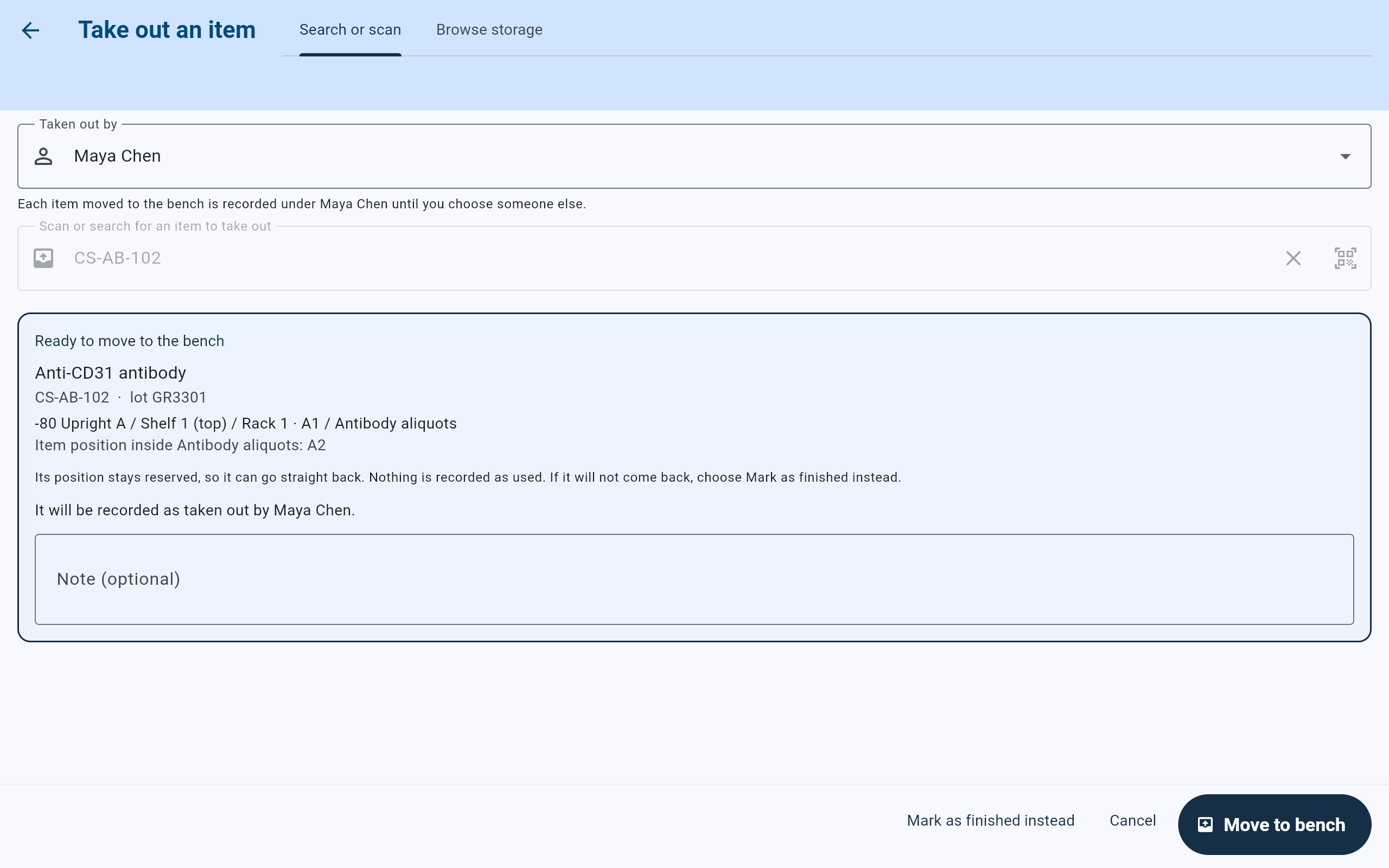
CS-AB-102 was scanned. It is shown in the card, and nothing is recorded until Move to bench.
- The person chosen for the visit.
- Where the item is now, and its own position in the box.
- What moving it keeps: its position stays reserved, and nothing is recorded as used.
- Who it will be recorded under.
- Mark as finished instead when it will not come back, or Cancel to record nothing.
- Move to bench records it, under the person chosen.
An item that is not in storage, because it is already at the bench, is marked missing or is finished, does not go into the card. Its own screen opens instead and says where it is.
The next item
Read the confirmation, then scan the next item.
After Move to bench, a message names the item, such as “Anti-CD31 antibody CS-AB-102 is at the bench.” The field is emptied when it held that item’s barcode, and the item joins the list Moved to the bench this visit, newest first. Each row opens the item’s screen.
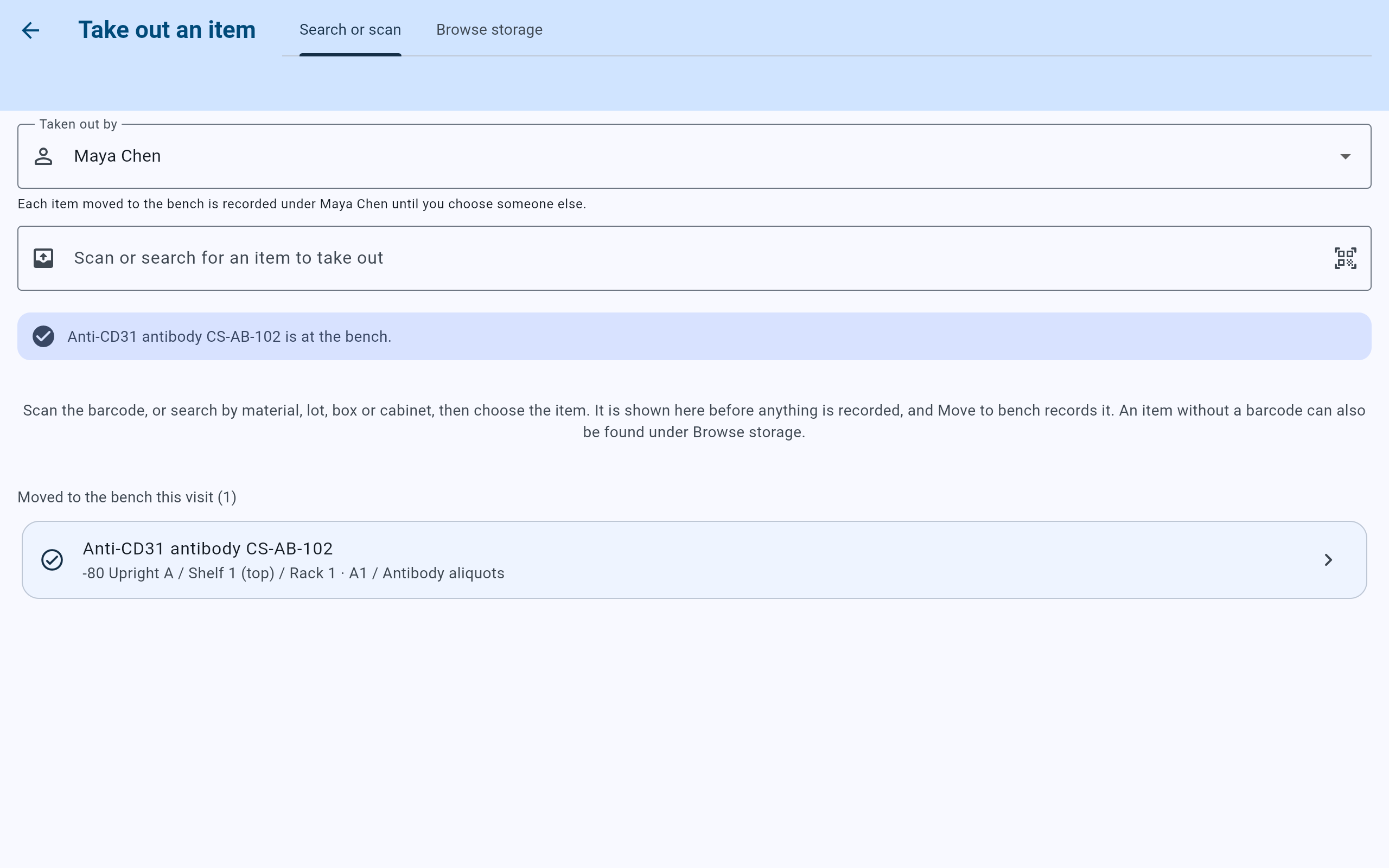
One item moved on this visit. The station is ready for the next scan.
- The confirmation names the item that was moved.
- The field is empty, ready for the next scan.
- Everything this visit has moved to the bench, with a count.
- Each row opens the item. To put one back, use its return, described below.
Choose instead of scanning
Choose the item from a search, or from its box.
A search in Take out lists the same results as Search storage, but each item in storage carries Move to bench. Choosing a box opens it for taking items out.
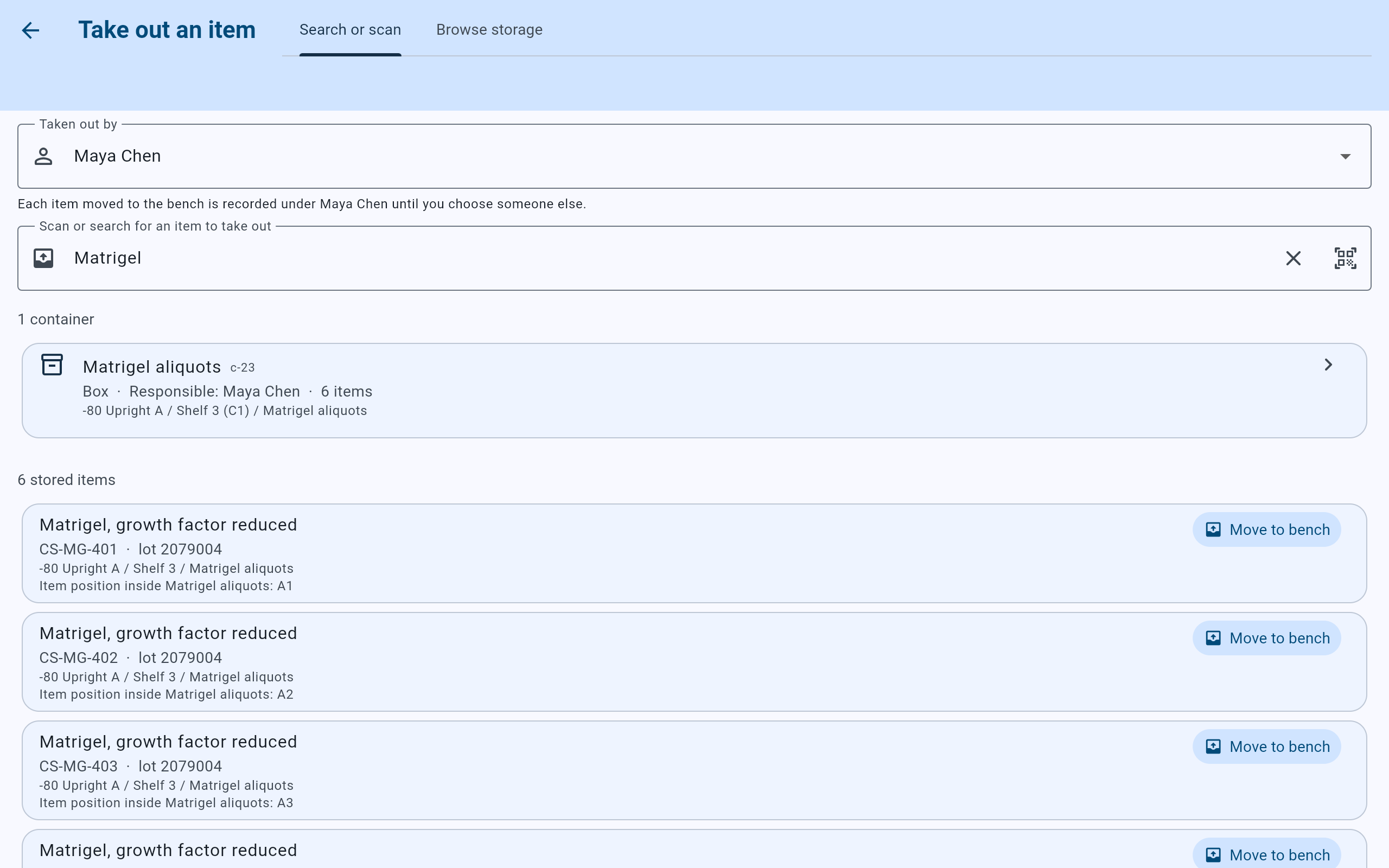
A search for “Matrigel” in Take out. Each item in storage can be chosen to move to the bench.
- Choosing an item puts it in the card, as a scan does.
- Choosing the box opens it, ready to choose an item there.
- For an item without a barcode, select the Browse storage tab and walk down to its box. Each screen opened from Take out says “Choose an item to move to the bench.”
- Choose the position holding the item. Its details appear beside the grid with Move to bench.
- Select Move to bench. The dialog asks Taken out by, already set to the person chosen for the visit. Changing it here changes it for the rest of the visit.
- Select Move to bench in the dialog. The item joins the visit’s list like any other.
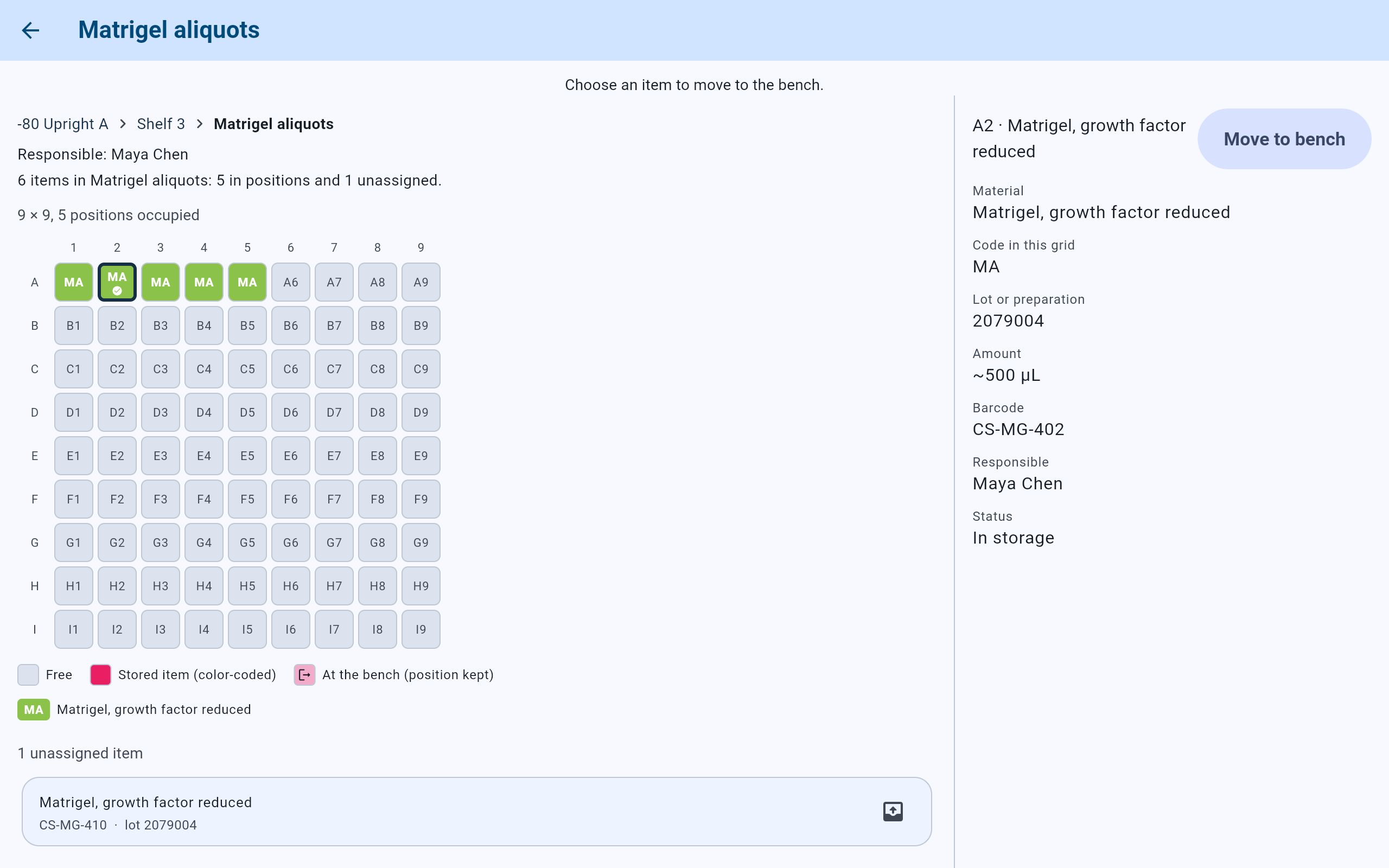
The box Matrigel aliquots, opened from Take out, with A2 chosen.
- This screen was opened to take items out.
- The chosen position.
- Move to bench for the item in that position.
- An item stored in the box without a position is listed under the grid, and can be chosen too.
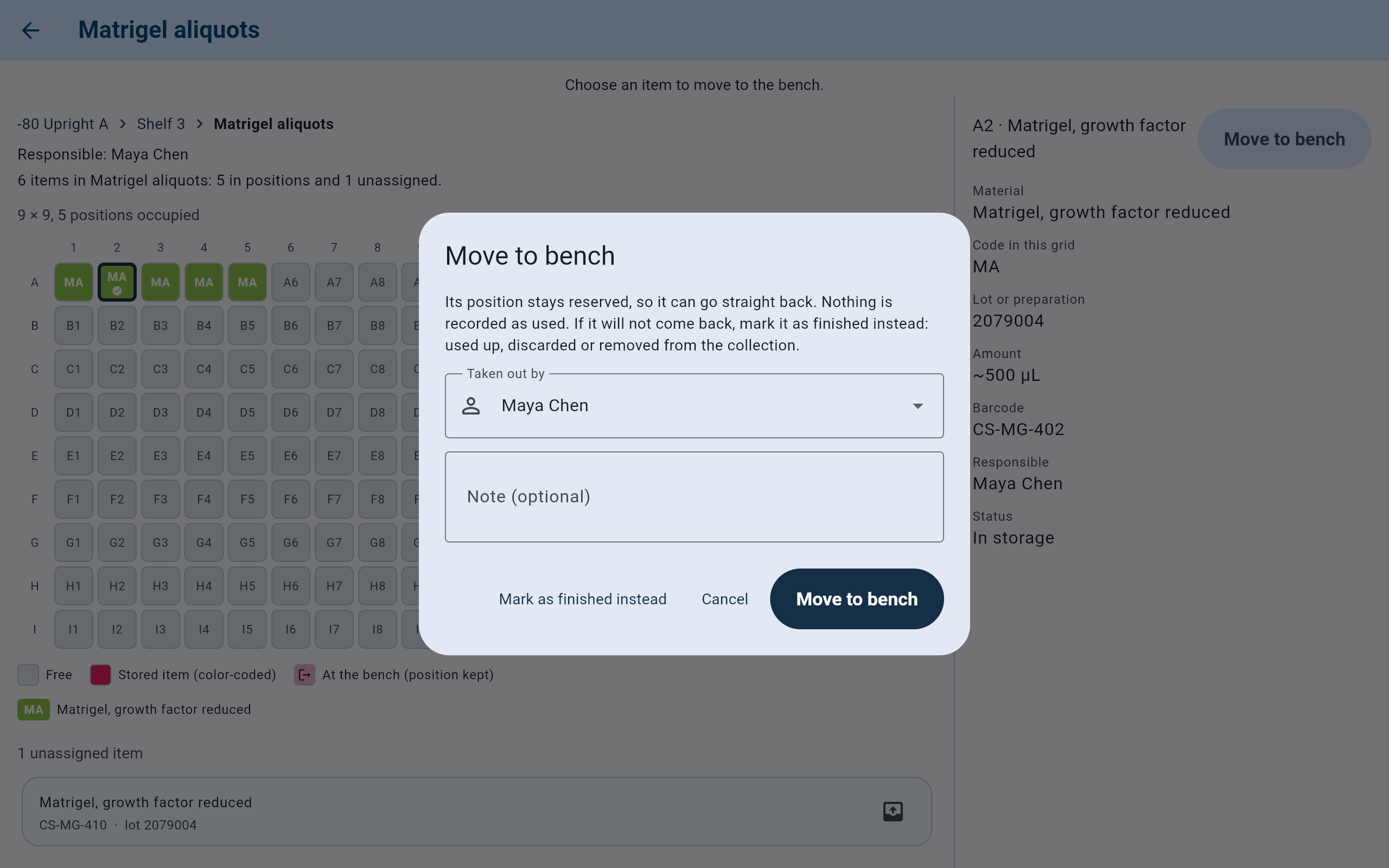
Taken out by is already set to the person chosen at the top of Take out.
- What moving it keeps, and the reminder to mark it as finished if it will not come back.
- Taken out by, filled in from the visit.
- Mark as finished instead opens the finishing dialog.
- Move to bench records it.
Not coming back
Mark it as finished when it will not come back.
If the item is being used up or thrown away now, select Mark as finished instead. The Mark as finished dialog says “Any position it held is released. The record and its history stay.” Choose Used up, Discarded or Removed from the collection, choose who is recording it under Recorded by (asked again here, even during a visit), add an optional note, and select the button that names the choice, such as Record as used up. Take out then says “… is marked as finished.” This cannot be undone. See Read an item’s screen for the dialog.
At the bench
See what is at the bench.
Select Return to storage on the Cold Storage dashboard. At the bench lists every item out, with a count such as “2 items are out at the bench.”, the one out longest first. The alert “2 items are at the bench” and its View items button open the same list. The list has no return button: choose an item to open its screen, where the return is.
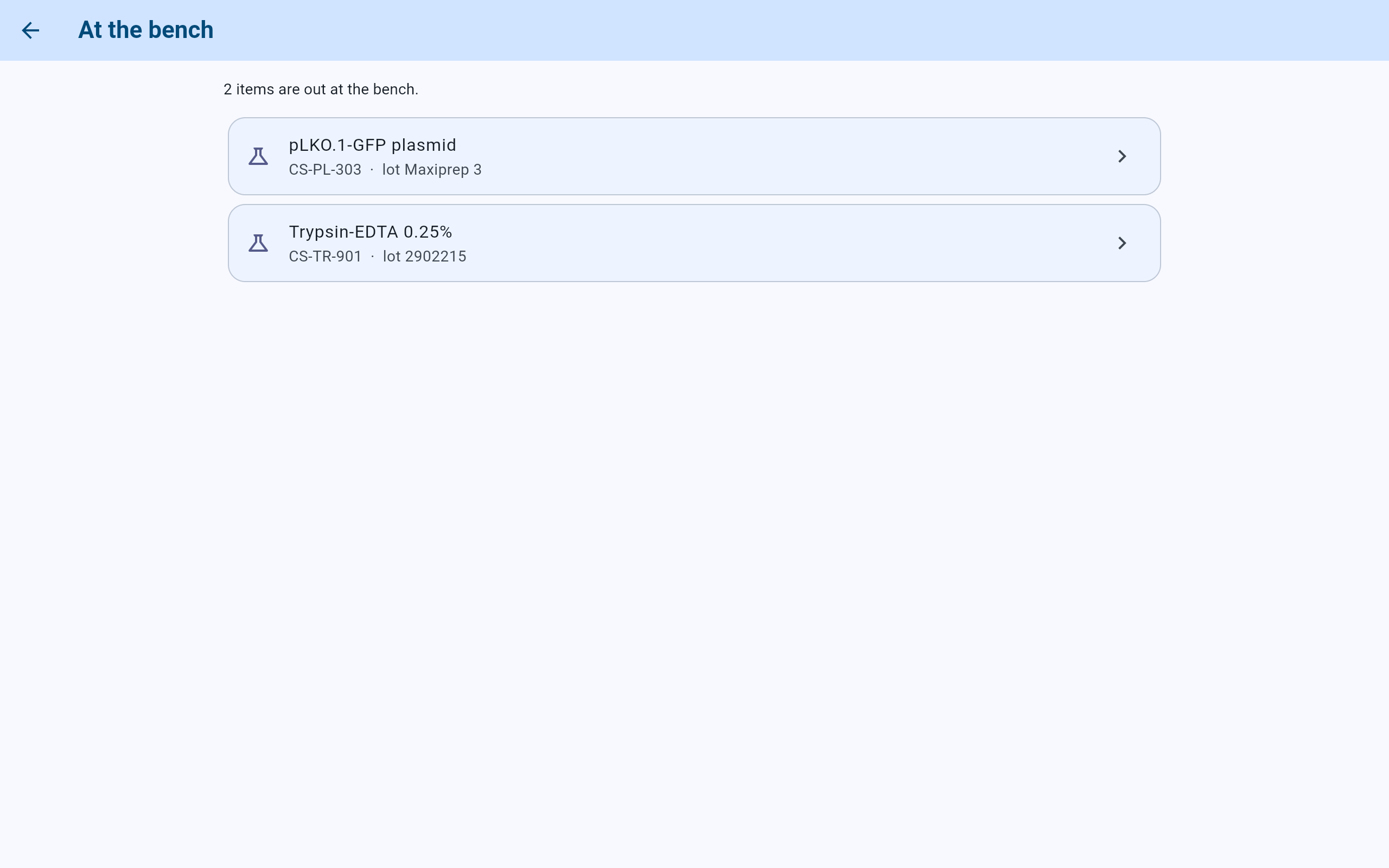
Two items are at the bench in this lab.
- How many items are out.
- Choose an item to open its screen and return it.
Return
Return the item from its own screen.
- Open the item from At the bench, from a search, or from the visit’s list. It shows Out at the bench, its Reserved return location, and how long it has been out, such as “Taken out 2 days ago.”
- Select the main action. It names where the item goes back: Return to Plasmid preps · A3 for a box and position, the box or shelf alone where no position is kept (such as Return to Shelf 2), or Return to storage where no place is recorded.
- Read where it goes, such as “It goes back to -80 Upright A / Shelf 2 / Plasmid preps. Item position inside Plasmid preps: A3.”
- If the item’s freeze-thaw tracking is on and it is kept in a freezer, answer Thaw status while it was out: Yes, it thawed, No, it stayed frozen or Unknown. Nothing is chosen for you, and the return cannot be recorded until one is.
- Under Recorded by, choose who is returning it, add an optional note, and select Return to storage.
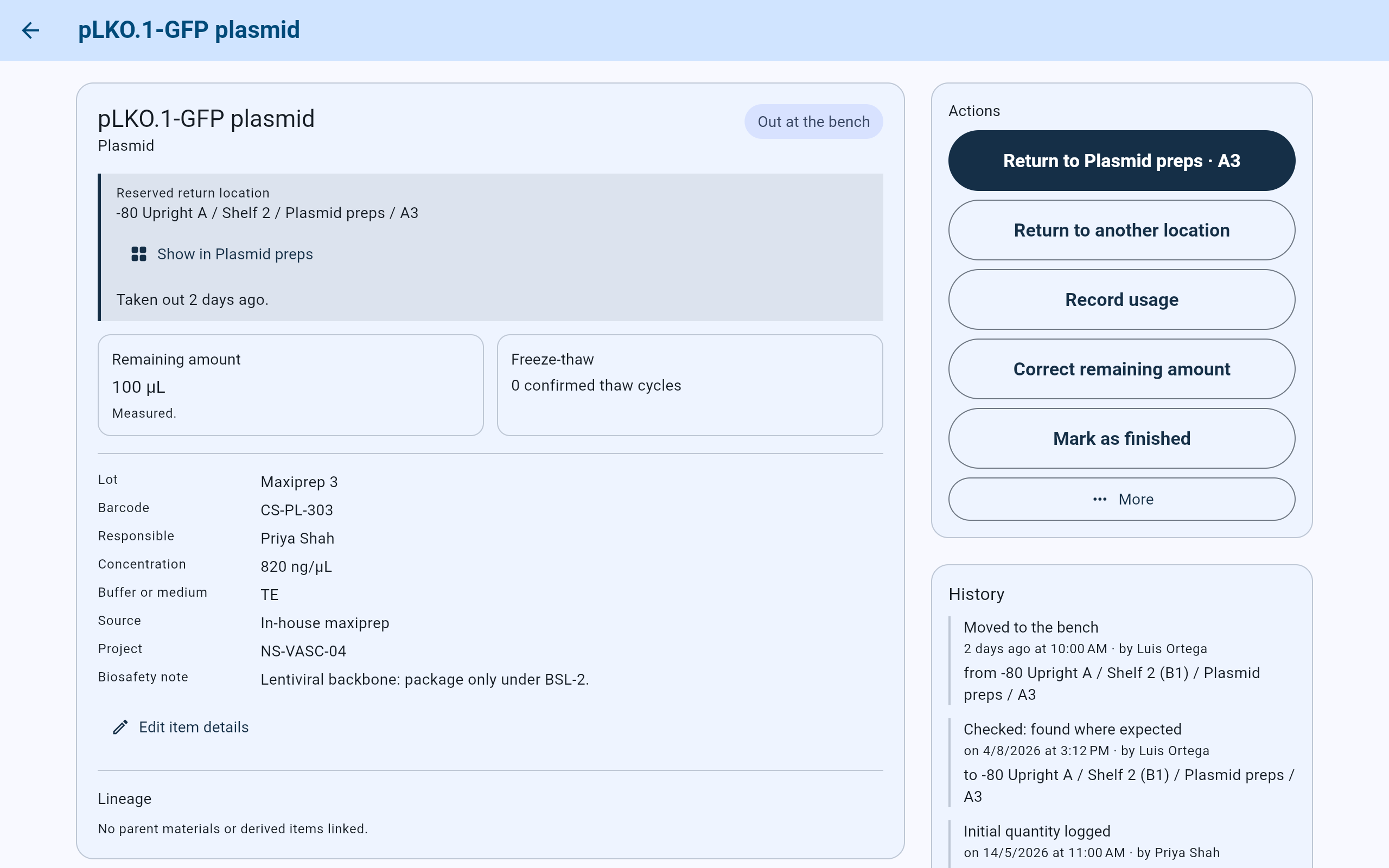
CS-PL-303 has been at the bench for two days. Its position, A3, is kept for it.
- Out at the bench.
- The Reserved return location: the place kept for it, not where it is now.
- How long it has been out.
- The main action names the box and position it goes back to.
- Return to another location puts it back somewhere else.
- More holds Change reserved position, Mark missing and the thaw entries.
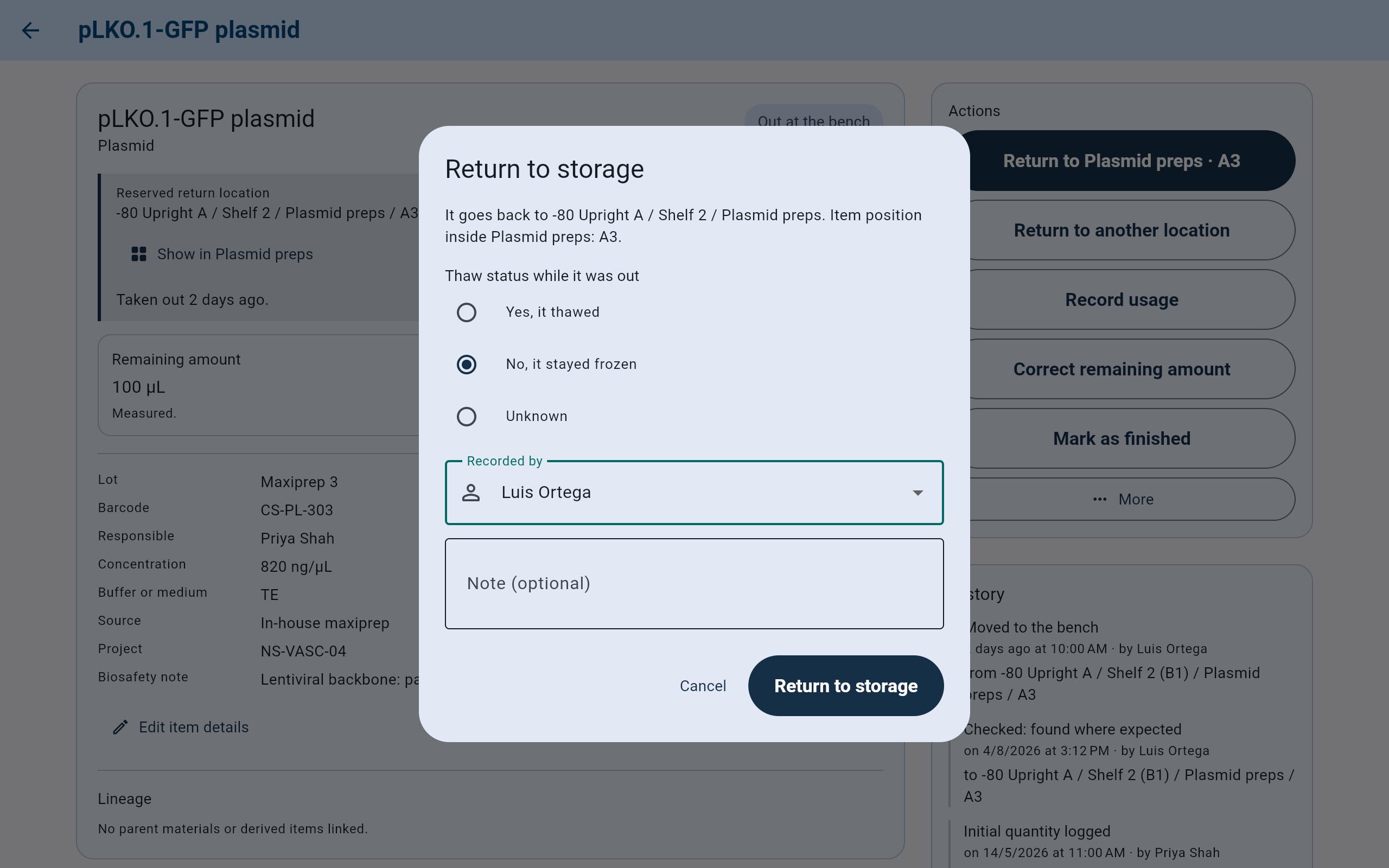
The thaw question is asked because this plasmid’s freeze-thaw tracking is on and it lives in a -80.
- Where it goes back.
- Thaw status while it was out, asked when the return could have thawed it.
- The answer chosen. Yes, it thawed adds a confirmed thaw cycle; Unknown adds an uncertain one.
- Recorded by: who is returning it.
- Return to storage records the return.
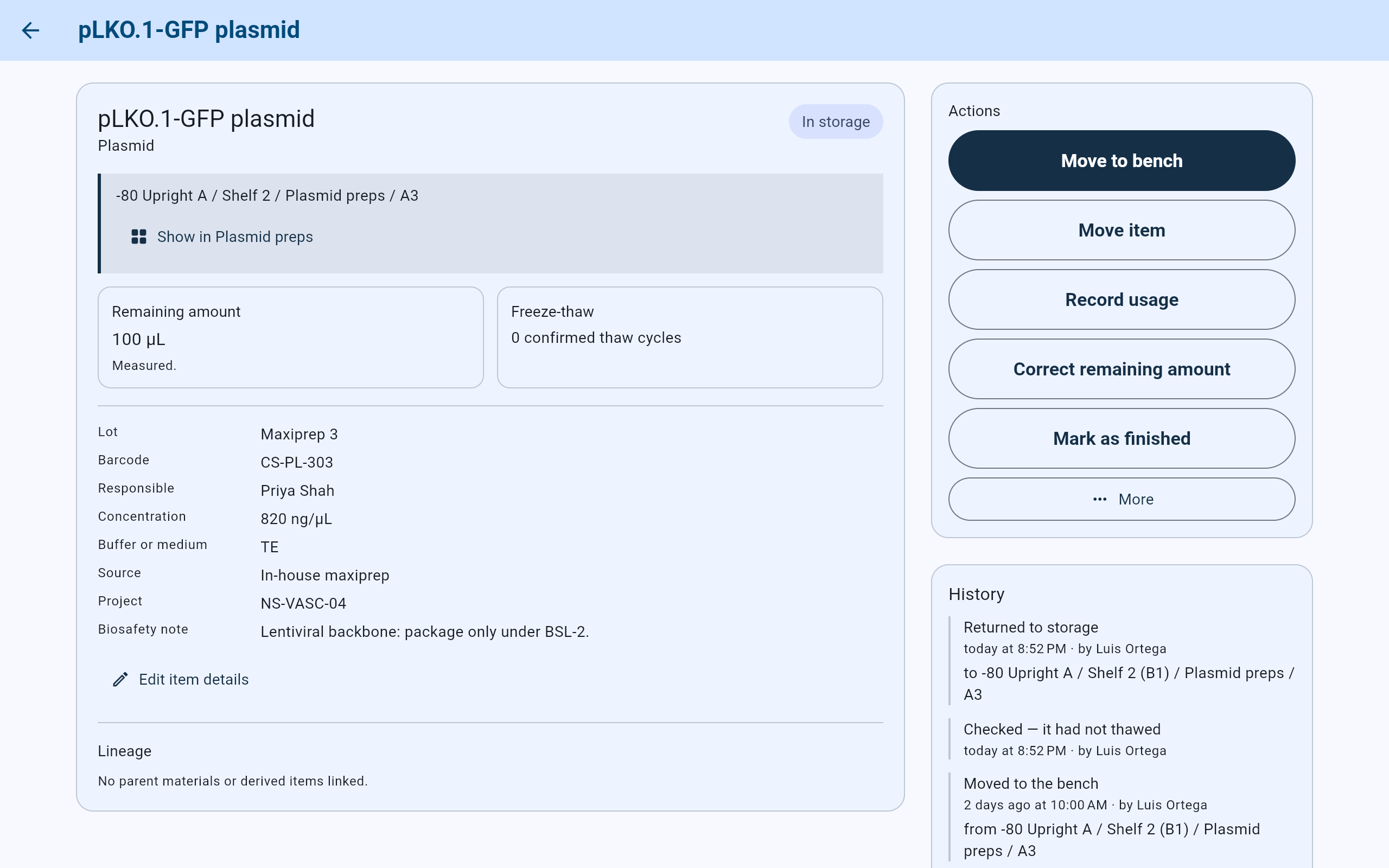
Back in A3. The history records the return and the thaw answer.
- In storage again.
- The main action is Move to bench again.
- “Returned to storage”, with who and where.
- The thaw answer. “No, it stayed frozen” is recorded as “Checked — it had not thawed”.
The trypsin in this lab sits on a refrigerator shelf, so its main action reads Return to Shelf 2 and no thaw question is asked.
Somewhere else
Return it to another place, or change the position kept for it.
- Return to another location opens Choose a new location. After the place is chosen, the dialog says “It goes to …”, asks the same thaw question, and records the return and the move together.
- Under More, Change reserved position keeps the item at the bench but holds a different position for it. The dialog says “It stays at the bench. … is reserved for it instead.”
- Also under More, Mark missing records that the item cannot be found. Its position is released for other items.
Finished items
Look up items that have left the collection.
Finished items, at the top of the Cold Storage dashboard, lists items used up, discarded, removed from the collection or voided: “Most recent first. Open an item to see its full history.” Each row says what happened, when and by whom, and where the item was last known. There is no way to put a finished item back.
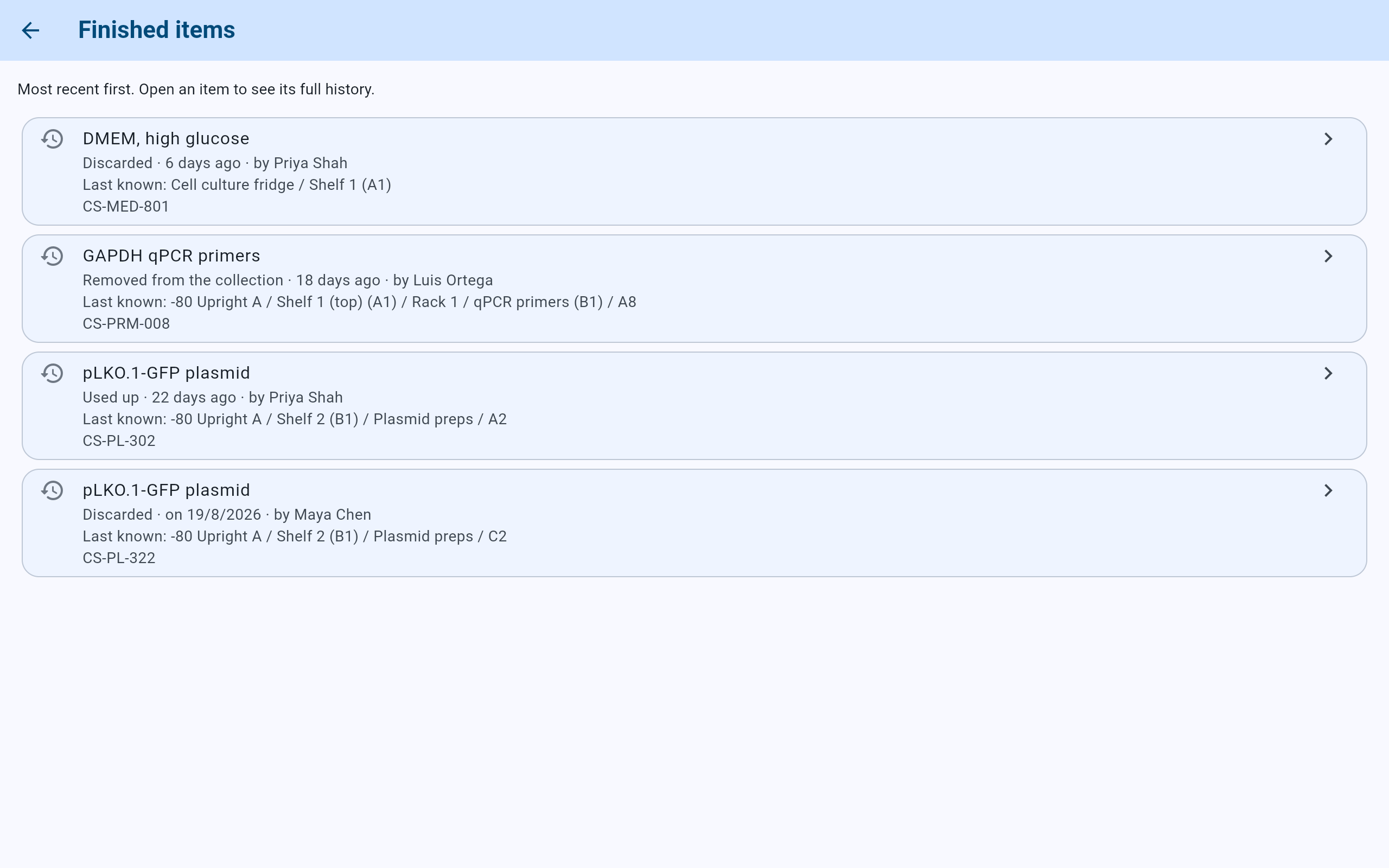
Four finished items, newest first.
- Newest first. Each item opens with its whole history.
- What happened, when, and who recorded it.
- Where the item was when it left.
- Choose a row to open the item.