Read before acting
Activity explains the record; it does not rewrite it.
If an event reveals a mistake, open the vial and use the action that matches reality—move, remove, correct, hold, or audit—rather than trying to edit the timeline itself.
From the dashboard
Open Activity.
The newest event appears first. Date headings separate older groups, and the ending line states how many events match the current filters.
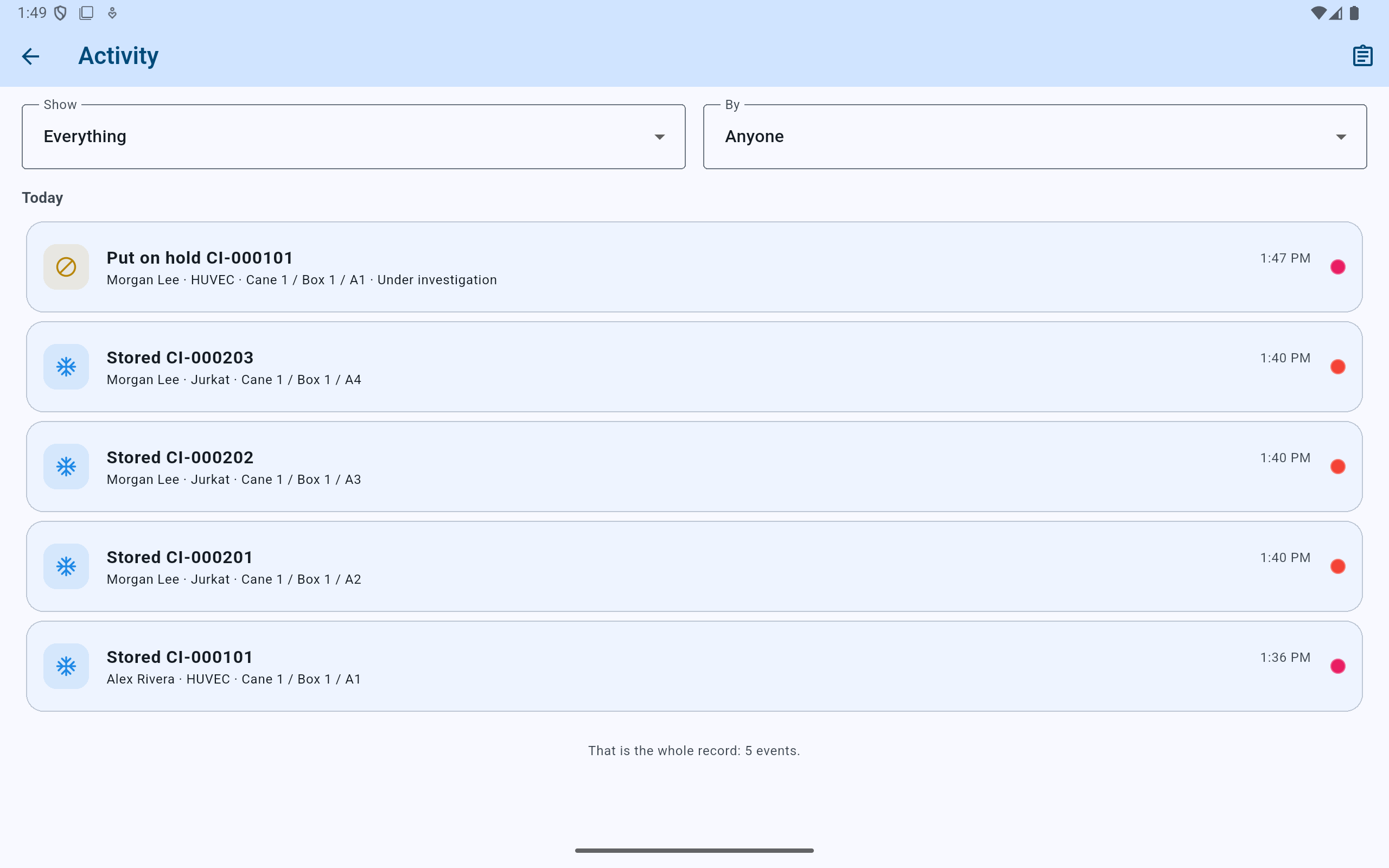
Everything by Anyone shows the complete event timeline currently available on the tablet.
- Use Show and By to narrow the timeline without changing it.
- The newest event appears first under its date heading.
- Each row carries the operator, vial context, address, time, and reason when recorded.
- The ending line confirms the number of matching events.
Read one row
Separate the action from its context.
The leading label describes what was recorded—such as Stored, Removed, Moved, Missing, Put on hold, or Box audited—and the time appears on the same row.
The second line identifies the recorded person, cell type, physical address, and an event reason when one was supplied.
Activity is only as accurate as the actions recorded in CryoIndex. It does not prove that an unrecorded physical action did not occur. Reconcile uncertainty with the physical box and the lab's other records.
Show
Limit the timeline to one kind of event.
Open Show and choose the event that answers the current question. Options include storage, removal and its confirmation states, moves, missing and found events, put-backs, holds, box audits, and struck-record actions.
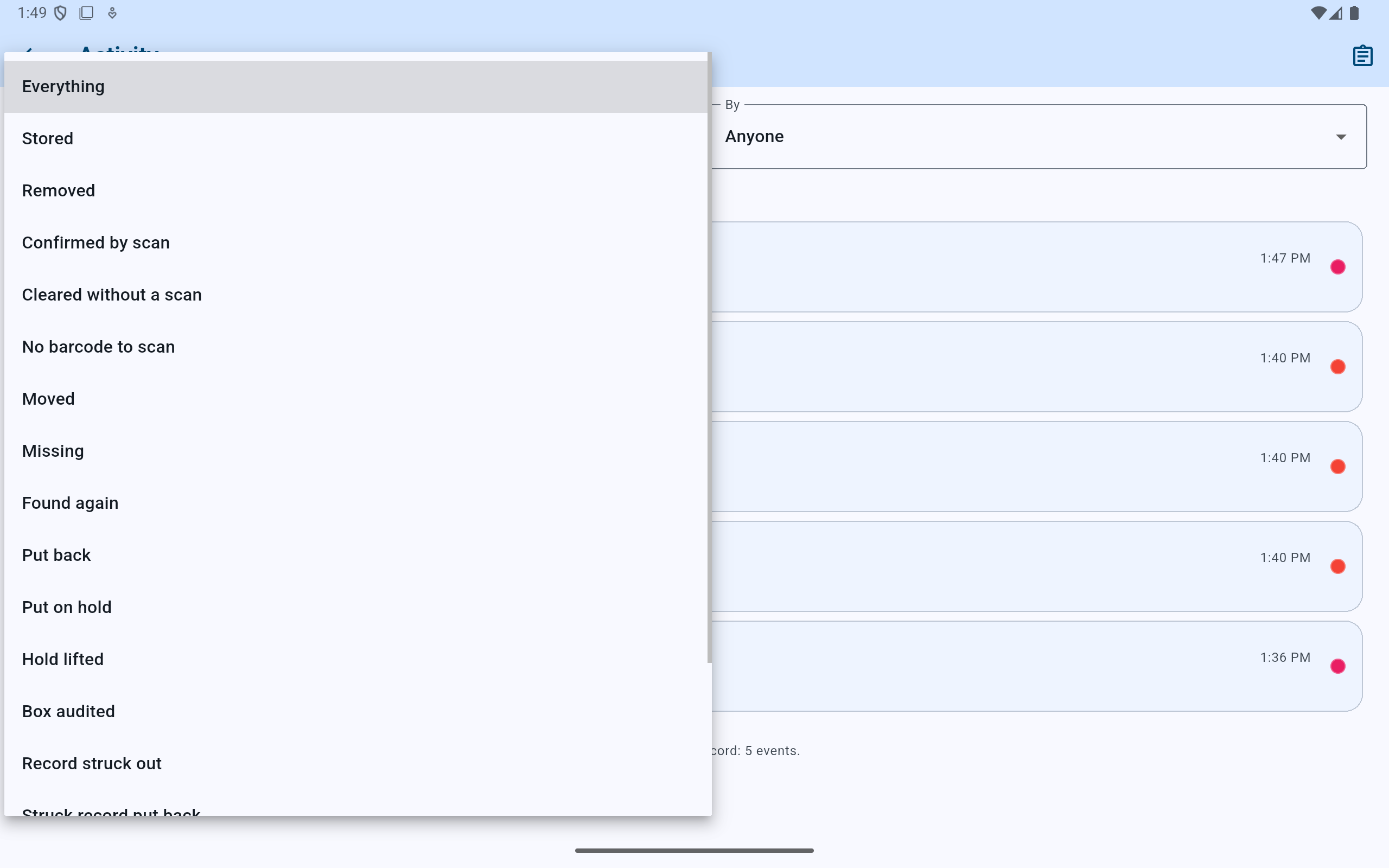
Choose Everything to return to the full timeline. The menu scrolls when more event types exist below the visible list.
- Choose one event type to isolate that workflow.
- Removal confirmation states are distinct from the initial removal.
- Missing, found, hold, audit, and struck-record events remain separately filterable.
By
Limit the timeline to one recorded operator.
Open By and select a person. Event and person filters work together, so Stored by Morgan Lee shows only storage actions attributed to Morgan.
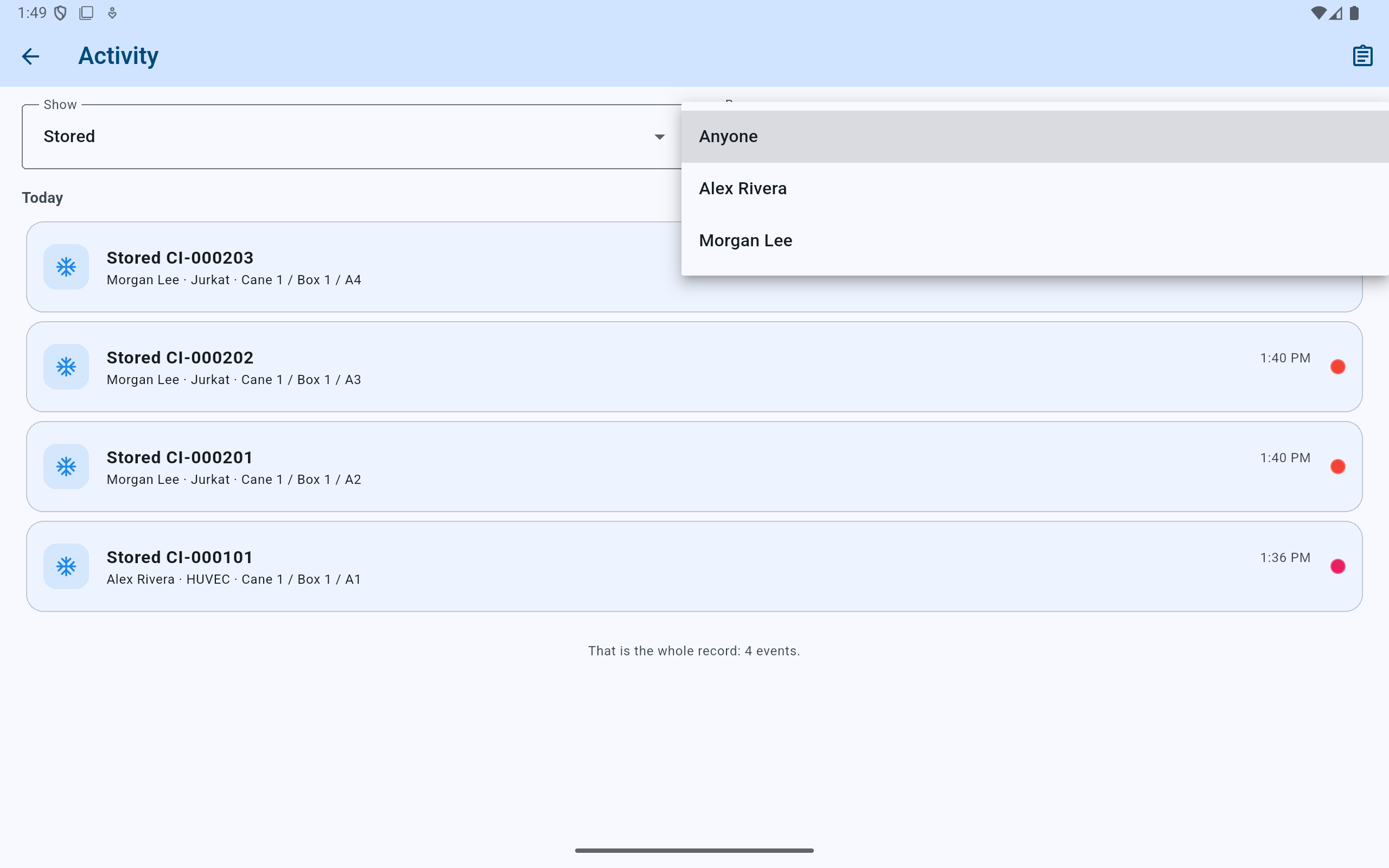
Choose Anyone to remove the person filter while retaining the selected event type.
- The event filter remains Stored.
- Choose the operator whose attributed actions should remain visible.
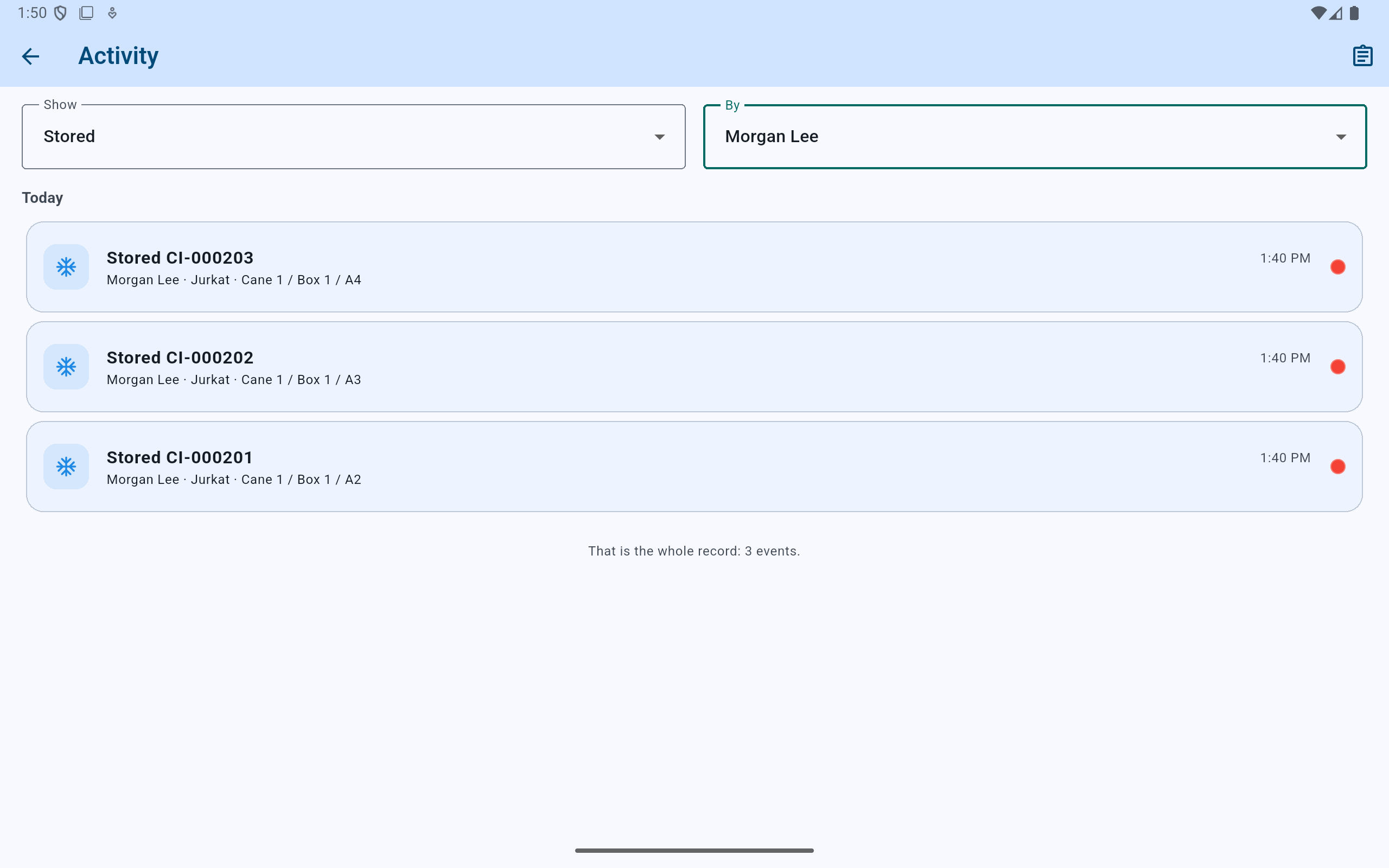
Both active filters are stated at the top, and the ending line confirms that three events match.
- Read both active filters before drawing a conclusion from the shorter list.
- All visible events now match both Stored and Morgan Lee.
- The match count changes with the filters.
Inspect the subject
Select an event to open its vial details.
The detail sheet identifies the vial, current or historical address shown for the event, passage, freeze date, stored attribution, and current Origin. A lineage correction keeps its former parent and the attributed reason in the amendment history. Choose Trace lineage when the question extends to the vial's ancestors, related vials from the same parent, or descendants.
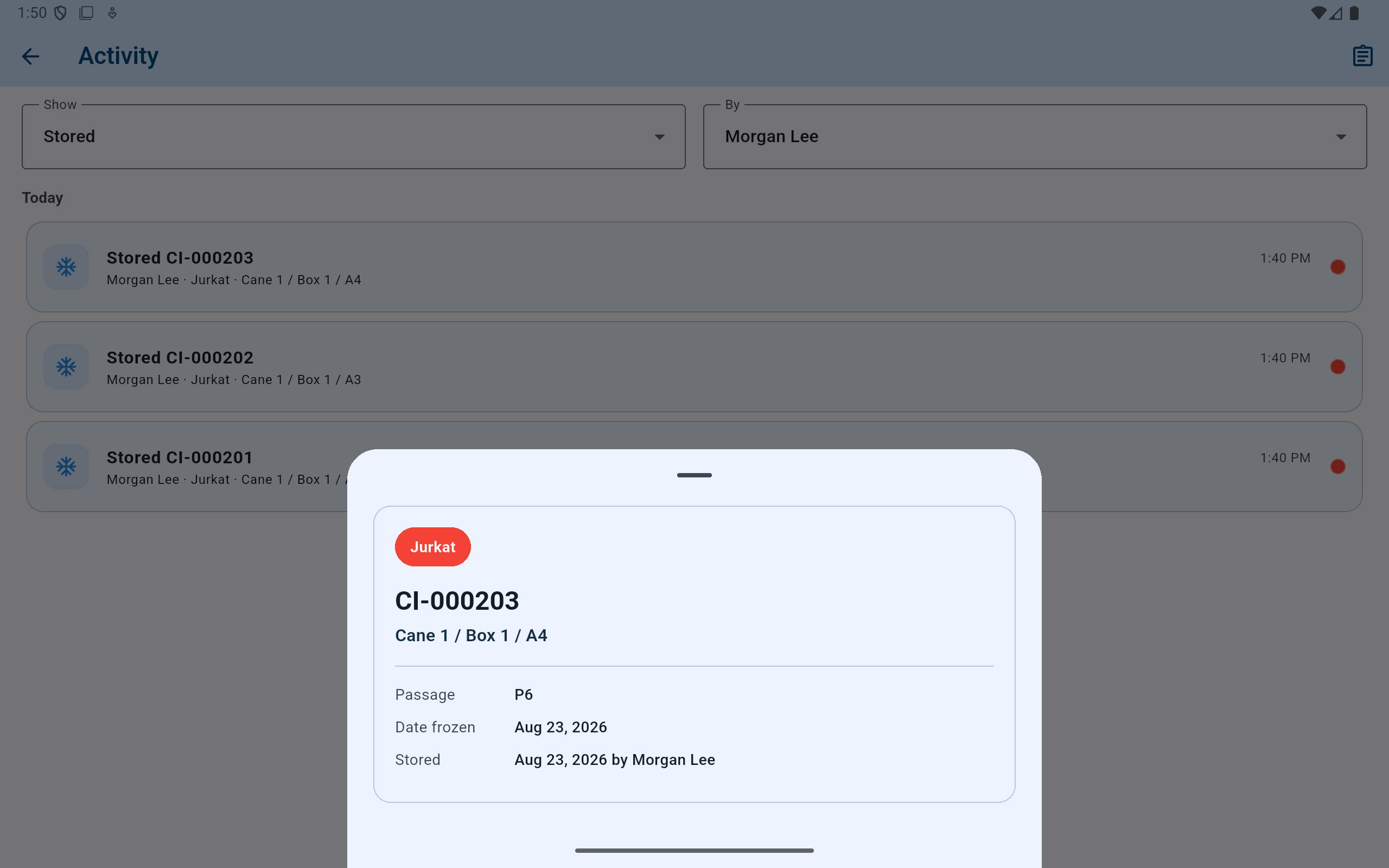
Opening an activity row is a read-only inspection step; it does not repeat or reverse the event.
- Verify the barcode and full address attached to the event.
- Review passage, freeze date, and who stored it.